Summary
The Remove Background feature automatically identifies and extracts the main subject of an image. It supports multiple types, including text, portraits, graphics, and products, allowing you to quickly remove the background.
Feature Description
| Feature Dimension | Description |
|---|---|
| Membership Restriction | Member-exclusive feature |
| Version Restriction | No version restriction |
Steps
Batch Remove Background
Premium feature. Please check the membership indicator before use.
Feature Entry
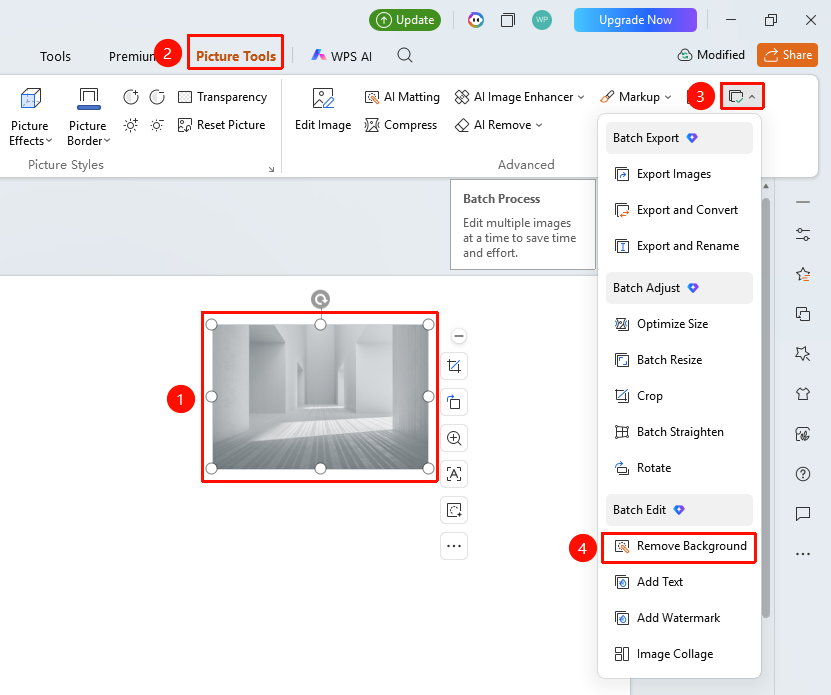
"Picture Tools" tab → "Batch Processing" → "Remove Background"
- Select the image(s) you want to process (multiple selections allowed).
- Click the "Picture Tools" tab at the top.
- Locate and click the "Batch Processing" button.
- Select "Remove Background".
- The Remove Background page will open.
Configure Remove Background Settings
Feature Entry
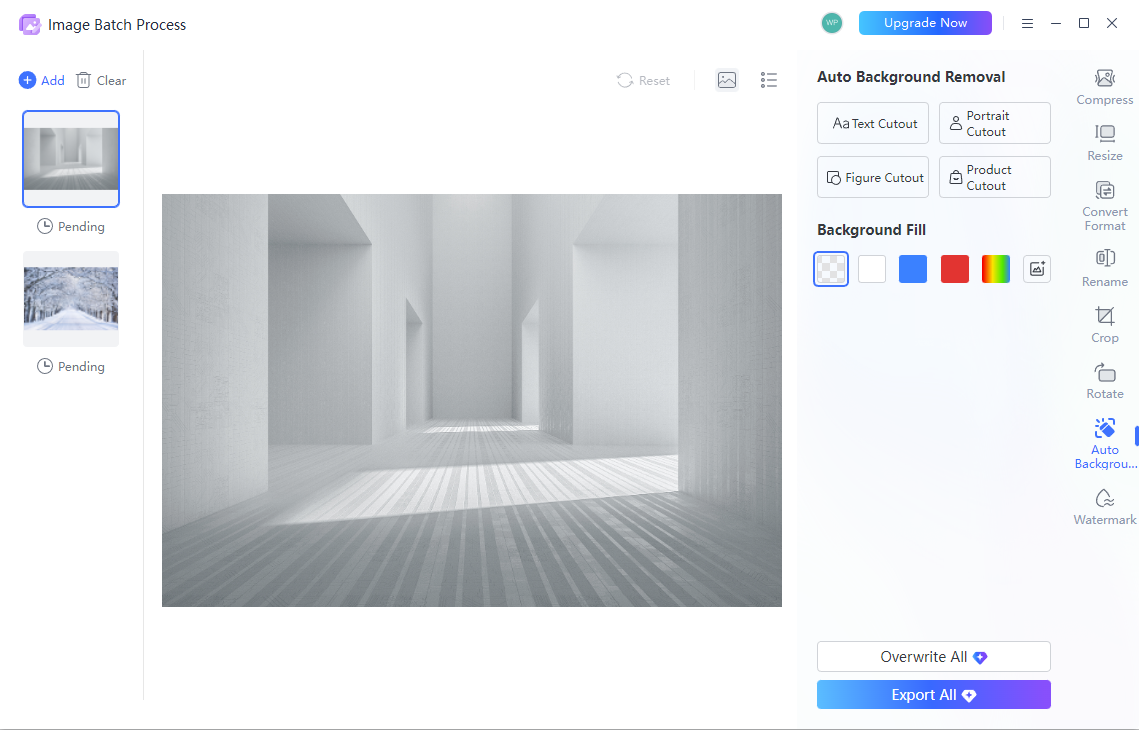
Remove Background page → Settings panel on the right
- Select the removal type on the right side of the page.
- "Remove Text": Identifies and extracts text from the image.
- "Remove Portrait": Identifies and extracts people from the image.
- "Remove Graphic": Identifies and extracts graphics from the image.
- "Remove Product": Identifies and extracts products from the image.
- Set the background fill.
- "Transparent": Removes the background and keeps it transparent.
- "White/Blue/Red": Fills with a solid color background.
- "Rainbow": Fills with a rainbow gradient background.
- "Custom Image": Upload a custom background image.
- Click "Export All" to complete batch background removal and export.
- Click "Replace All" to complete batch background removal and replace the original images.
FAQ
Q1: Can I change the background after removing it?
- Solution: Yes, you can select Transparent, a solid color, or a custom image as the new background in the background fill settings.
Q2: What if the background removal result is not good?
- Solution: Ensure there is high contrast between the image subject and the background for better results. Complex backgrounds may require manual adjustment.
Notes
- The background removal effect depends on the contrast between the image subject and the background.
- It is recommended to use images with a clear subject and a simple background.