Feature Summary
The Image Color feature is used to adjust the color effects of images. You can recolor images, apply preset color filters, or use the eyedropper to pick a custom color.
Feature Description
| Feature Dimension | Description |
|---|---|
| Membership Restriction | No membership restriction |
| Version Restriction | No version restriction |
Steps
Apply Preset Color Effects
Feature Entry
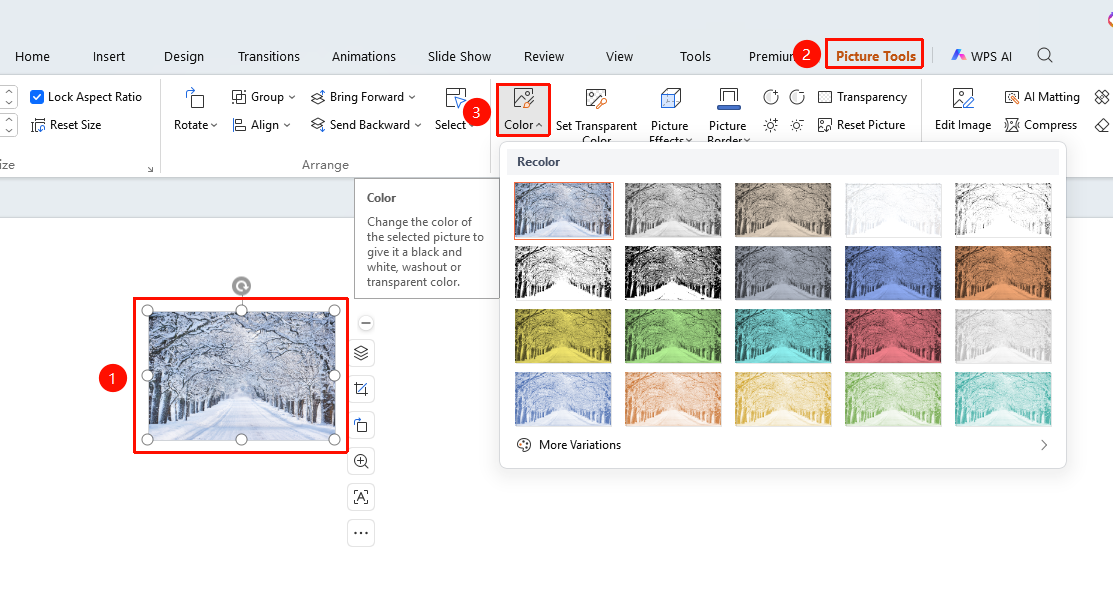
"Picture Tools" tab → "Color" button
- Select the image you want to adjust the color of
- Click the "Picture Tools" tab
- Click the "Color" button
- In the "Recolor" area, select a preset color effect
- Click the effect to apply it to the image
Custom Color
Feature Entry
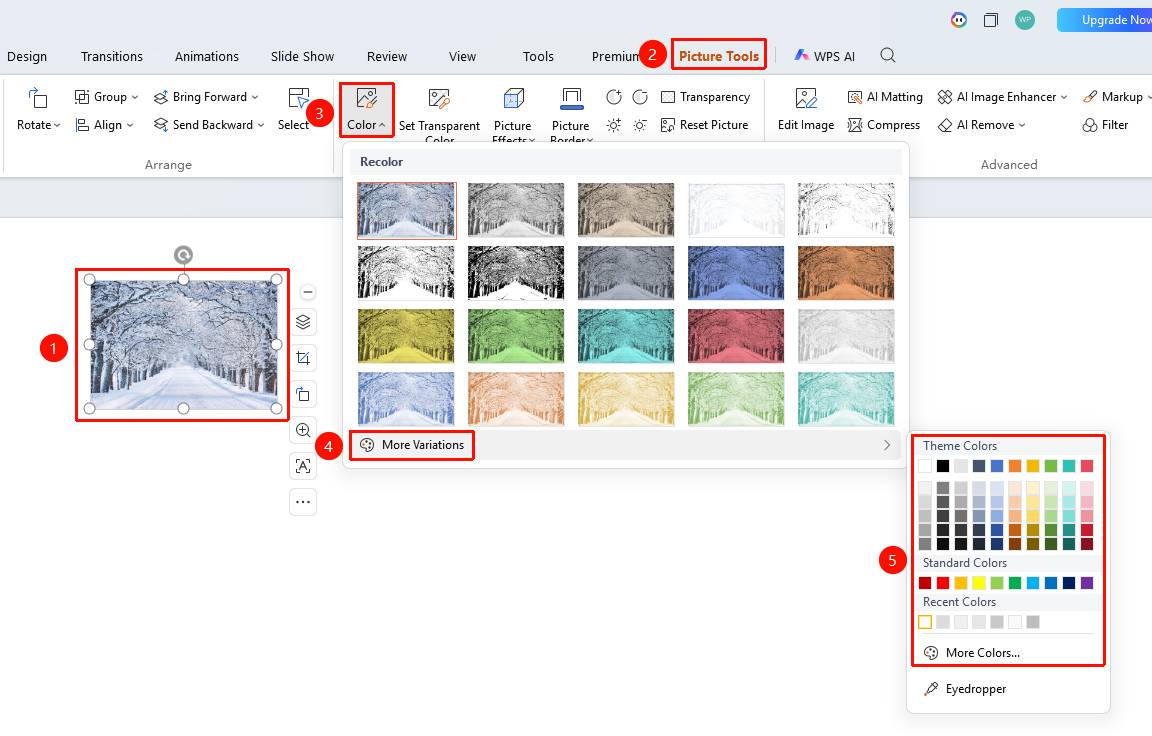
"Color" → "More Colors"
- Click the "Color" button
- Click the "More Colors" option
- Select a color:
- "Theme Colors": Choose a theme color scheme
- "Standard Colors": Choose a basic color
- "Recent Colors": Use a previously used color
- "More Fill Colors": Open the full color palette
- Click a color to apply it
Use the Eyedropper
Feature Entry
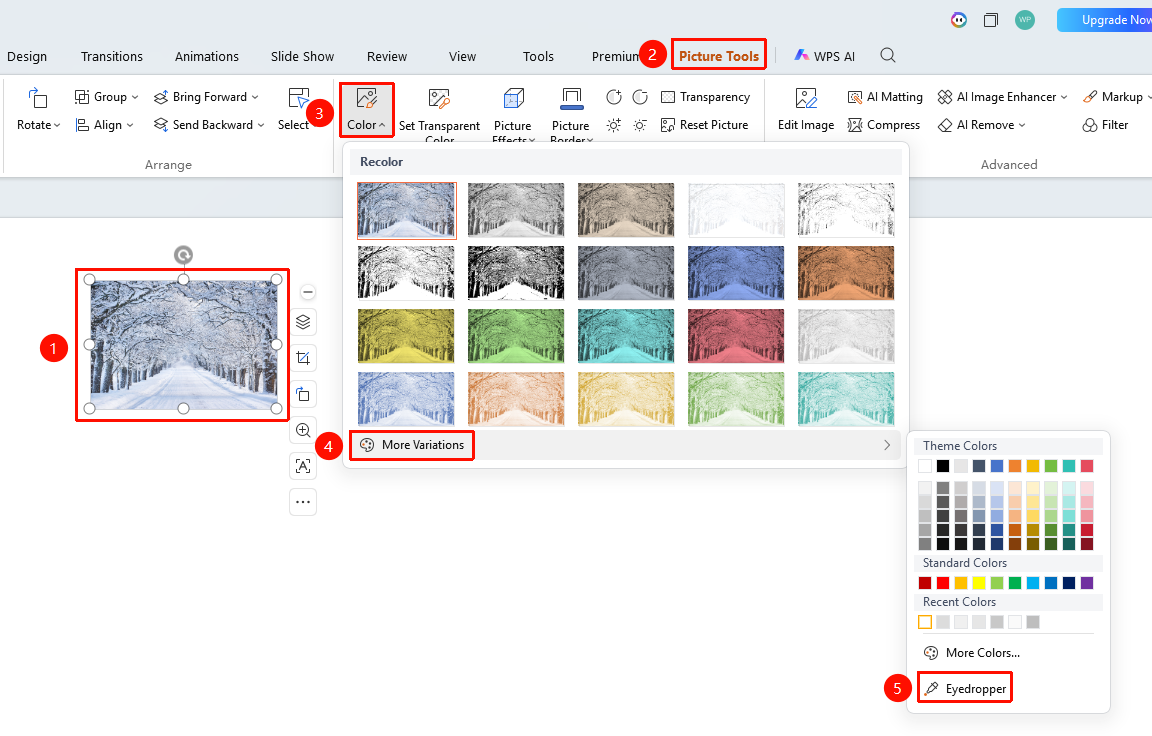
"Color" → "More Colors" → "Eyedropper"
- Click the "Color" button
- Click "More Colors"
- Select the "Eyedropper" option
- The mouse cursor changes to an eyedropper shape
- Click the color you want to pick up on the screen
- The color is applied to the image
FAQ
Q1: What is the difference between recoloring and directly setting a color?
- Solution: Recoloring adjusts the overall hue based on the original image, while directly setting a color applies a solid color fill overlay to the image.
Q2: How to restore the original colors of an image?
- Solution: Click the "Color" button, and select the first "No Recolor" option under "Recolor" to restore.
Q3: Can the eyedropper pick up colors from anywhere on the screen?
- Solution: Yes. The eyedropper can pick up colors from anywhere on the screen, including colors in other application windows.
Notes
- Preset color effects will change the overall hue of the image
- The color picked up by the eyedropper will be applied to the currently selected image
- You can adjust multiple times until you are satisfied