Feature Summary
The image cropping feature is used to remove unwanted parts of an image, keeping only the area you want to display. It can change the shape and proportions of an image, allowing it to better fit the layout and content needs of your slides.
Feature Description
| Feature Dimension | Description |
|---|---|
| Membership Restrictions | No membership restrictions |
| Version Restrictions | No version restrictions |
Operation Steps
Freeform Image Cropping
Feature Entry
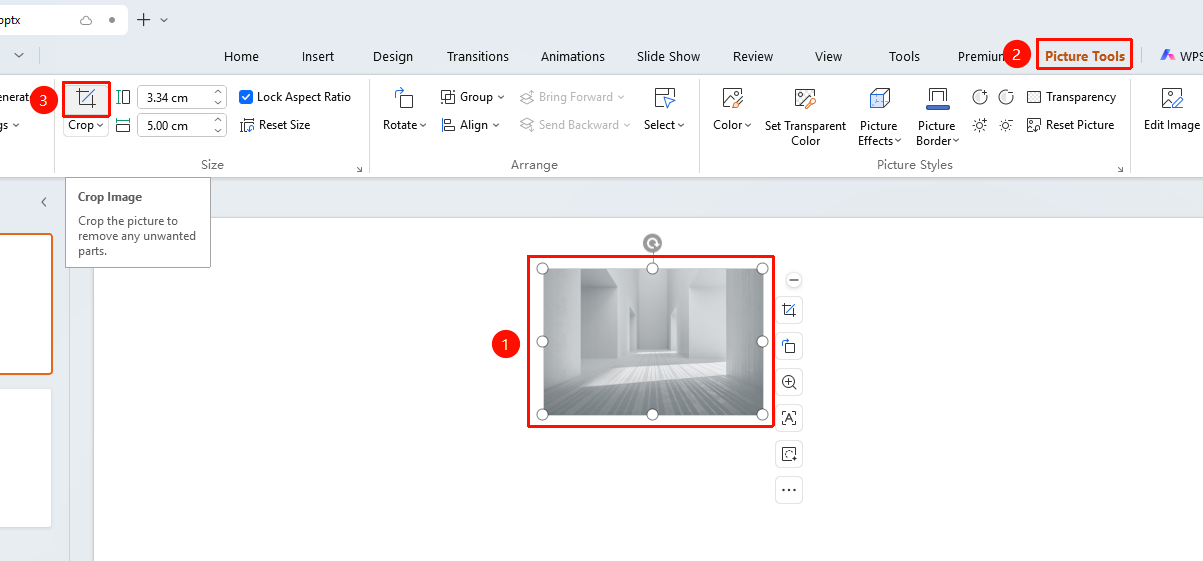
"Picture Tools" tab → "Crop" button
- Select the image you want to crop
- Click the "Picture Tools" tab
- Click the "Crop" button
- Crop handles appear around the edges of the image
- Drag the handles to adjust the crop area
- Click outside the image or press the Enter key to confirm the crop
Crop Image by Aspect Ratio / Shape
Feature Entry
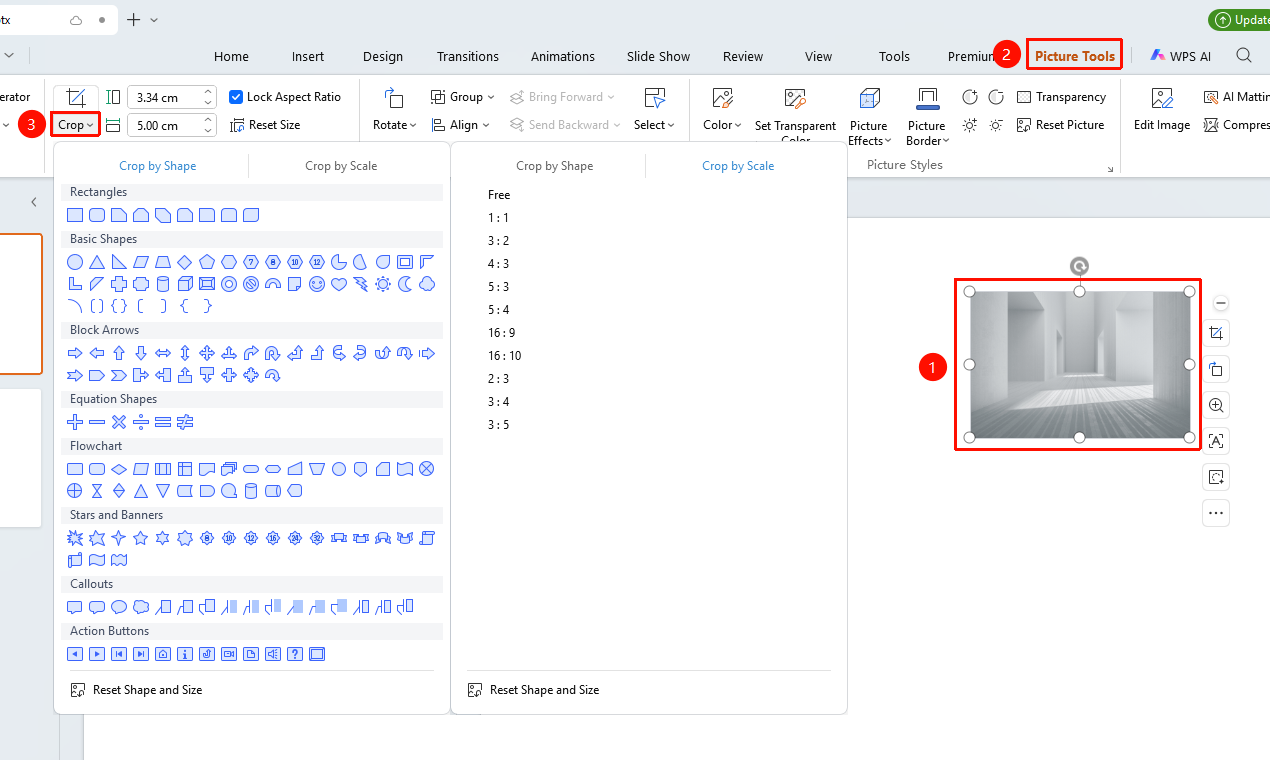
"Picture Tools" tab → "Crop" → "Crop" → "Crop by Aspect Ratio" / "Crop to Shape"
- Select the image and click the "Picture Tools" tab
- Click the dropdown arrow next to the "Crop" button
- In the expanded menu, click the arrow to the right of "Crop"
- Select "Crop by Aspect Ratio" to choose a preset ratio
- Or select "Crop to Shape" to choose a target shape
- Adjust the crop area and confirm
Crop Image via Right-Click Menu
Feature Entry
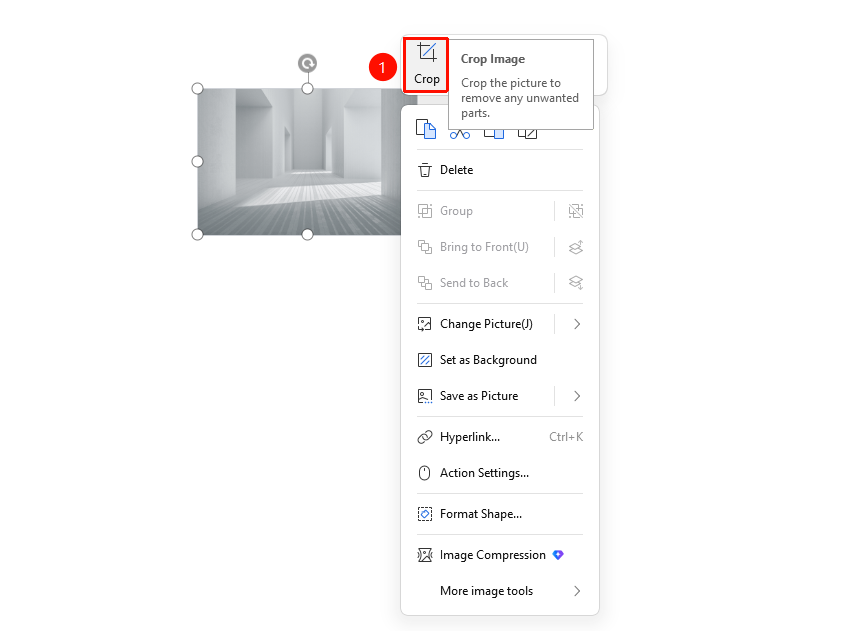
Select image → "Right-click" menu → "Crop"
- Select the image you want to crop
- Right-click on the image
- Select "Crop" from the context menu
- Drag the crop handles to adjust the area
- Click outside to confirm
Crop Image via Floating Toolbar
Feature Entry
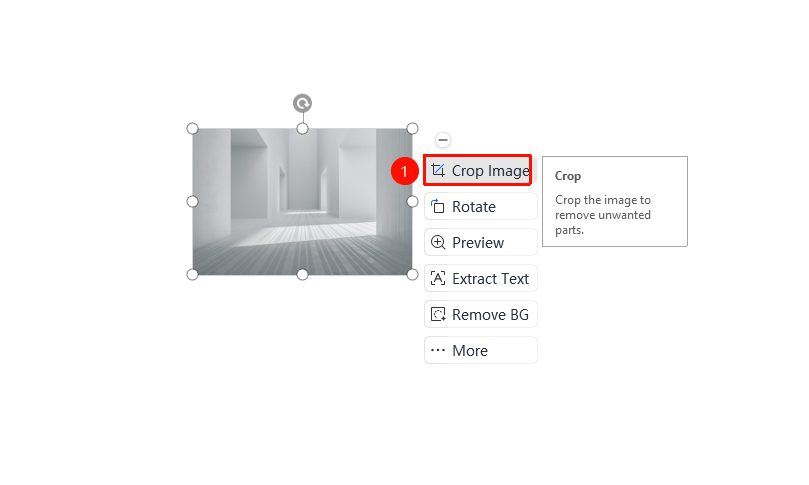
Select image → Floating toolbar → "Crop"
- Select the image you want to crop
- Select "Crop" from the floating toolbar
- Drag the crop handles to adjust the area
- Click "Reset Shape and Size" to restore the image to its original form
- Click outside to confirm
Precisely Set Crop Position
Feature Entry ①
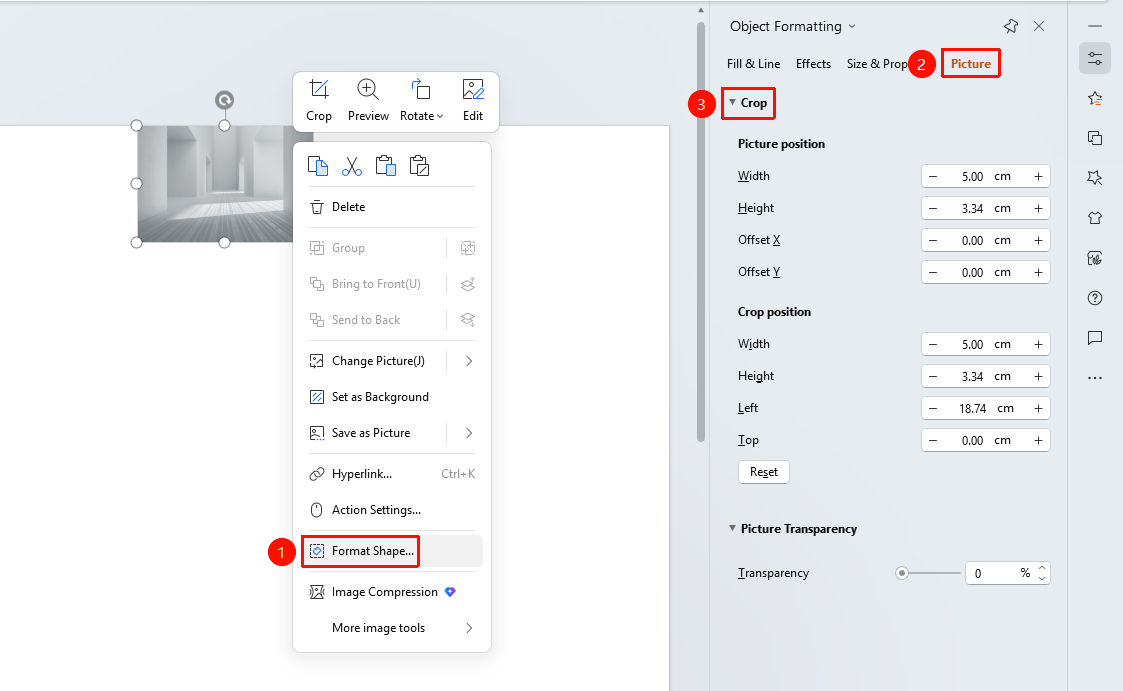
Image right-click menu → "Format Object"
- Select the image and right-click
- Select "Format Object"
- In the "Object Properties" panel on the right, click the "Picture" tab
- Expand "Crop" for precise settings:
- "Picture Position": Set Width, Height, Offset X, Offset Y
- "Crop Position": Set Width, Height, Left, Top
- "Reset": Restore the original crop state
Feature Entry ②
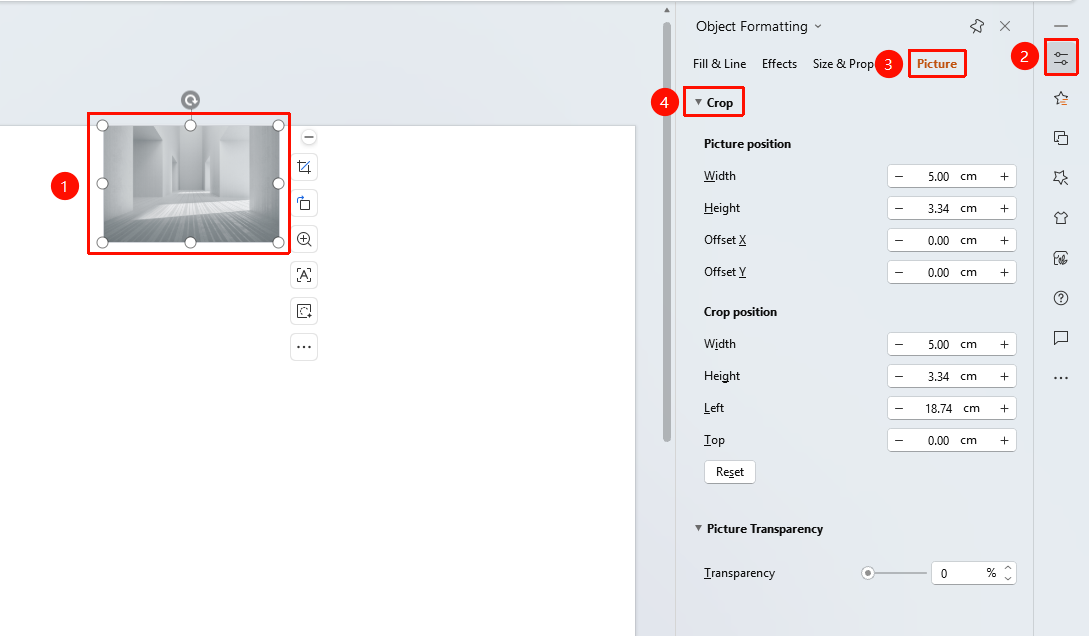
Task Pane → "Properties" button
- Select the image
- Click the "Properties" button in the task pane on the right
- Click the "Picture" tab
- Expand "Crop" for precise settings
Frequently Asked Questions
Q1: Can a cropped image be restored to its original state?
- Solution: Yes. Use Ctrl+Z to undo the crop operation, or re-enter the crop interface and click "Reset Shape and Size".
Q2: What is the use of cropping to a shape?- Solution: Cropping to a shape allows you to crop an image into special shapes such as circles, hearts, and stars, making it ideal for creating creative image effects and making image displays more vivid and interesting.
Question 3: How to precisely set the size of the cropping area
- Solution: Click the Crop button in the Picture Tools tab, then enter precise values in the size input boxes of the cropping area to set the dimensions of the cropped image.
Notes
- Cropping only hides part of the image area and does not delete the original image data
- The cropped image can still undergo other editing operations such as scaling and rotation
- It is recommended to determine the area to be retained before cropping
- The "Reset Picture" option in "Picture Tools" can revert the image to its pre-cropped state