Feature Summary
The image alt text feature is used to add alternative text to images, including a title and description, serving as supplementary information in the image properties, primarily to complement image information.
Feature Description
| Feature Dimension | Description |
|---|---|
| Membership Restriction | No membership restriction |
| Version Restriction | No version restriction |
Operation Steps
Adding Image Alt Text
Feature Entry
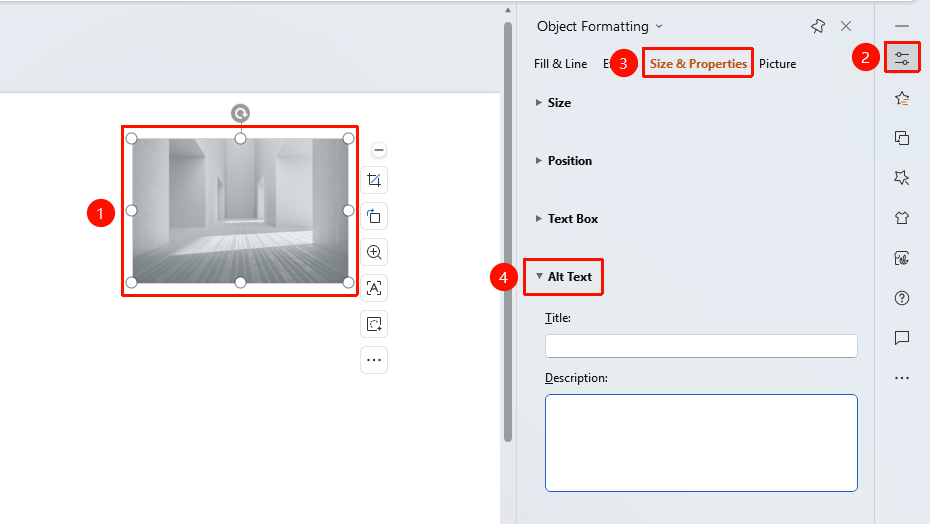
Select image → "Object Properties" sidebar → "Size & Properties" → "Alt Text"
- Select the image to which you want to add alt text
- In the "Task Pane" on the right, click "Object Properties" to expand the sidebar
- Click the "Size & Properties" tab
- Expand the "Alt Text" area
- Enter the "Title": the title text for the image
- Enter the "Description": the detailed description content for the image
FAQ
Q1: Will the alt text be displayed on the image?
- Solution: No, alt text is only saved as property information for the image and will not be displayed on the slide.
Q2: What is the purpose of image alt text?
- Solution: It is mainly used to supplement image information for easier management.
Q3: What is the difference between the title and the description?
- Solution: The title is a short name for the image, while the description provides detailed descriptive content for the image.
Notes
- Alt text will not be displayed on the slide
- It is recommended to add alt text to important images for easier subsequent management and accessibility
- The description content can include longer text descriptions