Feature Summary
The Picture to Smart Graphics feature is used to quickly convert multiple pictures into professional Smart Graphics layouts. It supports a variety of preset styles, can automatically arrange pictures into elegant graphic templates, and supports real-time preview effects and color switching, making picture displays more professional and visually appealing.
Feature Description
| Feature Dimension | Description |
|---|---|
| Membership Restriction | Premium feature |
| Version Restriction | No version restriction |
Steps
Convert Pictures to Smart Graphics
Feature Entry
Floating Toolbar → "Convert to Smart Graphics" button
- Hold down the Ctrl key and select multiple pictures (at least 2) in the slide to bring up the floating toolbar
- Find the "Convert to Smart Graphics" button on the floating toolbar
- Click this button to open the Smart Graphics selection panel
- Browse and select the desired graphic style
- Click the style to apply it to the selected pictures
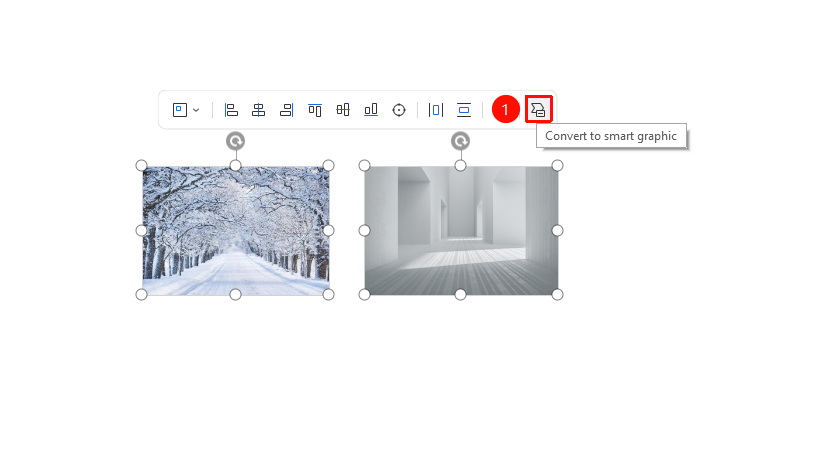
Preview and Select Graphic Styles
Feature Entry
Smart Graphics Selection Panel → Category Tabs
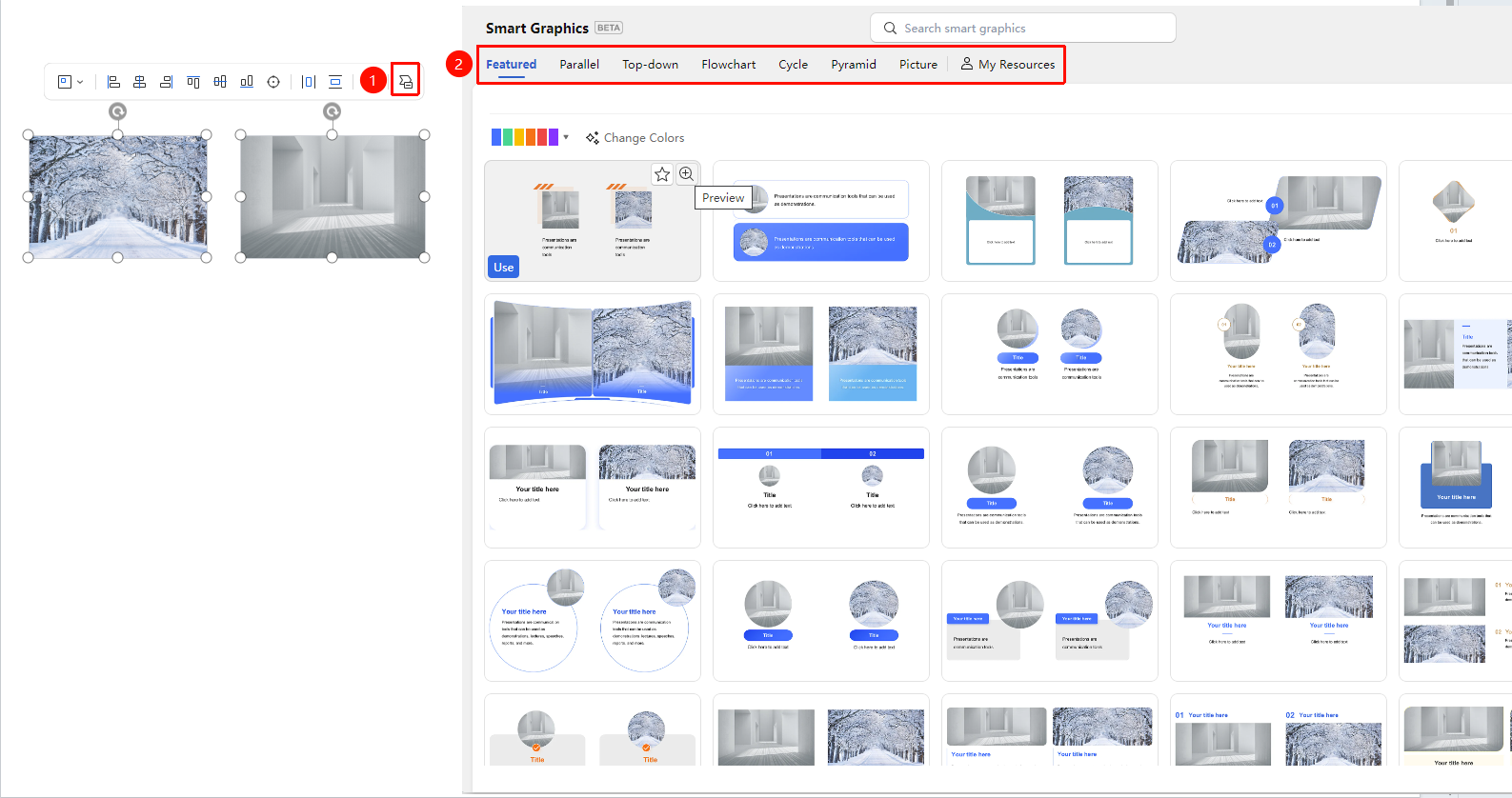
- In the Smart Graphics panel, you can see multiple categories:
- "Featured": Recommended featured styles
- "Side-by-Side": Suitable for displaying pictures with equal, non-hierarchical relationships
- "Overview-and-Detail": Suitable for displaying an overview-with-details structure
- "Process": Suitable for displaying process steps
- "Cycle": Suitable for displaying cyclical relationships
- "Pyramid": Suitable for displaying hierarchical relationships
- "Picture": Display styles primarily focused on pictures
- Hover the mouse over a style and click "Preview" to preview the effect in real time
- Click your preferred style to apply it to the pictures
FAQ
Q1: Can I modify the layout style after conversion?
- Solution: Yes. After re-selecting the pictures, click "Convert to Smart Graphics" again to choose another style and overwrite the current effect.
Q2: Can non-members use the Picture to Smart Graphics feature?
- Solution: This feature is exclusive to Premium members. Non-members must activate a WPS membership to access the full functionality.
Notes
- You need to select 2 or more pictures at the same time to use this feature
- The converted Smart Graphics can be further edited and adjusted
- Choosing the appropriate graphic category can make the picture display more logical