Feature Summary
The Image Height feature is used to precisely set the vertical size of an image. You can adjust the image height independently or proportionally, allowing the image to better fit the slide layout.
Feature Description
| Feature Dimension | Description |
|---|---|
| Membership Restriction | No membership restriction |
| Version Restriction | No version restriction |
Steps
Setting Image Height
Feature Entry
"Picture Format" tab → Size area → "Height" input box
- Select the image whose height you want to adjust
- Click the "Picture Format" tab
- Find the "Height" input box in the Size area
- Enter the desired height value (unit: cm) or use the buttons to fine-tune
- Press Enter to confirm, and the image height adjusts immediately
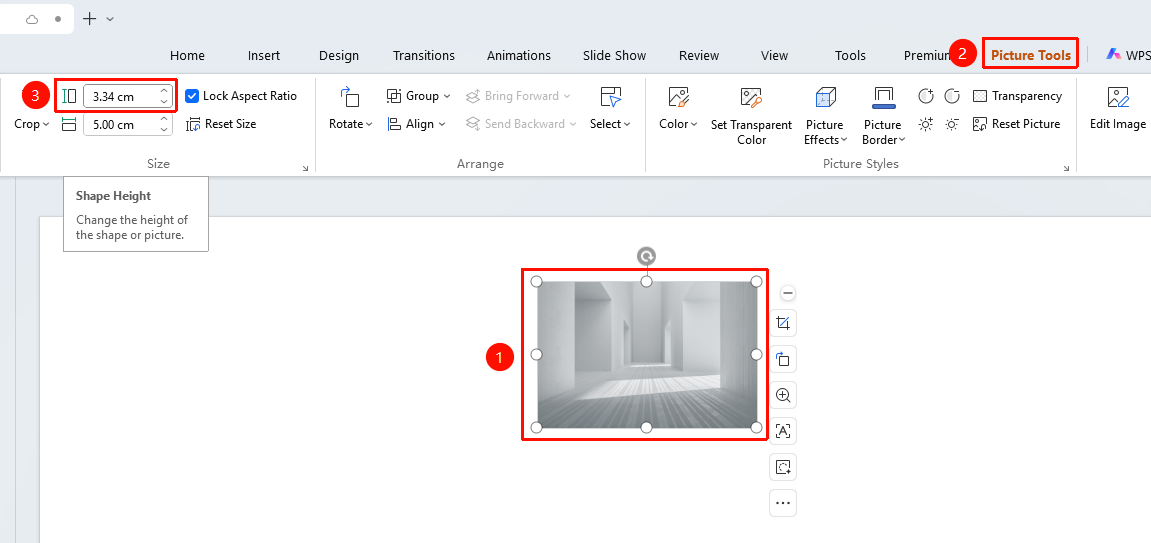
Precisely Setting Image Size
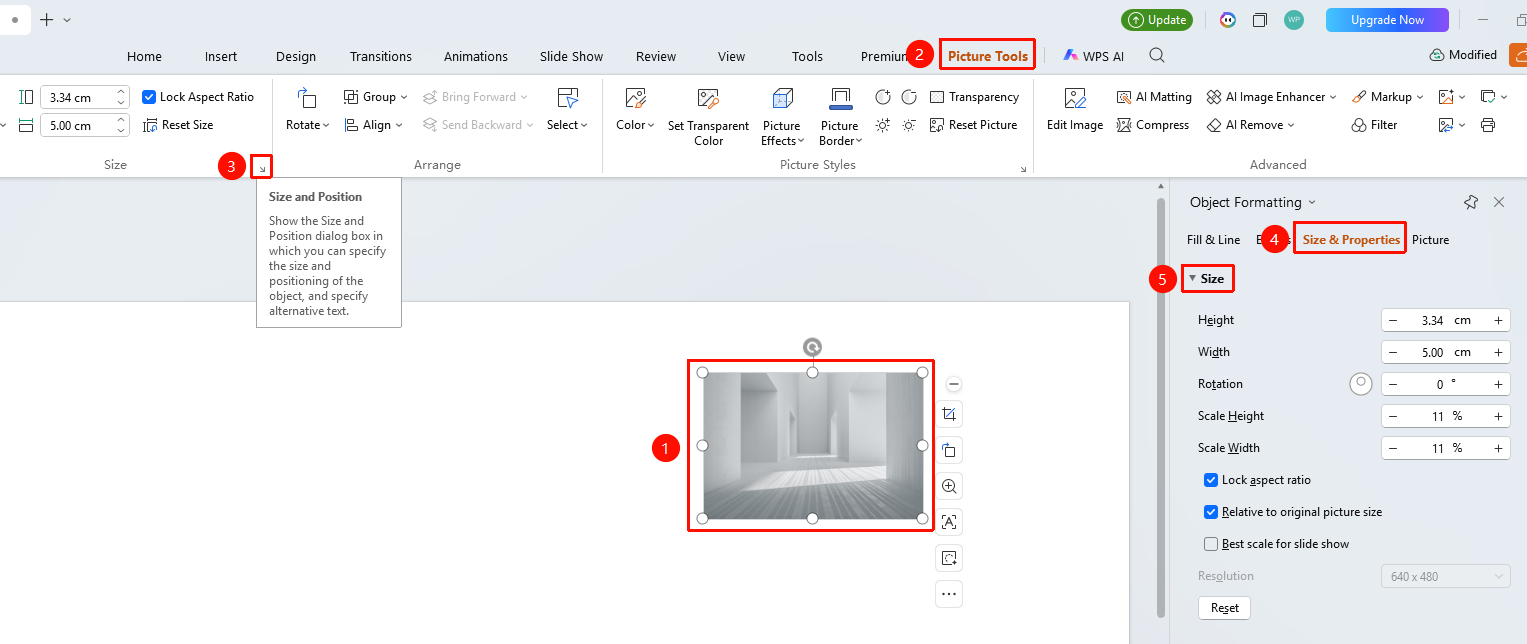
Feature Entry ①
"Picture Format" tab → Expand menu button in the lower-right corner of the Size area → "Size & Position" task pane
- Select the image and click the "Picture Format" tab
- Click the expand menu button in the lower-right corner of the Size area
- Open the "Object Formatting" task pane
- In the "Size & Properties" tab, set:
- "Height": Set the image height
- "Width": Set the image width
- "Scale Height": Scale the height by percentage
- "Scale Width": Scale the width by percentage
- "Lock Aspect Ratio": Maintain the image proportions
- "Relative to Original Picture Size": Use the original size as the baseline
- "Best Scale for Slide Show": Automatically fit the slide
- "Reset": Restore the original size
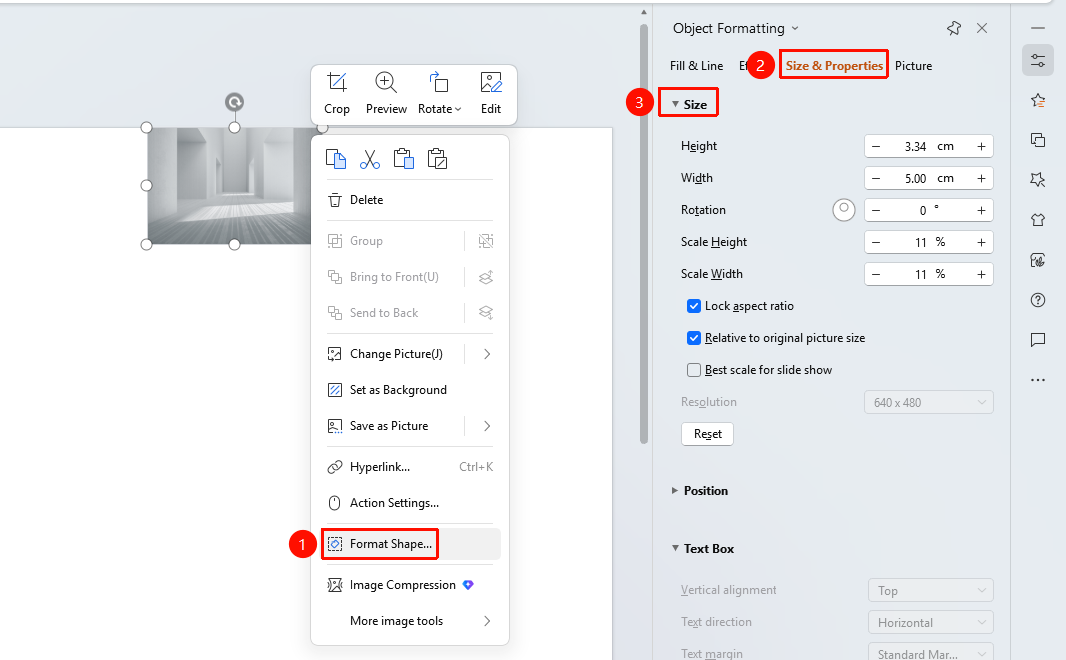
Feature Entry ②
Image right-click menu → "Format Object"
- Select the image and right-click
- Select "Format Object"
- In the "Object" Properties" panel on the right, click the "Size & Properties" tab
- Expand "Size" to configure
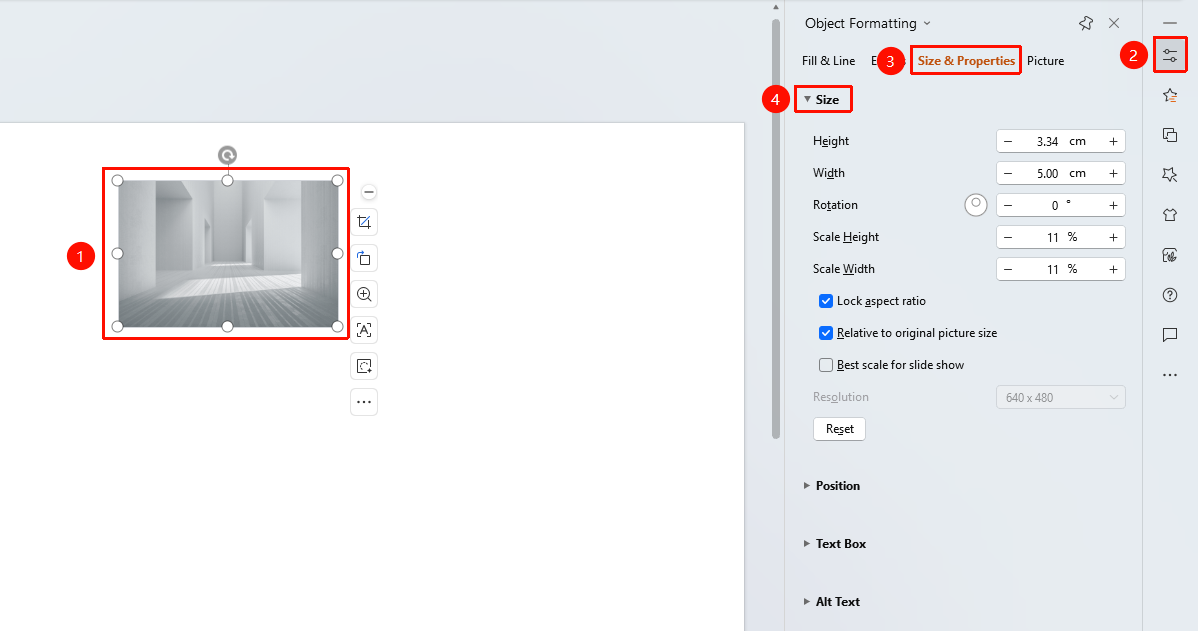
Feature Entry ③
Task pane → "Properties" button
- Select the image
- Click the "Properties" button in the task pane on the right
- Click the "Size & Properties" tab
- Expand "Size" to configure
FAQ
Q1: What should I do if the image becomes distorted after entering the height?
- Solution: Check whether the Lock Aspect Ratio option is selected. When selected, adjusting the height will automatically adjust the width proportionally, keeping the image from distorting.
Q2: How do I restore the image height to its original size?
- Solution: Click the Reset button to restore the image to its original size.
Q3: How do I precisely set an image to a specific height?
- Solution: Enter the exact value directly in the Height input box. Values up to two decimal places are supported.
Notes
- When adjusting image height, it is recommended to lock the aspect ratio to avoid image distortion
- You can quickly adjust the height by dragging the image border with the mouse
- Negative values are invalid; the height must be a positive number