Feature Summary
WPS Slides local mode supports setting chart formats, including style adjustments such as fill, border, and effects.
Feature Description
| Feature Dimension | Description |
|---|---|
| Membership Restriction | No membership restriction |
| Version Restriction | No version restriction |
Operation Steps
Setting Chart Format via the Ribbon
Feature Entry
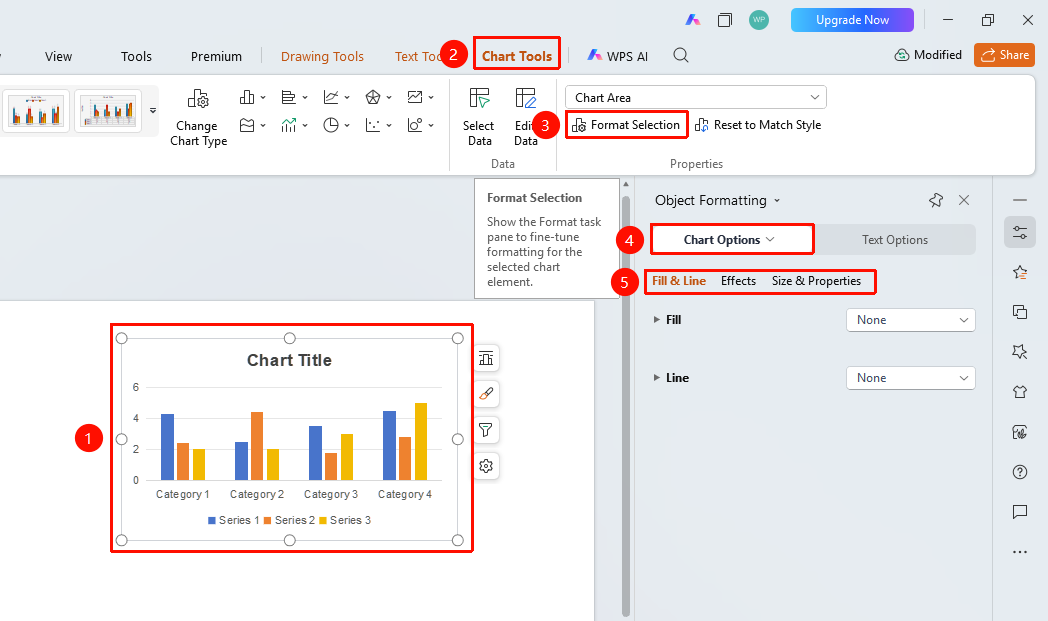
"Chart Tools" tab → Format Selection
- Click to select the chart
- Click the "Chart Tools" tab in the top menu bar
- In the chart area dropdown box on the right, select the area to set (Chart Area, Plot Area, Series, etc.)
- Click the "Format Selection"
- Adjust fill, border, effects, and other formatting in the right-side panel
Setting Format via Right-Click Menu
Feature Entry
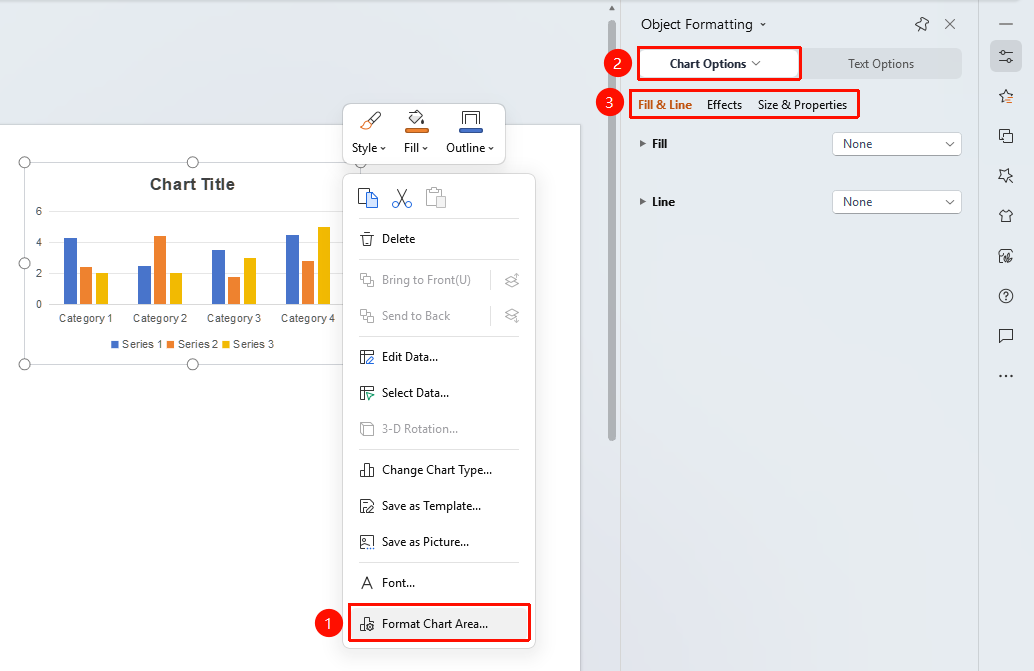
Chart element → Right-click → "Format"
- Right-click the target element in the chart
- Select the "Format" option
- Adjust format settings in the right-side panel
FAQ
Q1: How to reset chart format?
- Solution: Click the "Reset Formatting" button in the Chart Tools tab.
Q2: How to set the fill color of the chart area?
- Solution: After selecting the chart area, choose the fill option in the Format panel to set the color.
Q3: Can different data series be formatted differently?
- Solution: Yes, select a specific series in the chart area dropdown box and set the format individually.
Notes
- Different chart elements can be formatted separately
- Format settings are previewed in real time