Feature Summary
The Clear Table Style feature is used to remove all formatting applied to a table, restoring the table to its default unstyled state for easy reformatting.
Feature Description
| Feature Dimension | Description |
|---|---|
| Membership Restriction | No membership restriction |
| Version Restriction | No version restriction |
Operation Steps
Clear Table Style via the Ribbon
Feature Entry
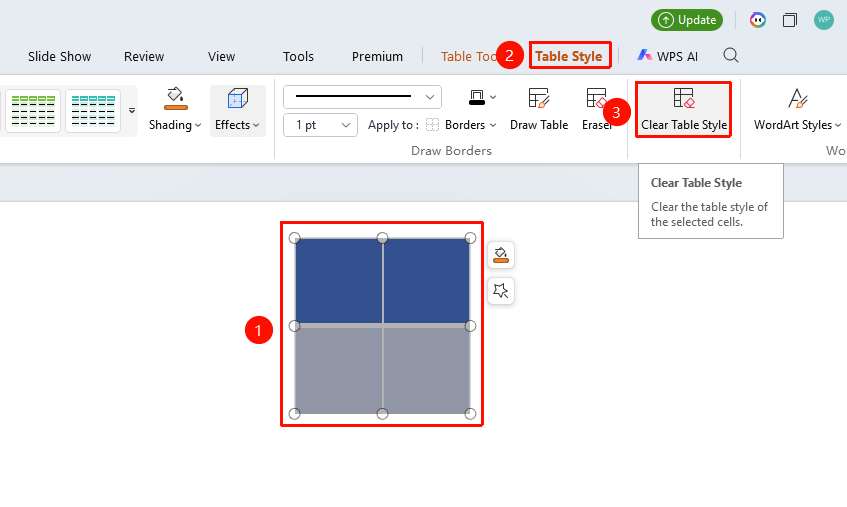
"Table Style" tab → "Clear Table Style"
- Select the table whose style you want to clear
- On the top "Table Style" tab, locate the "Clear Table Style" button
- Click "Clear Table Style"
- The table is restored to the default unstyled state
FAQ
Q1: Will clearing the table style affect the table content?
- Solution: No. Clearing the style only removes formatting settings (such as borders, fill, font, etc.), while the text and data content in the table remain unchanged.
Q2: How can I restore the original table style after clearing it?
- Solution: If you realize you made a mistake immediately after clearing the style, you can use Ctrl+Z to undo. Otherwise, you will need to manually reformat the table.
Q3: Why can't the clear formatting function in the "Home" or "Text Tools" tab clear table formatting?
- Solution: The clear formatting function in the "Home" or "Text Tools" tab is designed to clear font formatting. To clear table styles, you need to use the "Clear Table Style" function under "Table Style".
Notes
- Clearing table styles is an irreversible operation. It is recommended to back up important formatting settings before clearing.
- After clearing the style, the table will revert to the default black-and-white border style.
- If you only want to change the style, it is recommended to directly select a new style to overwrite, rather than clearing first and then setting.