Feature Summary
The table fill feature is used to set the background color and fill effects of table cells. It supports various fill methods such as solid color, gradient, and picture, making the visual effect of tables richer and highlighting important data and information.
Feature Description
| Feature Dimension | Description |
|---|---|
| Membership Restriction | Some features require a membership subscription |
| Version Restriction | No version restriction |
Operation Steps
Setting Table Fill via the Ribbon
Feature Entry
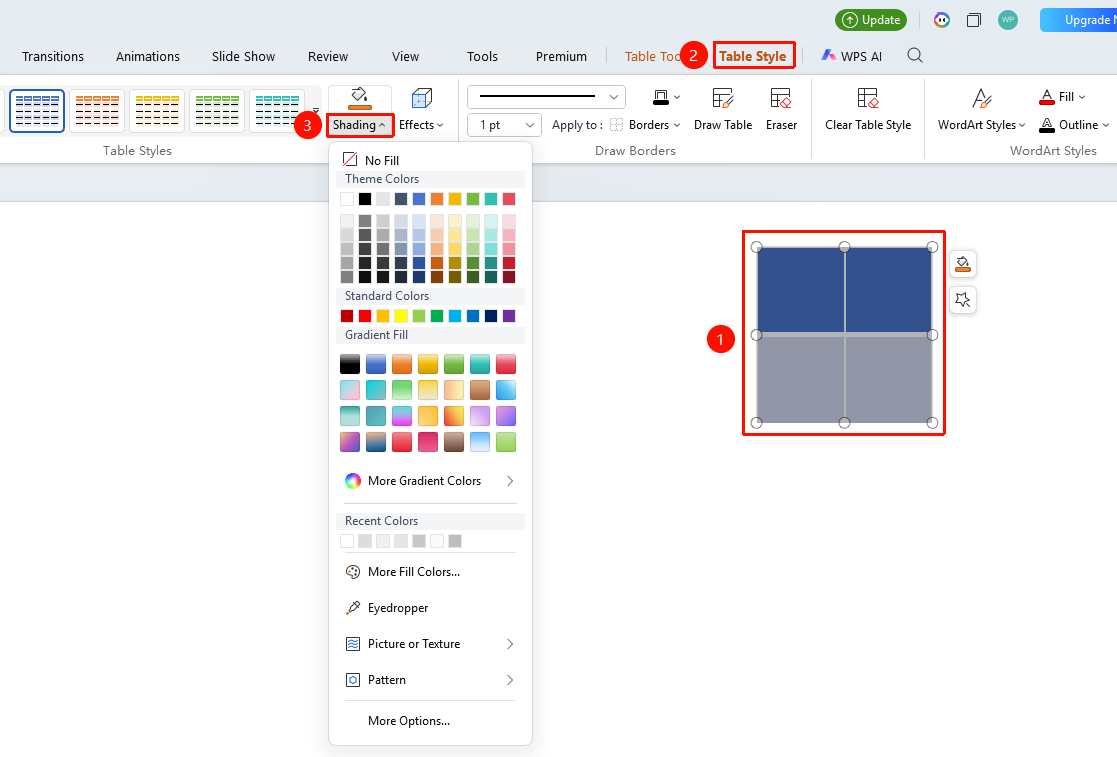
"Table Style" tab → "Fill" option
- Select the table or cells you want to fill
- Click the "Table Style" tab
- Click the drop-down arrow of the "Fill" option
- Select the desired fill color in the color panel
- The fill effect is immediately applied to the selected cells or table
Setting Table Fill via the Right-Click Menu
Feature Entry
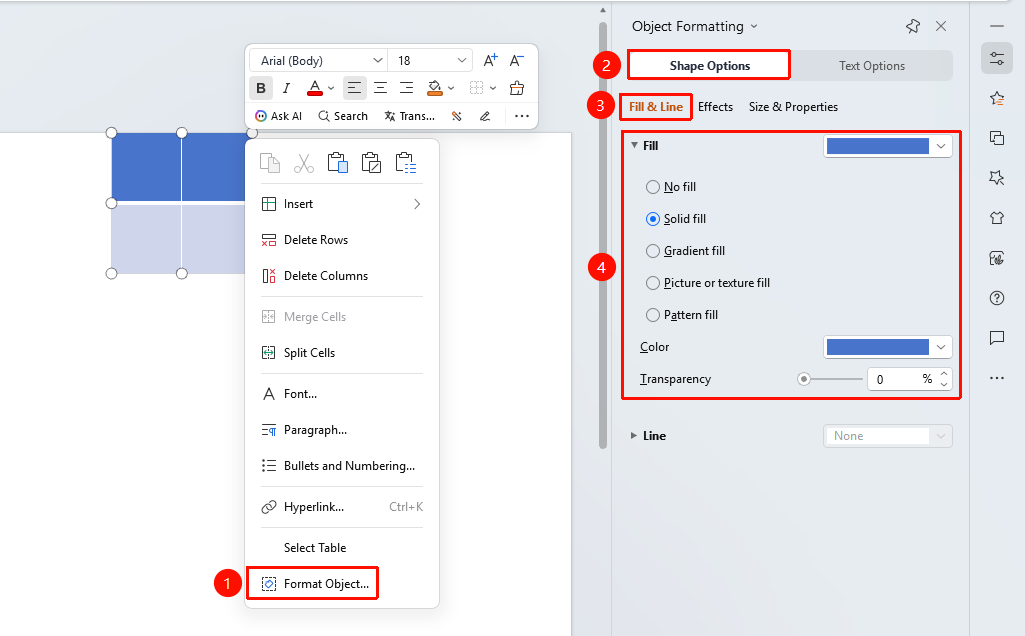
"Right-click" menu → "Format Object" → "Shape Options" → "Fill & Line"
- Select the cells you want to fill
- Right-click and select "Format Object" to open the object properties sidebar
- In the sidebar, switch to the "Shape Options" tab and click the "Fill & Line" tab
- Choose a fill color or set a gradient effect
- Preview the fill effect in real time, then click a blank area of the screen to apply
FAQ
Q1: How do I set a gradient fill for a table?
- Solution: In the "Table Style" tab, under the "Fill" option, click "Gradient Fill" to apply it directly. Alternatively, after selecting the table, click the "Object Properties" option in the "Task Pane" and set the gradient fill under "Fill & Line".
Q2: How do I quickly set alternating row fill effects for a table?
- Solution: You can use the alternating row variant styles in the table styles, or manually set different fill colors for odd and even rows.
Notes
- The fill color should contrast sufficiently with the text color to ensure content readability
- Important data rows can be highlighted with a special fill color