Summary
The Sheets Style feature provides a variety of preset sheet formatting schemes, including different color combinations, border styles, and shading effects. Users can apply them with one click to quickly beautify sheets, or customize the table's appearance on this basis.
Feature Description
| Feature Dimension | Description |
|---|---|
| Membership Restriction | Some table styles require you to subscribe to use |
| Version Restriction | No version restriction |
Steps
Configuring Sheets Styles
Feature Entry
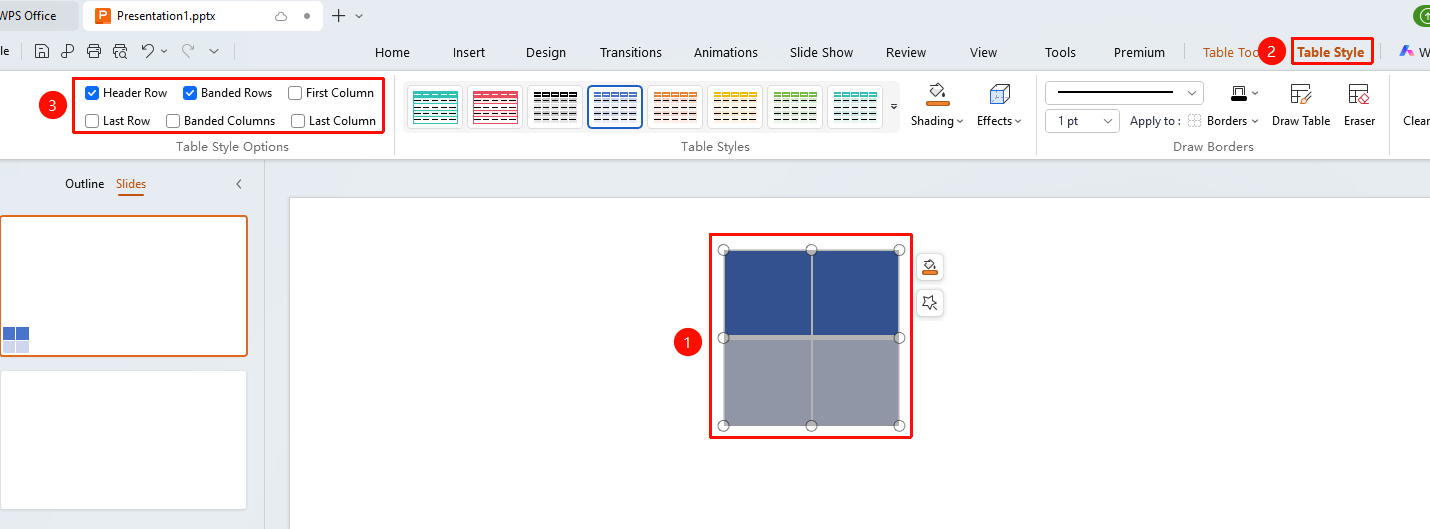
"Sheets Style" tab → "Sheets Style Options" group
- Click any cell in the table
- Click the top "Sheets Style" tab
- In the "Sheets Style Options" feature group, check/uncheck "First Row Fill", "First Column Fill", "Banded Rows", "Banded Columns" and other options as needed
- Hover the mouse over a style to preview the effect
- Click the desired style to apply it
Applying Sheets Styles
Feature Entry
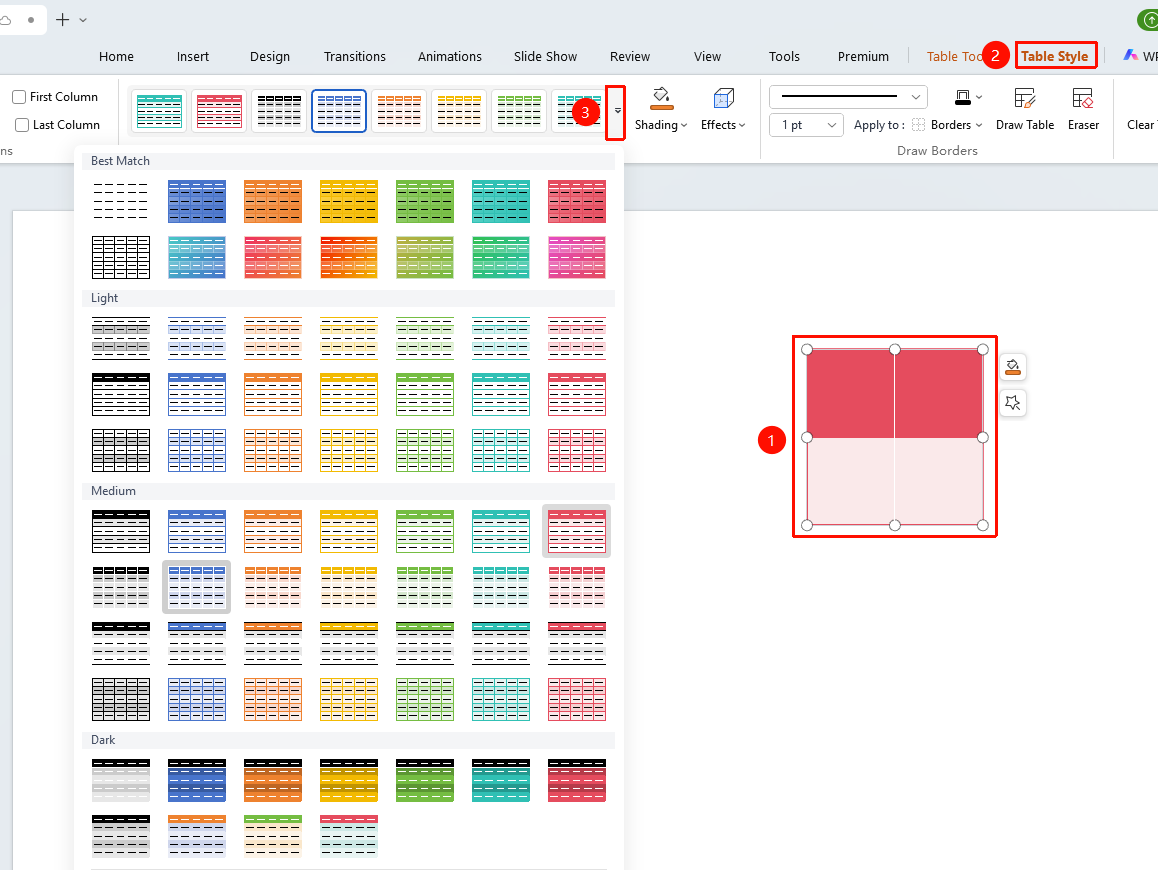
Select the Sheet → "Sheets Style" tab → "Sheets Style" right-side dropdown menu
- Click any cell in the table
- Click the top "Sheets Style" tab
- Browse the preset styles in the "Sheets Style" area, click the right-side dropdown menu to expand more style options
- Hover the mouse over a style to preview the effect
- Click the desired style to apply it
Clearing Sheets Styles
Feature Entry
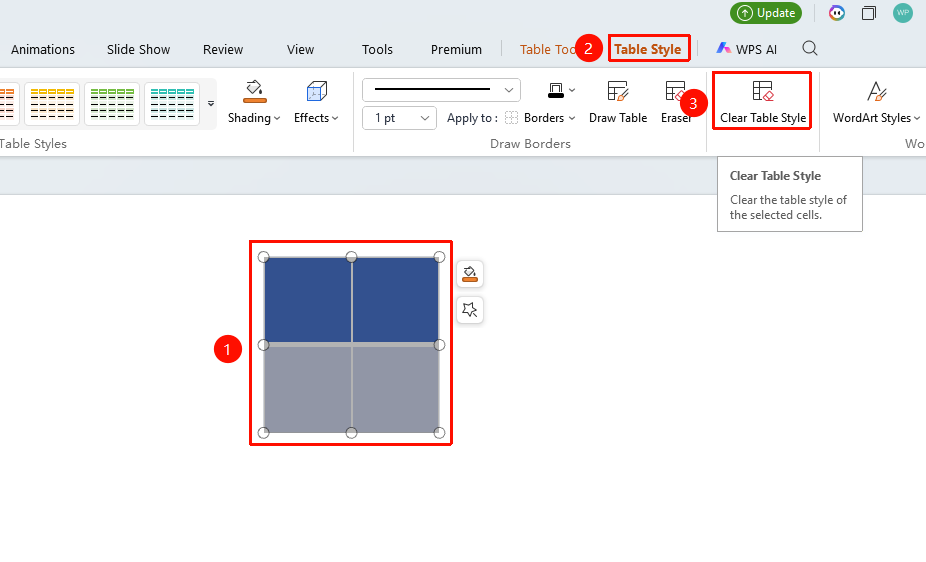
Select the Sheet → "Sheets Tools" tab → "Sheets Style" → "Clear Sheets Style"
- Click any cell in the table
- Click the Sheets Tools tab
- Find the "Clear Sheets Style" option in the "Sheets Style" area
- After clicking, the table reverts to the default state without any style
FAQ
Q1: How to customize sheet styles?
- Solution: You can manually set the sheet style through properties such as shading, borders, and text color. Find the corresponding setting buttons in the Sheets Tools tab to customize.
Q2: What is shading in sheet styles?
- Solution: Shading is the background fill of a sheet cell, which can be set to a solid color or pattern. Shading can enhance the hierarchy and readability of the sheet.
Notes
- It is recommended to complete editing the row and column structure of the sheet before applying a table style
- Different sheet styles are suitable for different presentation scenarios; it is recommended to choose a style that coordinates with the overall style of the slide
- Clearing sheet styles does not delete table content, only clears formatting settings
- The "Beautify Assistant" button in the "Task Pane" can obtain and filter more sheet style templates by color scheme