Feature Summary
The sheet border feature is used to set the style, color, and weight of sheet borders and internal gridlines. It supports multiple border types (such as all borders, outside borders, inside borders, etc.), allowing you to beautify the table appearance and highlight specific areas.
Feature Description
| Feature Dimension | Description |
|---|---|
| Membership Restriction | No membership restriction |
| Version Restriction | No version restriction |
Steps
Setting Borders
Feature Entry
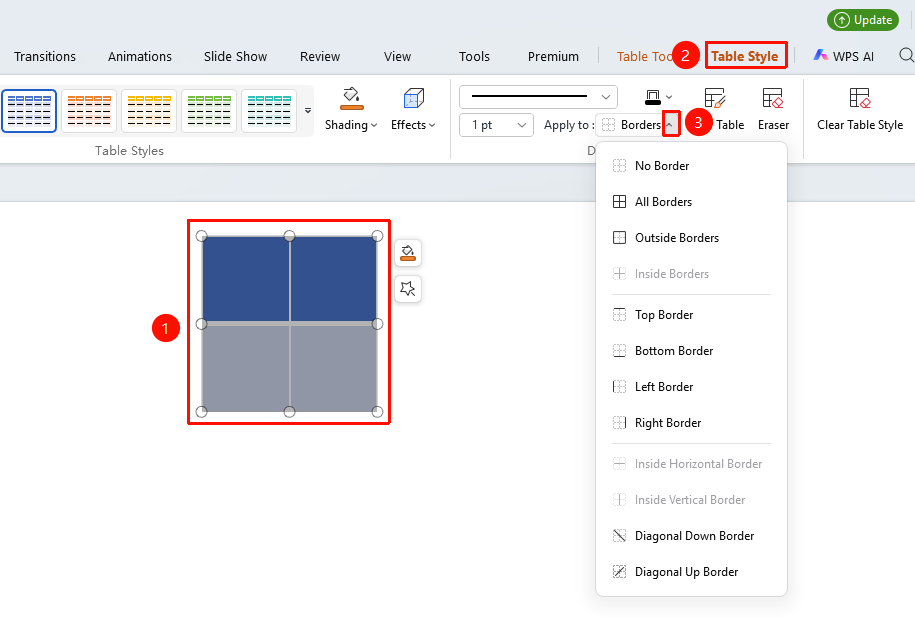
"Sheet Style" tab → "Borders" drop-down button
- Select the sheet or cells where you want to set borders
- Click the "Sheet Style" tab
- Locate the "Borders" drop-down button
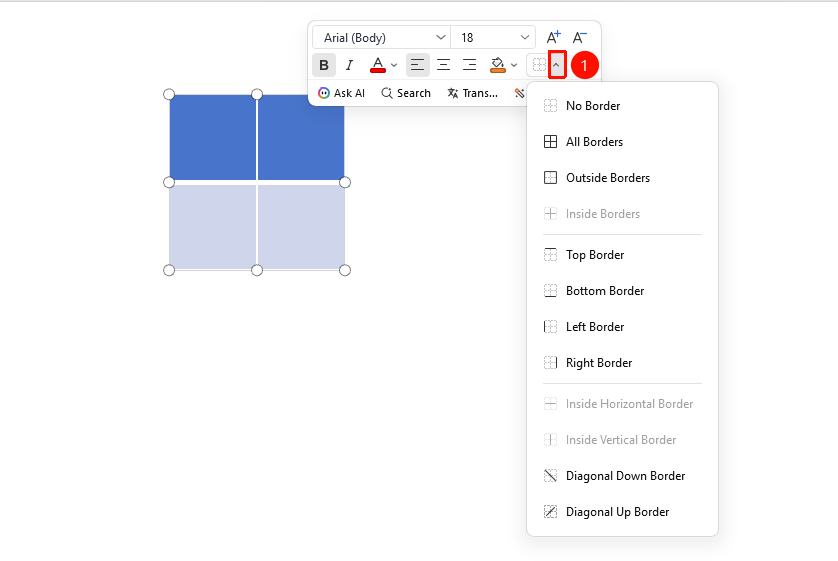
- Select the desired border type from the drop-down menu:
- No Border: Clears all borders
- All Borders: Adds all inner and outer borders to the sheet
- Outside Borders: Adds only the outer border of the sheet
- Inside Borders: Adds only the internal lines of the sheet
- Top Border/Bottom Border/Left Border/Right Border: Adds a border at the specified position
- Inside Horizontal Border/Inside Vertical Border: Adds internal horizontal or vertical lines
- Diagonal Down Border/Diagonal Up Border: Adds diagonal lines (suitable for headers)
Setting Border Color
Feature Entry
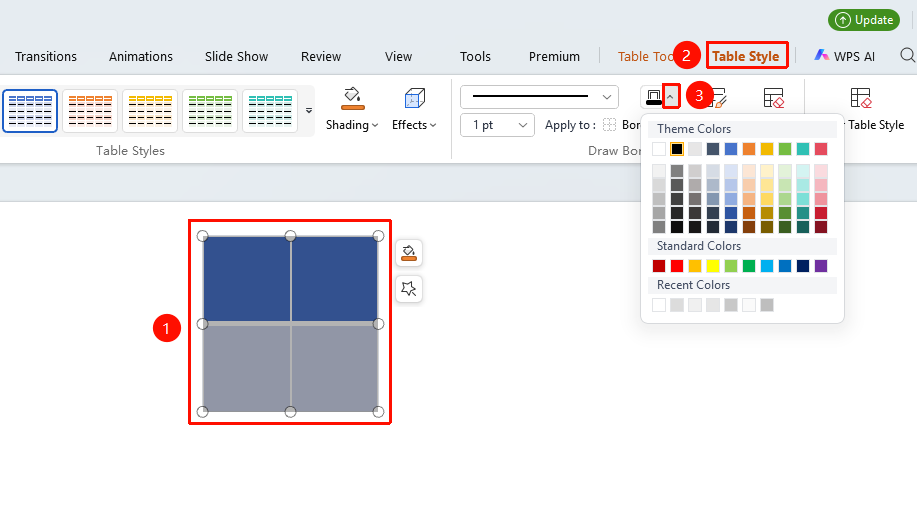
"Sheet Style" tab → "Pen Color" drop-down menu
- Select the sheet or cells
- Click the "Sheet Style" tab
- Click the drop-down menu for the "Pen Color" option
- Select the desired border color from the color panel:
- Theme Colors: Uses the current theme color scheme
- Standard Colors: Selects a standard color
- Recent Colors: Quickly selects a recently used color
Setting Border Line Style
Feature Entry
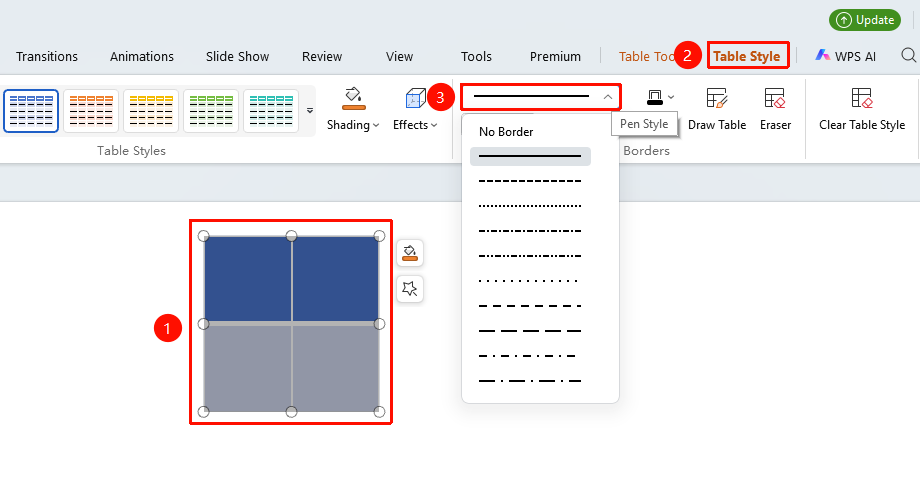
"Sheet Style" tab → "Pen Style" option
- Select the sheet or cells
- Click the "Sheet Style" tab
- Click the "Pen Style" option
- Select the desired line style:
- No Border: Does not display a border
- Various styles such as solid line, dashed line, dotted line, etc.
Setting Border Weight
Feature Entry
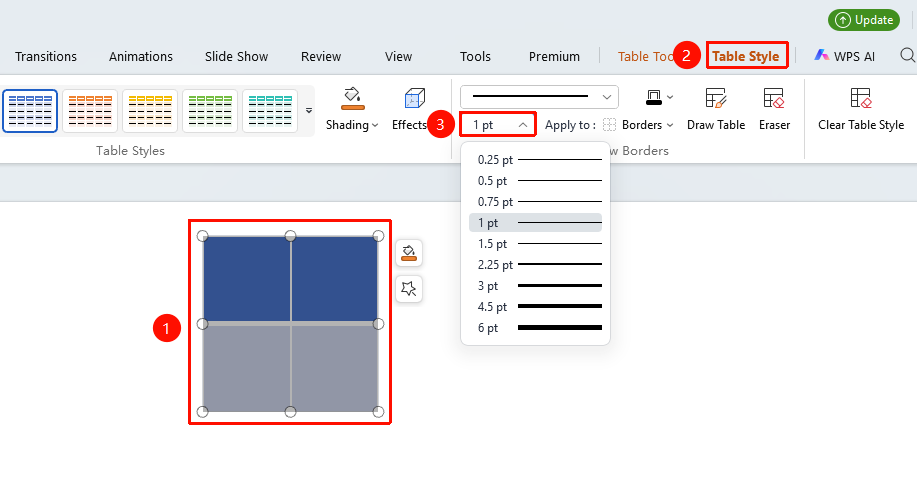
"Sheet Style" tab → "Border Width" option
- Select the sheet or cells
- Click the "Sheet Style" tab
- Click the "Border Width" option
- Select the desired line weight (0.25 pt to 6 pt)
Quick Border Setting via Right-Click Menu
Feature Entry
"Right-Click" menu → "Borders" right-side drop-down arrow
- Select the cells or sheet area where you want to set borders
- Right-click the selected area
- In the right-click menu, locate the right-side drop-down arrow for the "Borders" option and expand the border list
- Click the desired border to apply it quickly
FAQ
Q1: How do I set a sheet to have only outside borders and no inside borders?
- Solution: Select the entire sheet, click the "Borders" drop-down menu, and directly select "Outside Borders".
Q2: How do I add diagonal lines to a sheet?
- Solution: Select the cell, click the "Borders" drop-down menu, and select "Diagonal Down Border" or "Diagonal Up Border" to add diagonal lines.
Q3: What should I do if the sheet borders appear incomplete when printing?
- Solution: Check if the border color is too similar to the background color, or if the border weight is set too thin. It is recommended to use a dark border color and set an appropriate weight (e.g., 1 pt or above).
Notes
- Set the border style, color, and weight first, then select the border type to apply
- The border color should contrast with the sheet background to ensure clear visibility
- It is recommended to preview the border effect before printing to ensure it displays completely when printed
- After selecting a cell or table area, right-click to quickly change borders in the floating edit bar