Feature Summary
The Set Transparent Color feature is used to make a specified color in an image transparent. Click a color in the image to remove it, achieving a simple Remove Background effect.
Feature Description
| Feature Dimension | Description |
|---|---|
| Membership Restriction | No membership restriction |
| Version Restriction | No version restriction |
Steps
Set Image Transparent Color
Feature Entry
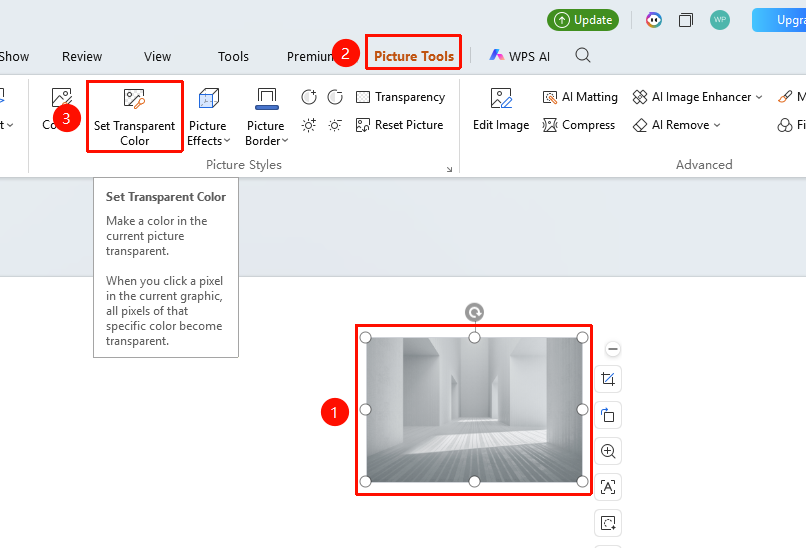
"Picture Tools" tab → "Set Transparent Color"
- Select the image for which you want to set a transparent color
- Click the "Picture Tools" tab
- Click the "Set Transparent Color" button
- The mouse cursor changes to a color picker style (eyedropper pointer)
- Click the color in the image that you want to make transparent
- That color area will become transparent
FAQ
Q1: Can I revert after setting a transparent color?
- Solution: You can restore the image to its original state via "Picture Tools" tab → "Reset Style".
Q2: What should I do if the transparent color effect is not good?
- Solution: For images with complex backgrounds, it is recommended to use features such as "AI Remove Background" to achieve a better background removal effect.
Notes
- All areas of the clicked color will become transparent
- Areas with similar colors may all be set to transparent
- Suitable for processing images with a single background color