Feature Summary
WPS Slides local mode supports selecting and editing chart data, allowing you to modify the data content displayed in the chart.
Feature Description
| Feature Dimension | Description |
|---|---|
| Membership Restriction | No membership restriction |
| Version Restriction | No version restriction |
Operation Steps
Select Data Source
Feature Entry
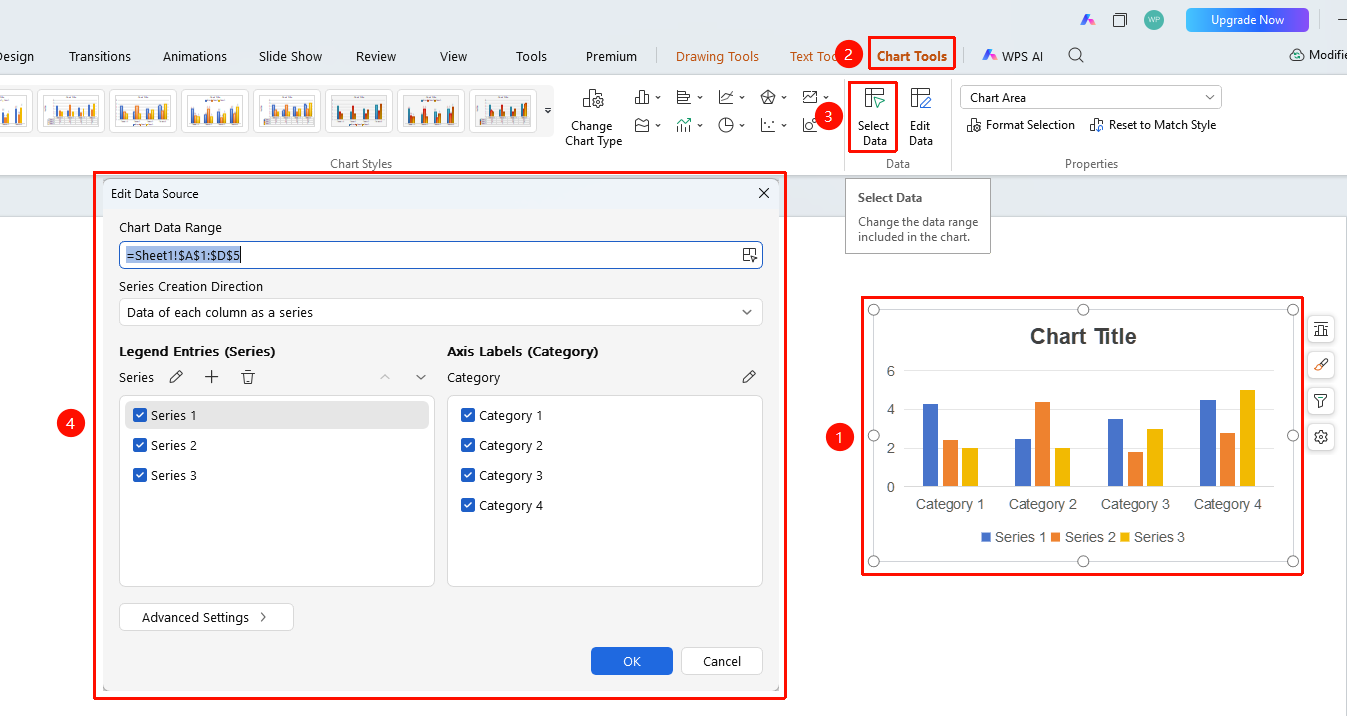
"Chart Tools" tab → "Select Data" button
- Click to select the chart
- Click the "Chart Tools" tab in the top menu bar
- Click the "Select Data" button
- Select the data range in the pop-up dialog box
- Click OK to complete the data selection
Edit Chart Data
Feature Entry
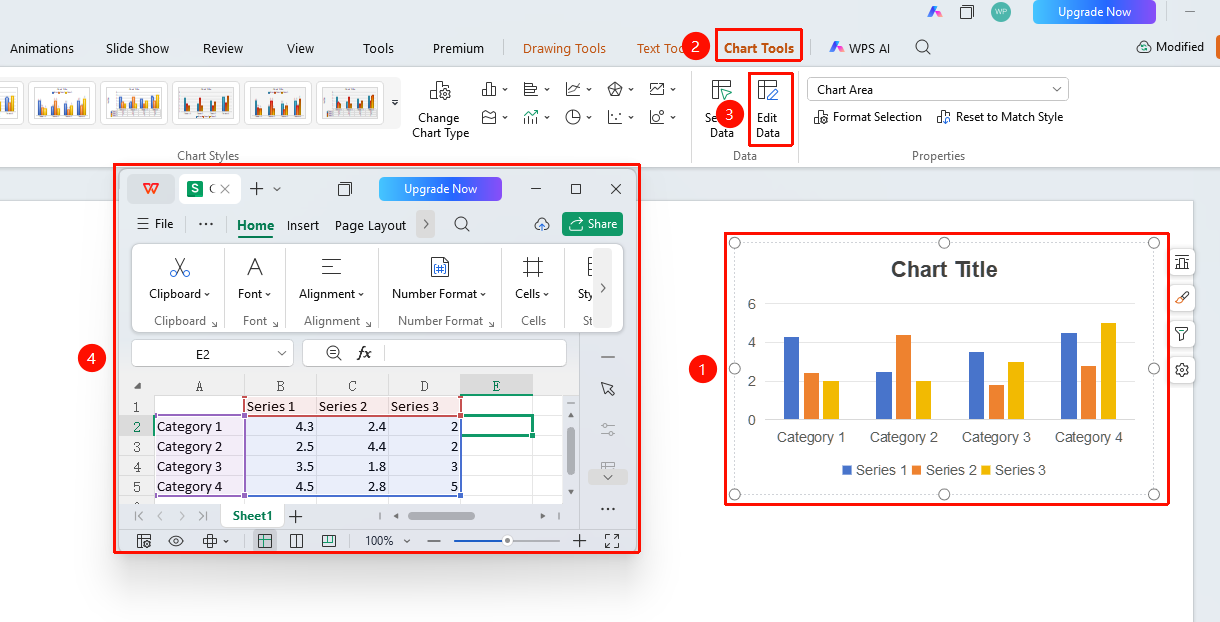
"Chart Tools" tab → "Edit Data" button
- Click to select the chart
- Click the "Edit Data" button
- Modify the data in the embedded data table
- The chart will automatically update after the modification is complete
Edit Data via Right-Click
Feature Entry
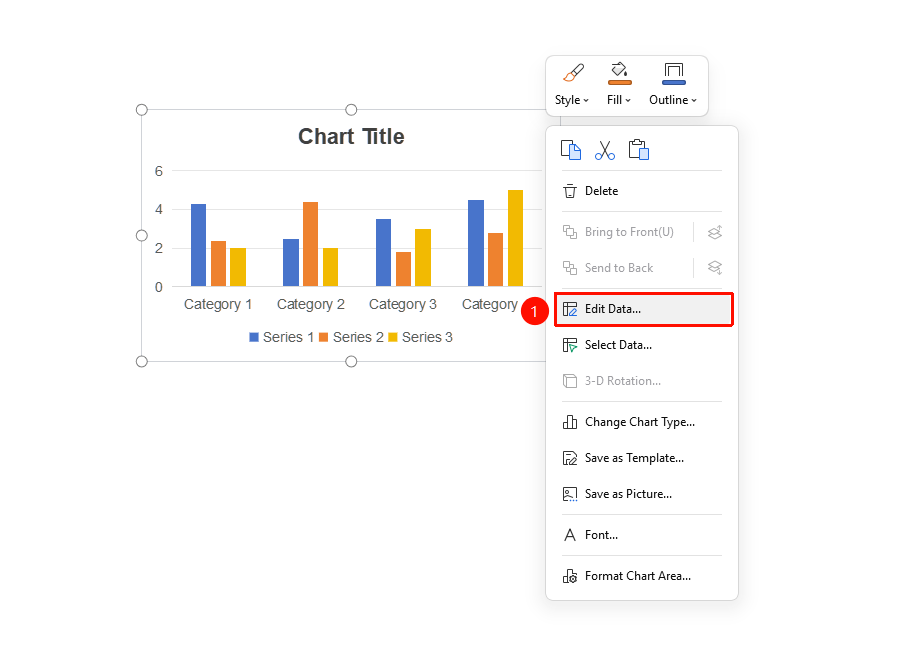
Chart → Right-click → "Edit Data"
- Right-click the chart
- Select the "Edit Data" option
- Modify the data in the Sheets
- The chart updates automatically when you close the data table
Frequently Asked Questions
Q1: Will the chart update automatically after editing the data?
- Solution: Yes, the chart will update in real time after modifying the Sheets data.
Q2: How to add a new data series?
- Solution: Click Add Series in the Select Data dialog box and select the data range.
Q3: How to delete an unwanted data series?
- Solution: Select the series to be deleted in the Select Data dialog box and click the Delete button.
Notes
- Changes to the data range will affect the chart display
- It is recommended to plan the data structure before creating the chart