Feature Summary
The transparency feature is used to adjust the transparency level of an image, allowing it to appear semi-transparent. This enables watermark creation and image overlay effects.
Feature Description
| Feature Dimension | Description |
|---|---|
| Membership Restrictions | No membership restrictions |
| Version Restrictions | No version restrictions |
Steps
Using Preset Transparency
Feature Entry
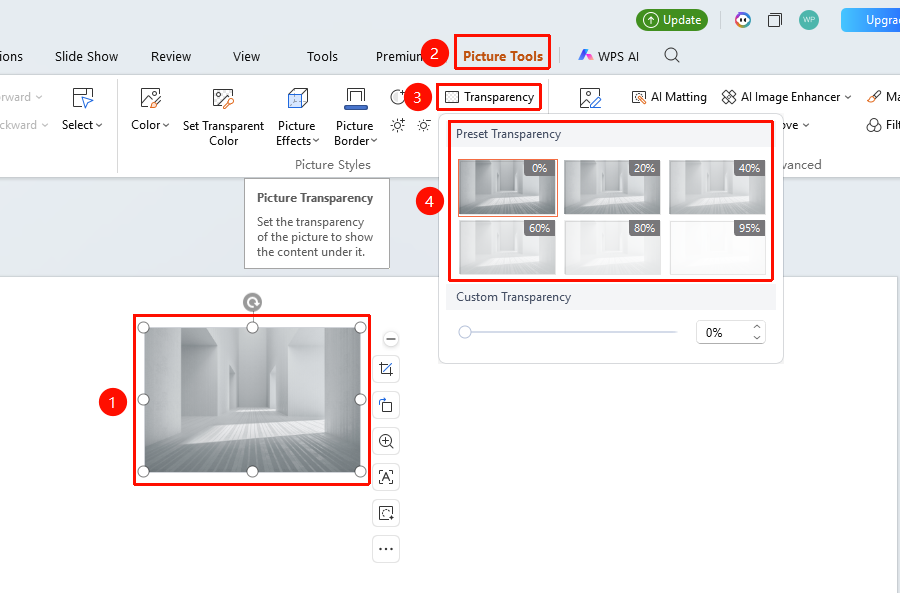
"Picture Tools" tab → Picture Styles area → "Transparency" button
- Select the image you want to adjust the transparency of
- Click the "Picture Tools" tab
- Click the "Transparency" button
- Select a preset transparency: 0%, 20%, 40%, 60%, 80%, 95%
Customize Transparency
Feature Entry ①
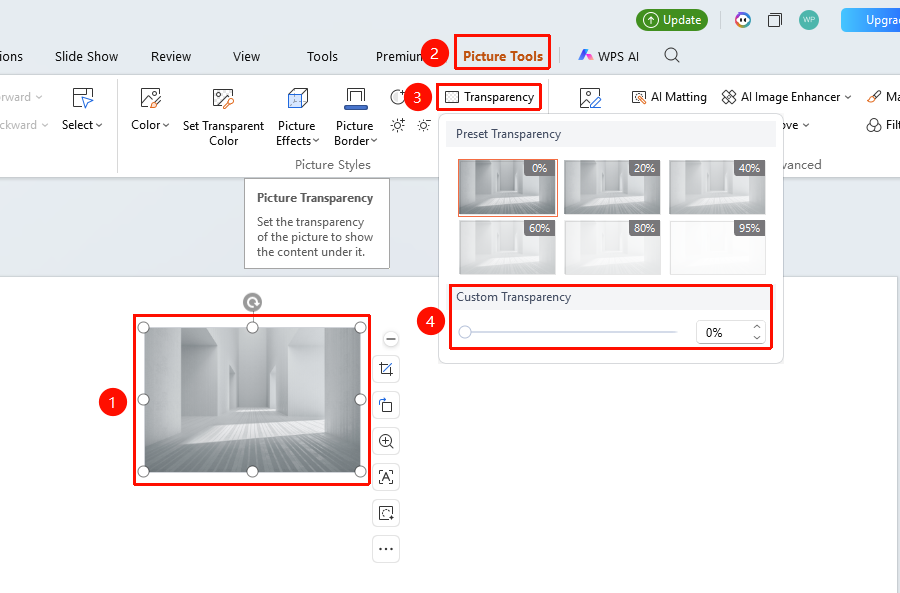
"Picture Tools" tab → Picture Styles area → "Transparency" → Customize Transparency
- Click the "Transparency" button
- Drag the slider below to adjust transparency
- Or directly enter a percentage value
Feature Entry ②
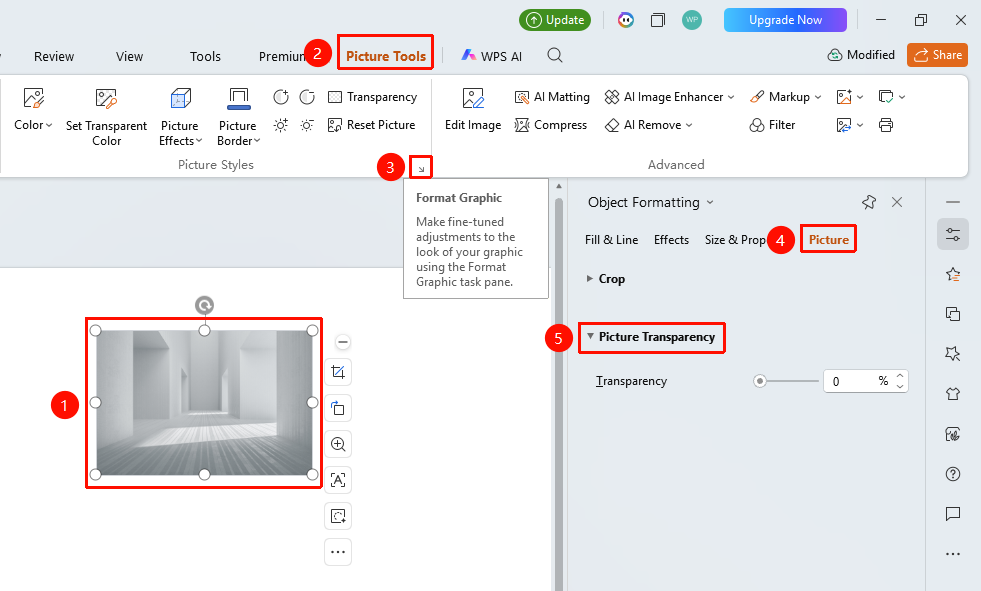
"Picture Tools" tab → Expand menu button in the lower-right corner of the Picture Styles group → "Format Shape"
- Select the image and click the "Picture Tools" tab
- Click the expand menu button (arrow icon) in the lower-right corner of the Picture Styles group
- Open the "Format Shape" task pane
- Find "Picture Transparency" under the "Picture" tab to configure
Feature Entry ③
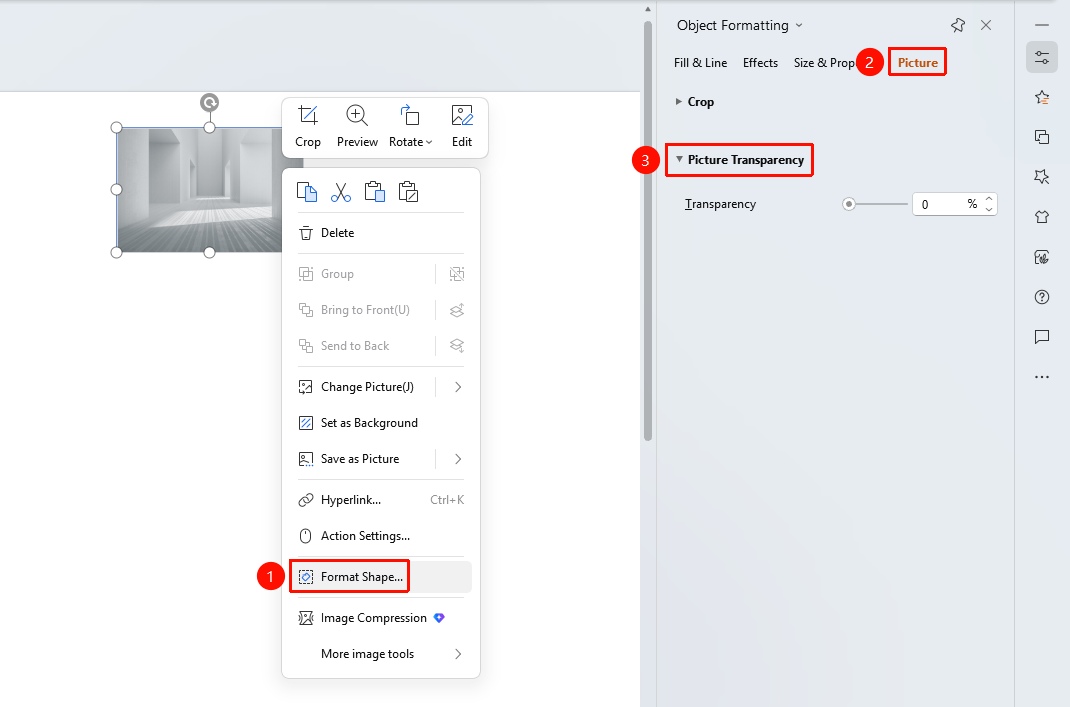
Image right-click menu → "Format Object"
- Select the image and right-click
- Select "Format Object"
- In the "Object Properties" panel on the right, click the "Picture" tab
- Expand "Picture Transparency" to configure
Feature Entry ④
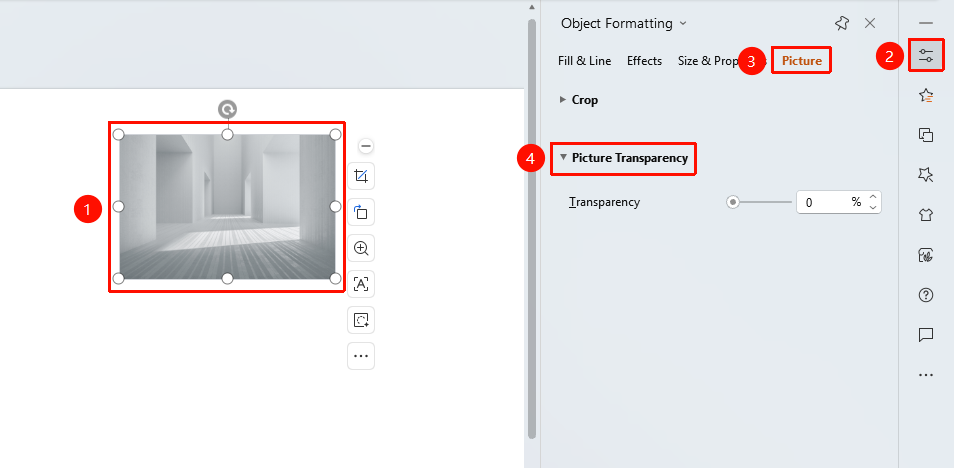
Task Pane → "Properties" button
- Select the image
- Click the "Properties" button in the task pane on the right
- Click the "Picture" tab
- Expand "Picture Transparency" to configure
FAQ
Q1: What is the difference between transparency and setting a transparent color?
- Solution: Transparency adjusts the transparency level of the entire image, while setting a transparent color makes a specific color in the image transparent.
Q2: How to simulate a watermark effect?
- Solution: Set the image transparency to 70%-90%, then overlay it on top of text or other images to simulate a watermark effect.
Q3: How to restore the image to an opaque state?
- Solution: Set the transparency to 0% in the transparency options, or use "Reset Style" to undo the operation.
Notes
- Transparency settings will affect the overall display effect of the image
- Setting a transparent color is suitable for images with a single background color
- When printing, the transparency effect may not display completely due to printer device performance limitations