Feature Summary
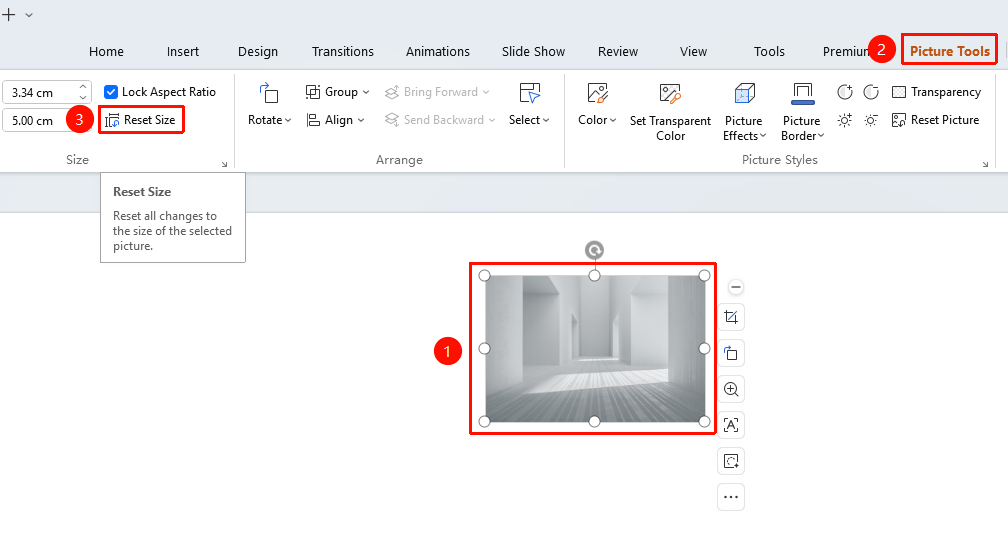
The Reset Size feature is used to restore an image to its original dimensions, undoing all previous size adjustments and returning the image to the size it had when inserted.
Feature Description
| Feature Dimension | Description |
|---|---|
| Membership Restriction | No membership restriction |
| Version Restriction | No version restriction |
Operation Steps
Resetting Size via the Picture Tools Tab
Feature Entry
"Picture Tools" tab → "Reset Size" button
- Select the image you want to restore to its original size
- Click the "Picture Tools" tab
- Locate the "Reset Size" button
- Click the button
- The image immediately reverts to its original size at the time of insertion
Frequently Asked Questions
Q1: Will Reset Size clear other settings?
- Solution: No. Reset Size only restores the image's dimensions and does not affect other settings such as effects or color.
Q2: Can I undo the Reset Size action?
- Solution: Yes. Use Ctrl+Z to undo the operation and revert to the state before the size was reset.
Notes
- Reset Size will undo all adjustments made to the image's dimensions
- Other editing effects on the image (color, added effects, etc.) are not affected