Feature Summary
The Lock Aspect Ratio feature is used to lock the width-to-height ratio of an image. When you adjust the image height or width, the other dimension automatically adjusts proportionally, ensuring the image does not become distorted.
Feature Description
| Feature Dimension | Description |
|---|---|
| Membership Restriction | No membership restriction |
| Version Restriction | No version restriction |
Operation Steps
Lock Aspect Ratio via the Picture Tools Tab
Feature Entry
"Picture Tools" tab → Size area → "Lock Aspect Ratio" checkbox
- Select the image you want to set
- Click the "Picture Tools" tab
- Find the "Lock Aspect Ratio" checkbox in the Size area
- Check this option to lock the aspect ratio
- Uncheck it to unlock the aspect ratio
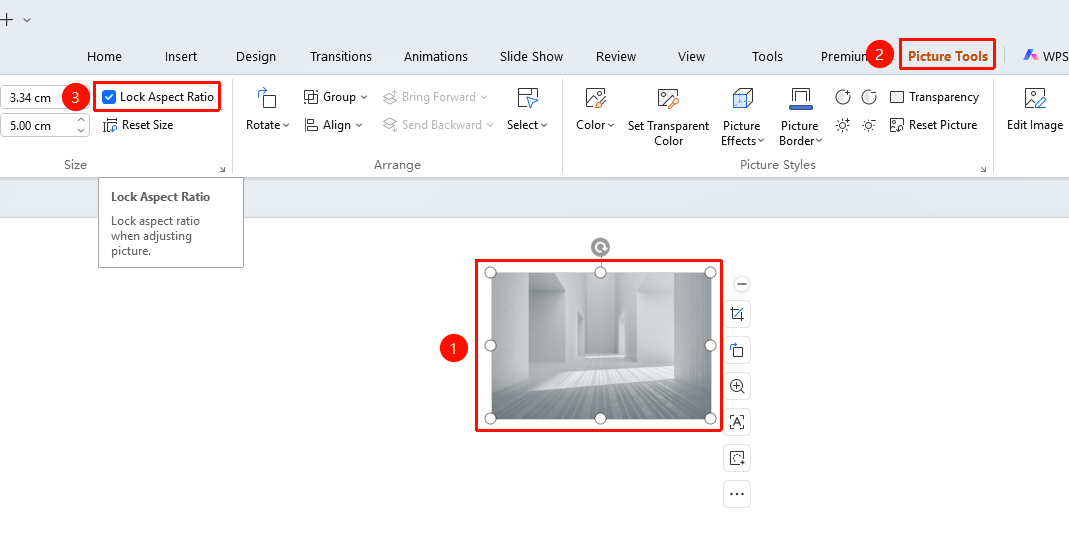
Adjust Image Size with Lock Aspect Ratio
Feature Entry
"Picture Tools" tab → "Lock Aspect Ratio" → Width/Height
- Ensure "Lock Aspect Ratio" is checked
- Modify either the "Width" or "Height" value
- The other dimension automatically adjusts proportionally
- The image scales while maintaining its original ratio
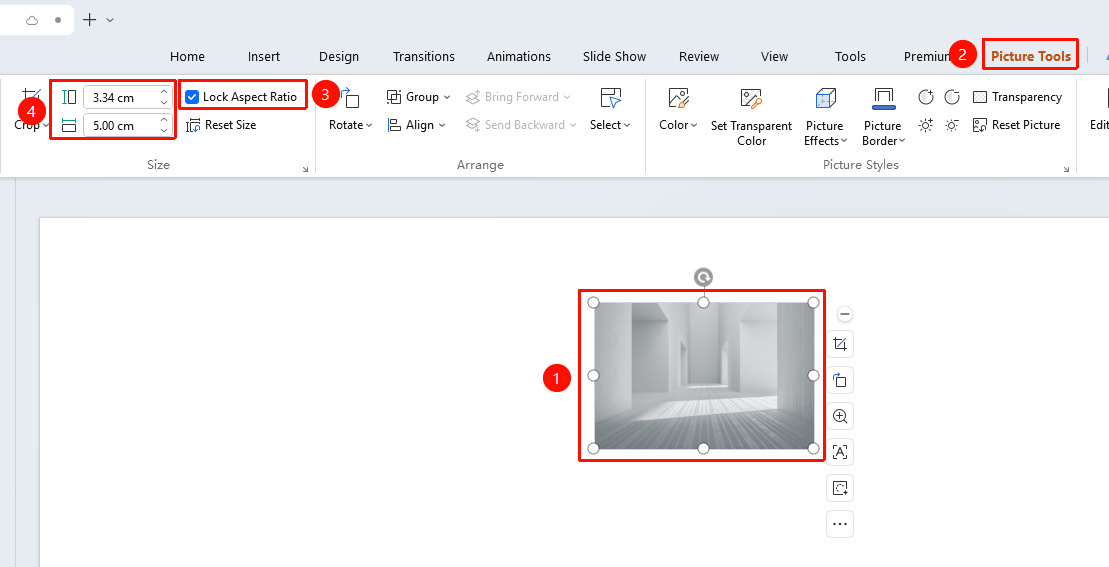
Frequently Asked Questions
Q1: Why does the image become distorted if Lock Aspect Ratio is not checked?
- Solution: Because the image width and height are adjusted independently. When the ratio is not locked, adjusting only one dimension will cause the image to be stretched or compressed, resulting in distortion.
Q2: Can I customize width and height after locking the aspect ratio?
- Solution: Yes, but after entering a value for one dimension, the other dimension will automatically be calculated and updated proportionally, and cannot be set independently.
Q3: How to temporarily adjust the image ratio?
- Solution: Uncheck Lock Aspect Ratio, then set the width and height separately. After finishing the adjustment, re-check the lock.
Notes
- By default, the image aspect ratio is locked
- Locking the aspect ratio ensures the image does not distort when scaling
- If a special ratio effect is needed, you can unlock it before adjusting
- Scaling an image by dragging its edge control points is not affected by "Lock Aspect Ratio"