Feature Summary
The icon outline feature is used to add border lines to icons. You can customize the border color, thickness, line style, and other styles to make icons more attractive and prominent.
Feature Description
| Feature Dimension | Description |
|---|---|
| Membership Restriction | No membership restriction |
| Version Restriction | No version restriction |
Operation Steps
Apply Icon Outline
Feature Entry
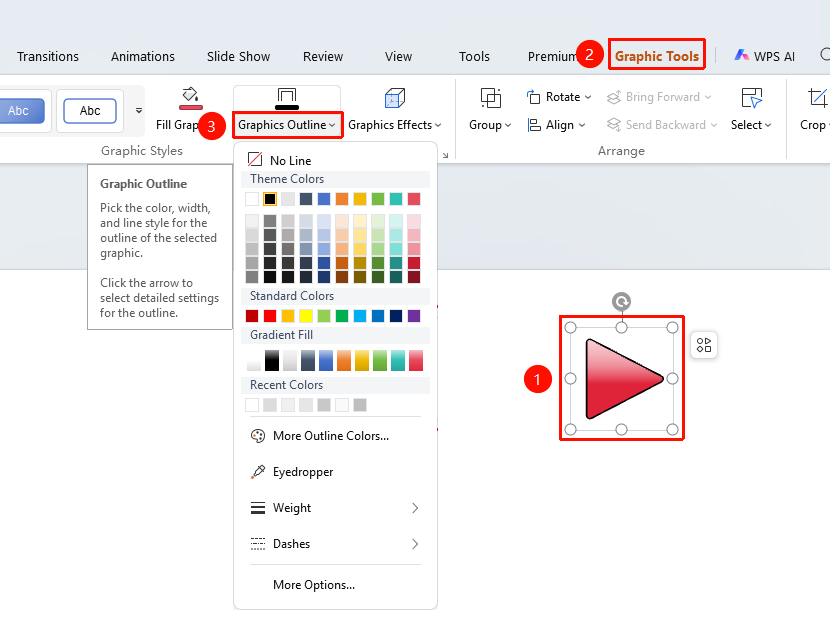
"Shape Format" tab → "Outline"
- Select the icon to which you want to add a border
- Click the top "Shape Format" tab
- Find and click the "Outline" button to expand and set the following options
- "Theme Colors": Click a preset color to quickly set a solid color border
- "Gradient Fill": Click gradient fill to quickly set a gradient border
- "More Border Colors": Expand the full standard/RGB color palette
- "Eyedropper": Pick a color from anywhere on the screen as the border color
- "Weight": Set the thickness of the border line
- "Dash Style": Set the border to a solid or dashed style
- Click the desired color or option to apply the outline immediately
- Click "More Settings" to jump to the side Object Properties panel for detailed settings
Custom Icon Outline
Feature Entry
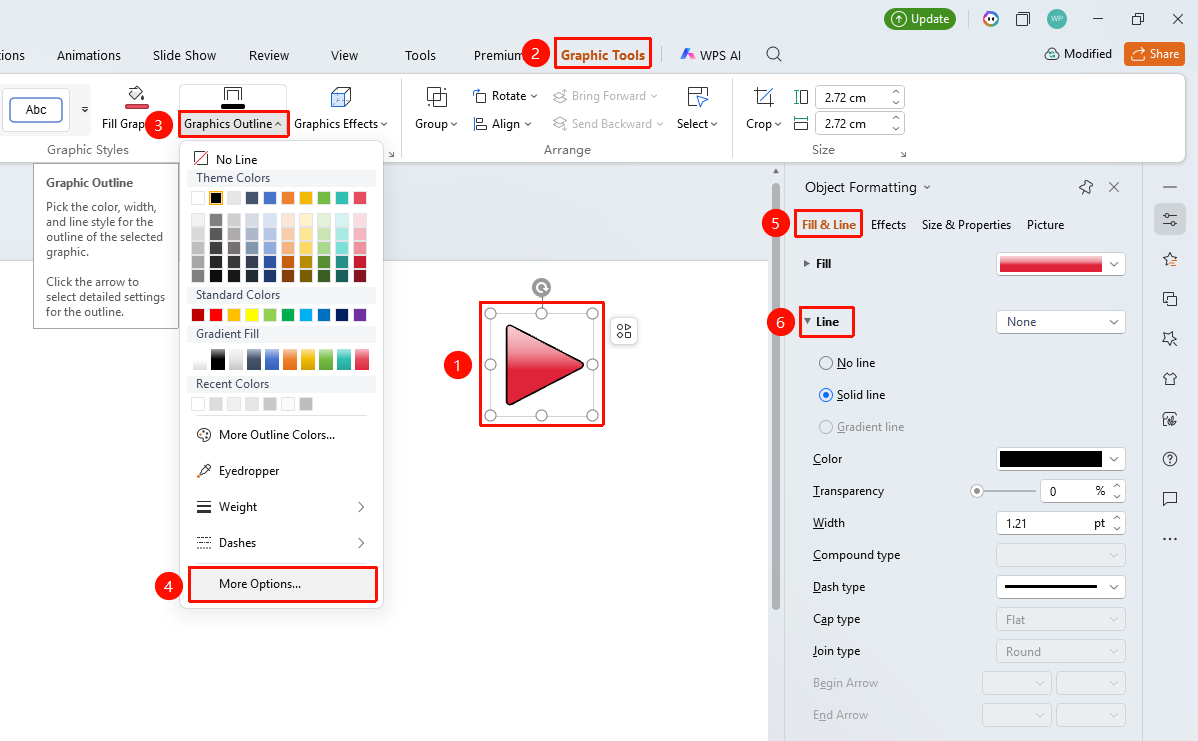
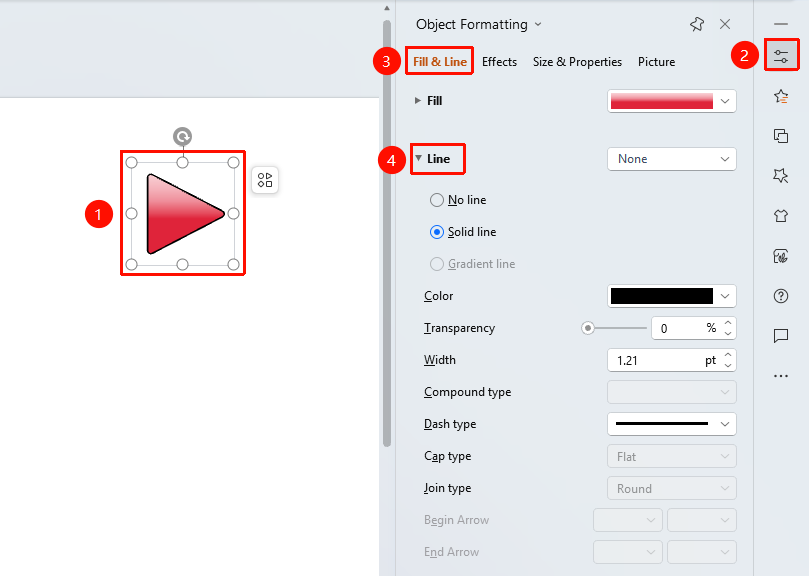
"Shape Format" tab → "Outline" → "More Settings" → "Object Properties" → "Line"
- Select the icon to which you want to add a border
- Click the "Shape Format" tab
- Click the "Outline" drop-down button to expand the drop-down menu
- Find and click "More Settings" in the drop-down menu to expand the right-side "Object Properties" sidebar
- Under the "Fill & Line" tab, click "Line"
- "No Line": Do not display a border
- "Solid Line": Customize a single-color solid line border settings: color, transparency, line type, etc.
- Preview the effect in real time, click a blank area to apply
"Home" Tab Settings
Feature Entry
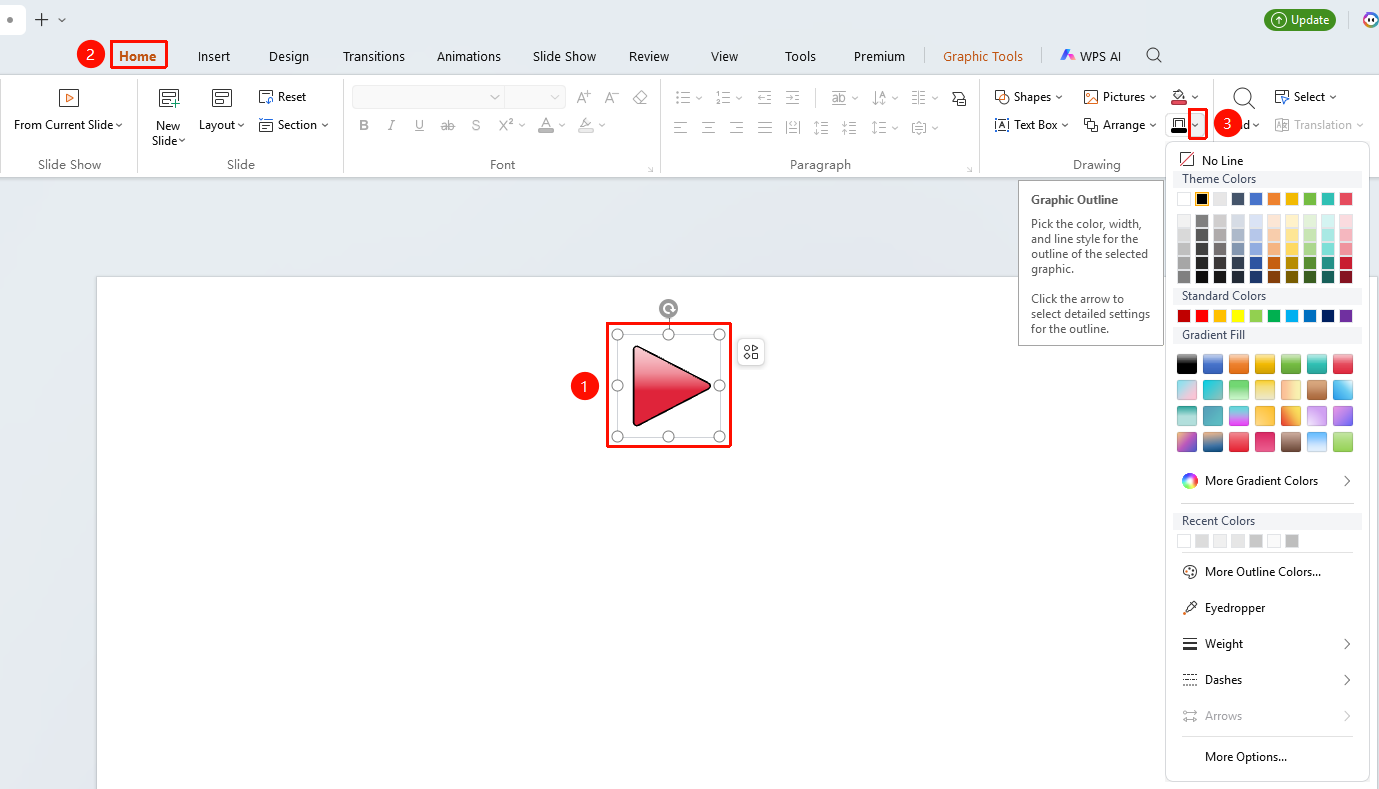
"Home" tab → "Shape Outline"
- Select the icon to which you want to add a border
- Click the top "Home" tab
- Find and click the "Shape Outline" button
- Select an outline style from the drop-down menu, click "More Settings" to expand the Object Properties sidebar
Right-Click Menu Settings
Feature Entry
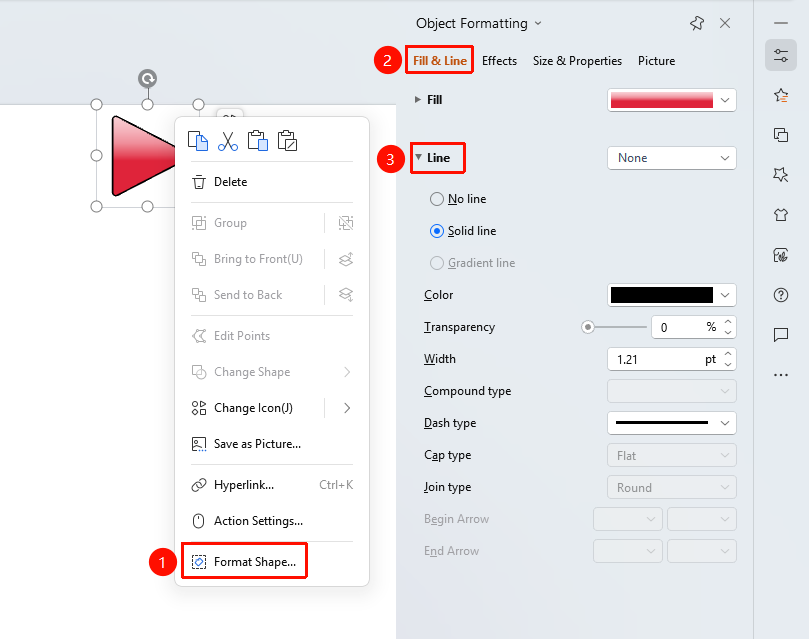
Icon right-click menu → "Format Object"
- Select the icon to which you want to add a border
- Right-click the icon
- Select "Format Object"
- Set the border style in the right-side "Object Properties" sidebar
Side Task Pane Settings
Feature Entry
Side "Task Pane" → "Properties"
- Select the icon to which you want to add a border
- Click the side "Properties" button
- Set the border style in the "Object Properties" sidebar
FAQ
Q1: How to quickly remove a border
- Solution: Select "No Border Color" from the icon outline drop-down menu, or select "No Line" in Object Properties.
Q2: How to set a dashed border
- Solution: Click "Dash Style" in the icon outline drop-down menu, and select the desired dashed style.
Notes
- The border will be displayed around the outer edge of the icon
- Border thickness will affect the visual perception of the icon's overall size