Feature Summary
WPS Slides provides comprehensive presentation editing and creation capabilities. Font and font size are core features under the font category, helping users complete related operations conveniently and efficiently. Core capabilities include:
- Supports quick access to font and font size related features
- Intuitive operation, suitable for users of all levels
- Supports parameter customization and effect preview
- Works with other features to achieve a complete workflow
Feature Description
| Feature Dimension | Description |
|---|---|
| Membership Restriction | Cloud fonts are a member-exclusive feature; some free cloud fonts can be used directly. System fonts have no membership restrictions |
| Version Restriction | No version restrictions |
| Increase Font Size Shortcut | Ctrl + ] |
| Decrease Font Size Shortcut | Ctrl + [ |
| System Fonts | Fonts pre-installed with the system or installed by the user, no payment required. Windows system font library location: C:\Windows\Fonts |
| Cloud Fonts | Online font resources provided by partner font vendors. Requires a membership subscription to use; some free cloud fonts are available without payment |
Operation Steps
Set Font via the Ribbon
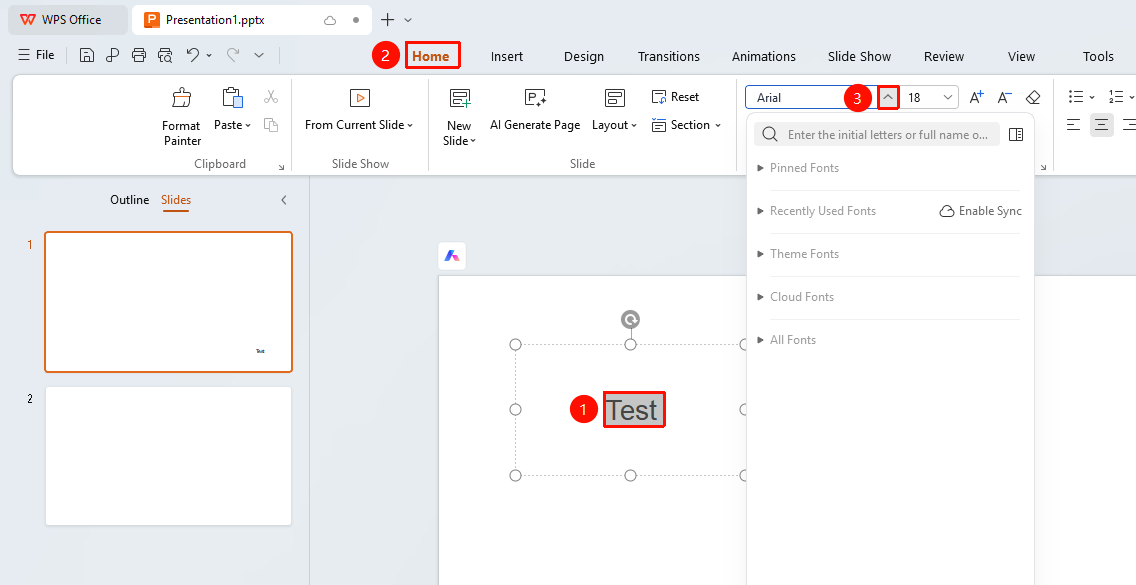
Feature Entry ①
「Home」 tab → 「Font」 dropdown
- Select the text you want to adjust the font for
- Click the 「Home」 tab on the ribbon
- Click the 「Font」 dropdown
- Select the target font from the list to apply it
Feature Entry ②
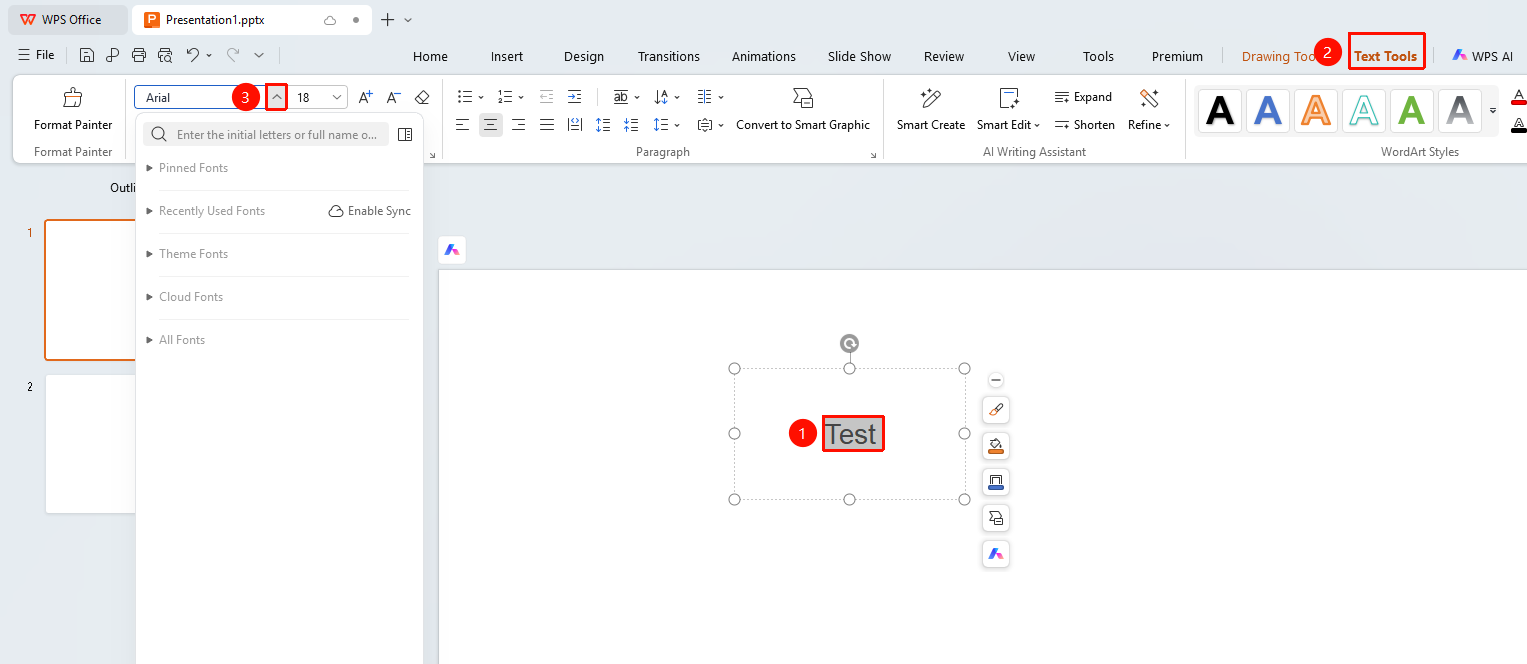
「Text Tools」 tab → 「Font」 dropdown
- Select the text you want to adjust the font for
- Click the 「Text Tools」 tab on the ribbon
- Click the 「Font」 dropdown
- Select the target font from the list to apply it
Set Font via the Floating Toolbar
Feature Entry
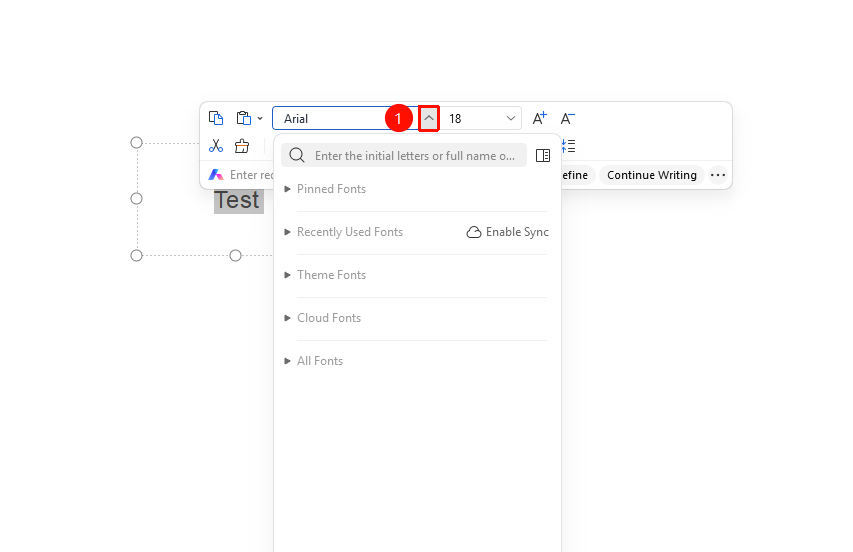
「Floating Toolbar」 → 「Font」 dropdown
- Select the text you want to adjust the font for
- Click the 「Font」 dropdown
- Select the target font size from the list to apply it
[Screenshot placeholder here]
Set Font Size via the Ribbon
Feature Entry ①
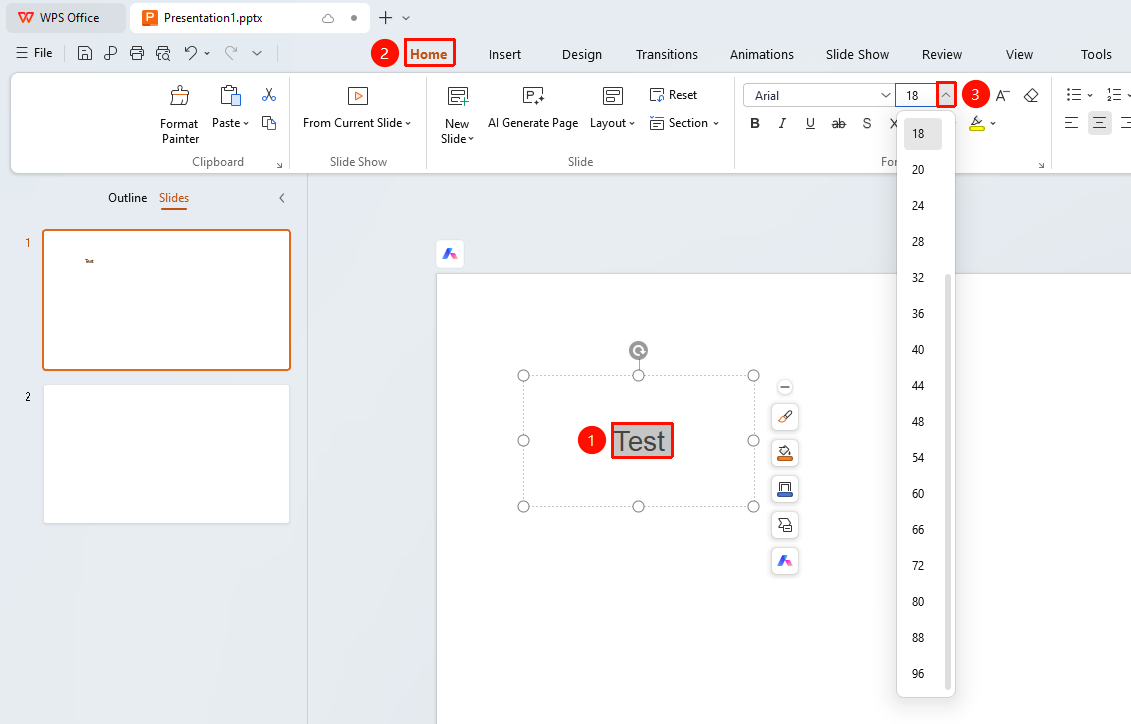
「Home」 tab → 「Font Size」 dropdown
- Select the text you want to adjust the font size for
- Click the 「Home」 tab on the ribbon
- Click the 「Font Size」 dropdown
- Select the target font size from the list to apply it
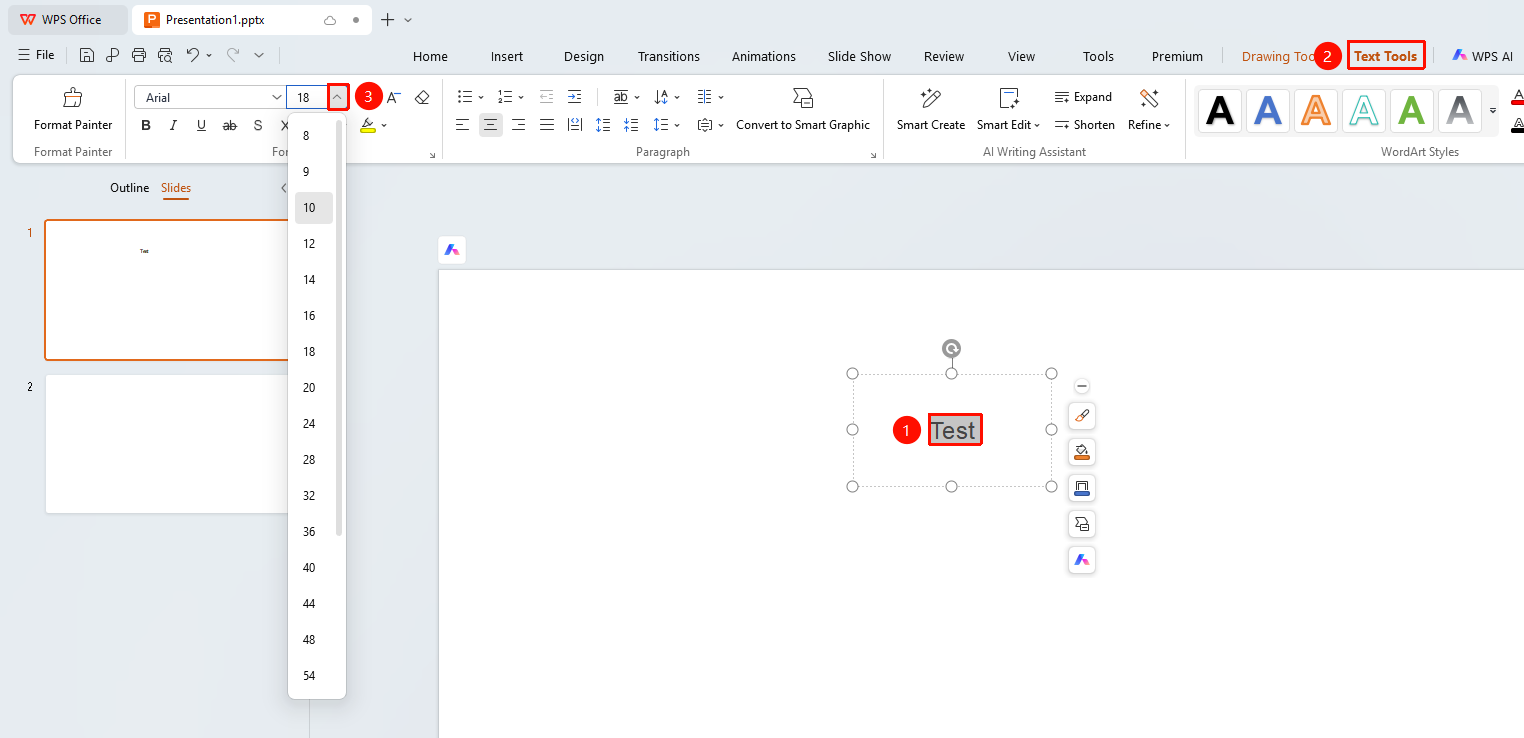
Feature Entry ②
「Text Tools」 tab → 「Font Size」 dropdown
- Select the text you want to adjust the font size for
- Click the 「Text Tools」 tab on the ribbon
- Click the 「Font Size」 dropdown
- Select the target font size from the list to apply it
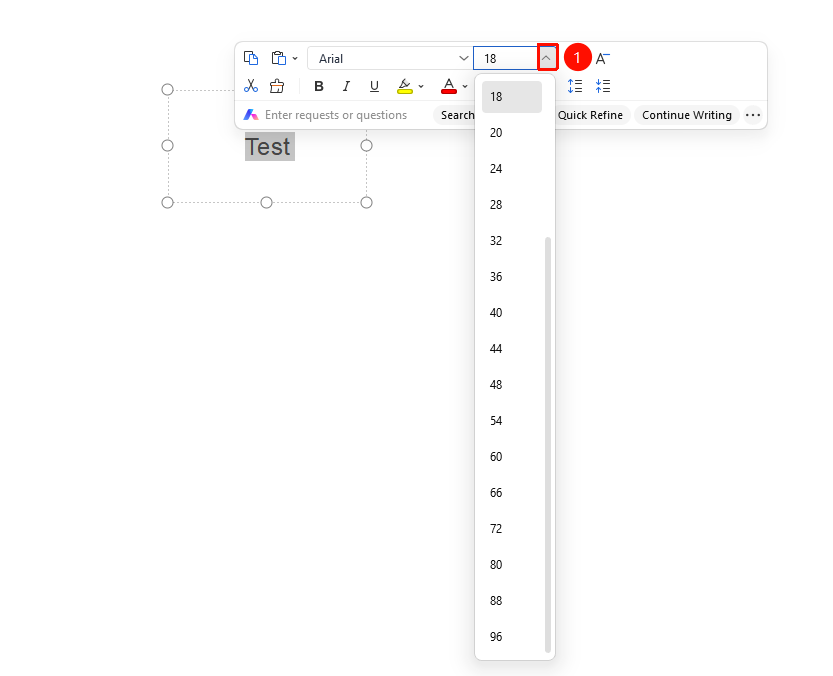
Set Font Size via the Floating Toolbar
Feature Entry
「Floating Toolbar」 → 「Font Size」 dropdown
- Select the text you want to adjust the font size for
- Click the 「Font Size」 dropdown
- Select the target font size from the list to apply it
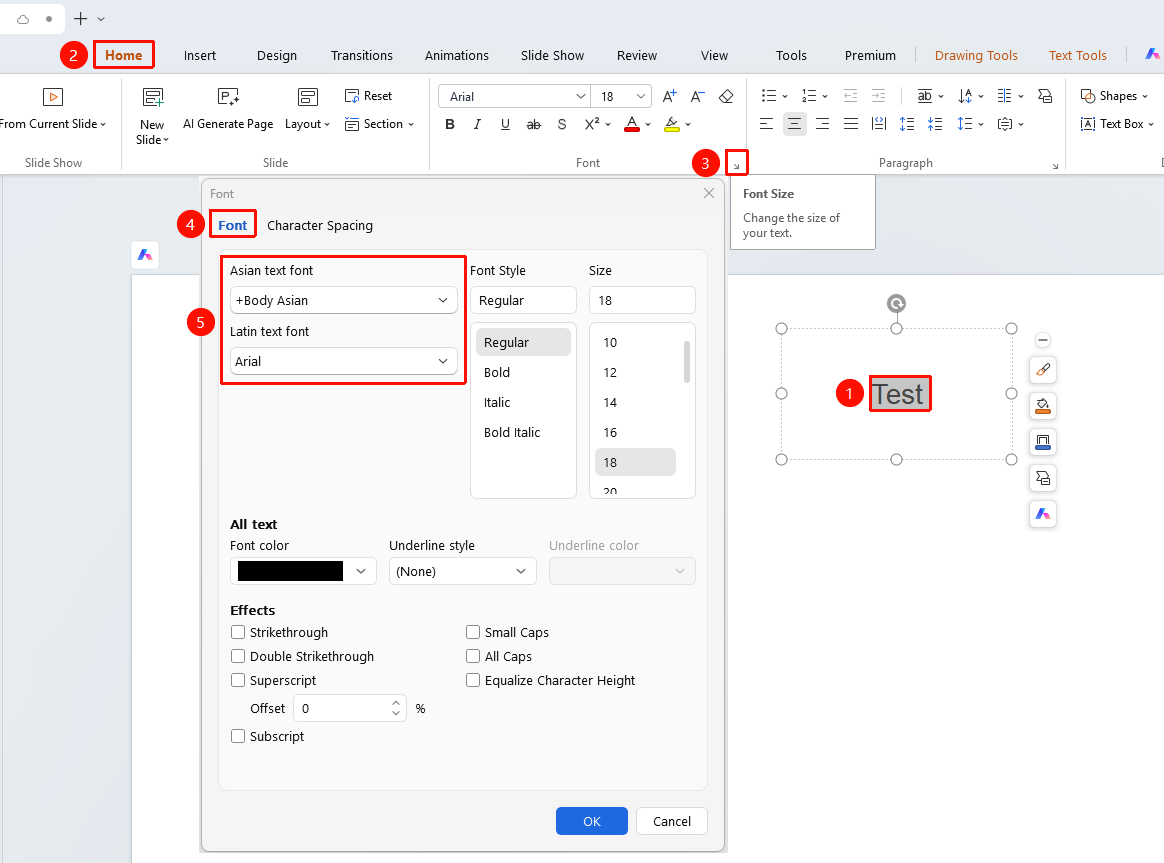
Set Font via Font Dialog Box
Feature Entry ①
"Home" tab → Arrow icon in the lower-right corner of the "Font" area
- Select the text you want to adjust the font size for
- Click the "Home" tab, then click the arrow icon in the lower-right corner of the Font settings area to open the Font dialog box
- In the Font tab, set the Chinese Font and Western Font
- Select the target font from the list to apply it
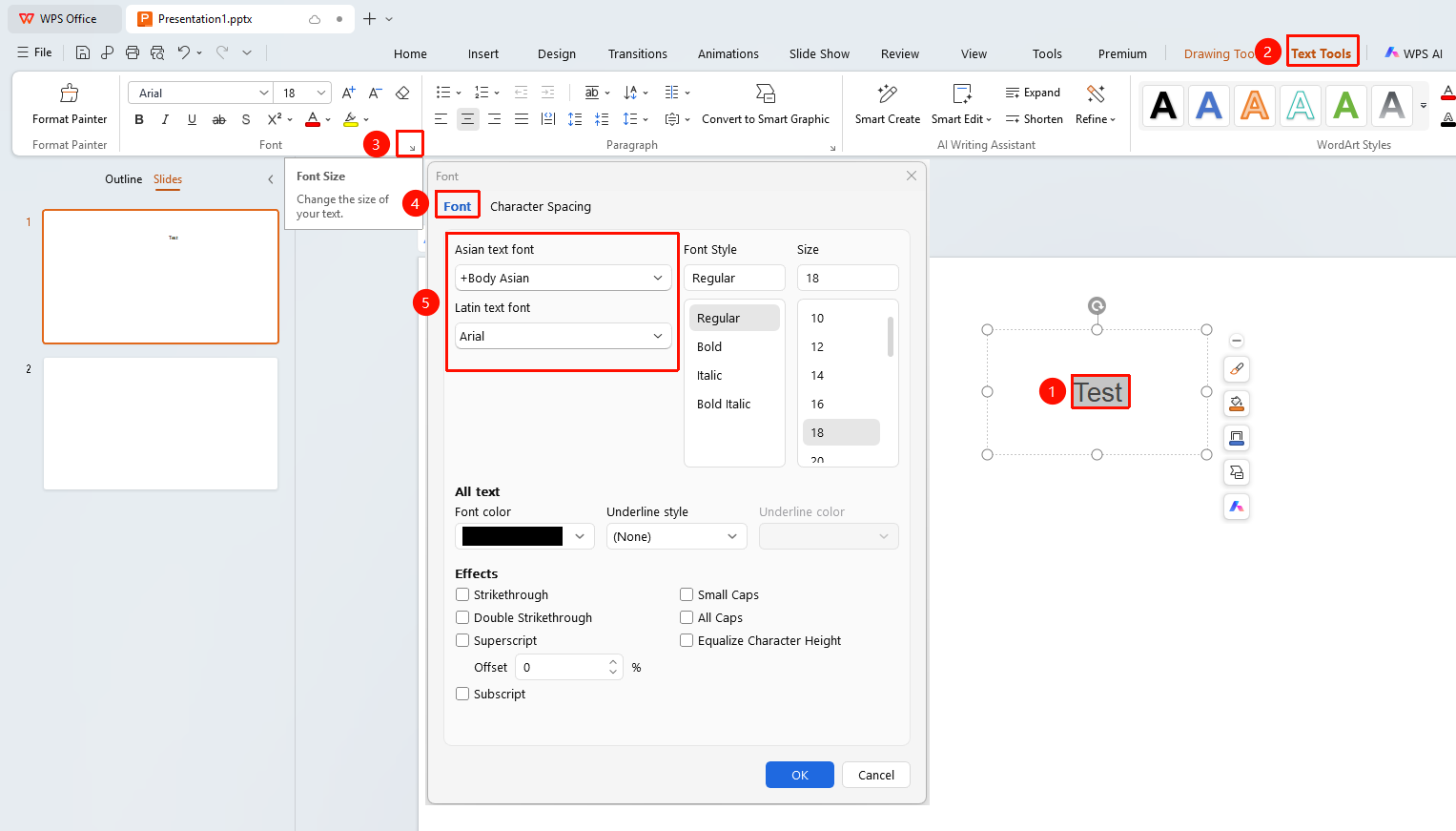
Feature Entry ②
"Text Tools" tab → Arrow icon in the lower-right corner of the "Font" area
- Select the text you want to adjust the font size for
- Click the "Text Tools" tab, then click the arrow icon in the lower-right corner of the Font settings area to open the Font dialog box
- In the Font tab, set the Chinese Font and Western Font
- Select the target font from the list to apply it
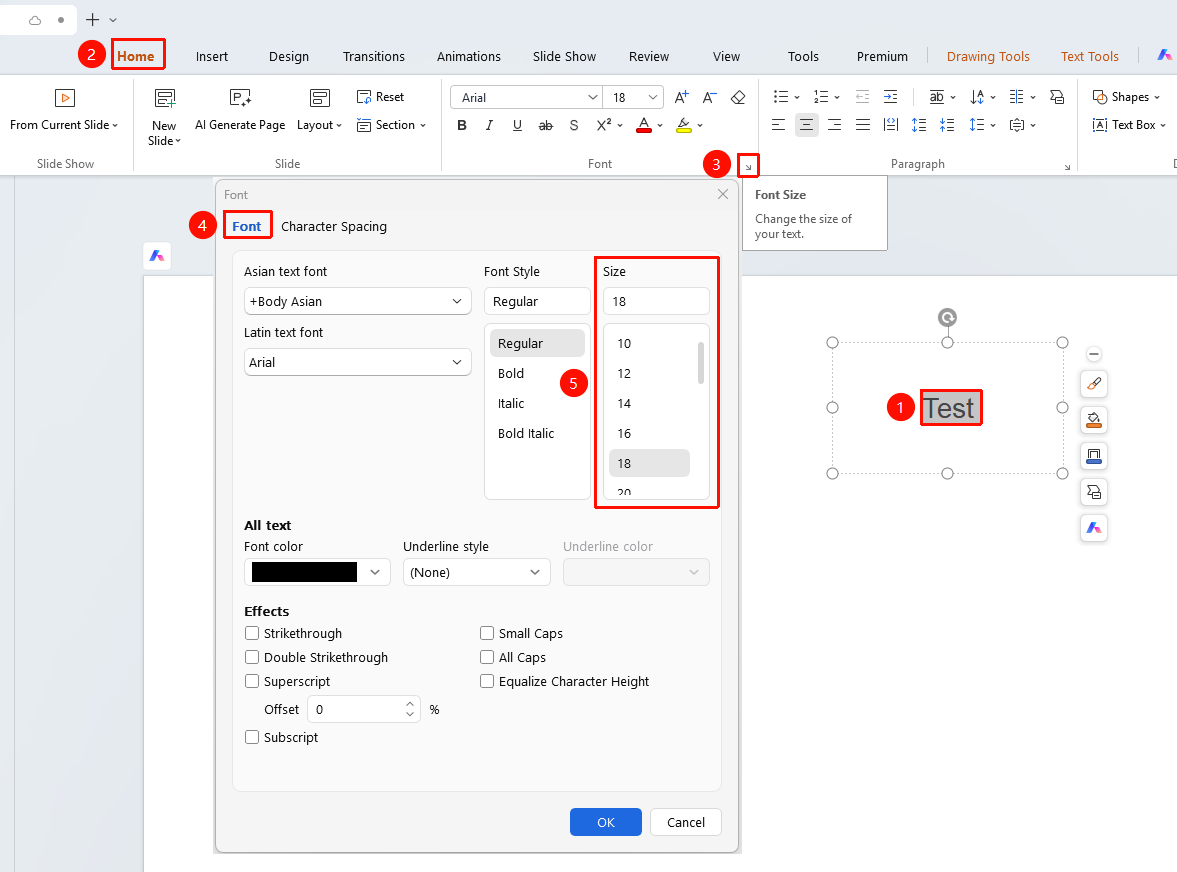
Set Font Size via Font Dialog Box
Feature Entry ①
"Home" tab → Arrow icon in the lower-right corner of the "Font" area
- Select the text you want to adjust the font size for
- Click the "Home" tab, then click the arrow icon in the lower-right corner of the Font settings area to open the Font dialog box
- In the Font tab, set the "Font Size"
- Select the target font size from the list to apply it
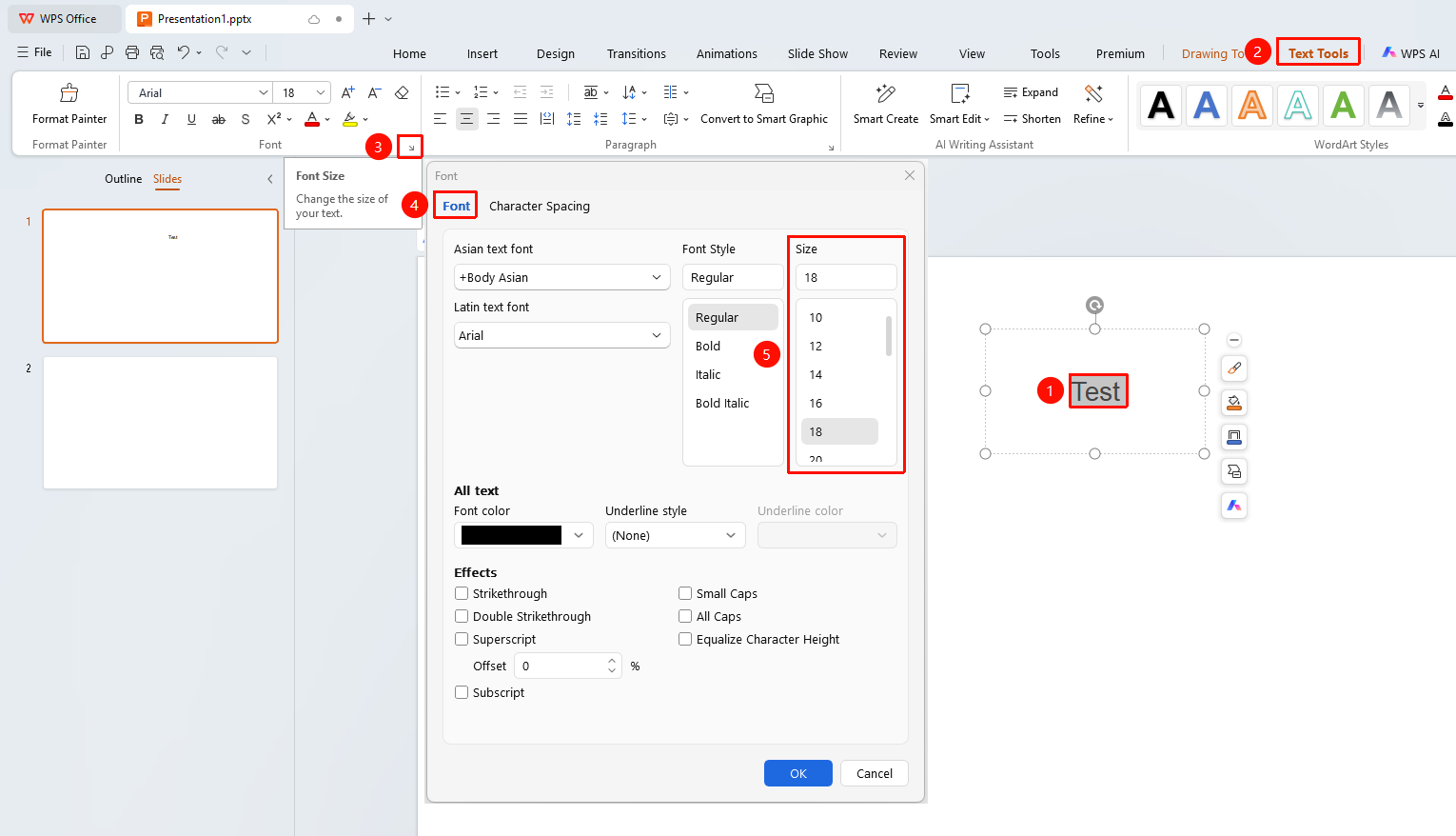
Feature Entry ②
"Text Tools" tab → Arrow icon in the lower-right corner of the "Font" area
- Select the text you want to adjust the font size for
- Click the "Text Tools" tab, then click the arrow icon in the lower-right corner of the Font settings area to open the Font dialog box
- In the Font tab, set the "Font Size"
- Select the target font size from the list to apply it
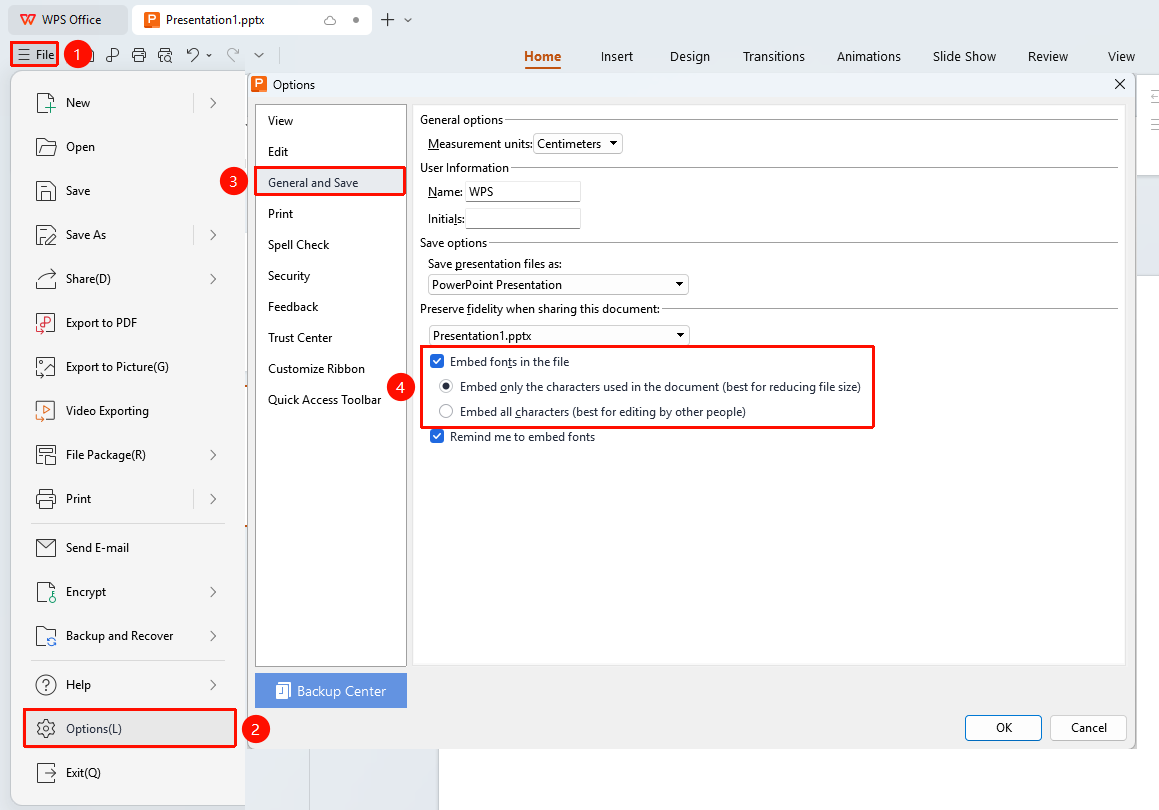
Embed Fonts in the Document
Feature Entry
"File" menu → "Options" button → "General & Save" option → "Embed fonts in the file" checkbox
- Click the File menu in the upper-left corner and select Options
- In the dialog box, click the "General & Save" option
- Check the "Embed fonts in the file" checkbox
- Click OK to apply
Some fonts are restricted by the font vendor's copyright and cannot be embedded in the file
FAQ
Q1: Why is the font displayed abnormally or as garbled characters?
- Solution: Abnormal font display is usually caused by the system missing the corresponding font. Please check whether the font is installed in the system font library. If it is missing, reinstall the corresponding font. Garbled symbols (such as checkboxes) are usually related to the Wingdings font series. Install this font and restart WPS to resolve the issue.
Q2: When opening a WPS Docs file sent by another user, the layout is incorrect or the font appears garbled?
- Solution: After opening the file, click [File] - [Options] - [View] in the upper-left corner, select [Font Substitution], check for any missing fonts, and install the missing fonts on your computer to resolve the issue.
Q3: How to install fonts on the system?
- Solution: After downloading the font file, there are two installation methods:
- Double-click the font file directly to install it automatically (compressed packages need to be extracted first)
- Drag the font file directly into the system font library folder (C:\Windows\Fonts). After installation, restart WPS to use the new font.
Q4: When saving a document, it prompts that the font cannot be embedded?
- Solution: Some fonts are protected by copyright and restricted from being embedded in documents.
- Replace the restricted font with an embeddable font.
- Output the document as a Scanned PDF for use.
Q5: Can I enter any value in the font size input box?
- Solution: Yes. The font size dropdown box provides common preset values, but you can also directly enter any number (such as 72, 150, etc.) in the "Font Size" field and press Enter to confirm and apply the custom font size.
Q6: How to undo font and font size operations?
- Solution: Use the shortcut
Ctrl+Z(Mac:⌘+Z) to undo immediately, or click the "Undo" button on the quick toolbar to revert.
Notes
- Difference between system fonts and cloud fonts: System fonts are provided by the system manufacturer, are free of charge, and can be used by all software; cloud fonts are provided by partner font vendors, require a membership subscription, and are only available within WPS
- Cloud font usage restrictions: After the membership expires, documents that have already used cloud fonts can still be viewed and edited, but new cloud fonts cannot be downloaded. If you need to continue using them, you can choose similar system fonts as a replacement
- WPS must be restarted after font installation: Whether it is a system font or a manually installed font, you need to restart the WPS software after installation to see it in the font list
- Font copyright notice: The copyright of fonts belongs to the font developer. Please comply with the relevant licensing agreement when using them
- Before important presentations, please test the effect on the actual device
- "Text Tools" tab allows you to view more font settings