Feature Summary
Format Painter allows you to quickly copy formatting (such as font, size, color, and bold) from selected text and apply it to other text. This significantly improves formatting efficiency and helps you avoid repetitive steps.
Feature Specifications
| Dimension | Description |
|---|---|
| Membership Limit | No membership limit |
| Version Limit | No version limit |
Steps
Copy Formatting with Format Painter
Entry 1
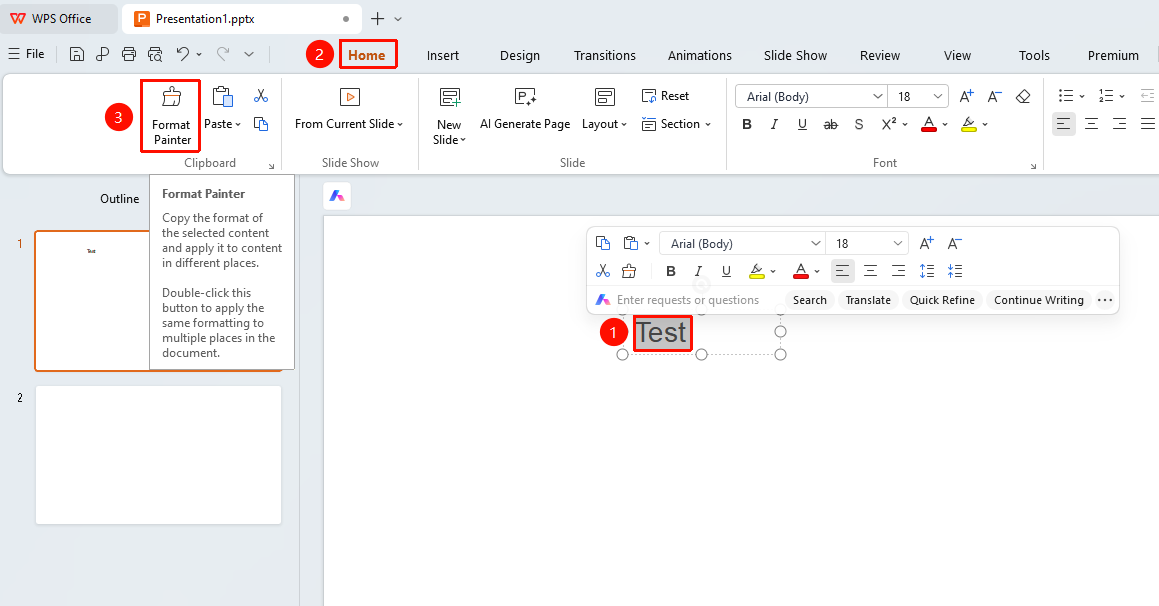
Home tab > Format Painter button
- Select the text with the formatting you want to copy.
- Click the Format Painter button on the Home tab.
- When the pointer changes to a brush shape, select the target text to apply the formatting.
- Release the mouse button to apply the formatting to the target text.
Note: You can also select the text and click the brush icon on the floating toolbar for quick access.
Entry 2
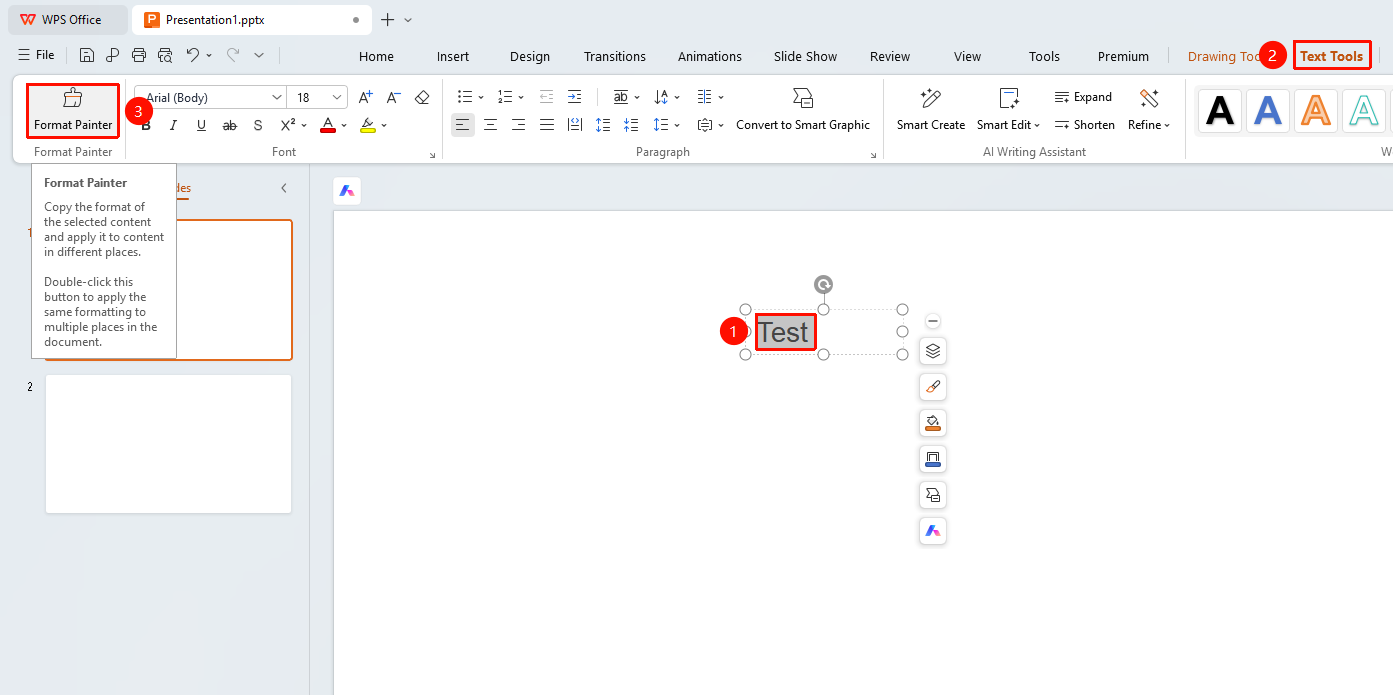
Text Tools tab > Format Painter button
- Select the text with the formatting you want to copy.
- Click the Format Painter button on the Text Tools tab.
- When the pointer changes to a brush shape, select the target text to apply the formatting.
- Release the mouse button to apply the formatting to the target text.
Double-Click Format Painter for Batch Application
Entry
Home or Text Tools tab > Format Painter button
- Select the text with the formatting you want to copy.
- Double-click the Format Painter button to enter batch mode.
- Select multiple text ranges one by one to apply the formatting.
- Press Esc or click the Format Painter button again to exit.
FAQs
Q1: Can Format Painter only copy text formatting?
- Solution: No. Format Painter can copy not only text formatting (such as font, size, and color) but also paragraph formatting (such as line spacing and alignment). In a presentation, select the text with the formatting you want to copy, and then use Format Painter to apply the complete formatting to the target text.
Q2: How do I exit after double-clicking Format Painter?
- Solution: After double-clicking Format Painter to enter batch mode, you can press Esc on your keyboard or click the Format Painter button on the ribbon again to exit.
Notes
- Format Painter copies all formatting attributes of the text, including font, size, color, bold, and italic.
- Clicking Format Painter once allows you to use it only once. Double-clicking allows continuous use.
- You can press Esc at any time to exit Format Painter mode.
- If Format Painter does not work properly (for example, the icon is blank or cannot be used continuously), check for third-party add-in conflicts first.
- Format Painter can copy the formatting of text boxes, shapes, and Smart Graphics.
Guide to Using Format Painter in WPS Slides
Feature Summary
Format Painter allows you to quickly copy formatting (such as font, size, color, and bold) from selected text and apply it to other text. This significantly improves formatting efficiency and helps you avoid repetitive steps.
Feature Specifications
| Dimension | Description |
|---|---|
| Membership Limit | No membership limit |
| Version Limit | No version limit |
Steps
Copy Formatting with Format Painter
Entry 1
Home tab > Format Painter button
- Select the text with the formatting you want to copy.
- Click the Format Painter button on the Home tab.
- When the pointer changes to a brush shape, select the target text to apply the formatting.
- Release the mouse button to apply the formatting to the target text.
Note: You can also select the text and click the brush icon on the floating toolbar for quick access.
Entry 2
Text Tools tab > Format Painter button
- Select the text with the formatting you want to copy.
- Click the Format Painter button on the Text Tools tab.
- When the pointer changes to a brush shape, select the target text to apply the formatting.
- Release the mouse button to apply the formatting to the target text.
Double-Click Format Painter for Batch Application
Entry
Home or Text Tools tab > Format Painter button
- Select the text with the formatting you want to copy.
- Double-click the Format Painter button to enter batch mode.
- Select multiple text ranges one by one to apply the formatting.
- Press Esc or click the Format Painter button again to exit.
FAQs
Q1: Can Format Painter only copy text formatting?
- Solution: No. Format Painter can copy not only text formatting (such as font, size, and color) but also paragraph formatting (such as line spacing and alignment). In a presentation, select the text with the formatting you want to copy, and then use Format Painter to apply the complete formatting to the target text.
Q2: How do I exit after double-clicking Format Painter?
- Solution: After double-clicking Format Painter to enter batch mode, you can press Esc on your keyboard or click the Format Painter button on the ribbon again to exit.
Notes
- Format Painter copies all formatting attributes of the text, including font, size, color, bold, and italic.
- Clicking Format Painter once allows you to use it only once. Double-clicking allows continuous use.
- You can press Esc at any time to exit Format Painter mode.
- If Format Painter does not work properly (for example, the icon is blank or cannot be used continuously), check for third-party add-in conflicts first.
- Format Painter can copy the formatting of text boxes, shapes, and Smart Graphics.