Feature Summary
Copying, pasting, and cutting are fundamental operations in text editing. They are used to quickly duplicate or move text content to a specified location, supporting operations across slides and documents, which significantly improves content editing and formatting efficiency.
Feature Description
| Feature Dimension | Description |
|---|---|
| Membership Limit | No membership limit |
| Version Limit | No version limit |
| Copy Shortcut | Ctrl+C |
| Paste Shortcut | Ctrl+V |
| Cut Shortcut | Ctrl+X |
Steps
Basic Copy Operation
Entry
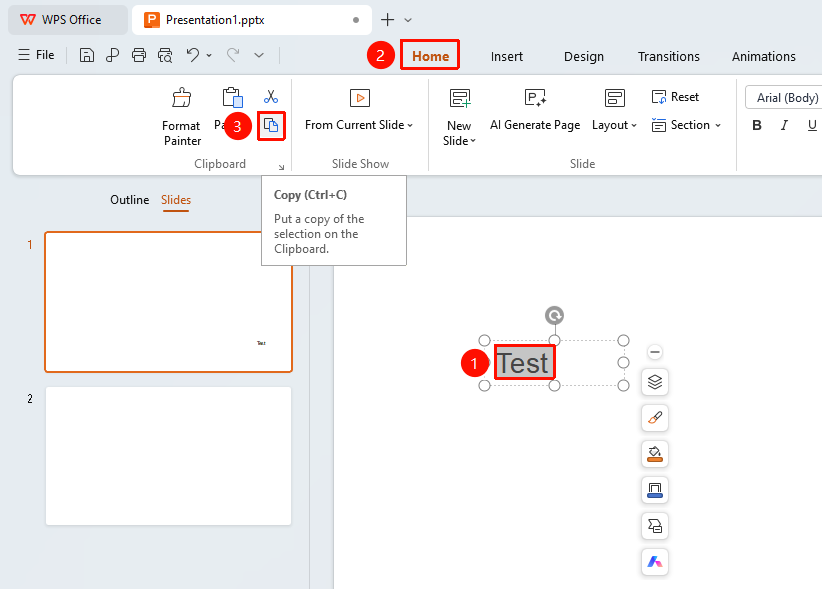
Select the text to copy, go to the Home tab, and click the Copy button.
- Select the text you want to copy.
- Click the Home tab.
- Click the Copy button to copy.
Basic Cut Operation
Entry
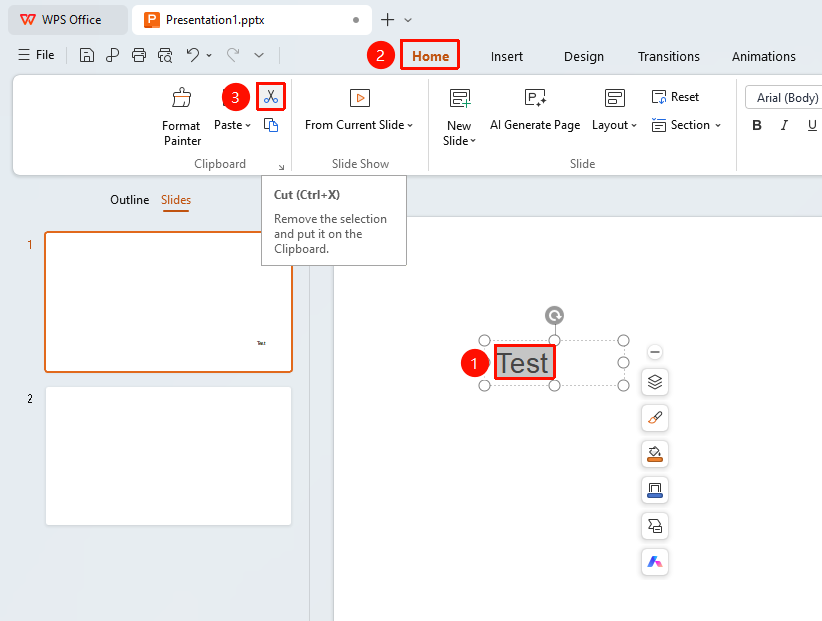
Select the text to copy, go to the Home tab, and click the Cut button.
- Select the text you want to cut.
- Click the Home tab on the ribbon.
- Click the Cut button to cut.
Basic Paste Operation
Entry
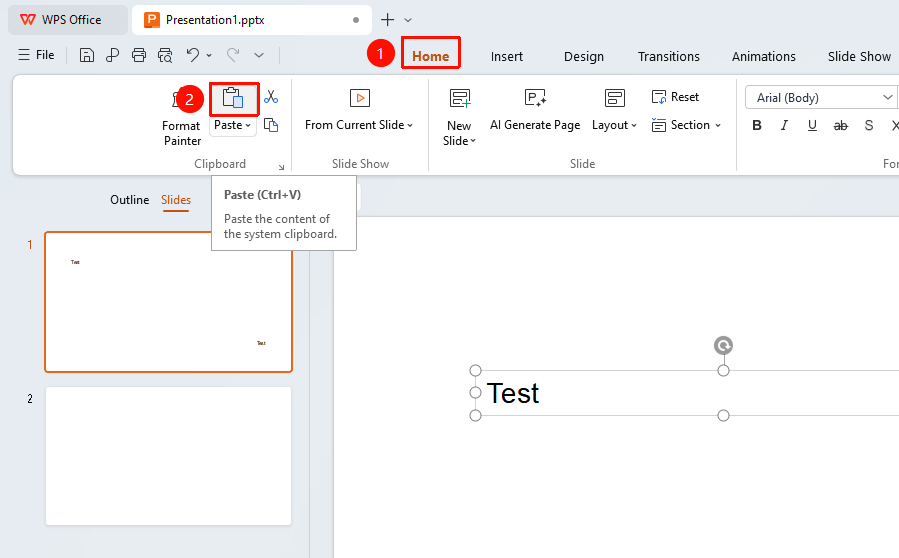
Go to the Home tab and click the Paste button.
- Position the cursor at the target location.
- Click the Home tab on the ribbon.
- Click the Paste button to paste.
More Paste Options
Entry
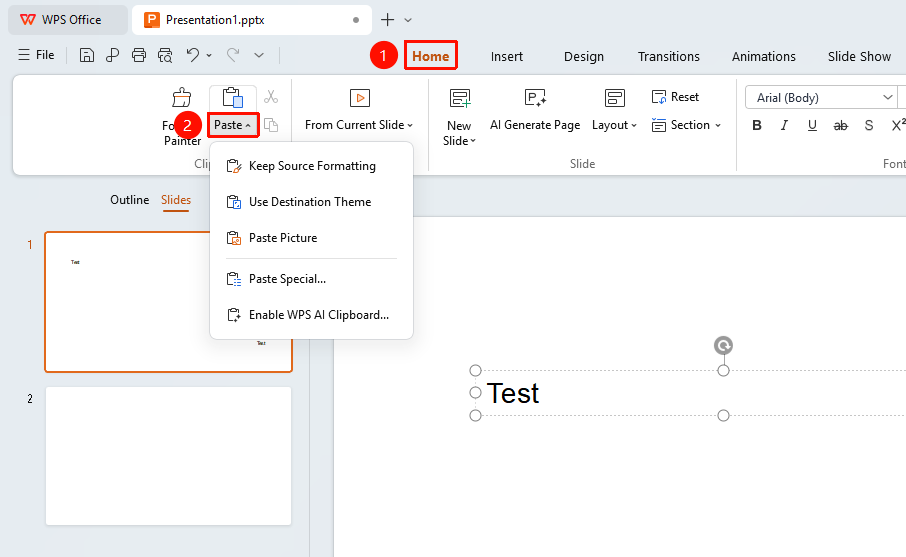
Go to the Home tab and click the drop-down arrow on the Paste button.
Click the Home tab on the ribbon.
Click the drop-down arrow on the Paste button, and choose one of the following paste options:
- Keep Source Formatting: Retains the original formatting of the copied content.
- Use Destination Theme: Automatically matches the theme applied to the destination location.
- Keep Text Only: Discards all formatting and pastes only the plain text.
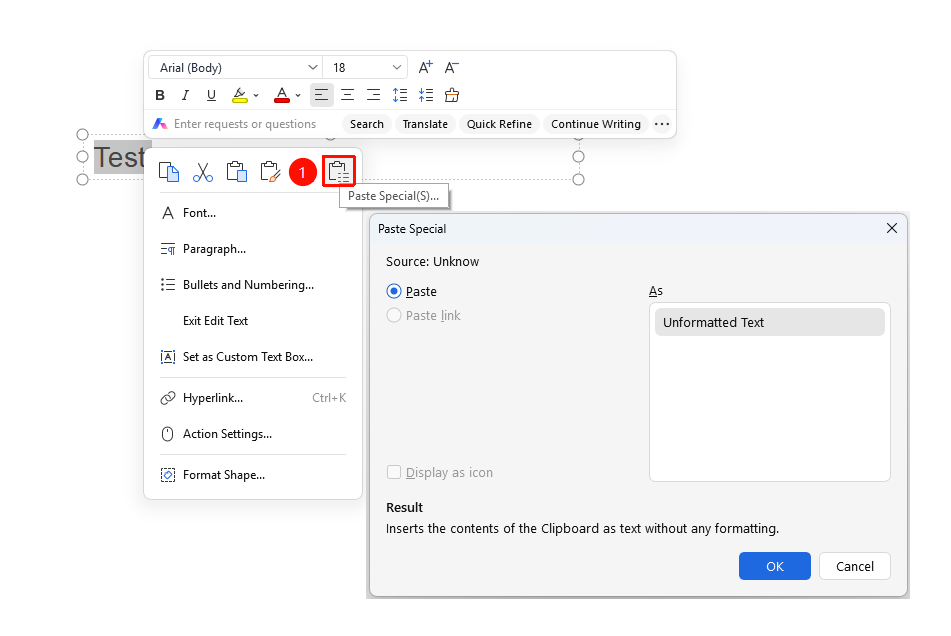
- Paste Special: Supports pasting in various formats such as text data, formatted text (HTML), unformatted text, or as an image (depending on the copied object).
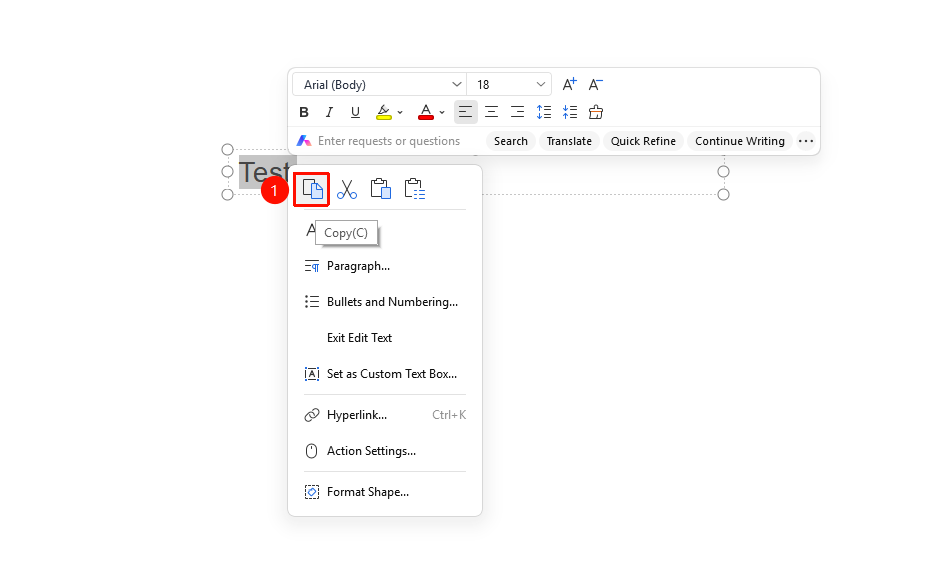
Copy from Context Menu
Entry
Select the text to copy, right-click to open the context menu, and click the Copy button.
- Select the text you want to copy.
- Right-click the selected text to open the context menu.
- Click the Copy button to copy.
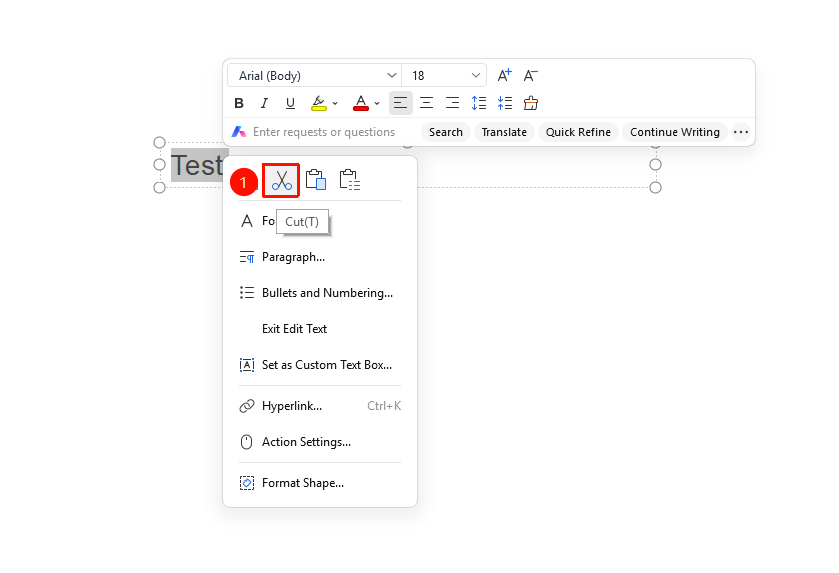
Cut from Context Menu
Entry
Select the text to cut, right-click to open the context menu, and click the Cut button.
- Select the text you want to cut.
- Right-click the selected text to open the context menu.
- Click the Cut button to cut.
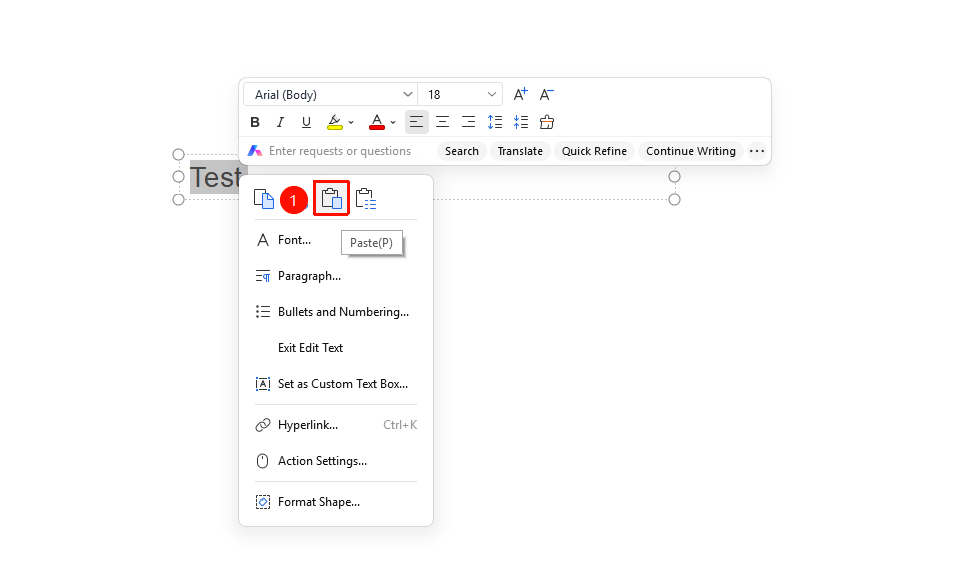
Paste from Context Menu
Entry
Right-click to open the context menu, and click the Paste button.
- Position the cursor at the target location.
- Right-click an empty area to open the context menu.
- Click the Paste button to paste.
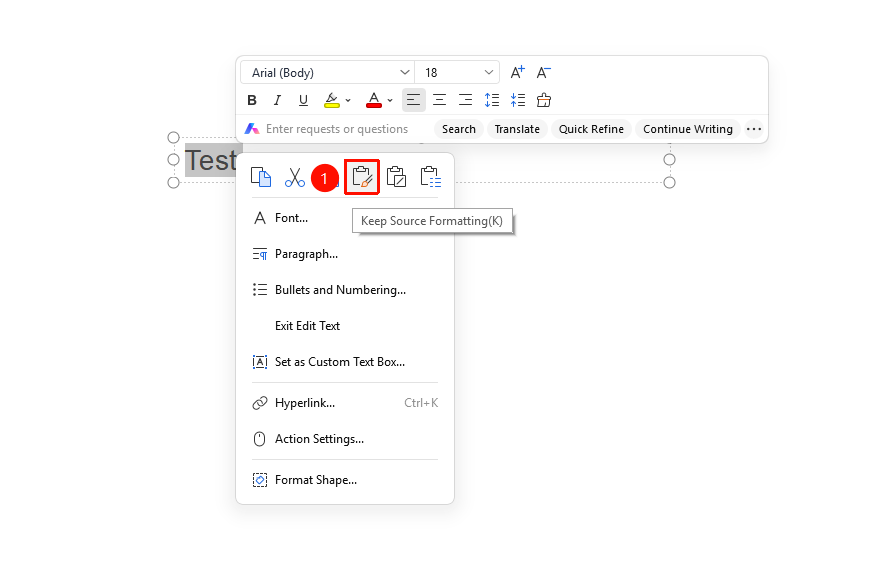
Paste and Keep Source Formatting from Context Menu
Entry
Right-click to open the context menu, and click the Paste with Formatting button.
- Position the cursor at the target location.
- Right-click an empty area to open the context menu.
- Click the Keep Source Formatting button to paste.
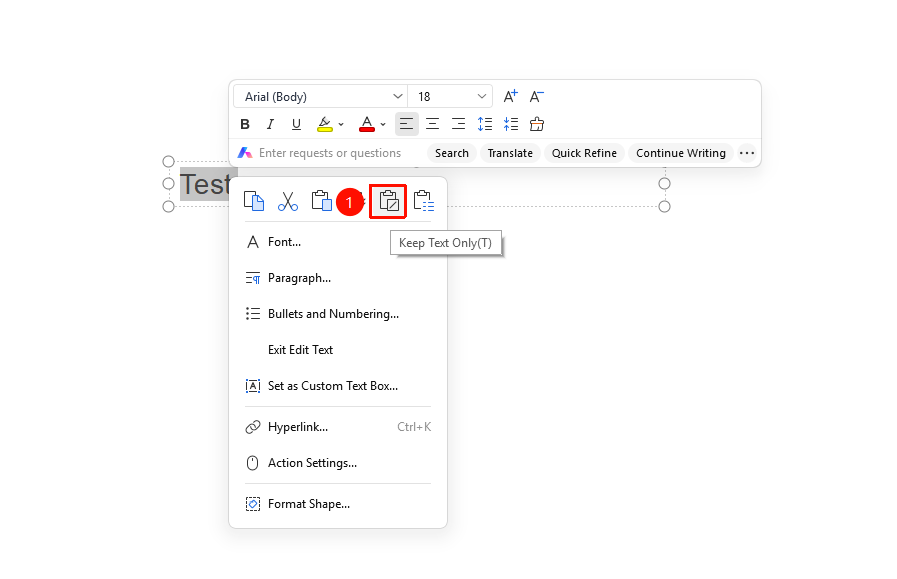
Paste Text Only from Context Menu
Entry
Right-click to open the context menu, and click the Keep Text Only button.
- Position the cursor at the target location.
- Right-click an empty area to open the context menu.
- Click the Keep Text Only button to paste.
Paste Special from Context Menu
Entry
Right-click to open the context menu, and click the Paste Special button.
- Position the cursor at the target location.
- Right-click an empty area to open the context menu.
- Click the Paste Special button.
Paste Format Descriptions:
| Paste Option | Description |
|---|---|
| Keep Source Formatting | Retains the original formatting of the copied content. |
| Use Destination Theme | Automatically matches the theme applied to the destination location. |
| Keep Text Only | Discards all formatting and pastes only the plain text. |
| Paste Special | Supports pasting in various formats such as formatted text (HTML), unformatted text, or images. |
FAQs
Q1: What should I do if the formatting changes after pasting?
- Solution: By default, pasted content may adjust to match the formatting of the destination location. If you need to retain the original formatting, choose the Keep Source Formatting option when pasting.
Q2: Can I copy and paste between different presentations?
- Solution: Yes. You can freely copy and paste text, images, shapes, and other objects between different WPS Slides presentations. When pasting, you can also choose to keep the source formatting or match the destination formatting.
Notes
- Copy (Ctrl+C), Cut (Ctrl+X), and Paste (Ctrl+V) are the most commonly used shortcut combinations.
- The cut operation deletes the content from its original location, and it will no longer be retained there after pasting.
- The "Keep Text Only" option is ideal for unifying formatting when pasting content between different presentations.
- Selecting text brings up a floating toolbar, where you can also perform operations such as copying, cutting, and pasting.