Feature Summary
Solid fill is the basic method of text filling, applying a single color to the interior of text strokes. It is simple and intuitive to operate, making it one of the most commonly used methods for adjusting text color, ideal for quickly unifying the color style of text.
Feature Description
| Feature Dimension | Description |
|---|---|
| Membership Restriction | No membership restriction |
| Version Restriction | No version restriction |
Operation Steps
Setting Solid Fill
Feature Entry ①
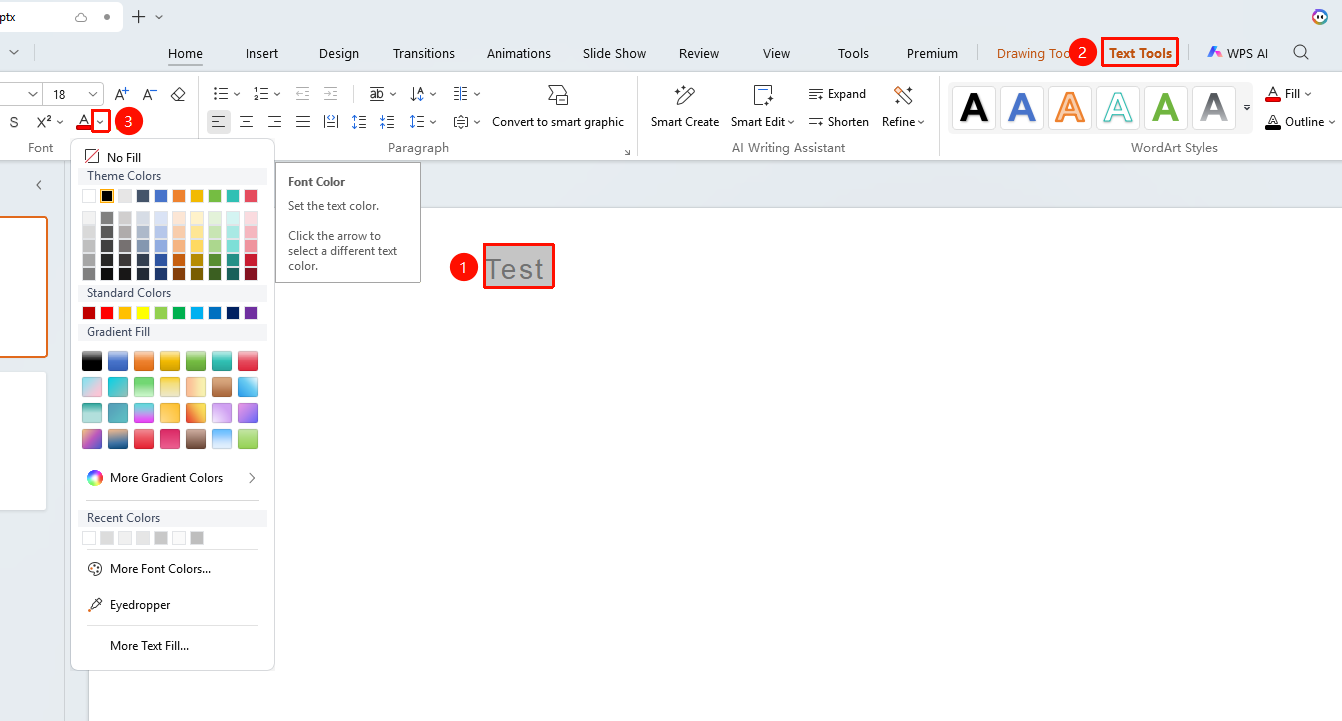
"Text Tools" tab → "Font Color"
- Select the text you want to change the color of
- Click the "Text Tools" tab
- Click the drop-down arrow next to the "Text Color" button
- Select the desired color from the pop-up color panel
- After clicking the color, the selected text will be filled with the corresponding color
Feature Entry ②
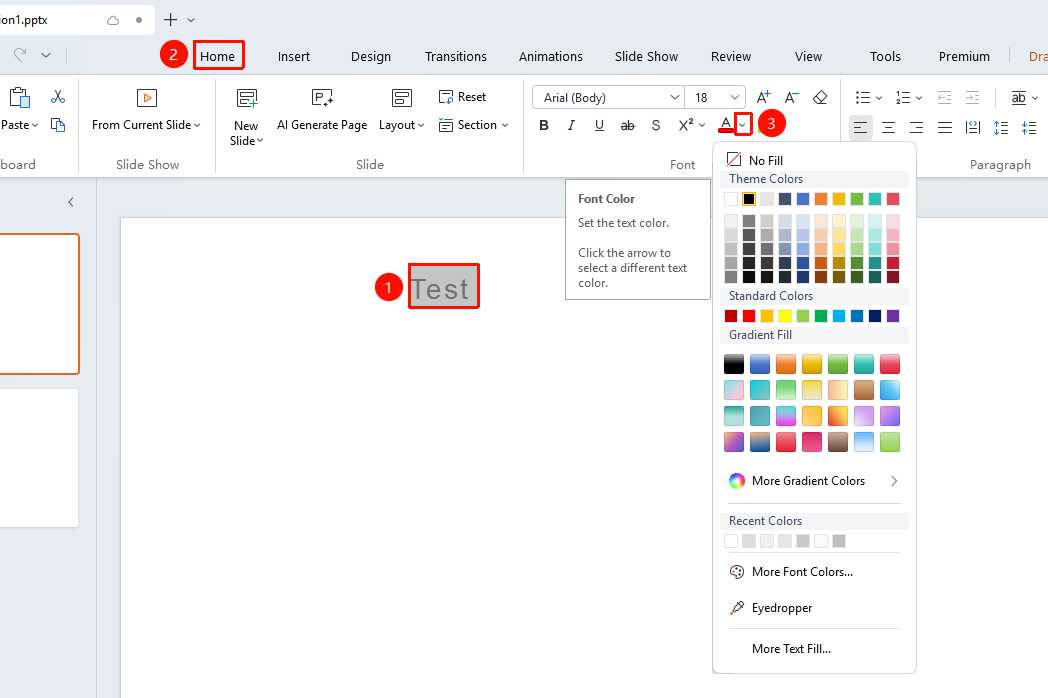
"Home" tab → "Font Color"
- Select the text you want to change the color of
- Click the "Home" tab
- Click the drop-down arrow next to the "Font Color" button
- Select the desired color from the pop-up color panel
Setting via Floating Edit Bar
Feature Entry
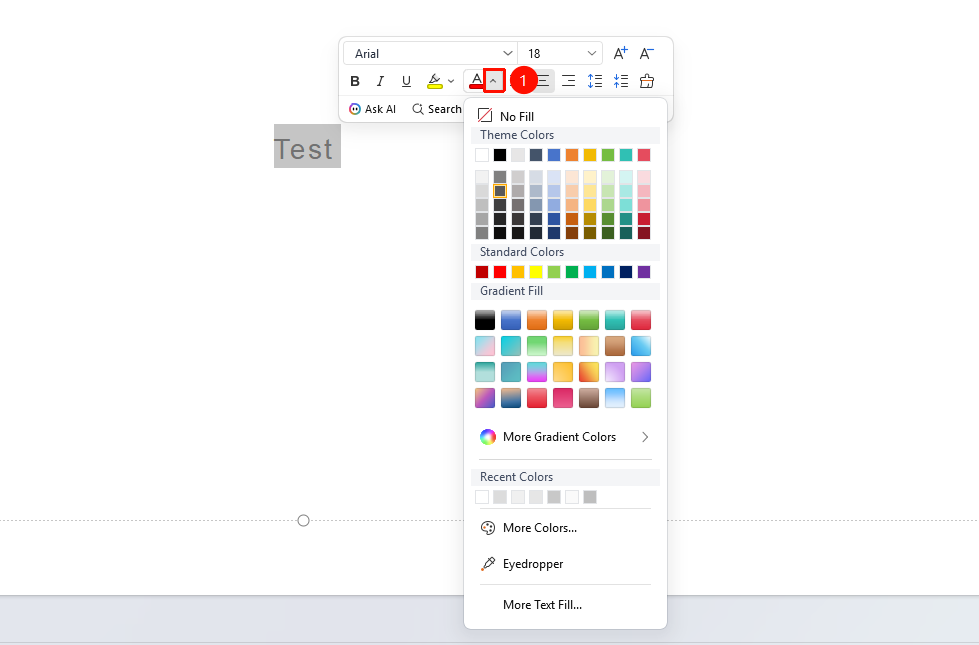
Select the text you want to add color to, "Floating Edit Bar" → "Font Color" button
- Select the text you want to bold
- After selection, the Floating Toolbar will automatically pop up
- Click the drop-down arrow next to the "Font Color" button
- Select the desired color from the pop-up color panel
- After clicking the color, the selected text will be filled with the corresponding color
Click "Other Font Colors" to customize the font color, or click the "Eyedropper" button to quickly select a color.
Custom Fill Color
Feature Entry ①
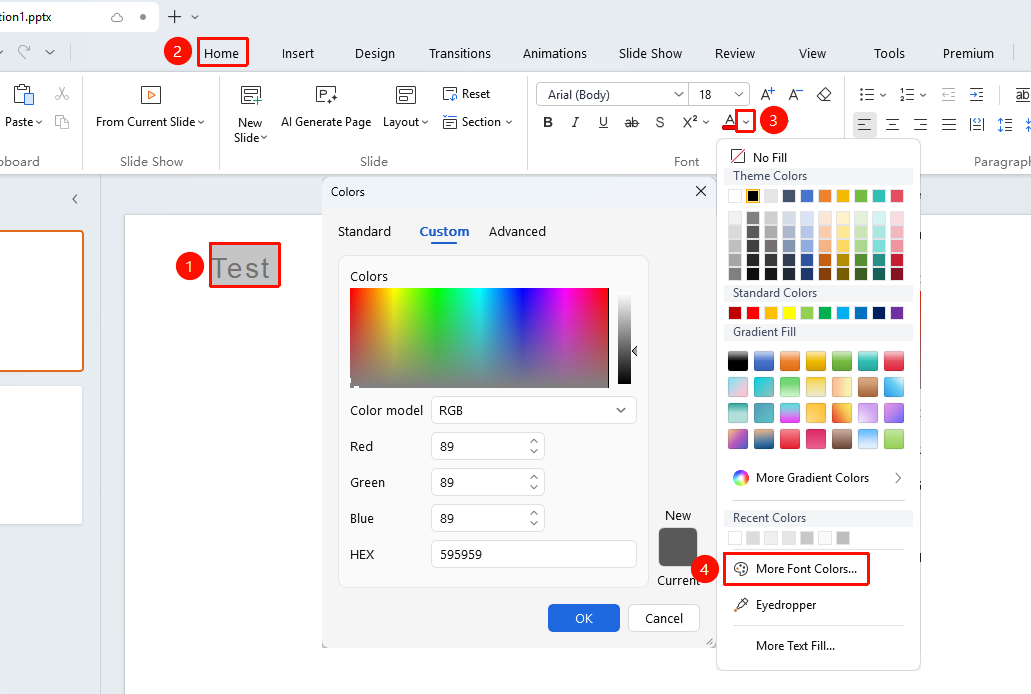
"Home" tab → "Font Color" → "More Font Colors"
- Select the target text
- Switch to the "Home" tab
- click the "Font Color" drop-down arrow
- Click "More Font Colors" at the bottom of the color panel
- Select a color in the color dialog box:
- Click to select from the standard color palette
- Enter precise RGB values in the custom tab
- Click "OK" to apply the custom color
Feature Entry ②
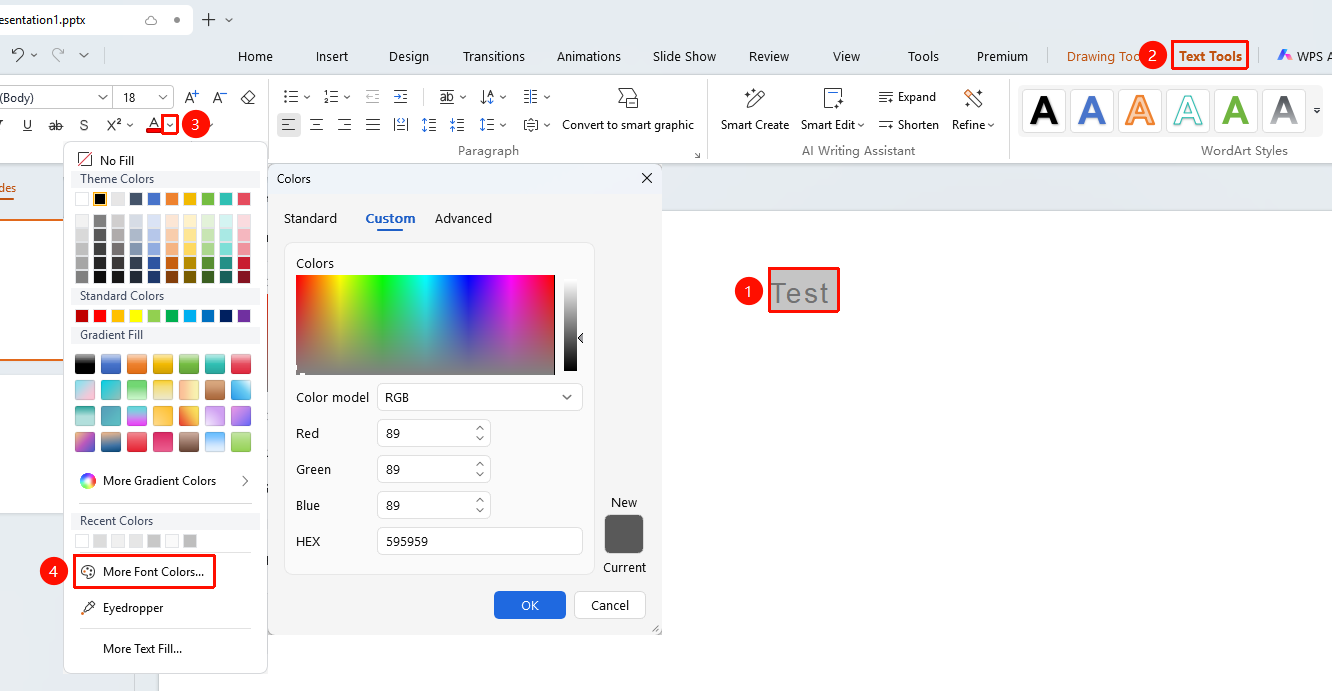
"Text Tools" tab → "Font Color" → "More Font Colors"
- After selecting text, click the "Font Color" drop-down arrow from 「Text tools」 tab
- Click "More Font Colors" at the bottom of the color panel
- Select a color in the color dialog box:
- Click to select from the standard color palette
- Enter precise RGB values in the custom tab
- Click "OK" to apply the custom color
Using the Eyedropper
Feature Entry ①
"Home" tab → "Font Color" → "Eyedropper"
- Select the target text
- Switch to the "Home" tab
- Click the "Font Color" drop-down arrow
- Select the "Eyedropper" tool
- Move the mouse to any position on the screen and click to pick up the color at that position
- The text automatically applies the picked color

Feature Entry ②
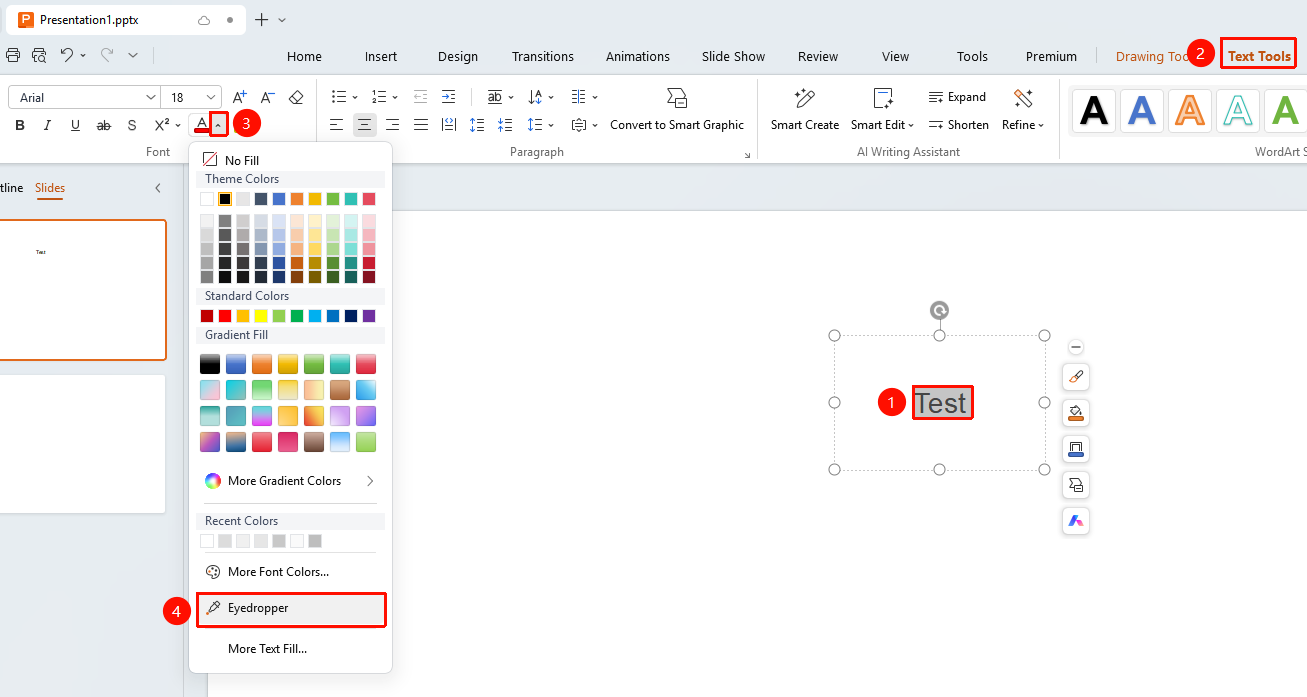
"Text Tools" tab → "Font Color" → "Eyedropper"
- Select the target text
- Switch to the "Text Tools" tab
- Click the "Font Color" drop-down arrow
- Select the "Eyedropper" tool
- Move the mouse to any position on the screen and click to pick up the color at that position
- The text automatically applies the picked color
Solid Fill Settings
Feature Entry
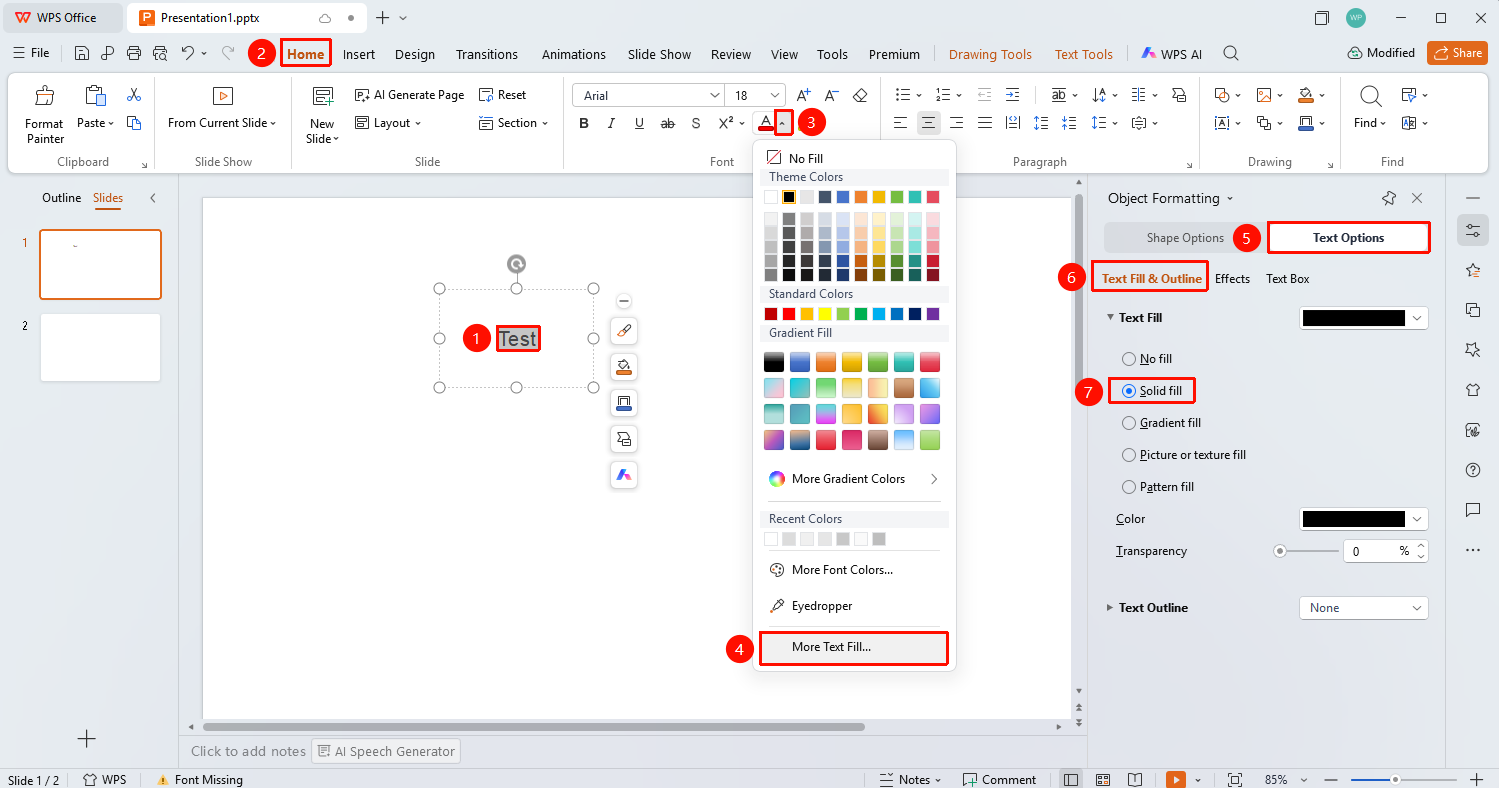
"Home" tab → "Font Color" → "More Settings" → "Text Options" → "Fill & Outline" → "Solid Fill"
- Select the target text, then click the dropdown arrow to the right of "Font Color" under the "Home" tab.
- Click the "More Settings" option to expand the "Object Properties" panel on the right.
- Click "Fill & Outline" under the "Text Options" tab.
- Locate the "Text Fill" section.
- Switch the fill effect to "Solid Fill".
- Click the dropdown box to the right of the "Color" option to set the fill color.
- Slide the "Transparency" slider left or right to set the font transparency (precise values can be entered).
- Switch to the "No Fill" option to make the font completely transparent.
FAQ
Q1: What is the difference between solid fill and gradient fill colors?
- Solution: Solid fill uses a single color, while gradient fill uses a transition of multiple colors.
Q2: Can transparency be set for a solid fill?
- Solution: Yes. It can be set under "Home" tab → "Shape Fill" →"More Settings"** →"Text Options"→"Solid Fill", or by clicking the "Object Properties" panel button on the right side of the screen to expand the panel.
Q3: How to quickly apply a solid fill to other text after setting it?
- Solution: Use the Format Painter tool: first select the text with the solid fill already set, double-click the Format Painter, then select the other texts you want to apply the same fill to in sequence.
Notes
- Solid fill is the most basic text fill method and is suitable for most layout scenarios.
- Ensure sufficient contrast between the fill color and the background color to maintain text readability.
- It is recommended to use a consistent fill color scheme within the same page.
- "Font Color" can also be set in the floating edit bar when text is selected.
- After selecting text, click the "Object Properties" button on the right side of the screen to expand the full font effects settings panel.