Feature Summary
The Bold feature is used to style selected text in bold, making it more eye-catching and prominent. It is commonly used for headings, keywords, or content that requires emphasis, enhancing the visual hierarchy of your presentation.
Feature Description
| Feature Dimension | Description |
|---|---|
| Member Restrictions | No member restrictions |
| Version Restrictions | No version restrictions |
| Bold Shortcut | Ctrl+B |
Steps
Set via the Ribbon
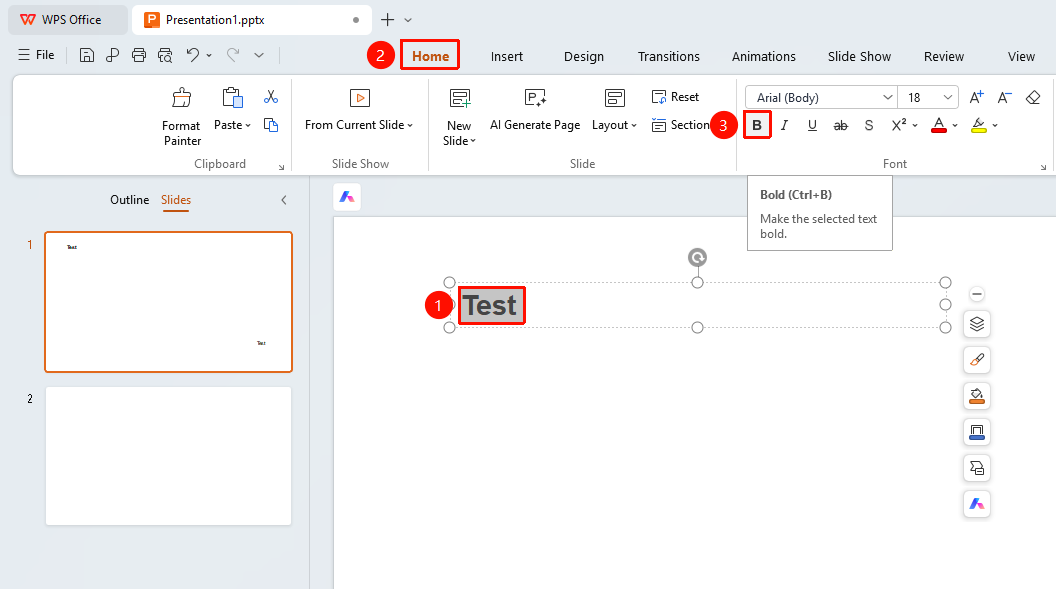
Feature Entry ①
Home tab > Bold button
- Select the text you want to bold.
- Click the Home tab on the ribbon.
- Click the Bold button.
- Click it again to remove bold formatting.
Feature Entry ②
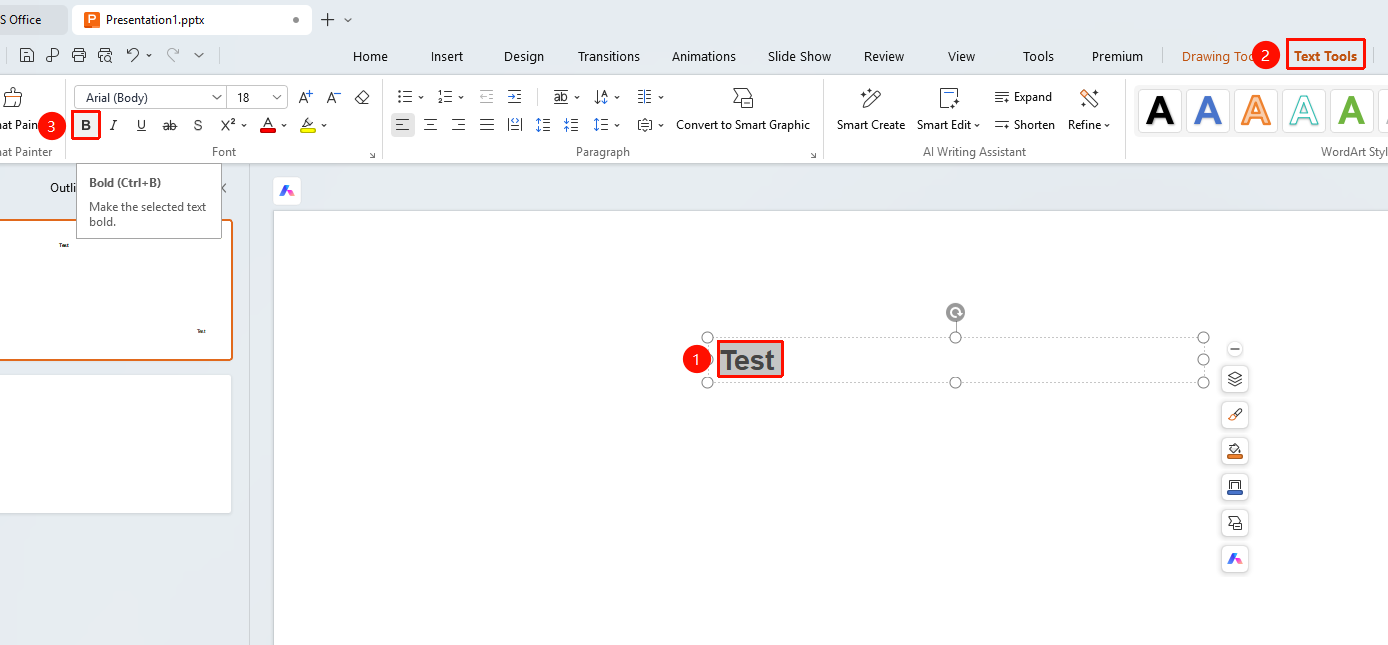
Text Tools tab > Bold button
- Select the text you want to bold.
- Click the Text Tools tab on the ribbon.
- Click the Bold button.
- Click it again to remove bold formatting.
Set via the Floating Toolbar
Feature Entry
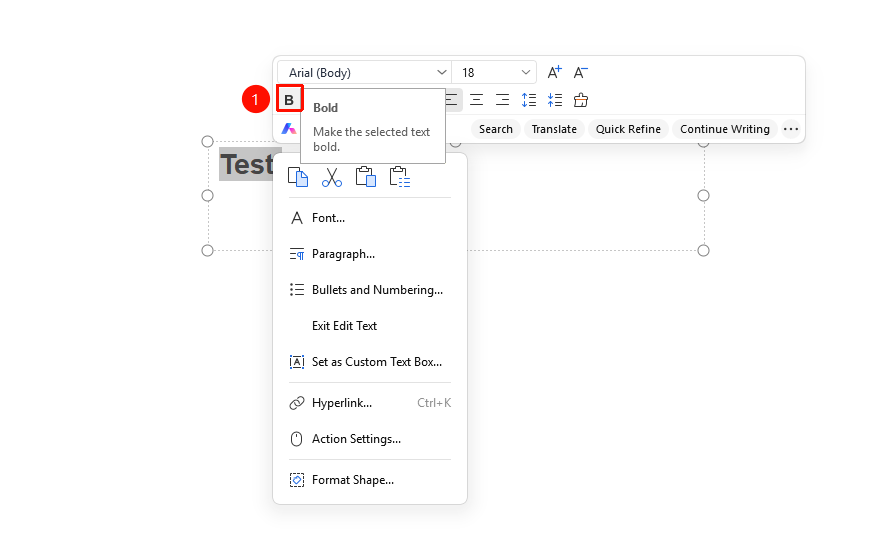
Select the text you want to bold, Floating Toolbar > Bold button
- Select the text you want to bold.
- The floating toolbar will automatically appear after selection.
- Click the Bold button on the floating toolbar.
- Click it again to remove bold formatting.
Set via the Right-Click Menu
Feature Entry
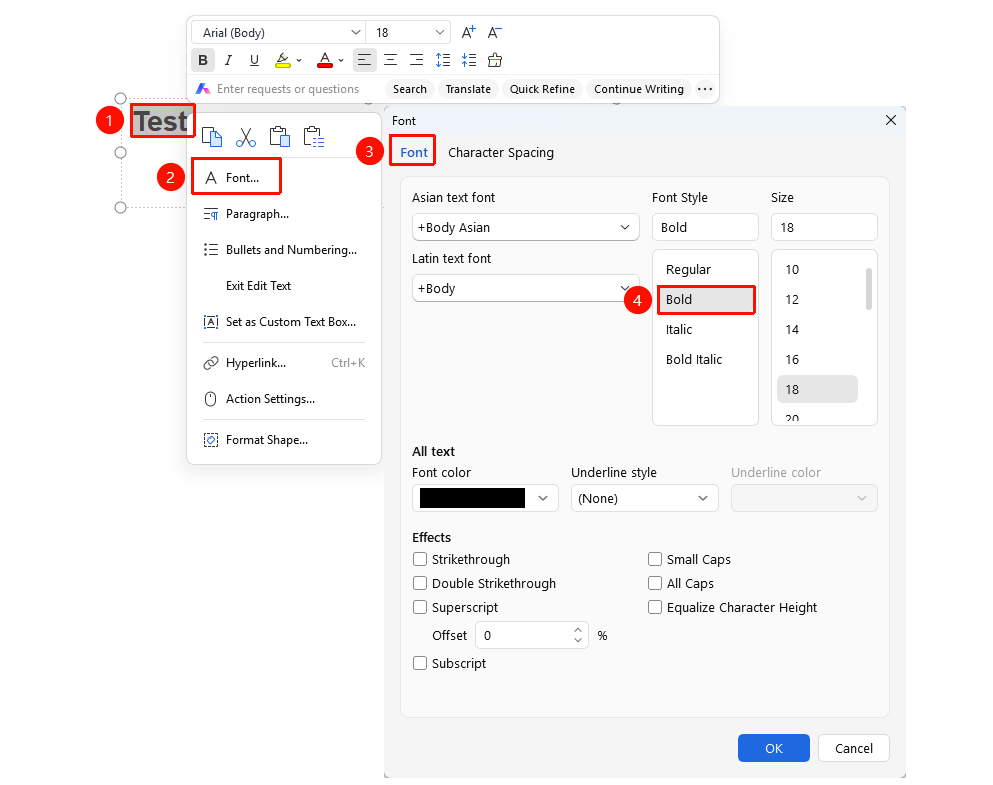
Right-click menu > Font button > Font Style drop-down list > Bold option
- Select the text you want to bold.
- Right-click the selected text to open the right-click menu.
- Click the Font button.
- Click the Font Style drop-down list.
- Select the Bold option.
- Click the OK button to save.
Bold Text Using Shortcut
- Select the text you want to bold.
- Press the shortcut key Ctrl+B to quickly bold the text.
- Press Ctrl+B again to remove bold formatting.
FAQ
Question 1: Why does the text not look noticeably bold or look the same as other text after bolding?
- Solution: Check if the current font supports bold styling. Some fonts (such as certain artistic fonts) may not show a noticeable bold effect. We recommend changing to a common font (such as SimSun, Microsoft YaHei, etc.) before applying bold formatting.
Question 2: What should I do if the text is distorted after bolding?
- Solution: Some fonts may appear distorted or blurry after bolding. We recommend changing to a font that supports bold styling (such as common fonts like Microsoft YaHei, SimSun, etc.) for a better display effect.
Question 3: Can I apply both bold and italic formatting at the same time?
- Solution: Yes. Bold and italic are two independent formatting attributes that can be applied to the same text simultaneously. Apply bold formatting first, and then apply italic formatting. Both effects will be superimposed.
Notes
- Use the shortcut key Ctrl+B to quickly toggle bold formatting.
- We recommend using a consistent bold style for headings of the same level to maintain formatting consistency.