Feature Summary
The Italic feature is used to set selected text to an italic style. It is commonly used in quotes, terminology labeling, or special emphasis scenarios to add visual variety and formatting hierarchy to presentations.
Feature Description
| Feature Dimension | Description |
|---|---|
| Member Limit | No member limit |
| Version Limit | No version limit |
| Shortcut | Ctrl + I |
Steps
Set via the Ribbon
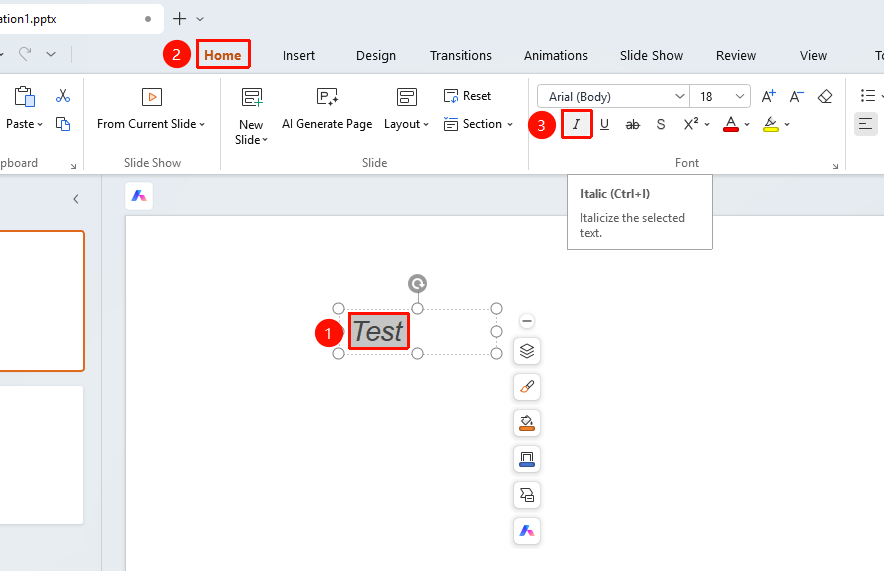
Feature Entry ①
"Home" tab -> "Italic" button
- Select the text that needs to be italicized.
- Click the Home tab on the ribbon.
- Click the Italic button.
- Click it again to remove the italic effect.
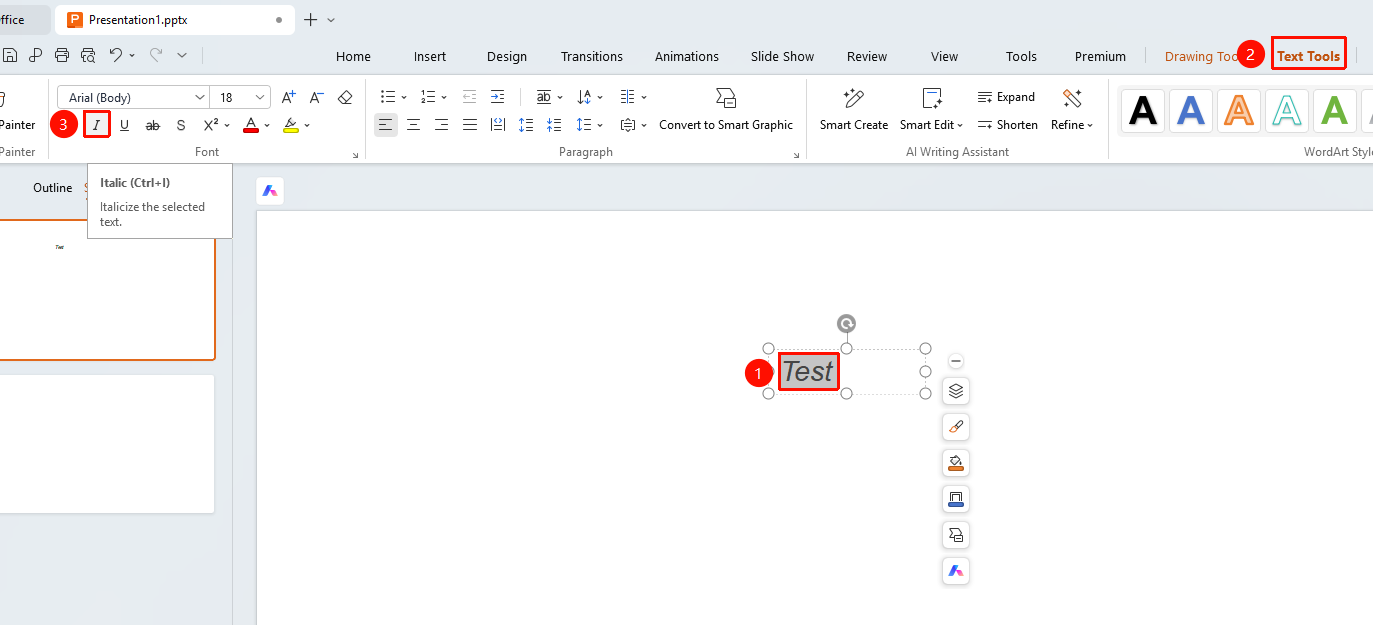
Feature Entry ②
"Text Tools" tab -> "Italic" button
- Select the text that needs to be italicized.
- Click the Text Tools tab on the ribbon.
- Click the Italic button.
- Click it again to remove the italic effect.
Set via the Floating Toolbar
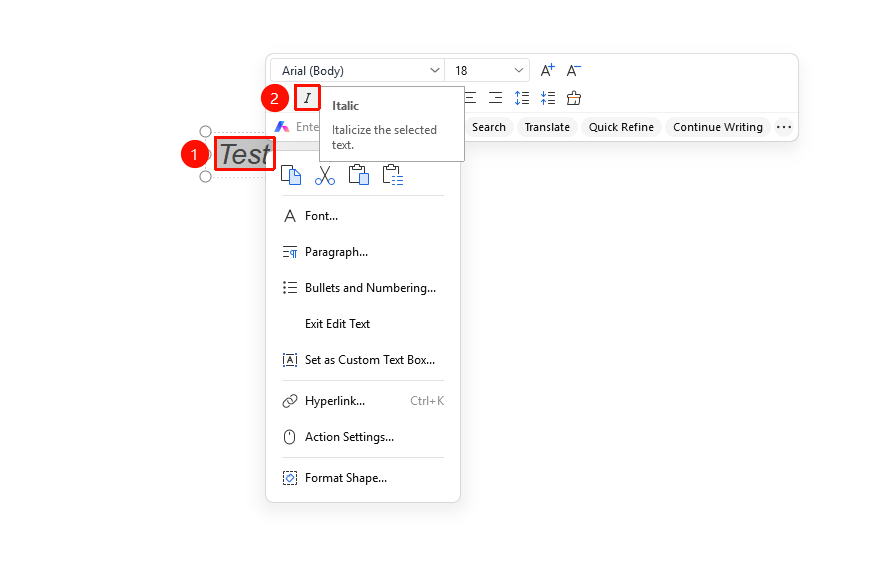
Feature Entry
Select the text to be italicized, "Floating Toolbar" -> "Italic" button
- Select the text that needs to be italicized.
- The floating toolbar will automatically pop up after selection.
- Click the Italic button on the floating toolbar.
- Click it again to remove the italic effect.
Set via the Right-Click Menu
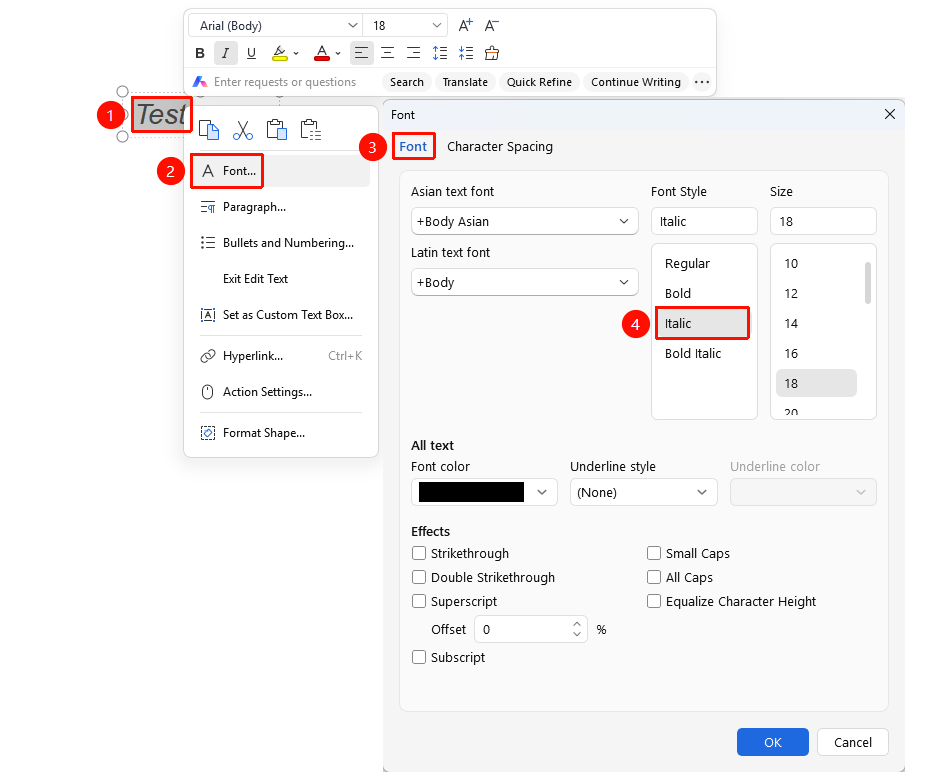
Feature Entry
"Right-click" menu -> "Font" option -> "Font Style" drop-down list -> "Italic" option
- Select the text that needs to be italicized.
- Right-click the selected text and select the Font option.
- In the Font dialog box that pops up, click the Font Style drop-down list.
- Select the Italic option.
- Click the OK button to save.
Italicize Text Using Shortcut
- Select the text content that needs to be italicized.
- Press the shortcut Ctrl+I to quickly set the text to italic.
- Press Ctrl+I again to remove the italic effect.
FAQ
Question 1: Which fonts are supported by the Italic feature?
- Solution: The Italic feature is applicable to most fonts, but the italic effect of some Simplified Chinese fonts may not be aesthetically pleasing. It is recommended to use the italic effect for English text, and use it with caution or choose fonts with better italic effects for Simplified Chinese text.
Question 2: What should I do if the text is hard to read after being italicized?
- Solution: If the readability of the italicized text is reduced, you can appropriately increase the font size or bold the text so that the italicized text remains clear and readable. You can also consider using other emphasis methods instead of italics.
Question 3: How do I remove the italic effect that has been set?
- Solution: Select the italicized text, click the Italic button again, or press Ctrl+I to remove the italic effect and restore the normal display state of the text.
Notes
- The shortcut Ctrl+I can quickly toggle the italic state.
- The italic effect is suitable for English text or labeling quoted content.
- Using italics in large areas of the body text will affect the reading experience. It is recommended to use it moderately.