Feature Summary
The Run Macro feature is used to execute macro code that has already been created. It can automatically complete a series of repetitive operations to improve work efficiency.
Feature Description
| Feature Dimension | Description |
|---|---|
| Member Limit | No member limit |
| Version Limit | No version limit |
Operation Steps
Run Macro
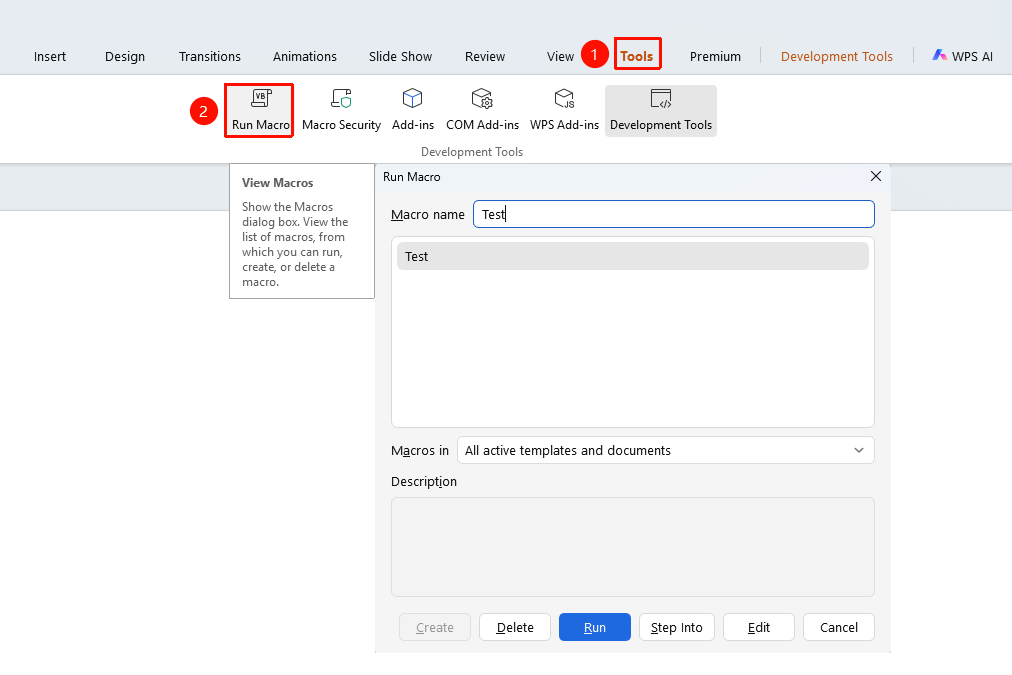
Feature Entry ①
"Tools" tab → "Run Macro" button
- Click the Run Macro button in the Tools tab.
- Select the macro you want to run in the pop-up dialog box.
- Click the Run button to execute the macro.
- The macro will automatically complete the preset operations.
Feature Entry ②
"Development Tools" tab → "Run Macro"
- Click the Development Tools tab at the top.
- Find and click the Run Macro button.
- Select the macro you want to run in the pop-up Macro dialog box.
- Click Run to execute the macro.
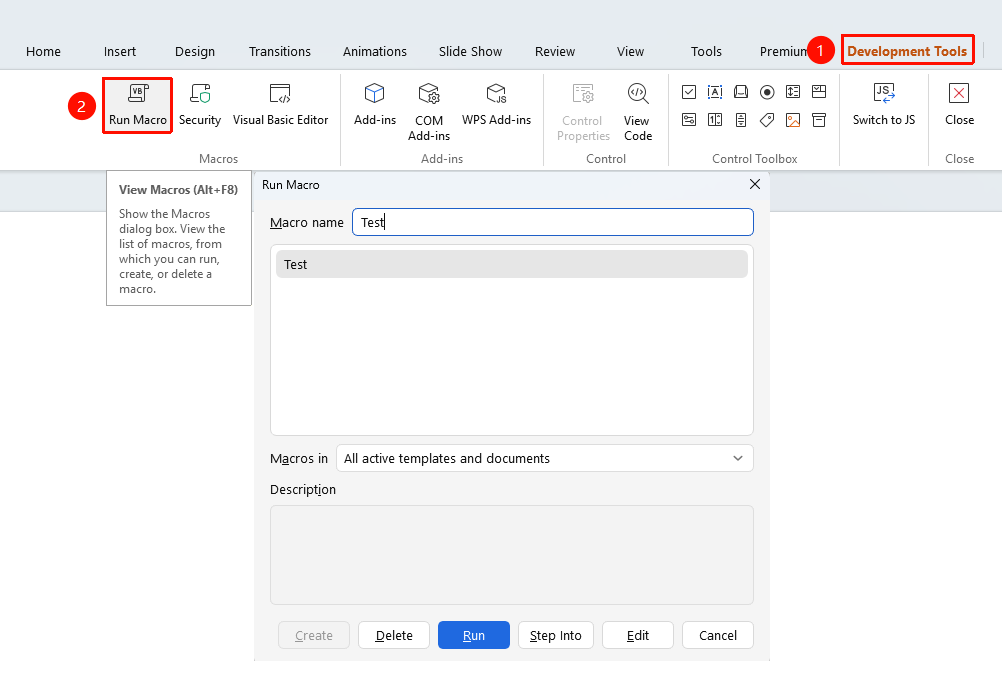
The 「Development Tools」 tab needs to be enabled by clicking the 「Development Tools」 option under the 「tools」 tab

FAQ
Question 1: What should I do if the Run Macro button is grayed out?
- Solution: You need to install the VBA module to use the macro feature. WPS Personal Edition does not include the VBA environment. You need to use WPS Professional Enhanced Edition.
Question 2: How do I create a macro?
- Solution: You can write macro code using the VB Editor in the Development Tools tab.
Question 3: What should I do if an error occurs when running a macro?
- Solution: Check whether the macro code is correct, confirm that the macro security settings allow running macros, or use the VB Editor to debug the code.
Notes
- The macro feature requires VBA environment support.
- Running macros from untrusted sources may pose security risks.