Feature Summary
The WPS Add-ins feature is used to manage dedicated add-ins developed by WPS officially or by third parties. You can install and use various extended features in the WPS ecosystem.
Feature Description
| Feature Dimension | Description |
|---|---|
| Member Restrictions | No member restrictions |
| Version Restrictions | No version restrictions |
Operating Steps
Open WPS Add-ins
Feature Entry ①
"Tools" tab → "WPS Add-ins"
- Click the "Tools" tab at the top.
- Select "WPS Add-ins".
- Browse and manage WPS add-ins in the pop-up dialog.
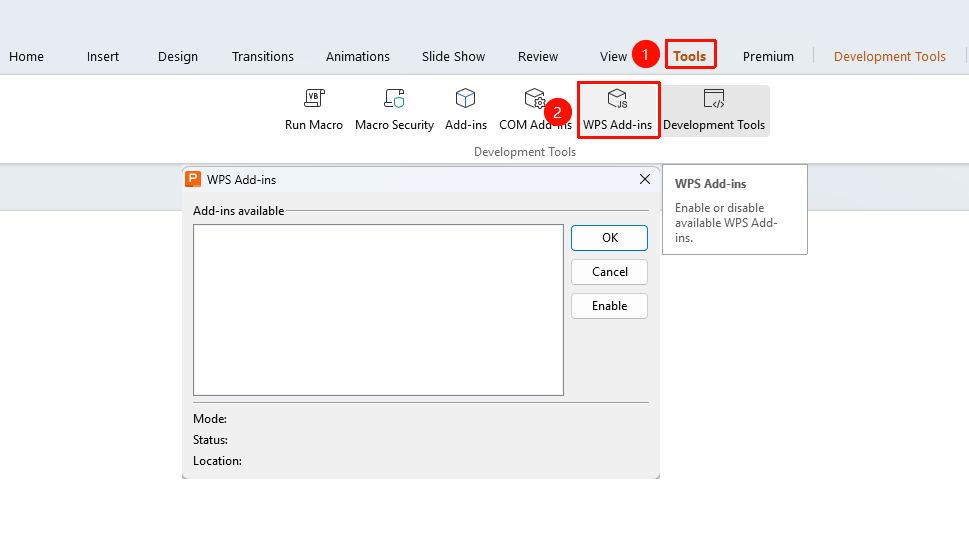
Developer Tools Tab
Feature Entry ②
"Developer Tools" tab → "WPS Add-ins"
- Click the "Developer Tools" tab at the top.
- Find and click the "WPS Add-ins" button.
- Manage WPS add-ins in the pop-up dialog.
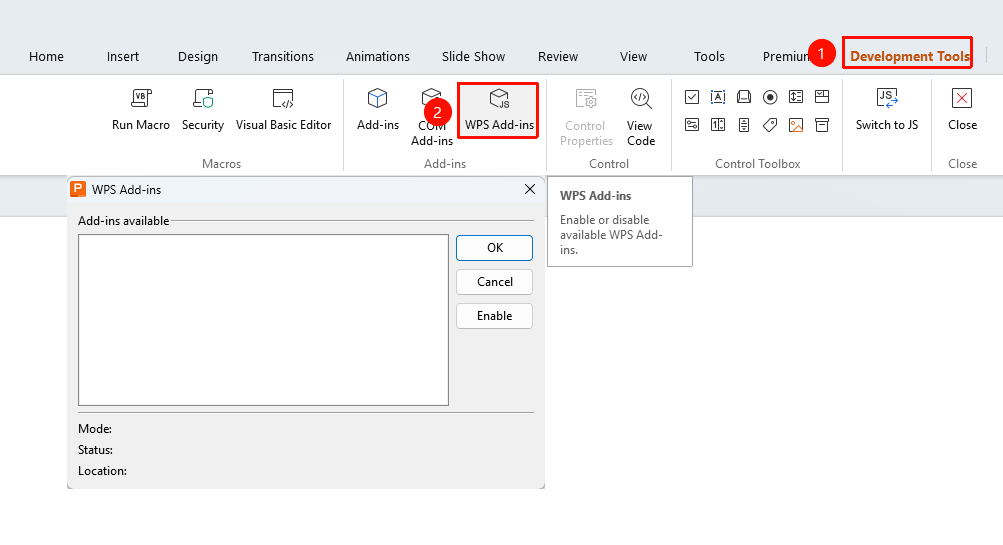
The 「Development Tools」 tab needs to be enabled by clicking the 「Development Tools」 option under the 「tools」 tab

FAQ
Question 1: Unable to install WPS add-ins?
- Solution: Check whether the add-in file format is correct and ensure that the add-in file is downloaded from official channels.
Question 2: Where to find WPS add-ins after installation?
- Solution: Installed WPS add-ins will be displayed in the "WPS Add-ins" dialog, where they can be enabled or disabled.
Question 3: Unable to find the feature entry after installing the add-in?
Solution:
- Some add-ins will add a new tab to the ribbon. Restart WPS to check.
- The bit version (32-bit/64-bit) of the WPS add-in must correspond to the bit version of your computer system and the WPS client. Obtain and install the plug-in of the corresponding bit version from official channels.
- How to check the bit version of the WPS client: Go to the WPS client homepage, click "Global Settings" → "About WPS".
Notes
- We recommend obtaining WPS add-ins from official WPS channels.
- Check for add-in updates regularly to get the best experience.
- View the permission requirements of the add-in before installation.