Feature Summary
The underline feature is used to add a line beneath selected text. It is commonly used to mark key content, link text, or add special emphasis, helping the audience quickly identify key information.
Feature Description
| Feature Dimension | Description |
|---|---|
| Member Restrictions | No member restrictions |
| Version Restrictions | No version restrictions |
Operation Steps
Set via Ribbon
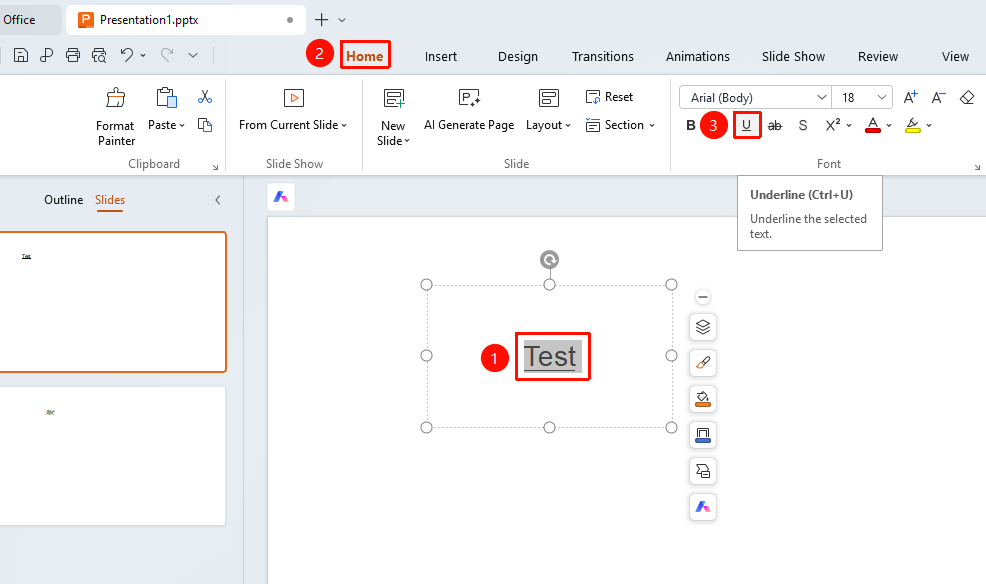
Feature Entry ①
Home tab → Underline button
- Select the text you want to underline.
- Click the Home tab on the top menu bar.
- Find and click the Underline button.
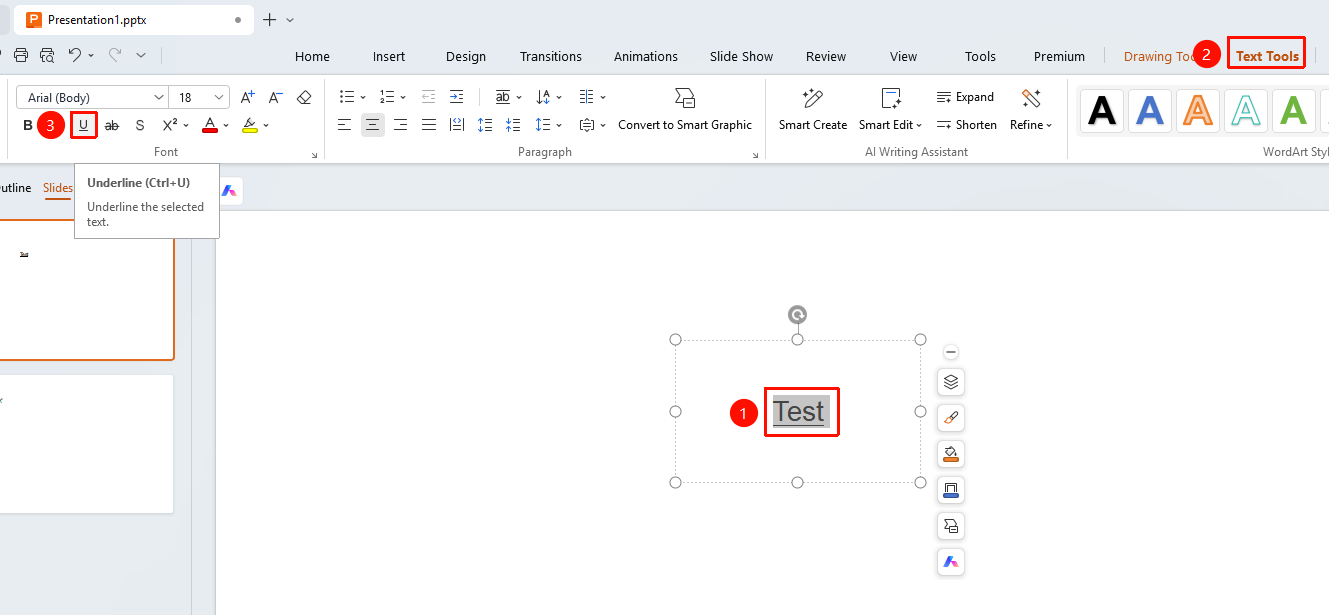
Feature Entry ②
Text Tools tab → Underline button
- Select the text you want to underline.
- Click the Text Tools tab on the top menu bar.
- Find and click the Underline button.
Set via Floating Toolbar
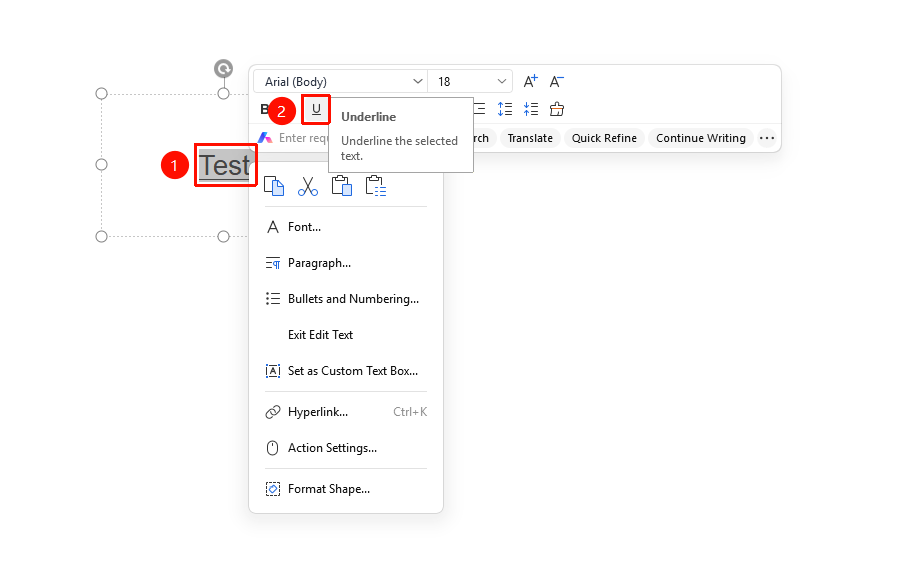
Feature Entry
Select the text you want to underline, Floating Toolbar → Underline button
- Select the text you want to underline.
- Once selected, the floating toolbar will automatically pop up.
- Click the Underline button on the floating toolbar.
Set via Right-Click Menu
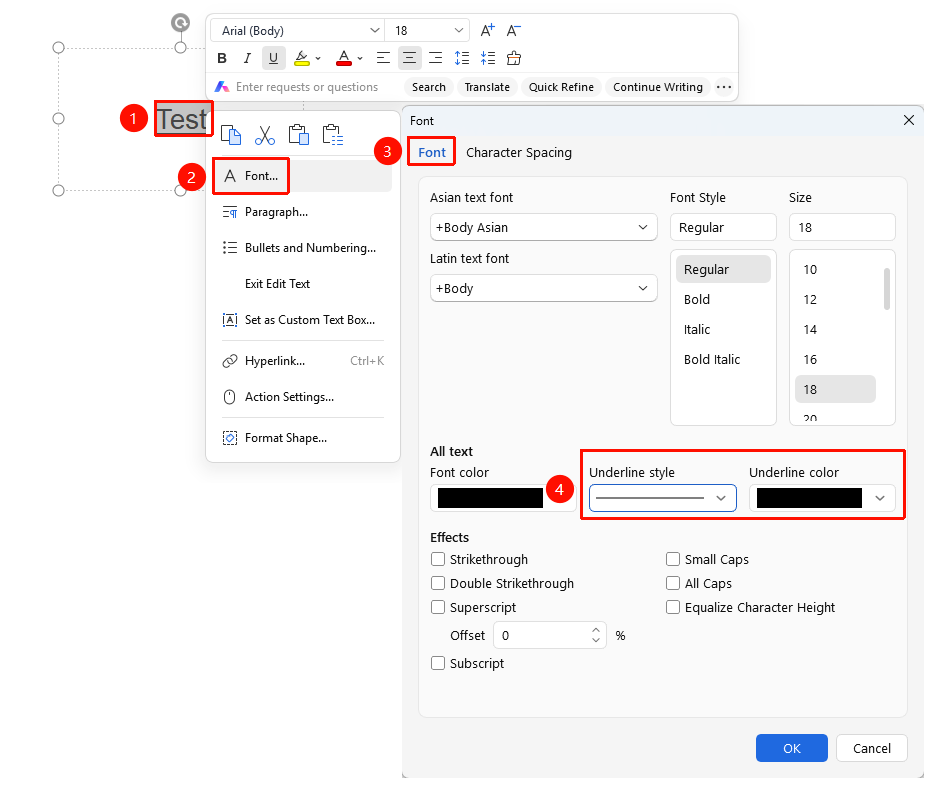
Feature Entry
Select the text you want to underline, Right-Click menu → Font option → Underline Style drop-down list
- Select the text you want to underline.
- Right-click the selected text and choose the Font option.
- In the Font dialog box that pops up, click the Underline Style drop-down list.
- Select the desired underline style and color.
- Click OK to apply it to the document.
Add Underline Using Shortcut
- Select the text you want to underline.
- Press the shortcut key Ctrl+U to quickly add an underline.
- Press Ctrl+U again to remove the underline.
FAQs
Question 1: Can I set the color and style of the underline?
- Solution: In WPS Slides, select the text you want to underline, right-click and choose Font, then select the desired underline style from the Underline Style and drop-down list.
Question 2: How do I quickly remove an underline?
- Solution: Select the underlined text and click the Underline button or press Ctrl+U to remove it. You can also use the Clear Formatting feature to clear all formatting (including underlines) at once.
Notes
- The shortcut key Ctrl+U can quickly toggle the underline state.
- The underline color matches the text color by default.
- Avoid using too many underlines in a presentation to prevent affecting the overall visual effect.