Feature Summary
The strikethrough feature is used to add a horizontal line through the middle of selected text, indicating that the content has been deleted or invalidated. It is commonly used in scenarios such as version comparison, content revision, or marking discarded information.
Feature Description
| Feature Dimension | Description |
|---|---|
| Member Limit | No member limit |
| Version Limit | No version limit |
Steps
Set Strikethrough via Ribbon
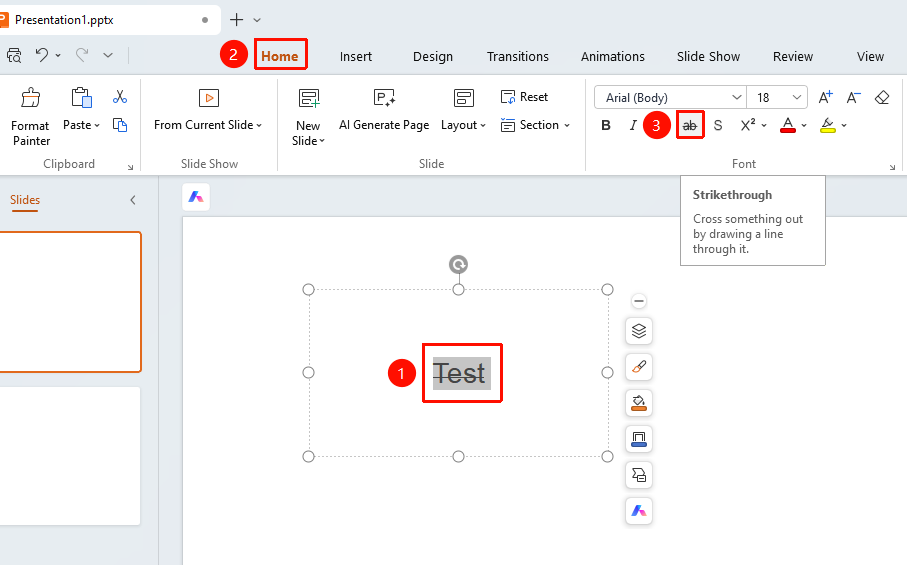
Feature Entry ①
Start tab → Strikethrough button
- Select the text to which you want to add a strikethrough.
- Click the Start tab on the ribbon.
- Click the Strikethrough button.
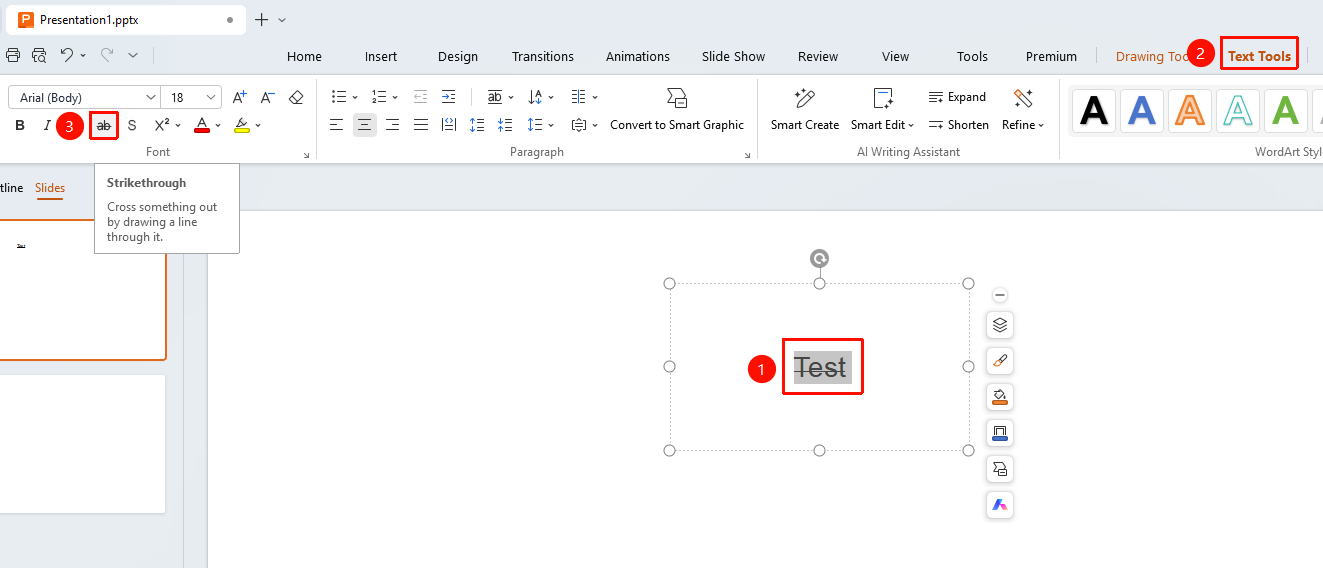
Feature Entry ②
Text Tools tab → Strikethrough button
- Select the text to which you want to add a strikethrough.
- Click the Text Tools tab on the ribbon.
- Click the Strikethrough button.
Set Strikethrough via Right-Click Menu
Feature Entry
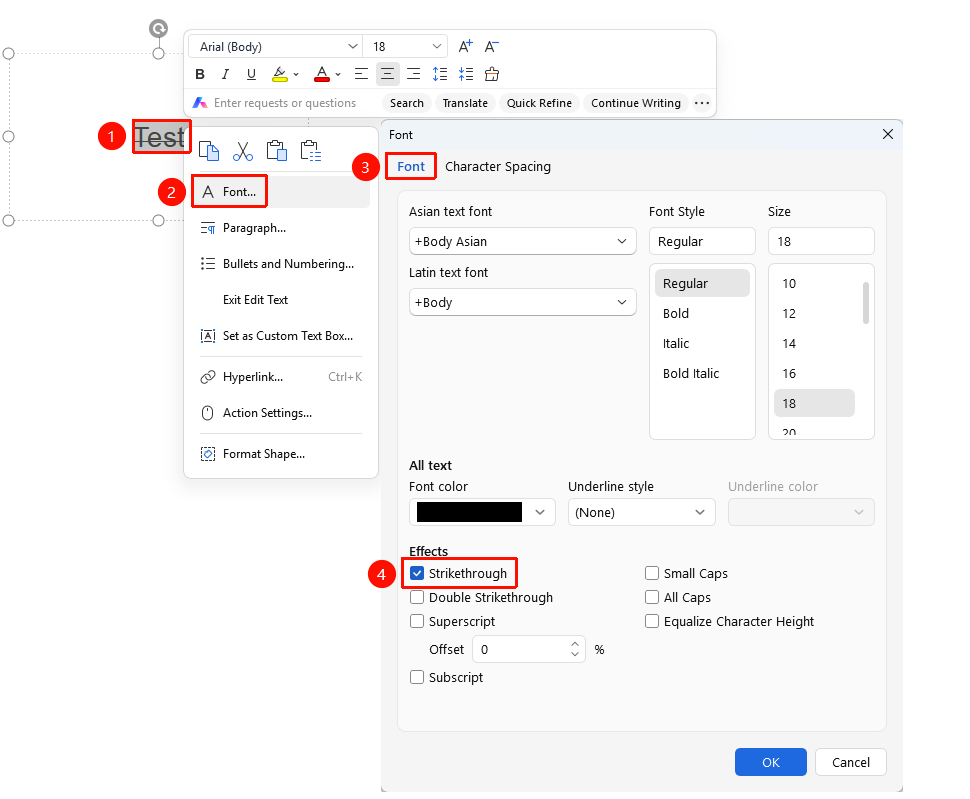
Select the text to which you want to add a strikethrough, right-click → Font option → Strikethrough checkbox
- Select the text to which you want to add a strikethrough.
- Right-click the selected text and select the Font option.
- In the pop-up Font dialog box, select the Strikethrough checkbox.
- Click the OK button to save.
Set Double Strikethrough via Right-Click Menu
Feature Entry
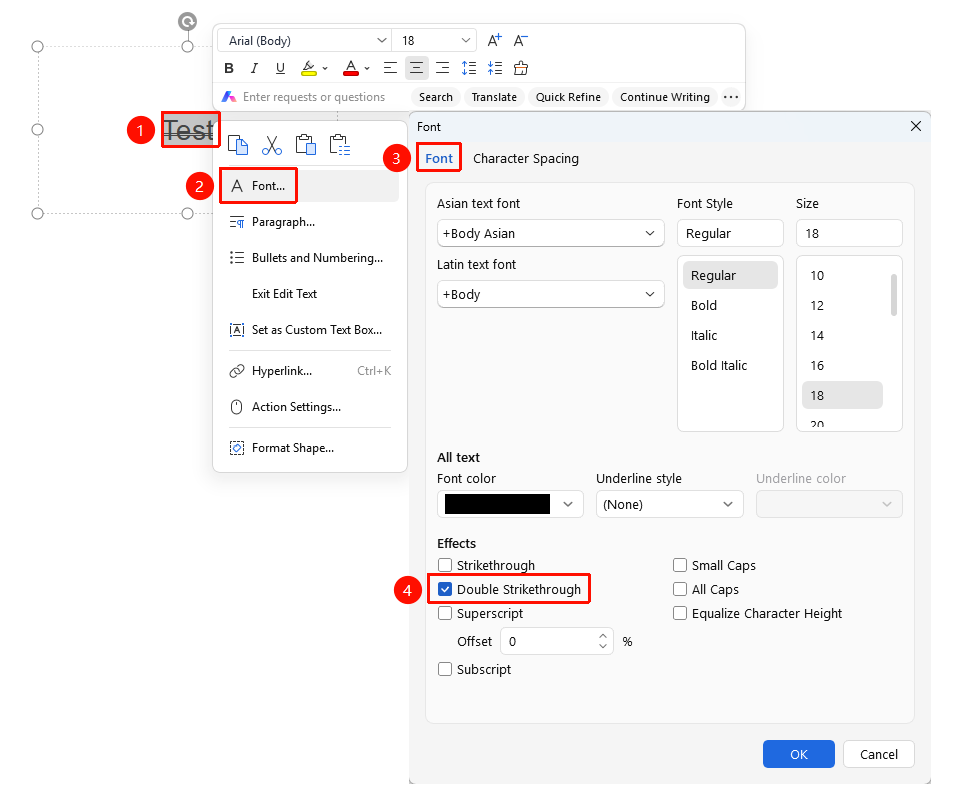
Select the text to which you want to add a strikethrough, right-click → Font option → Double Strikethrough checkbox
- Select the text to which you want to add a strikethrough.
- Right-click the selected text and select the Font option.
- In the pop-up Font dialog box, select the Double Strikethrough checkbox.
- Click the OK button to save.
FAQ
Question 1: What is the practical use of strikethrough?
- Solution: In presentations, strikethrough can be used to show the change history of content, mark modified clauses, and compare text differences before and after modifications, helping the audience intuitively understand the process of content changes.
Question 2: Can the color of the strikethrough be customized?
- Solution: The color of the strikethrough defaults to the text color. In WPS Slides, the color of the strikethrough usually changes with the text color, and setting the strikethrough color separately is currently not supported.
Question 3: Will strikethrough affect the printing effect?
- Solution: Strikethrough will display normally when printed. If you do not want to display the strikethrough when printing, select the text and clear the strikethrough setting before printing.
Notes
- Strikethrough is commonly used to mark content that has been invalidated or needs to be modified.
- The strikethrough effect changes with the text color.
- Use strikethrough with caution in formal presentations to avoid affecting professionalism.