Feature Summary
The text shadow feature adds a shadow effect to text, creating a three-dimensional and layered look that enhances visual impact. It is commonly used for headings, slogans, or text content that needs to be highlighted.
Feature Description
| Feature Dimension | Description |
|---|---|
| Member restriction | No member restriction |
| Version restriction | No version restriction |
Steps
Add Text Shadow
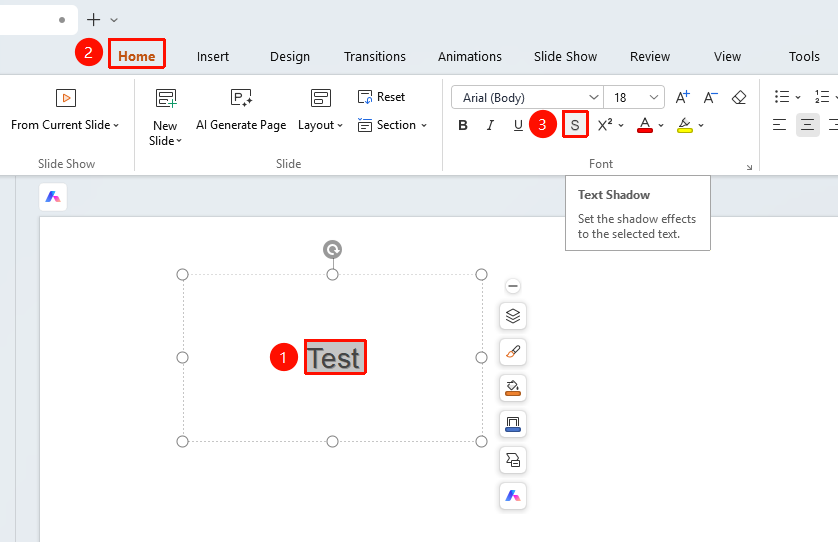
Feature Entry ①
Start tab → Text Shadow button
- Select the text content to which you want to add a shadow.
- Click the Text Shadow button (uppercase S icon) on the Start tab.
- The default shadow effect will be applied to the text.
- Click the button again to remove the text shadow.
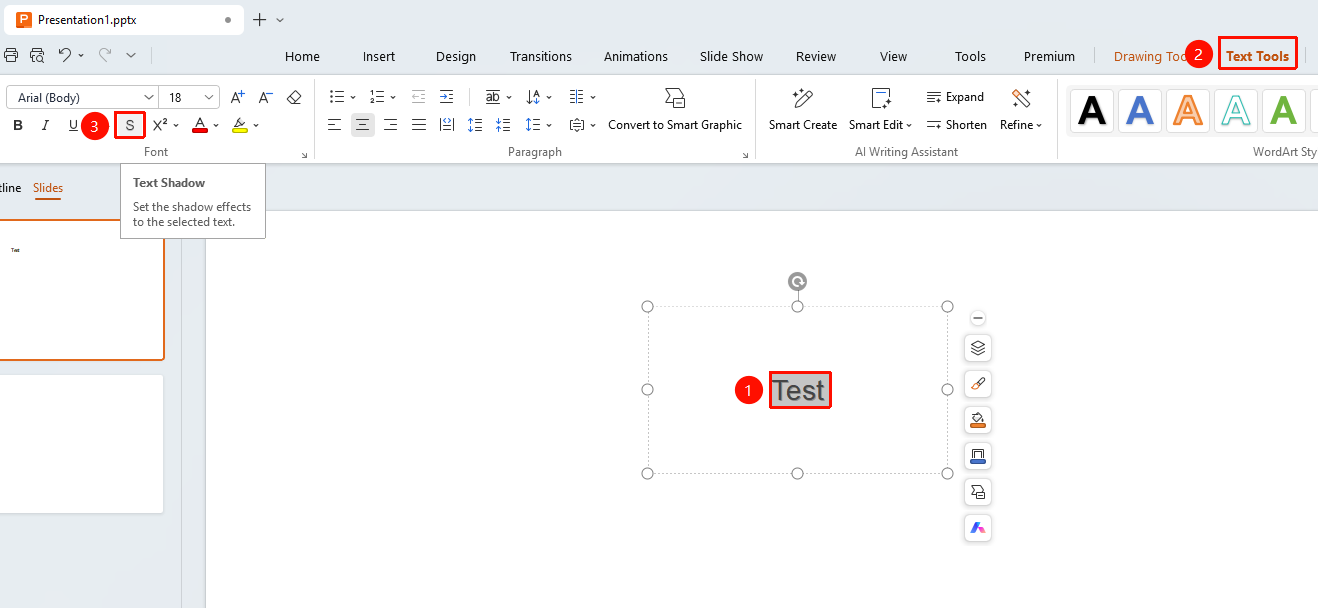
Feature Entry ②
Text Tools tab → Text Shadow button
- Select the text content to which you want to add a shadow.
- Click the Text Shadow button (uppercase S icon) on the Text Tools tab.
- The default shadow effect will be applied to the text.
- Click the button again to remove the text shadow.
FAQs
Question 1: What is the difference between text shadow and text box shadow?
- Solution: Text shadow is a shadow effect applied directly to the strokes of the text, making each character have a shadow. Text box shadow is a shadow applied to the entire text box container, which looks like casting a shadow on the text box. Both can be used at the same time.
Question 2: Can the shadow effect be displayed during projection?
- Solution: The text shadow effect will display normally during slide shows and projection. However, some projectors may make the shadow effect less noticeable due to insufficient brightness. We recommend performing a projection test before the formal presentation.
Notes
- Shadow effects are suitable for headings and large text. Using shadows on small text may affect readability.