Feature Summary
The superscript and subscript features are used to format selected text as superscript or subscript. They are commonly used in mathematical formulas, chemical formulas, footnotes, and other scenarios to meet professional formatting needs.
Feature Details
| Feature Dimension | Description |
|---|---|
| Member Limits | No member limits |
| Version Limits | No version limits |
Operating Steps
Set Superscript via the Ribbon Toolbar
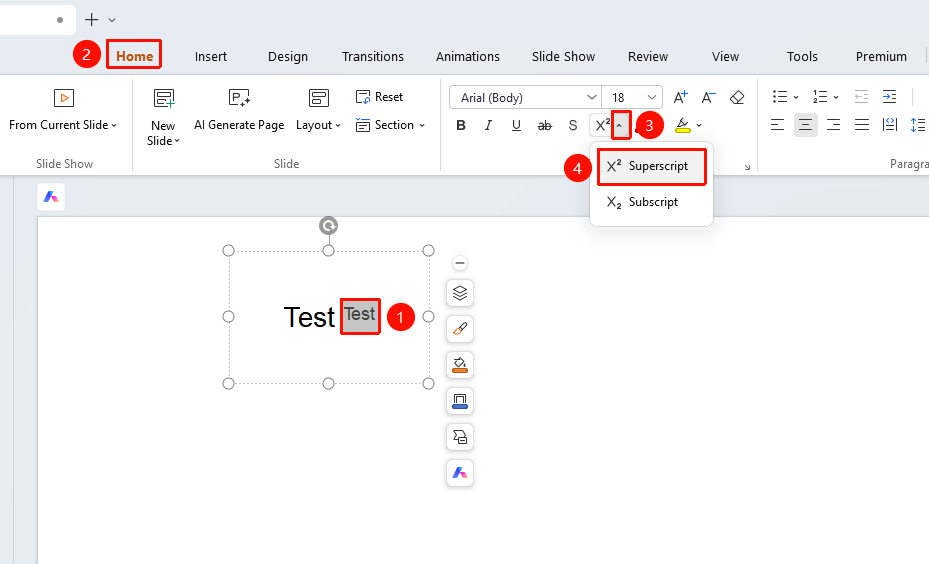
Feature Entry ①
"Home" tab → "Click the drop-down arrow next to the Subscript button" → "Superscript"
- Select the text you want to set as superscript.
- Click the Home tab on the ribbon.
- Click the "Superscript" button in the drop-down arrow to the right of the "Superscript/Subscript" button to set it.
Feature Entry ②
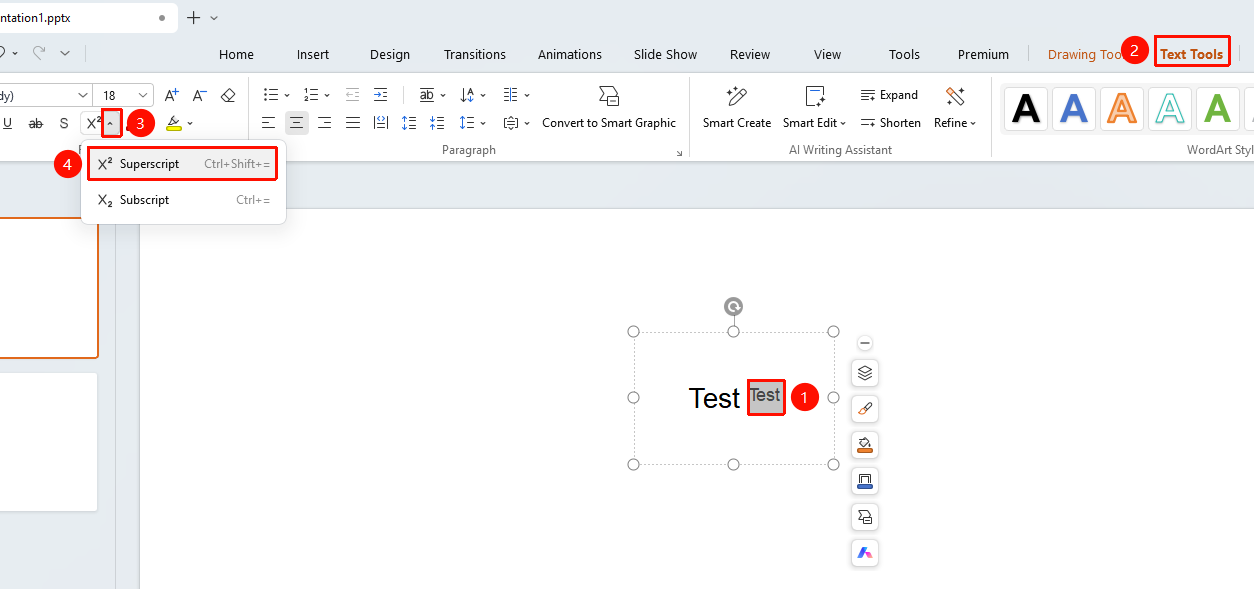
"Text Tools" tab → "Click the drop-down arrow next to the Subscript button" → "Superscript"
- Select the text you want to set as superscript.
- Click the Text Tools tab on the ribbon.
- Click the "Superscript" button in the drop-down arrow to the right of the "Superscript/Subscript" button to set it.
Set Subscript via the Ribbon Toolbar
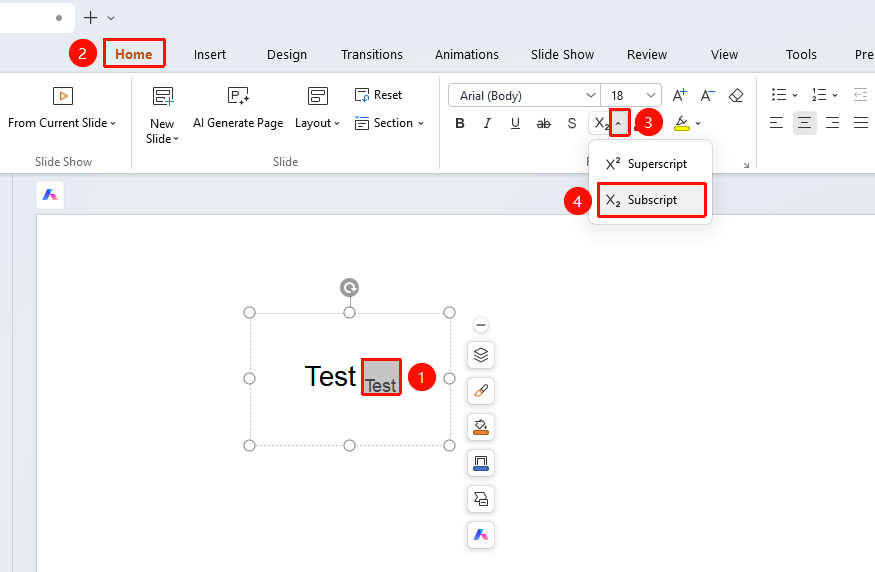
Feature Entry ①
"Start" tab → Click "the drop-down arrow to the right of the Superscript button" → "Subscript"
- Select the text you want to set as subscript.
- Click the Start tab on the ribbon.
- Click the drop-down arrow to the right of the Superscript button.
- Click the Subscript button.
Feature Entry ②
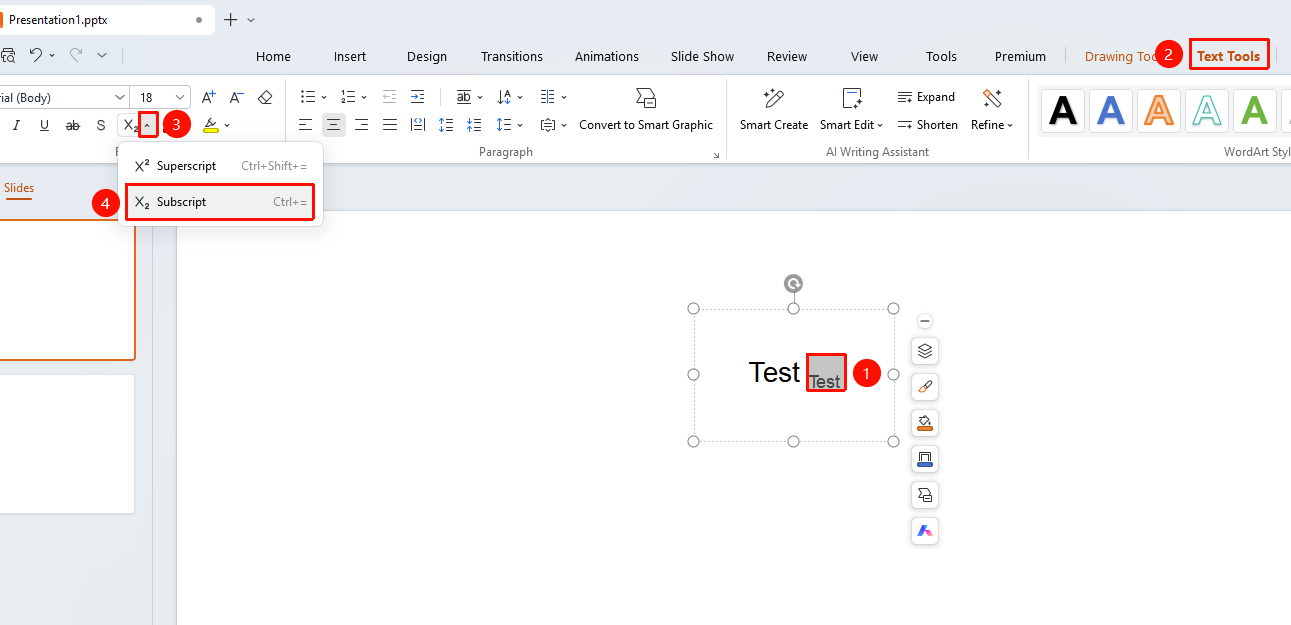
"Text Tools" tab → Click "the drop-down arrow to the right of the Superscript button" → "Subscript"
- Select the text you want to set as subscript.
- Click the Text Tools tab on the ribbon.
- Click the drop-down arrow to the right of the Superscript button.
- Click the Subscript button.
Set Superscript via the Right-Click Menu
Feature Entry
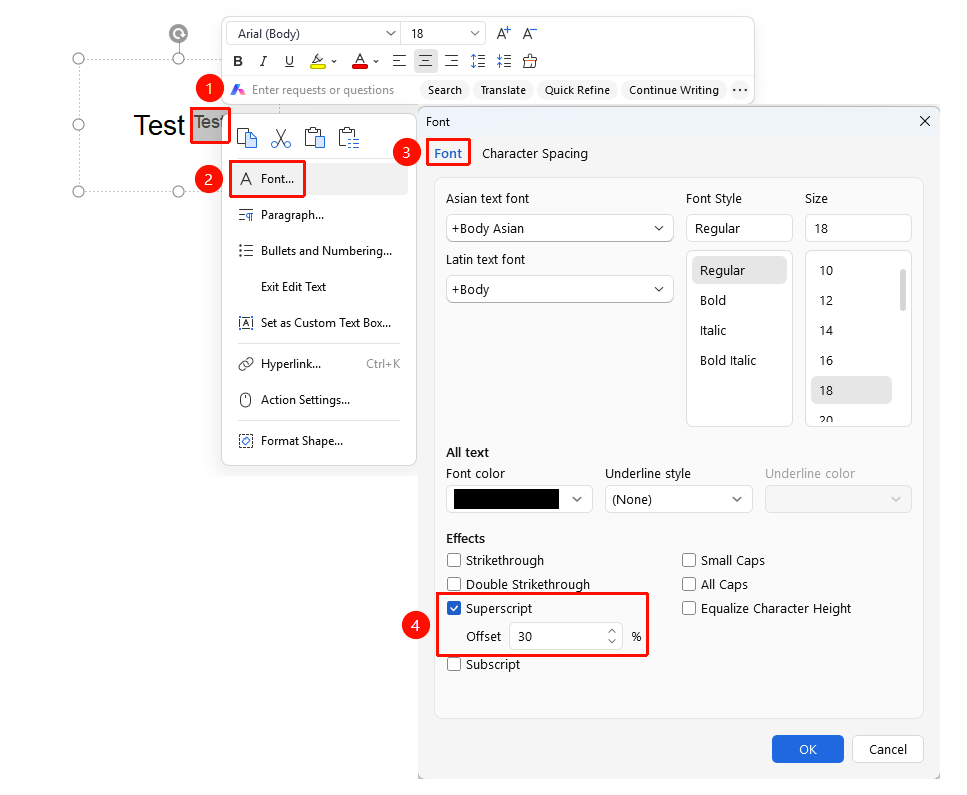
Select the text you want to set as superscript, right-click and choose "Font" → check the "Superscript" checkbox.
- Select the text you want to set as superscript.
- Right-click the selected text and choose Font.
- In the Font dialog box that appears, check the Superscript checkbox.
- Determine the required Offset.
- Click OK to save.
Set Subscript via the Right-Click Menu
Feature Entry
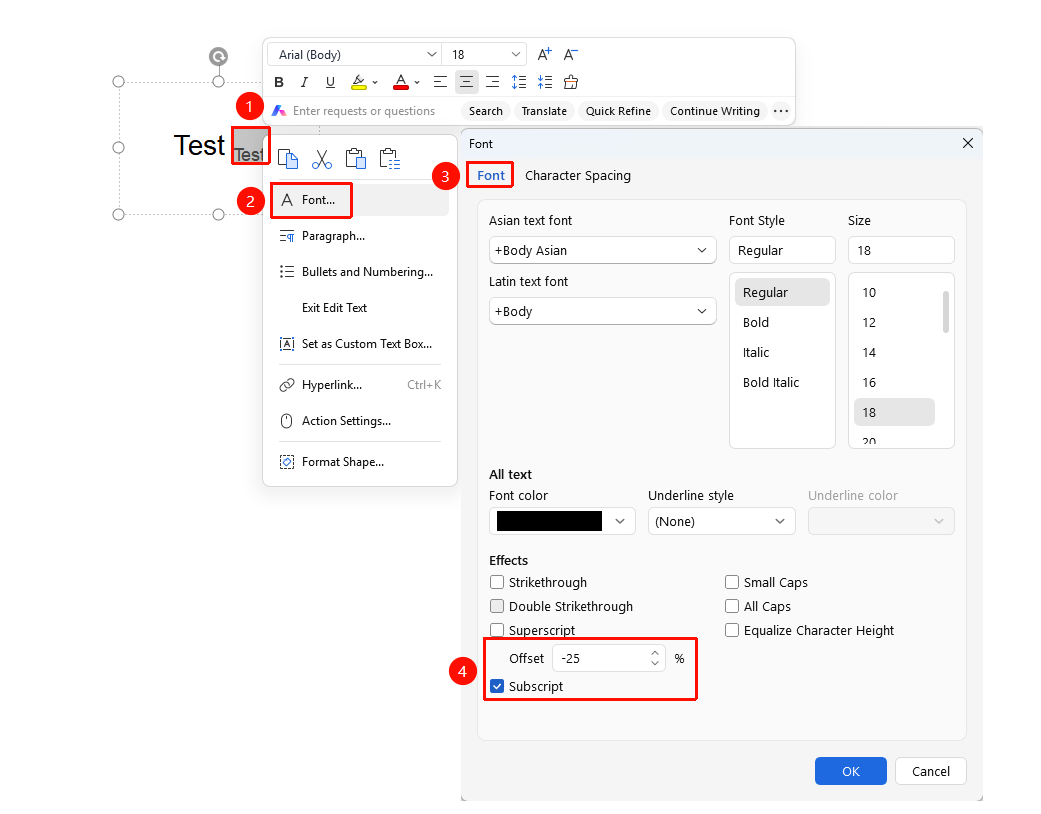
Select the text you want to set as superscript, right-click and choose "Font" → check the "Subscript" checkbox.
- Select the text you want to set as subscript.
- Right-click the selected text and choose Font.
- In the Font dialog box that appears, check the Subscript checkbox.
- Click OK to save.
Set via Shortcuts
Select the text you want to set as superscript or subscript.
Use the following shortcuts:
- Superscript:
Ctrl + Shift + = (Mac: Cmd + Shift + =) - Subscript:
Ctrl + = (Mac: Cmd + =)
- Superscript:
FAQ
Q1: In what scenarios are superscript and subscript used?
- Solution: Superscript is commonly used for mathematical exponents (such as x²), temperature units (such as ℃), etc. Subscript is commonly used for chemical formulas (such as H₂O), mathematical variable indices (such as x₁), etc. Choose the appropriate formatting based on your content needs.
Q2: How do I adjust the size of superscript or subscript?
- Solution: Superscript and subscript will automatically reduce the font size by default. If you need to adjust it, you can set the superscript or subscript first, and then manually modify the font size.
Q3: Can superscript and subscript be set at the same time?
- Solution: The same text segment cannot be set as both superscript and subscript at the same time. If you need to display both superscript and subscript simultaneously, you need to place them in different text boxes or text segments and set their respective styles.
Notes
- Superscript and subscript will automatically reduce the text font size.
- For mathematical formulas, we recommend using the formula editor to achieve more professional formatting results.
- The superscript and subscript effects will maintain their relative positions during scaling and projection.