Feature Summary
The Picture or Texture Fill feature uses pictures or preset textures as the fill content for text strokes, displaying the picture or texture pattern inside the text. This achieves a unique visual decorative effect, suitable for creative titles and WordArt design.
Feature Description
| Feature Dimension | Description |
|---|---|
| Membership Restriction | Some online pictures require subscribing to a membership to use |
| Version Restriction | No version restriction |
Steps
Using Preset Texture Fill
Feature Entry
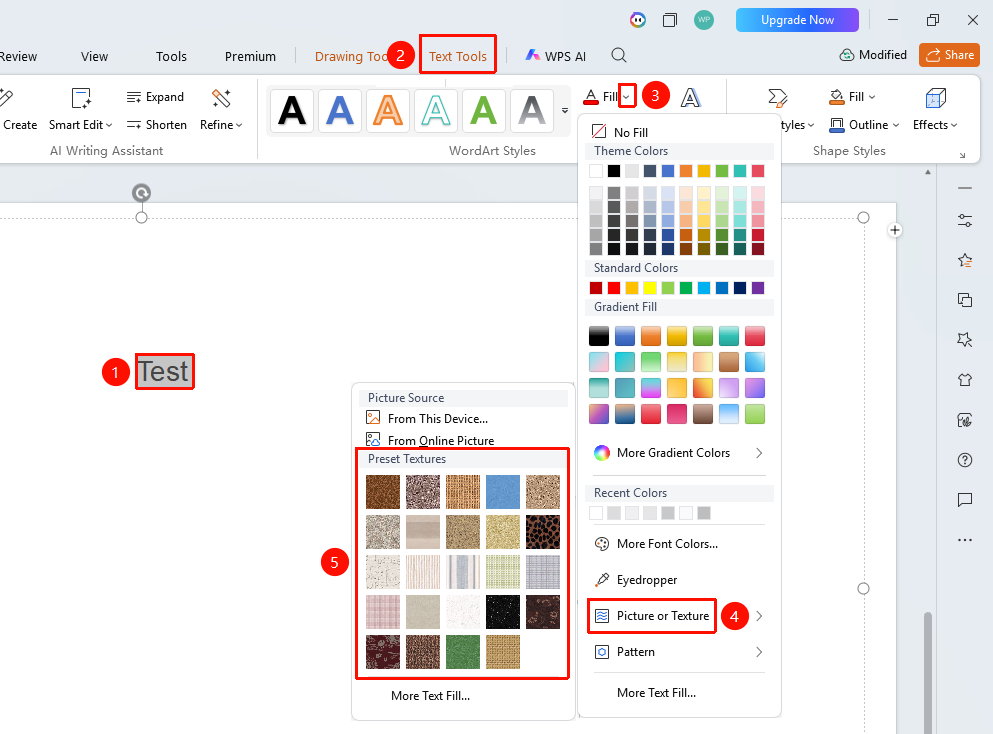
"Text Tools" tab → "Text Fill" → "Picture or Texture"
- Select the text content you want to fill
- Click "Text Tools" → "Text Fill" → "Picture or Texture"
- In the pop-up panel, select a preset texture style (such as wood grain, fabric, paper, etc.)
- The selected texture effect will be displayed within the text strokes
Using Picture Fill
Feature Entry
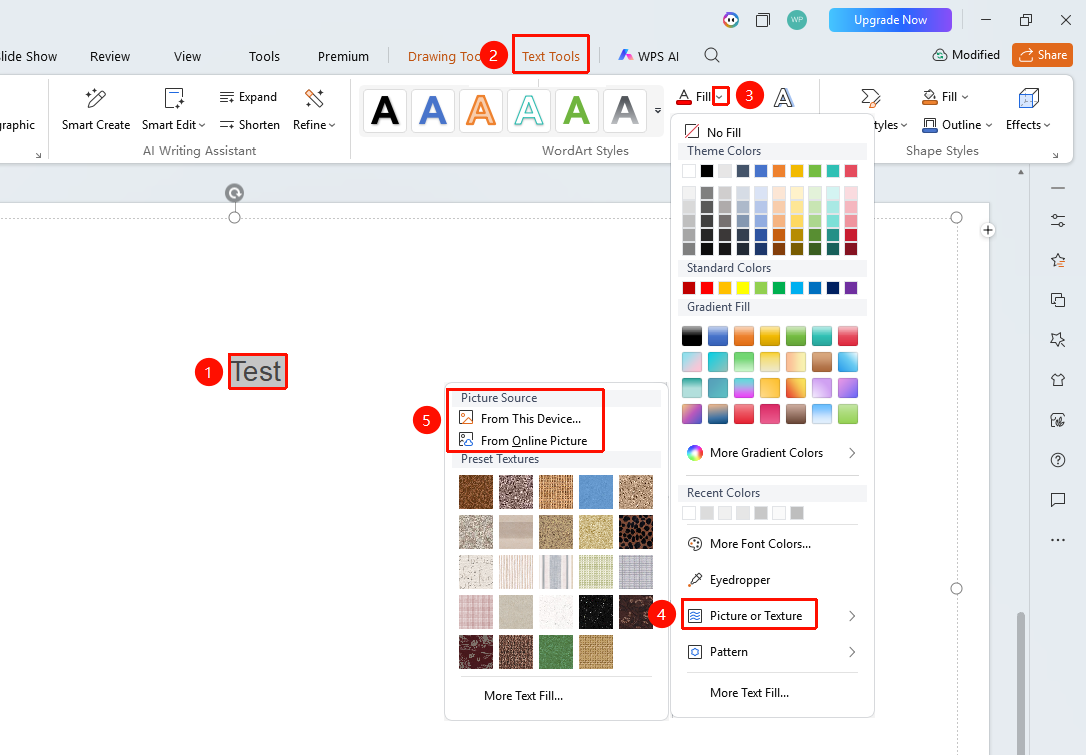
"Text Tools" tab → "Text Fill" → "Picture or Texture" → "Local Picture" / "Online Picture"
- Select the text content you want to fill
- Click "Text Tools" → "Text Fill" → "Picture or Texture"
- Select the source "From File" or "Online Picture"
- Choose the picture and confirm; the picture content will be displayed within the text strokes
Some online pictures require subscribing to a membership to use
Custom Picture or Texture Fill Effect
Feature Entry
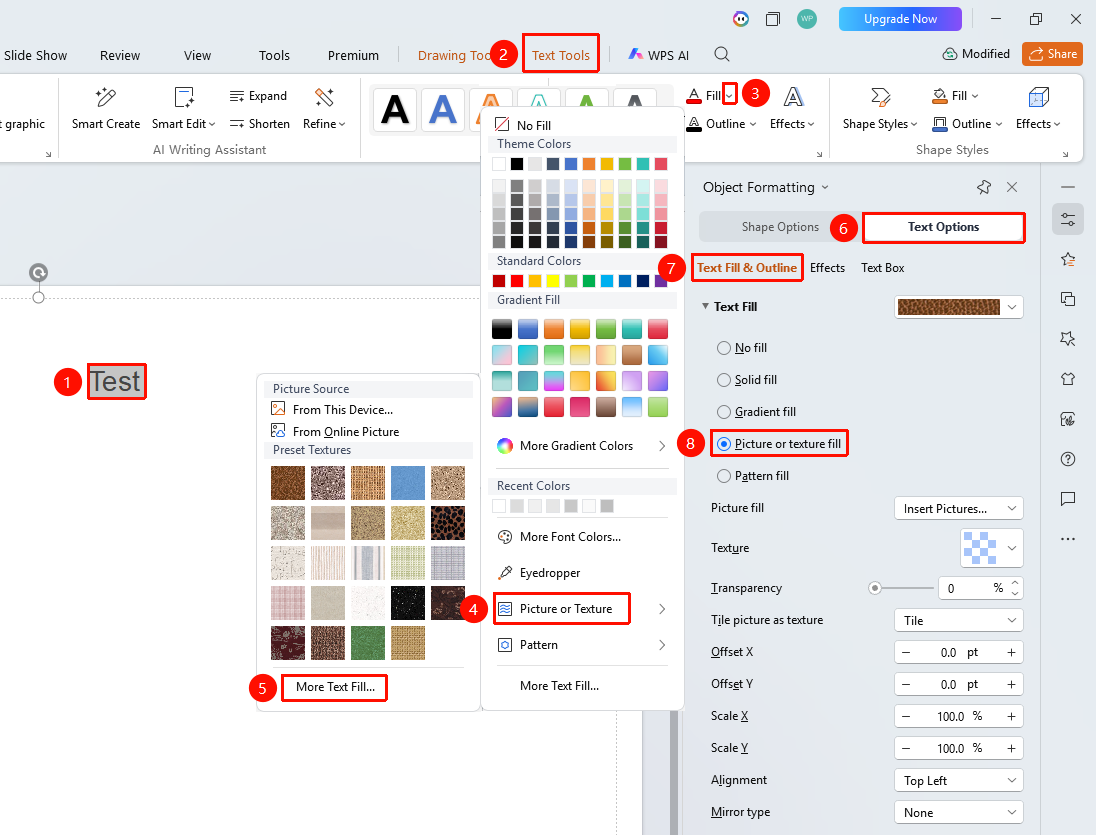
"Text Tools" tab → "Text Fill" → "Picture or Texture" → "More Settings" → "Text Options" → "Fill & Outline" → "Picture or Texture Fill"
- Select the target text, click the drop-down arrow to the right of "Text Fill" under the "Text Tools" tab
- Click "Picture or Texture" → "More Settings" in sequence to expand the "Object Properties" panel on the right
- Click the "Fill & Outline" option under the "Text Options" tab
- Locate the "Text Fill" section
- Switch the fill effect to "Picture or Texture Fill" to expand the detailed settings panel
- Select the desired fill picture/texture style, transparency, placement, scaling ratio, and other display effects
- The text effect is applied to the selected text in real time
FAQ
Q1: What should I do if the text becomes distorted after picture fill?
- Solution: Picture fill crops the picture based on the text's bounding box, which may cause distortion. You can optimize the display effect by adjusting the picture's scaling ratio and offset. It is recommended to choose a picture that closely matches the shape of the text.
Q2: What optional styles are available for texture fill?
- Solution: WPS Slides provides a variety of preset texture styles, including wood grain, fabric, paper, marble, water droplets, etc. These textures can be used alone, or you can adjust the texture's scaling ratio and offset to achieve different display effects.
Q3: How can I make picture-filled text clearer?
- Solution: It is recommended to use high-resolution pictures as the fill source and add a dark outline to the text to enhance edge recognition. Avoid using pictures that are overly complex in color or close to the background color.
Notes
- Picture fill increases file size; it is recommended to use pictures with appropriate resolution
- Texture fill is suitable for adding texture effects to text
- Picture-filled text may display inconsistently on devices with different resolutions
- After selecting text, click the "Object Properties" button on the right side of the screen to expand the full font effect settings panel