Feature Summary
The Text Outline feature adds an outline stroke to text characters, giving text a stroke effect. You can customize the outline color, weight, and style to enhance the visual impact and design feel of your text.
Feature Description
| Feature Dimension | Description |
|---|---|
| Membership Restriction | Basic outline effects are free to use; some advanced gradient outline effects require a membership |
| Version Restriction | WPS Office 2019 and later versions |
Steps
Quick Setup via Text Tools
Feature Entry
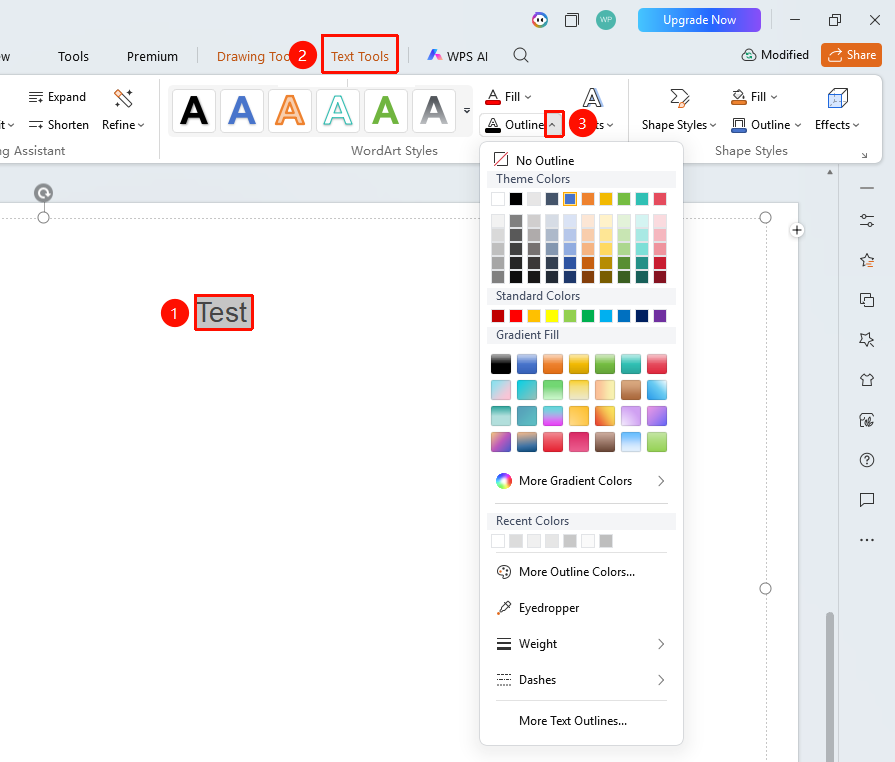
Select the text in a text box, then go to the "Text Tools" tab → "Text Outline" button
- Open a WPS Slides document and select the target text in the text box to which you want to add an outline
- Click the Text Tools tab that appears in the top menu bar
- Find and click the "Text Outline" button
- In the pop-up color panel, select the desired fill color
Setup via Task Pane
Feature Entry
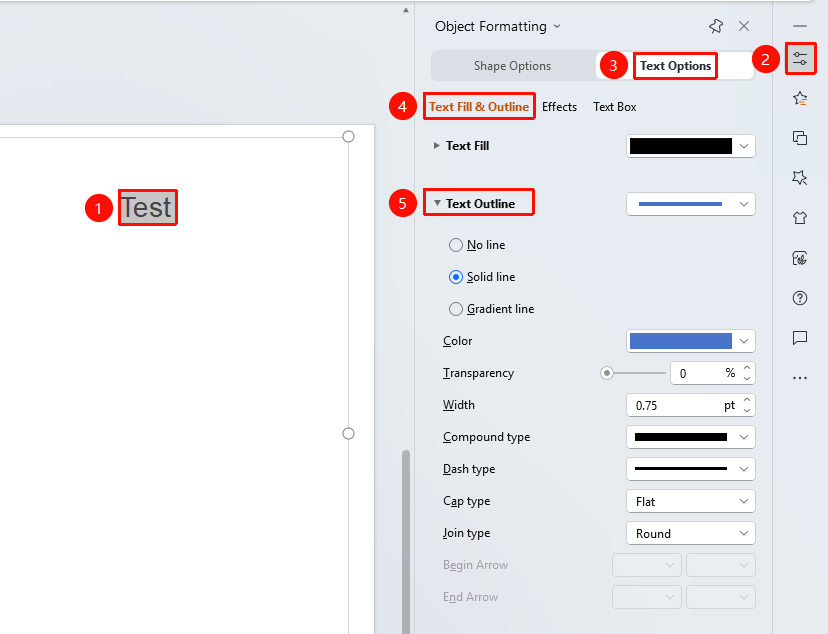
Select the text you want to outline, then go to "Task Pane" → "Properties" button → "Text Options" tab → "Fill & Outline" tab
- Select the target text
- Click the Properties button in the Task Pane, and switch to the "Text Options" tab
- Find the Text Outline option under the "Fill & Outline" tab
- Choose the desired color
- Click to complete the text outline setting
- Options available:
- Solid line: Set color, transparency, width, and line type
- Gradient line: Set gradient stops, gradient type, angle, etc.
- The settings take effect immediately upon completion
Setup via Right-Click Font Menu
Feature Entry
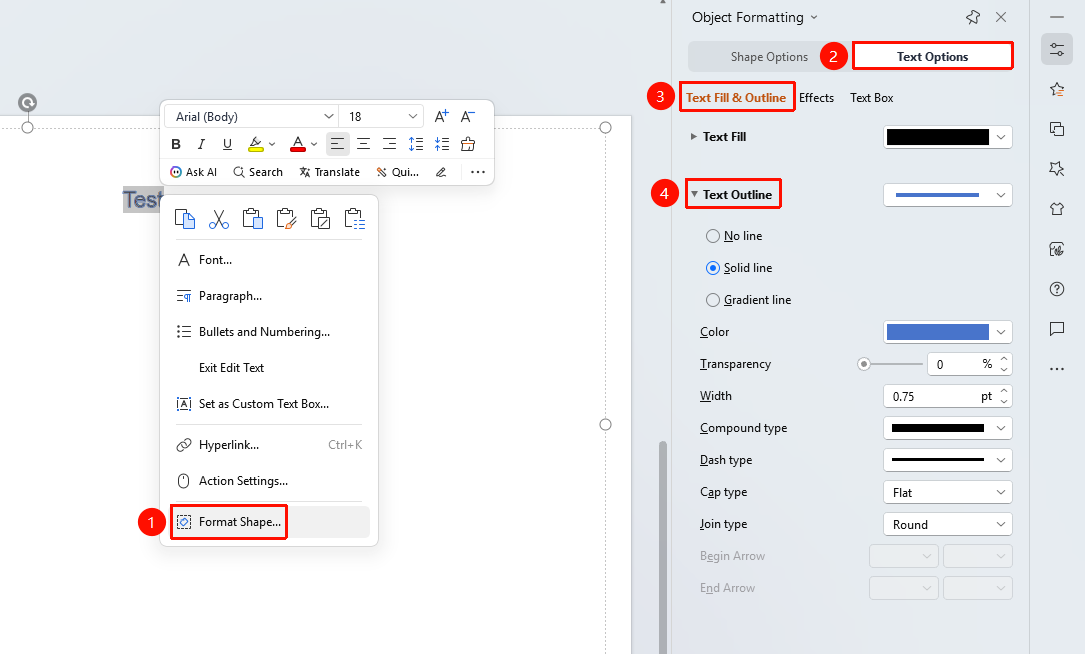
Select the text you want to outline, then right-click menu → "Format Object" → "Text Options" tab → "Fill & Outline" tab
- Select the text you want to format
- Right-click and select the "Format Object" option
- Expand the side "Task Pane"
- Click the "Text Options" tab → "Fill & Outline" tab in sequence
- Configure settings in the "Text Outline" section
FAQ
Q1: What is the relationship between Text Outline and Text Fill?
- Solution: Text Fill controls the color inside the text characters, while Text Outline controls the line at the edges of the text characters. They can be set independently or used together. For example, you can set a transparent fill with a colored outline to create a hollow text effect.
Q2: How to create a hollow text effect?
- Solution: After selecting the text, set "Text Fill" to "No Fill", then set "Text Outline" to the desired color and weight to create a hollow text effect. This is a common technique used in title design.
Q3: What should I do if the text outline is too thick and causes characters to overlap?
- Solution: When text is small or the outline is thick, the outlines of adjacent characters may overlap. It is recommended to appropriately reduce the outline weight or increase the font size. You can also choose a thinner outline style to avoid overlap issues.
Notes
- The default color for Text Outline is none; it must be set manually to be displayed
- Thick outlines on small text may cause strokes to stick together
- Outline effects may appear unclear when projected due to insufficient resolution
- After selecting text, click the "Object Properties" button on the right side of the screen to expand the full font effects settings panel