Summary
The text 3D rotation feature rotates text in three-dimensional space, supporting preset angles and custom rotation parameters to give text a spatial perspective effect. It is suitable for creating creative text with a three-dimensional and spatial feel.
Feature Description
| Feature Dimension | Description |
|---|---|
| Membership Restriction | No membership restriction |
| Version Restriction | No version restriction |
Steps
Apply Preset 3D Rotation
Feature Entry
"Text Tools" tab → "Text Effects" → "3D Rotation"
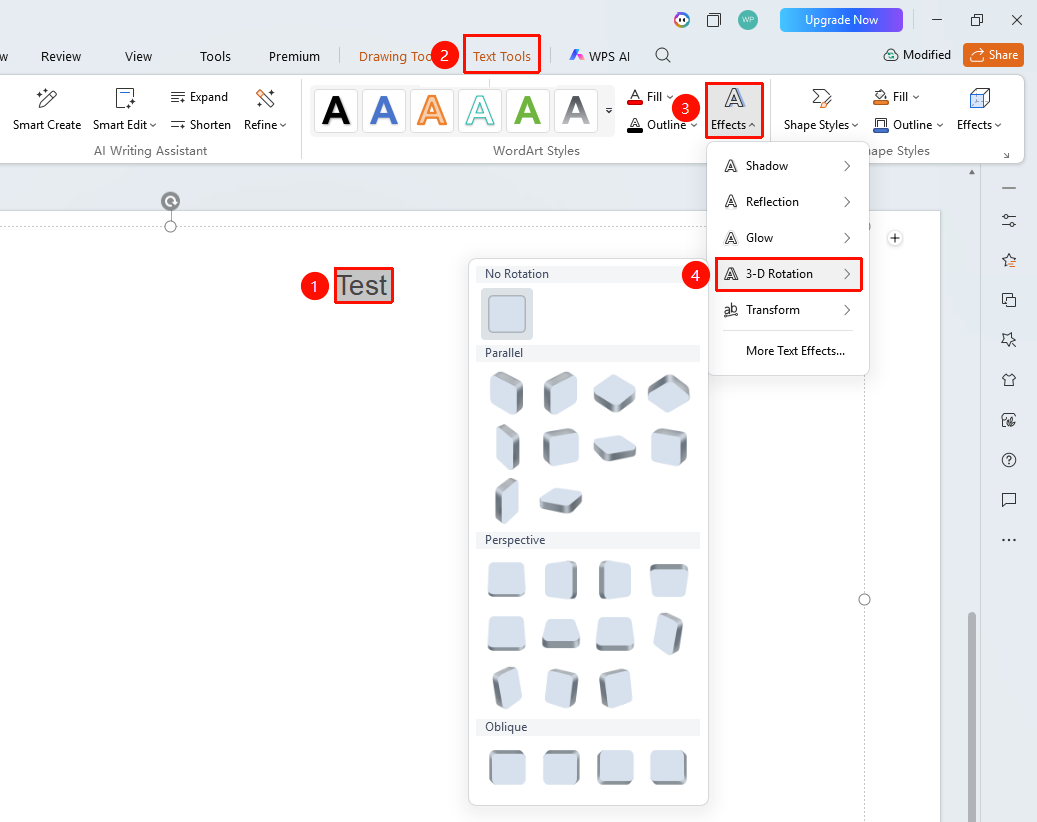
- Select the text content to which you want to apply 3D rotation
- Under the top "Text Tools" tab, click "Text Effects" → "3D Rotation"
- In the pop-up panel, select a preset rotation style (such as Parallel, Perspective, Oblique, etc.)
- The text will then have the corresponding 3D rotation effect applied
Custom 3D Rotation
Feature Entry
"Text Tools" tab → "Text Effects" → "More Settings" → "Text Options" → "Effects" → "3D Rotation"
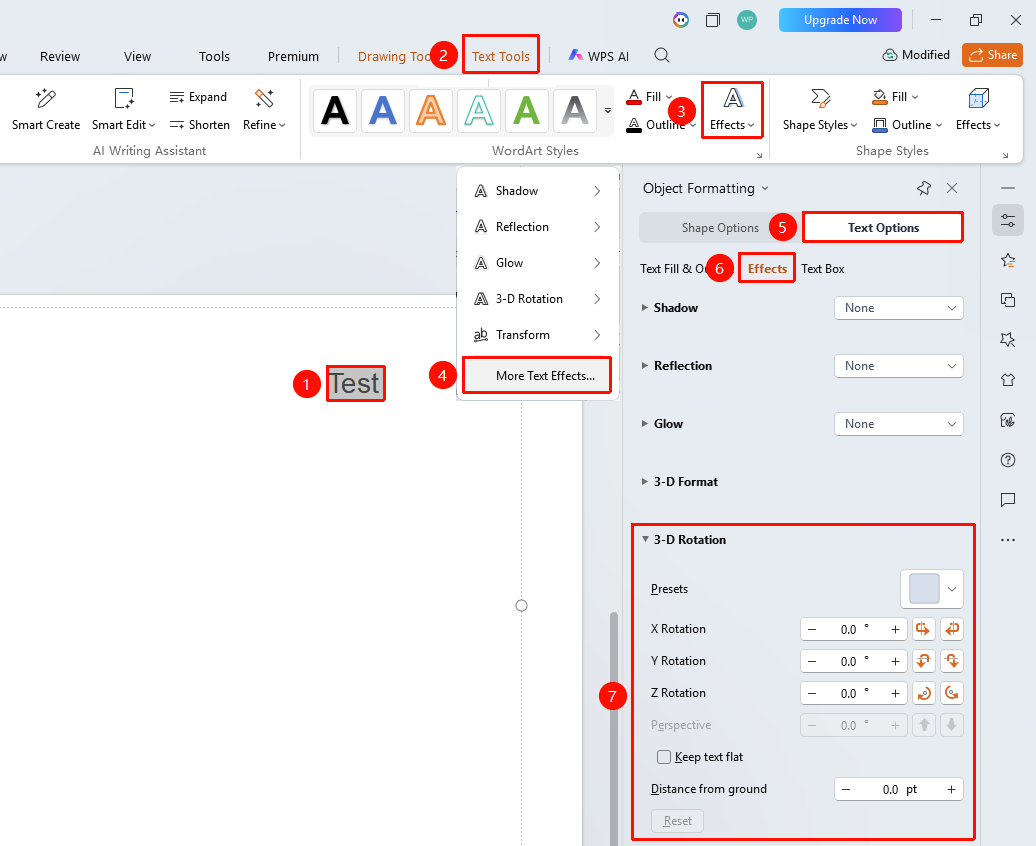
- Select the target text, and click "Text Effects" under the "Text Tools" tab
- Click → "More Settings" to expand the "Object Properties" right-side panel
- Click the "Effects" option under the "Text Options" tab
- Click "3D Rotation" to open the detailed settings panel
- Adjust the rotation angles for the X-axis, Y-axis, and Z-axis respectively
- Adjust the Perspective angle to control the foreshortening effect (objects closer appear larger, farther appear smaller)
- Set the Distance from Bottom to control the text's position in 3D space
FAQ
Q1: What are the preset categories for 3D rotation?
- Solution: Preset 3D rotations are divided into three main categories: Parallel (text rotates parallel to the screen, no perspective effect), Perspective (has a realistic foreshortening effect), and Oblique (text tilts along a single axis for a simple effect). Choose the appropriate category based on your design needs.
Q2: What should I do if the text is hard to read after applying 3D rotation?
- Solution: Excessive rotation angles can cause severe text distortion. It is recommended to keep the rotation angle within 30 degrees, or compensate for the visual shrinking caused by rotation by increasing the font size. You can also use perspective effects to enhance the three-dimensional feel instead of simply increasing the rotation angle.
Notes
- 3D rotation is suitable for creative display of title text
- Do not use excessive rotation angles to avoid severe text distortion that makes it illegible
- Use in conjunction with 3D formatting to enhance the three-dimensional texture of the text