Feature Summary
The Text 3D Format feature adds three-dimensional effects to text, including parameter settings such as depth, surface map, depth, and material, giving text a three-dimensional visual appearance and enhancing the visual impact of presentations.
Feature Description
| Feature Dimension | Description |
|---|---|
| Membership Restriction | No membership restriction |
| Version Restriction | No version restriction |
Operation Steps
Setting 3D Format
Feature Entry
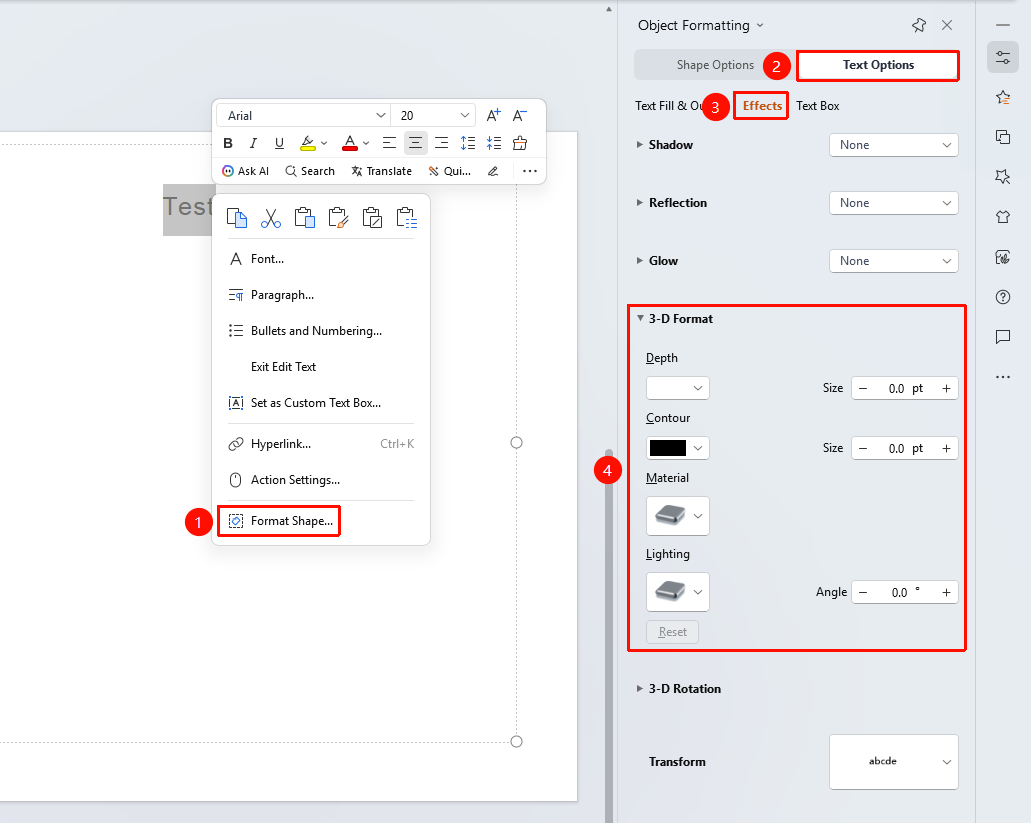
「Right-click Menu」→「Format Object」→「Text Options」→「Effects」→「3D Format」
- Select the target text, right-click to expand the text right-click menu, and click the 「Format Object」 option at the bottom to expand the 「Object Properties」 right-side panel
- Click the 「Effects」 option under the 「Text Options」 tab
- Click 「3D Format」 to open the detailed settings panel
- Set 3D options such as depth, surface map, depth, and material
- Click 「Reset」 to reset all 3D settings with one click
FAQ
Q1: What is the difference between 3D Format and 3D Rotation?
- Solution: 3D Format adds three-dimensional bevel, depth, and surface material effects to text, giving it a 3D texture; 3D Rotation rotates the text in three-dimensional space. The two can be used together.
Q2: What should I do if the 3D effect does not display properly during projection?
- Solution: 3D effects depend on the graphics rendering capability of the device. Some low-performance devices may not render complex 3D effects correctly. It is recommended to test on the target device in advance and simplify 3D parameters or use 2D alternatives if necessary.
Notes
- 3D format effects increase rendering load and may affect the smoothness of slide transitions
- 3D effects are suitable for title text and are not recommended for body text
- Using in conjunction with 3D Rotation can display the three-dimensional effect from different angles