Feature Summary
The Transform effects feature allows text to warp and align along a specified path or shape. It supports various transform styles, such as arcs, waves, and circles, breaking the limits of horizontal text alignment to create creative and dynamic formatting effects.
Feature Description
| Feature Dimension | Description |
|---|---|
| Member Limit | No member limit |
| Version Limit | No version limit |
Steps
Apply Preset Transform Effects
Feature Entry
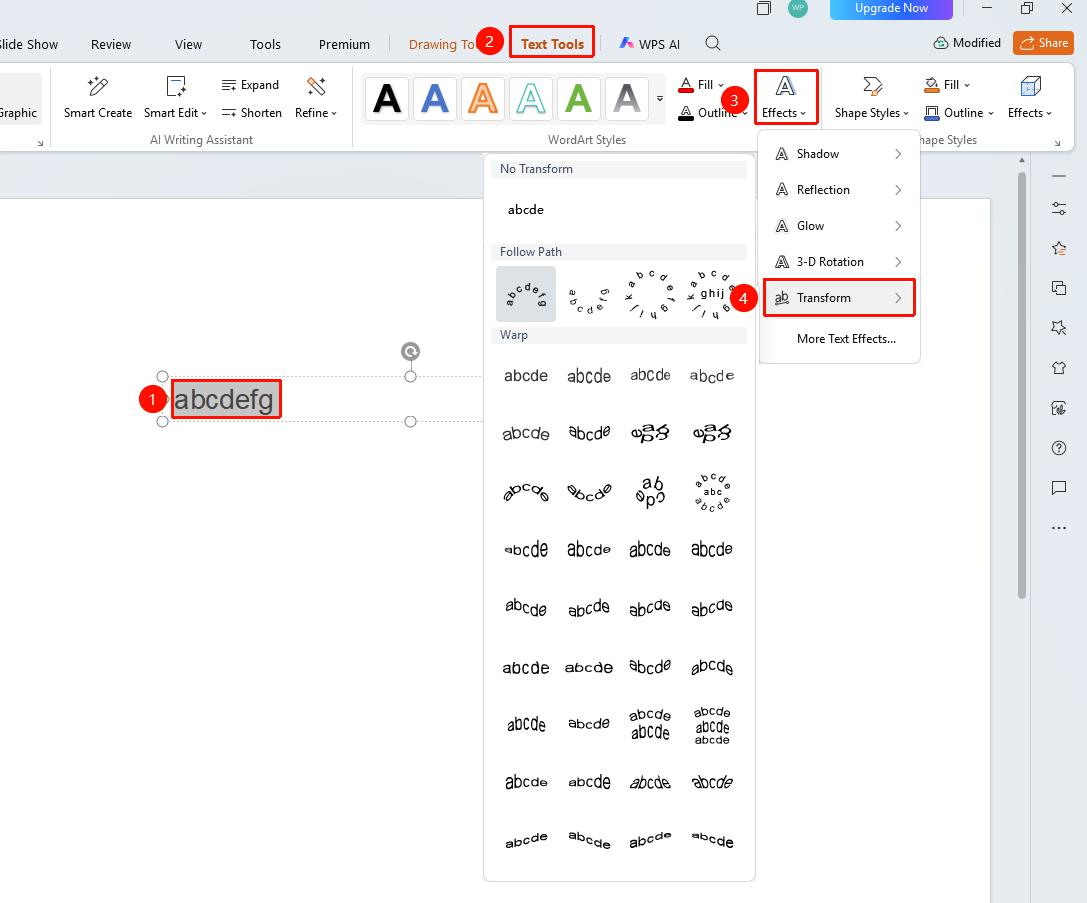
Text Tools tab > Text Effects > Transform
- Select the text you want to apply the transform effect to.
- On the Text Tools tab at the top, click Text Effects > Transform.
- In the pop-up panel, choose the desired transform style (such as Follow Path or Warp).
- The text will align according to the selected path or shape.
Adjust Transform Effects
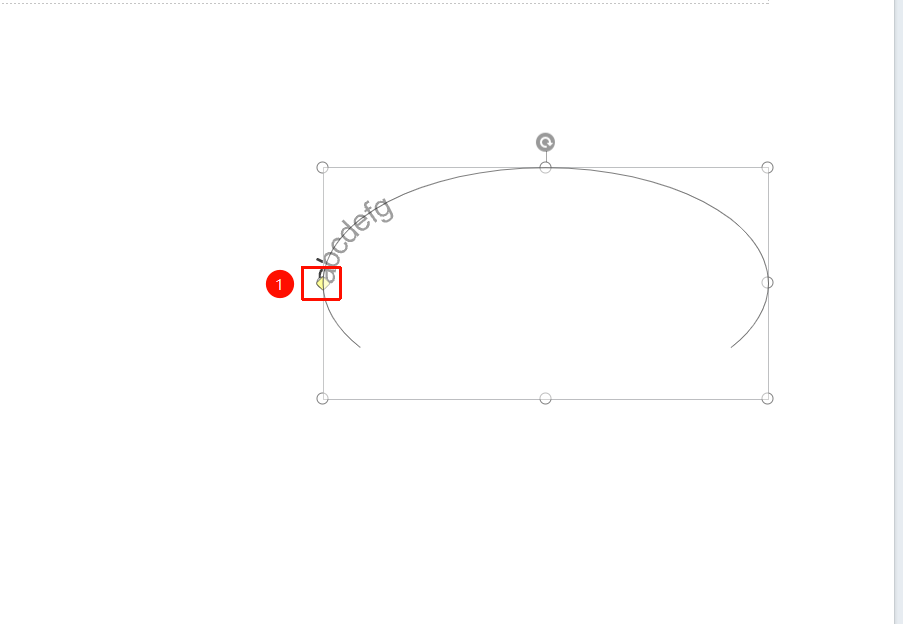
- After applying a transform effect, a yellow diamond control point will appear on the text box.
- Drag the control point to adjust parameters such as the arc and warp degree of the transform.
FAQs
Issue 1: What categories of transform effects are available?
- Solution: Transform effects are mainly divided into two categories: Follow Path (text aligns along paths like circles, arcs, and waves) and Warp (text warps, bulges, or shrinks horizontally or vertically). Each category offers various preset styles.
Issue 2: How do I make text align in a circle?
- Solution: Select the Circle style under Follow Path, and the text will align along a circular path. You can drag the control point to adjust the size of the circle and the position of the text on it. If the text is too long, you may need to adjust the font size to ensure it displays completely.
Issue 3: What should I do if the text is cut off after applying a transform effect?
- Solution: Transform effects change the alignment path of the text, which may cause some text to exceed the text box boundaries. We recommend increasing the size of the text box or reducing the font size to ensure all text displays completely along the transform path.
Notes
- Transform effects are mainly used for titles and decorative text, and are not suitable for body text formatting.
- The transformed text can still be edited. The effect will automatically update after you modify the content.
- Text that is too long may not display completely on complex transform paths. Pay attention to controlling the text length.