Feature Summary
The highlight feature adds a background color highlight effect to selected text, similar to marking key content with a highlighter. This helps the audience quickly capture key information and improves the efficiency of information delivery in presentations.
Feature Description
| Feature Dimension | Description |
|---|---|
| Member Restrictions | No member restrictions |
| Version Restrictions | No version restrictions |
Operation Steps
Add Highlight
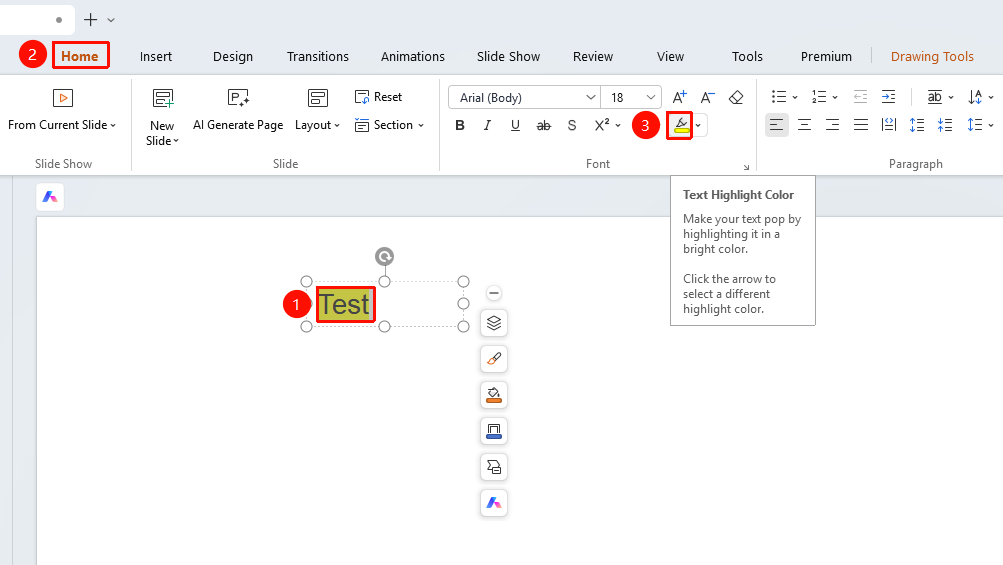
Feature Entry ①
Home tab → Highlight button
- Select the text content that needs to be highlighted.
- Click the Highlight button on the Home tab.
- The text will be highlighted with the currently selected background color.
Feature Entry ②
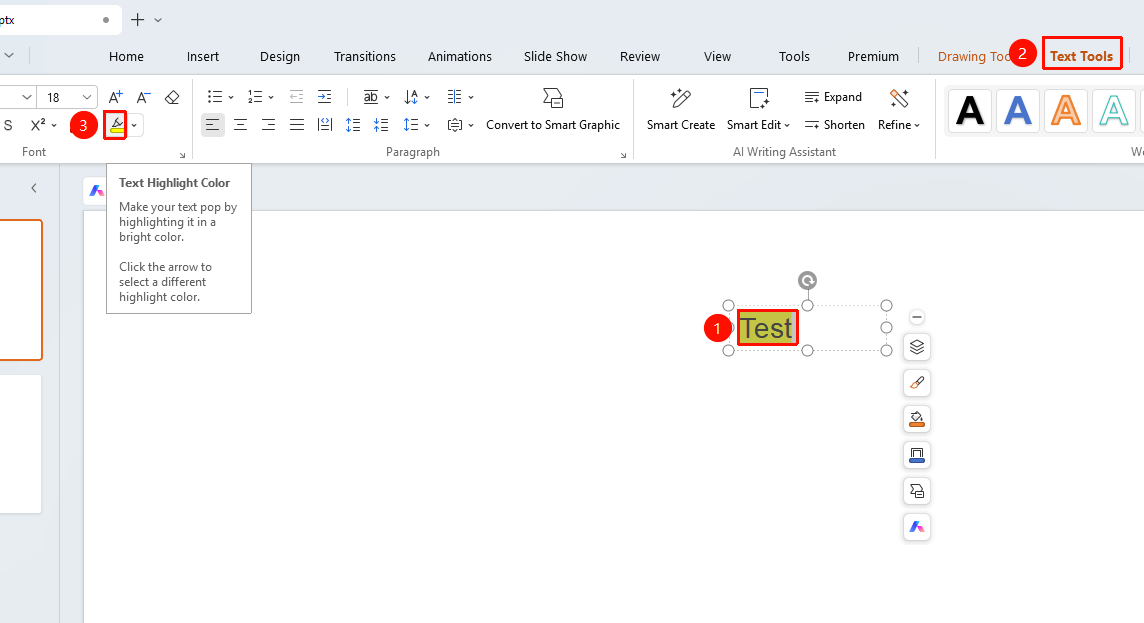
Text Tools tab → Highlight button
- Select the text content that needs to be highlighted.
- Click the Highlight button on the Text Tools tab.
- The text will be highlighted with the currently selected background color.
Choose Highlight Color
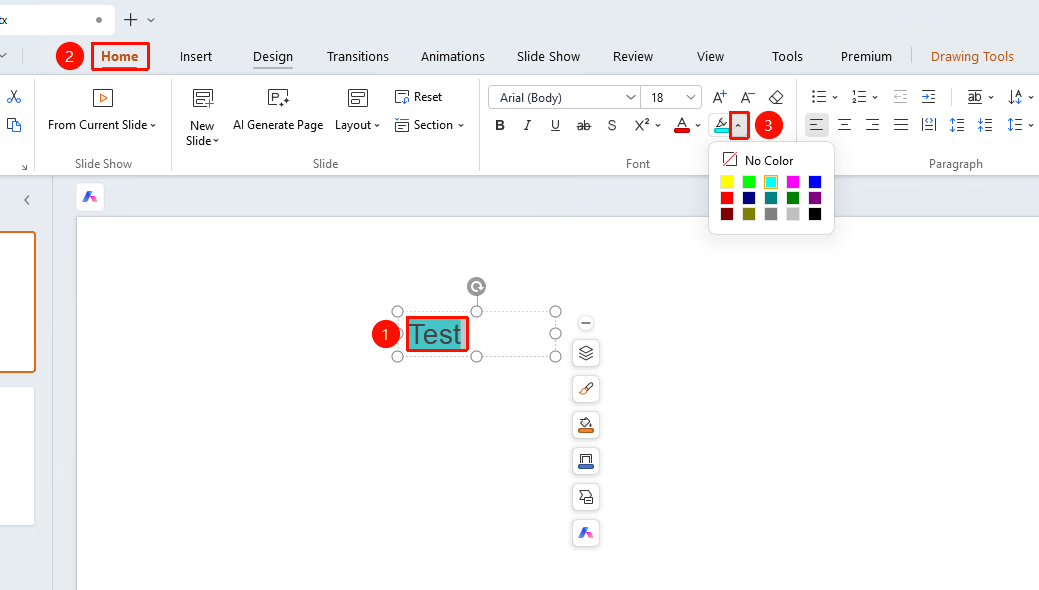
Feature Entry ①
Home tab → Highlight drop-down menu
- Select the text content that needs to be highlighted.
- Click the drop-down arrow next to the Highlight button.
- Choose the desired highlight color from the pop-up palette.
- Once selected, the text will be highlighted with the corresponding background color.
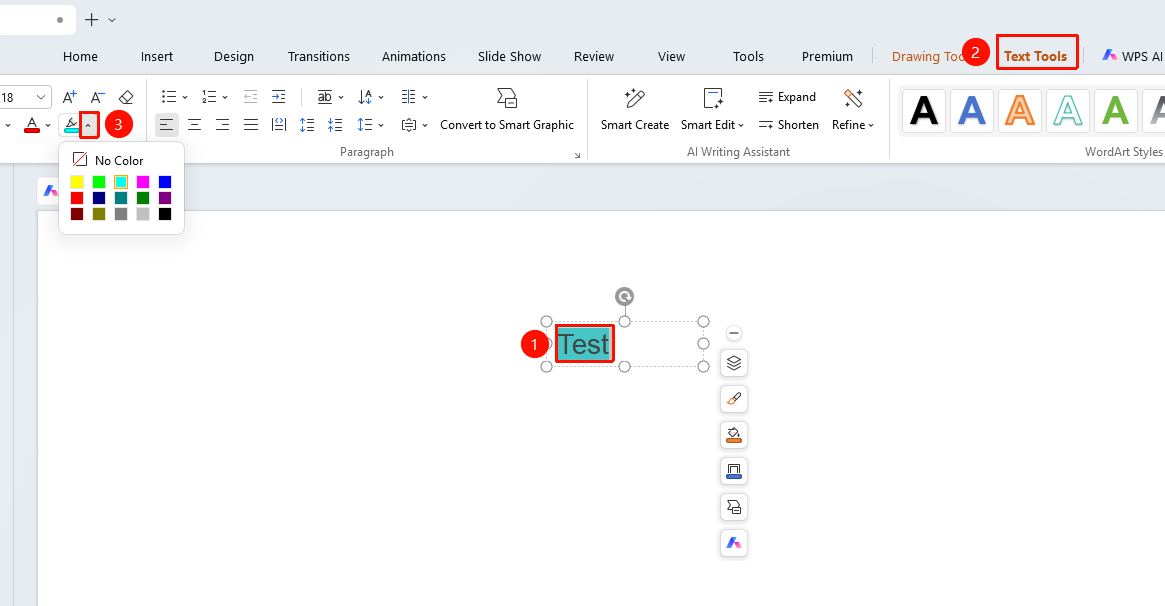
Feature Entry ②
Text Tools tab → Highlight drop-down menu
- Select the text content that needs to be highlighted.
- Click the drop-down arrow next to the Highlight button.
- Choose the desired highlight color from the pop-up palette.
- Once selected, the text will be highlighted with the corresponding background color.
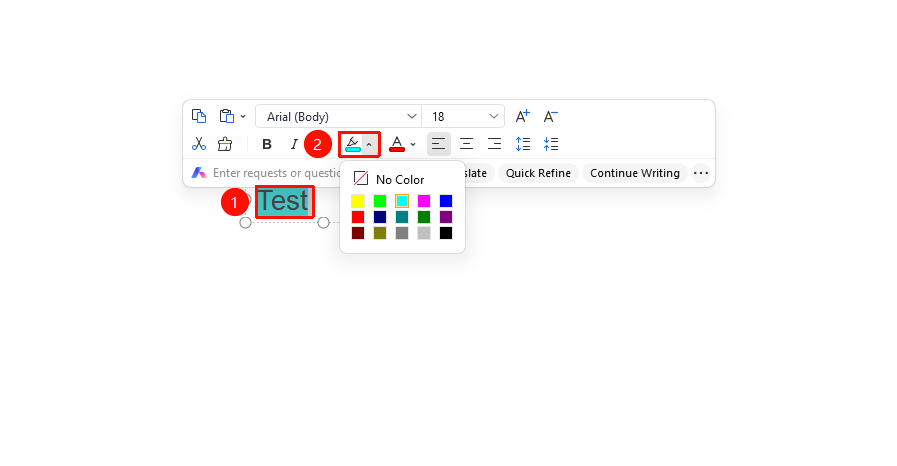
Set via Floating Toolbar
Feature Entry
Select the text to be highlighted, Floating Toolbar → Highlight button
- Select the text where you want to add an underline.
- The Floating Toolbar will automatically pop up after selection.
- Click the Highlight button on the floating toolbar to set the highlight and choose a color.
FAQ
Question 1: Can the highlight color be customized?
- Solution: Currently, the highlight feature does not support adding custom colors. You can only use the system preset color options.
Question 2: How do I clear the added highlight?
- Solution: Select the highlighted text, click the drop-down arrow next to the Highlight button, and select None to clear the highlight effect. You can also use the Clear Formatting feature to clear it all at once.
Notes
- Highlight is suitable for marking key vocabulary and important paragraphs.
- We recommend using a unified highlight color on the same page to avoid visual clutter.
- The highlight color should contrast with the font color to ensure the text is clear and readable.
- In WPS for mobile devices (phones), the highlight feature is referred to as Highlight, and the actual effect is identical.
- The Clear Formatting feature will clear both the highlight and other font formatting simultaneously.