Feature Summary
The numbering feature is used to automatically add ordered numbering prefixes to text in slide text boxes. It supports various numbering styles such as Arabic numerals, circled numbers, Roman numerals, English letters, and Chinese numerals, helping users quickly establish a sequential hierarchy of content.
Feature Description
| Feature Dimension | Description |
|---|---|
| Member Restrictions | No membership restrictions |
| Version Restrictions | No version restrictions |
Steps
Quickly Add Preset Numbering
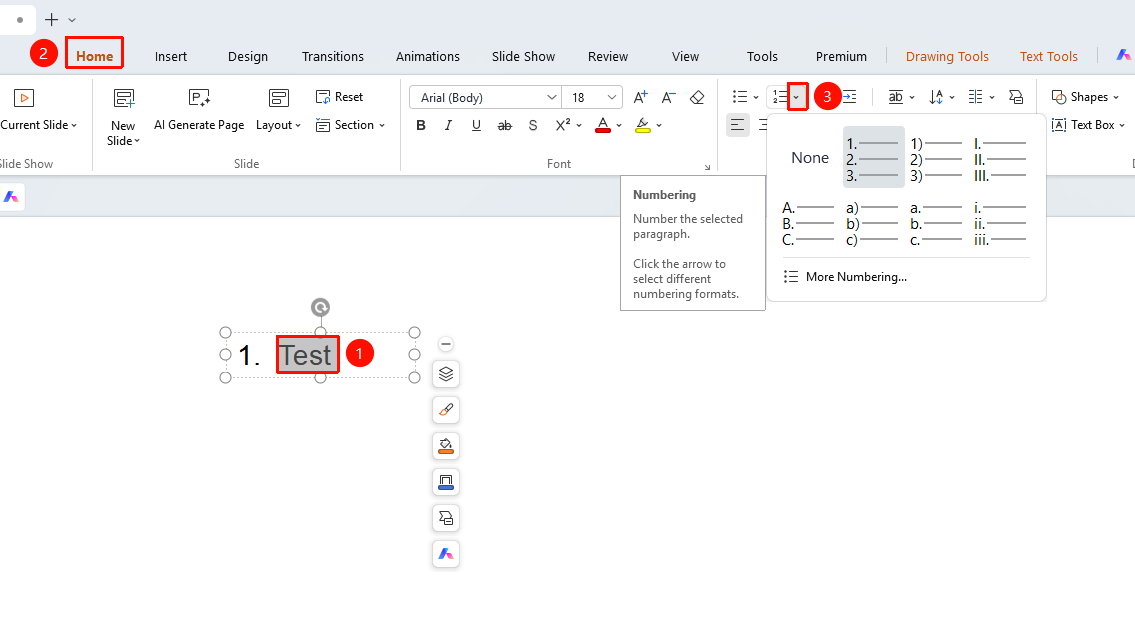
Feature Entry ①
"Home" tab -> "Paragraph" section -> "Numbering" drop-down arrow
Double-click the text box in the slide to enter Edit Mode, and select the paragraph text to which you want to add numbering.
Click the "Home" tab on the top menu bar.
In the "Paragraph" section, click the drop-down arrow of the "Numbering" button.
In the pop-up drop-down panel, various preset numbering styles are provided and can be applied directly by clicking:
- 1. 2. 3.: Arabic numeral numbering (with dot separator)
- ① ② ③: Circled number numbering
- Ⅰ Ⅱ Ⅲ: Uppercase Roman numeral numbering
- A. B. C.: Uppercase English letter numbering
- a) b) c): Lowercase English letter numbering (with parenthesis separator)
- a. b. c.: Lowercase English letter numbering (with dot separator)
Click the desired style to apply it to the selected text.
Feature Entry ②
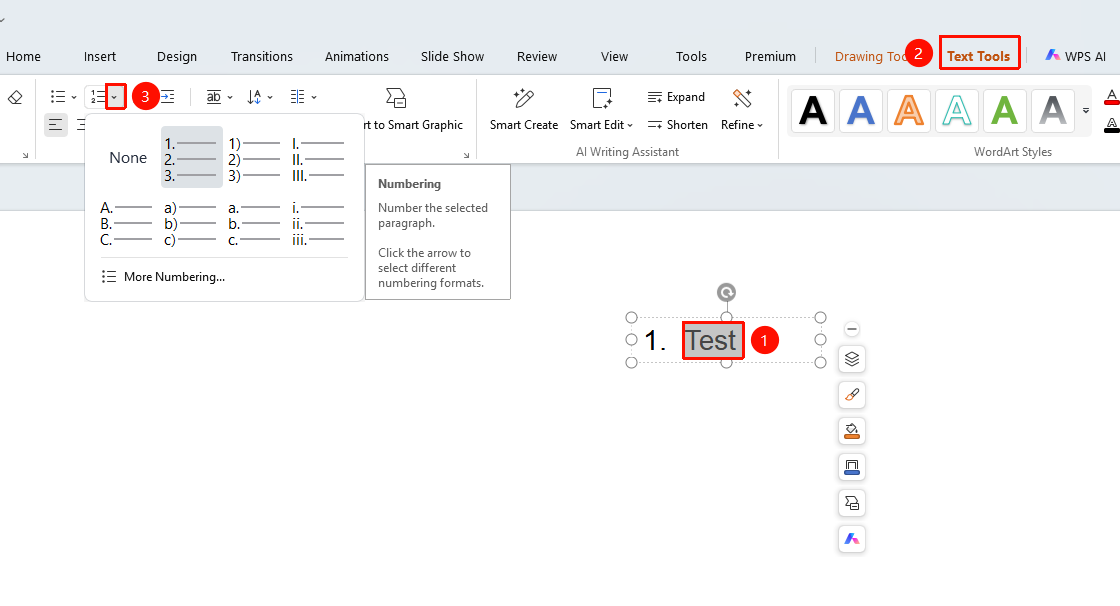
"Text Tools" tab -> "Paragraph" section -> "Numbering" drop-down arrow
Double-click the text box in the slide to enter Edit Mode, and select the paragraph text to which you want to add numbering.
Click the "Text Tools" tab on the top menu bar.
In the "Paragraph" section, click the drop-down arrow of the "Numbering" button.
In the pop-up drop-down panel, various preset numbering styles are provided and can be applied directly by clicking:
- 1. 2. 3.: Arabic numeral numbering (with dot separator)
- ① ② ③: Circled number numbering
- Ⅰ Ⅱ Ⅲ: Uppercase Roman numeral numbering
- A. B. C.: Uppercase English letter numbering
- a) b) c): Lowercase English letter numbering (with parenthesis separator)
- a. b. c.: Lowercase English letter numbering (with dot separator)
Click the desired style to apply it to the selected text.
Customize Numbering Settings via Dialog Box
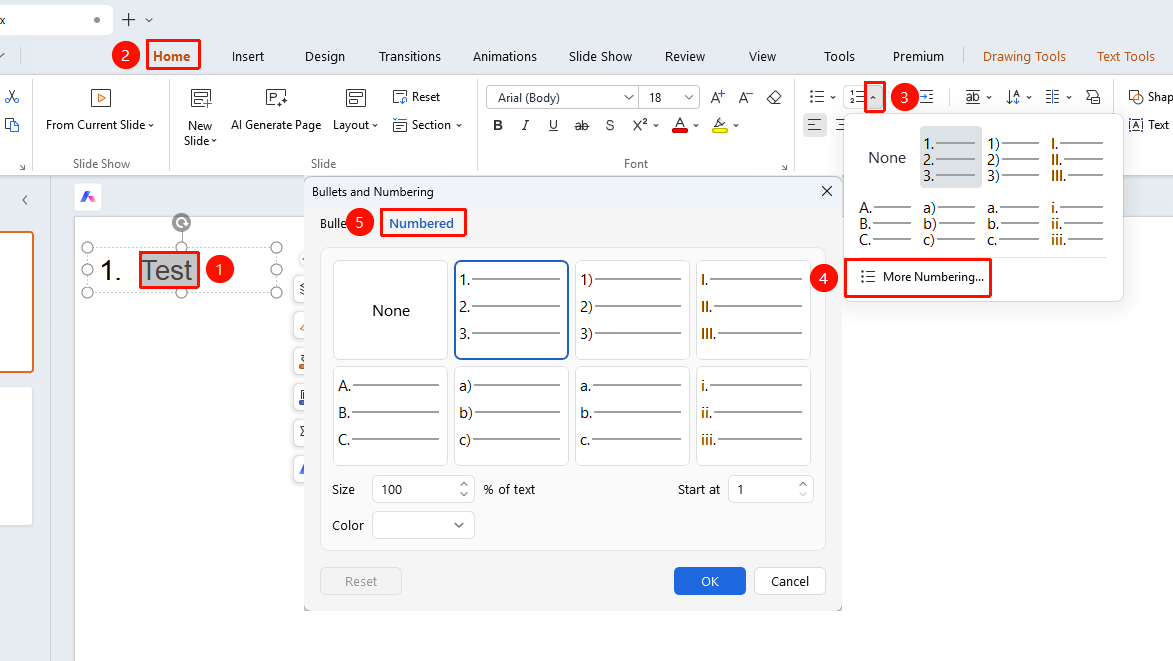
Feature Entry ①
"Home" tab -> "Paragraph" section -> "Numbering" drop-down arrow -> "More Numbering"
Select the paragraph text to which you want to edit, switch to the "Start" tab at the top of the page
Click the "Numbering" drop-down arrow, and click the "More Numbering" button at the bottom of the pop-up panel.
In the pop-up "Bullets and Numbering" dialog box, click the "Numbering" tab.
Select the desired numbering style in the style grid. Once selected, the border will be highlighted.
You can adjust the following parameters as needed:
- Size: Set the ratio of the numbering size relative to the text (default is 100% of text height), which can be adjusted via the input box or the up and down arrows.
- Start at: Set the starting number of the numbering (default starts from 1), which can be modified to any positive integer.
- Color: Click the drop-down menu to select the color of the numbering.
After completing the settings, click the "OK" button to apply them, or click "Reset" to restore default settings.
Feature Entry ②
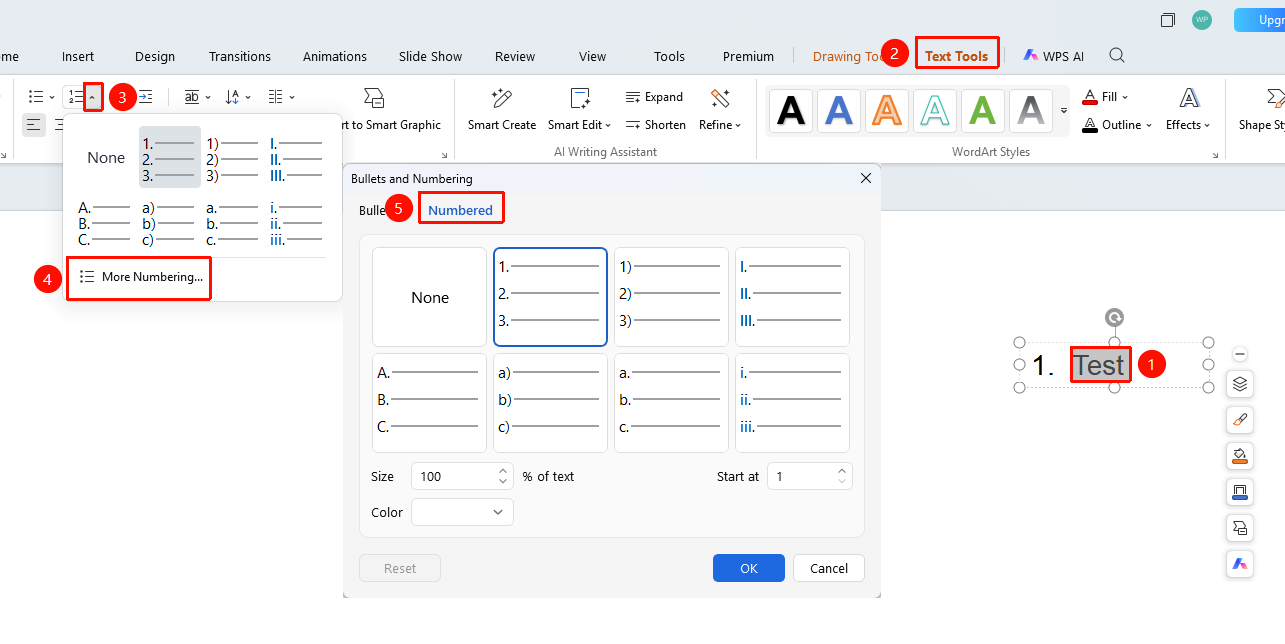
"Text Tools" tab -> "Paragraph" section -> "Numbering" drop-down arrow -> "More Numbering"
Select the paragraph text to which you want to edit, switch to the "Text Tools" tab at the top of the page
Click the "Numbering" drop-down arrow, and click the "More Numbering" button at the bottom of the pop-up panel.
In the pop-up "Bullets and Numbering" dialog box, click the "Numbering" tab.
Select the desired numbering style in the style grid. Once selected, the border will be highlighted.
You can adjust the following parameters as needed:
- Size: Set the ratio of the numbering size relative to the text (default is 100% of text height), which can be adjusted via the input box or the up and down arrows.
- Start at: Set the starting number of the numbering (default starts from 1), which can be modified to any positive integer.
- Color: Click the drop-down menu to select the color of the numbering.
After completing the settings, click the "OK" button to apply them, or click "Reset" to restore default settings.
Remove Numbering
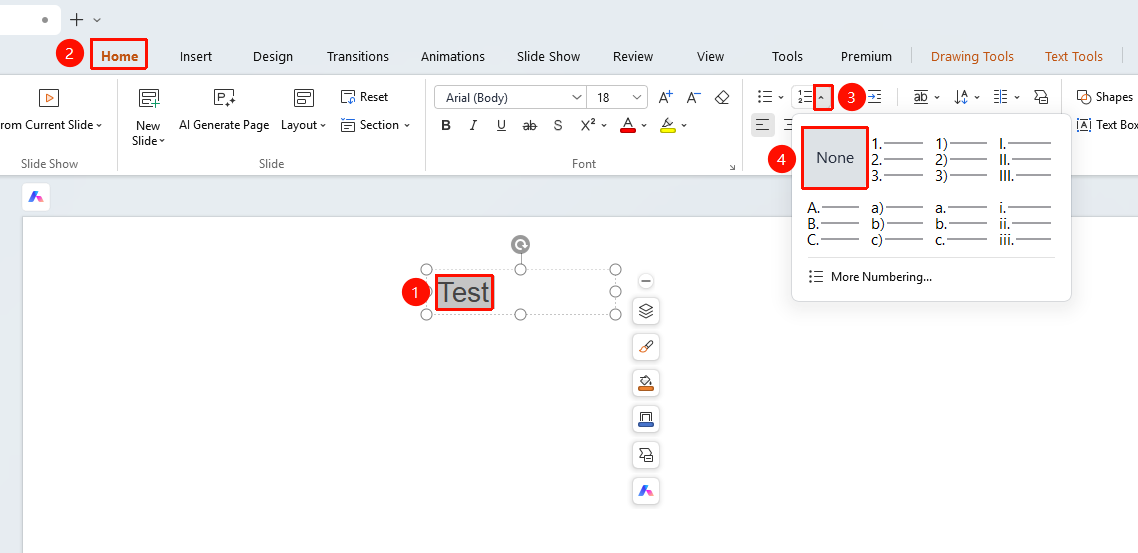
Feature Entry ①
"Home" tab -> "Paragraph" section -> "Numbering" drop-down arrow -> "None"
- Select the paragraph text with numbering already added,switch to the "Home" tab at the top of the page
- Click the "Numbering" drop-down arrow, and select "None" in the pop-up panel.
- The numbering will be removed.
Feature Entry ②
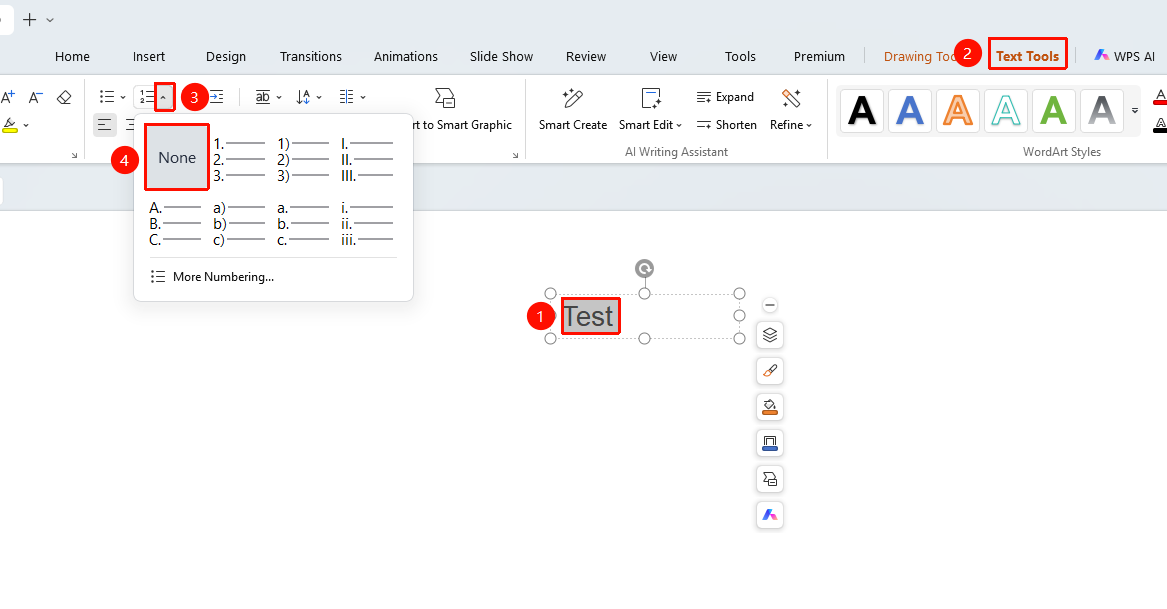
"Text Tools" tab -> "Paragraph" section -> "Numbering" drop-down arrow -> "None"
- Select the paragraph text with numbering already added,switch to the "Text Tools" tab at the top of the page
- Click the "Numbering" drop-down arrow, and select "None" in the pop-up panel.
- The numbering will be removed.
FAQ
Question 1: After adding numbering, how can I make the numbering start from a number other than 1?
- Solution: Click the "Numbering" drop-down arrow -> "More Numbering" to open the dialog box, and modify the starting number in the "Start at" input box to make the numbering start increasing from the specified number.
Question 2: Can numbering and bullets be mixed? Can some paragraphs in the same text box use numbering while others use bullets?
- Solution: Yes. First select the paragraphs that need numbering and apply numbering, then select the other paragraphs that need bullets and set bullets separately. They will not interfere with each other.
Question 3: How do I change the color of the numbering?
- Solution: Click the "Numbering" drop-down arrow -> "More Numbering" to open the dialog box, select the desired color in the "Color" drop-down menu, and click OK.
Notes
- Numbering will automatically update the subsequent numbering sequence as paragraphs are added or deleted.
- Select "None" to remove added numbering.