Feature Summary
The character spacing feature allows users to adjust the horizontal distance between text characters on slides, optimizing the layout and enhancing the readability and visual appeal of the text.
Feature Description
| Feature Dimension | Description |
|---|---|
| Member Restrictions | No member restrictions |
| Version Restrictions | No version restrictions |
Operating Steps
Set Up via Tabs
Feature Entry ①
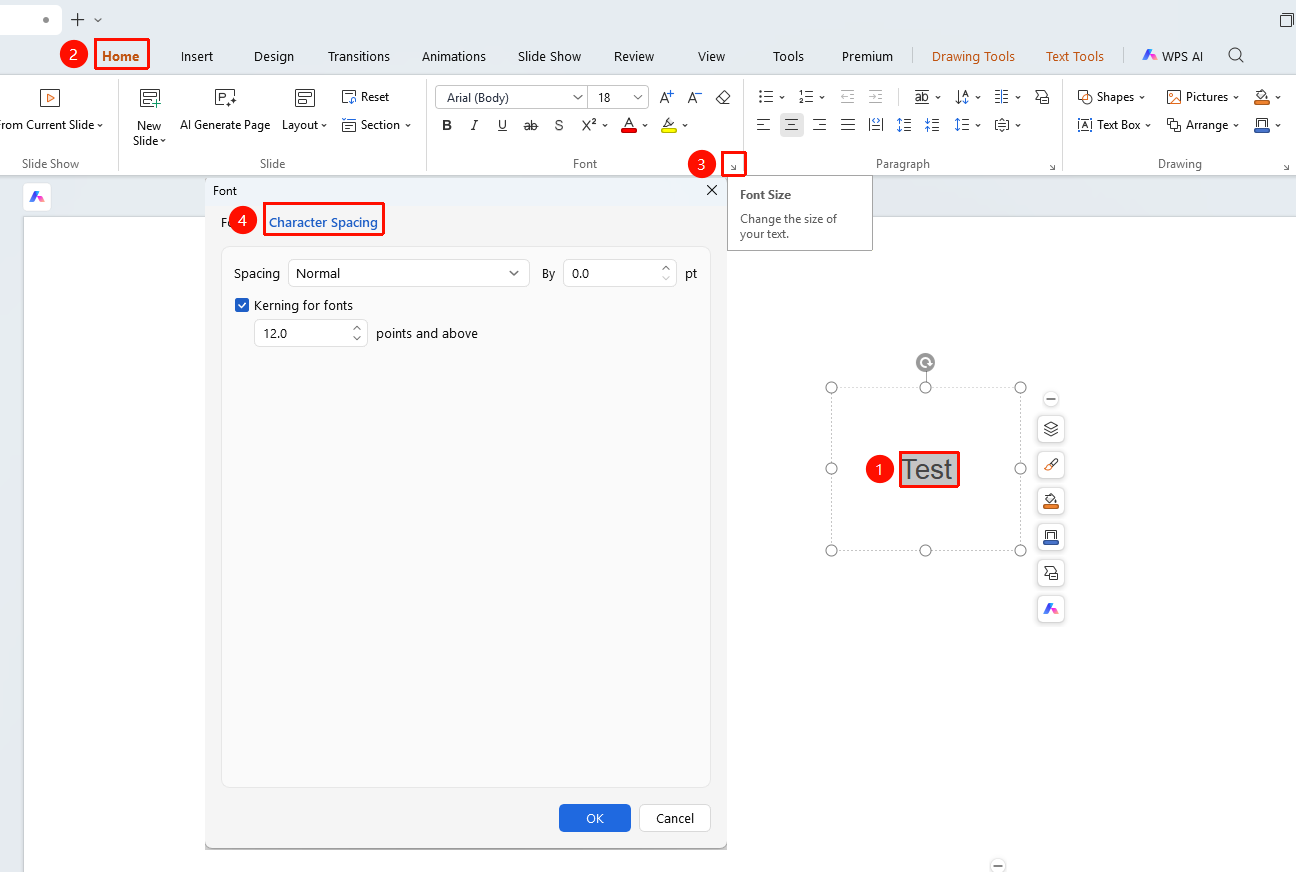
"Home" tab → "Font" group expansion button
Select the text box or text content where you want to adjust the character spacing.
Click the expansion menu button in the lower right corner of the "Font" group on the Home tab.
Switch to the "Character Spacing" tab in the Font menu.
Select a preset spacing option:
- Condensed: Smaller character spacing
- Normal: Default character spacing
- Expanded: Larger character spacing
Enter a specific value (unit: pt) in the "By" input box, or use the up and down arrows to adjust.
Check whether to "Kerning for fonts": Automatically optimize spacing based on font size.
Click "OK" to apply the settings.
Feature Entry ②
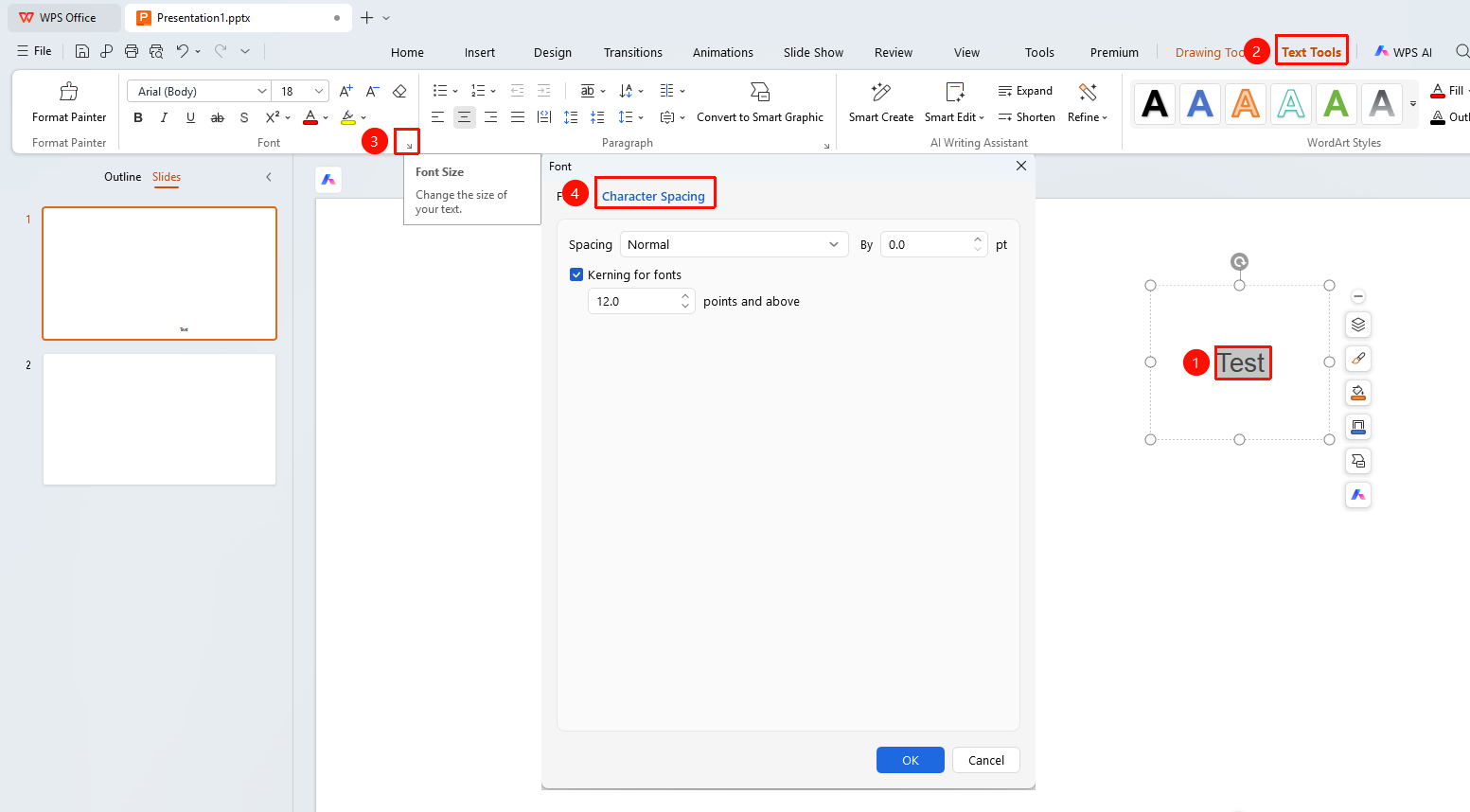
"Text Tools" tab → "Font" group expansion button
Select the text box or text content where you want to adjust the character spacing.
Click the expansion menu button in the lower right corner of the "Font" group on the Text Tools tab.
Switch to the "Character Spacing" tab in the Font menu.
Select a preset spacing option:
- Condensed: Smaller character spacing
- Normal: Default character spacing
- Expanded: Larger character spacing
Enter a specific value (unit: pt) in the "By" input box, or use the up and down arrows to adjust.
Check whether to "Kerning for fonts": Automatically optimize spacing based on font size.
Click "OK" to apply the settings.
Set Up via Font Dialog Box
Feature Entry
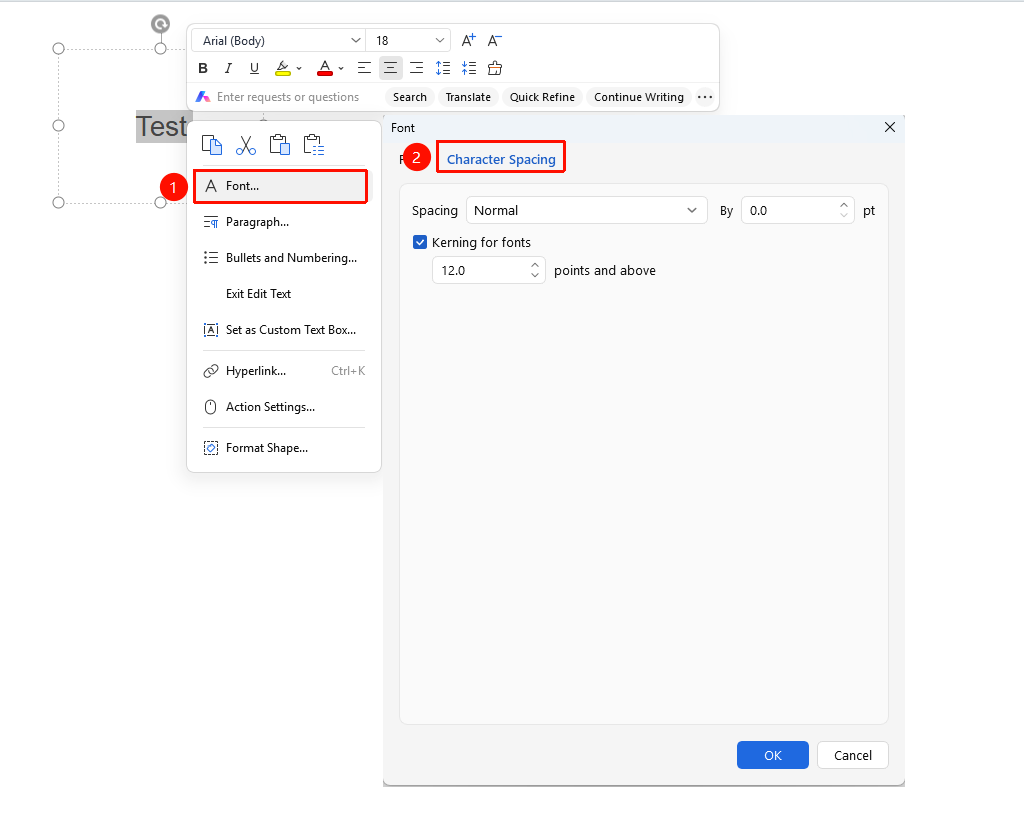
Select text → Right-click menu → "Font" option
Select the text where you want to adjust the character spacing.
Right-click and select "Font" from the pop-up menu.
In the pop-up Font dialog box, switch to the "Character Spacing" tab.
In the "Spacing" drop-down menu, select:
- Normal: Use default spacing
- Expanded: Increase character spacing
- Condensed: Decrease character spacing
Enter a specific value (unit: pt) in the "By" input box, or use the up and down arrows to adjust.
Check whether to "Kerning for fonts": Automatically optimize spacing based on font size.
Click "OK" to apply the settings.
FAQ
Question 1: What should I do if the text overlaps or the spacing is too large after adjusting the character spacing?
- Solution: Check if the measurement value is reasonable. We recommend starting with a smaller value (such as expanding by 0.5 pt). If the text overlaps, the spacing value is too small; if the spacing is too large, the value is too large.
Question 2: Why is there no change after adjusting the character spacing?
- Solution: Make sure you have selected the text content correctly before setting it. If the spacing of some content is abnormal, it may be due to interference from the Distributed Alignment feature. You can select the text and click "Home" / "Text Tools" → "Paragraph" → "Distributed" to cancel this setting.
Question 3: How do I restore the default character spacing?
- Solution: Reselect the Normal spacing, or use the shortcut Ctrl+Z to undo the previous adjustment.
Question 4: What is the difference between scale and spacing?
- Solution: "Scale" changes the width ratio of the characters themselves, making them wider or narrower; "Spacing" changes the distance between characters, while the size of the characters themselves remains unchanged.
Notes
- Adjusting character spacing only affects the horizontal spacing of the selected text, not the line spacing or paragraph spacing.
- In the same presentation file, you can apply different character spacing settings to different text.
- The unit of measurement for character spacing is points (pt). 1 point is approximately equal to 0.35 mm.
- When mixing Chinese and Western text, we recommend checking "Kerning for fonts" to obtain a more even spacing effect.