Feature Summary
The alignment feature is used to set the horizontal position of paragraph text on a page. It supports left alignment, center alignment, right alignment, justified alignment, and distributed alignment, making document formatting more standardized and visually appealing.
Feature Description
| Feature Dimension | Description |
|---|---|
| Member Limit | No member limit |
| Version Limit | No version limit |
Operating Steps
Set Horizontal Alignment
Feature Entry ①
"Home" tab -> "Paragraph" group -> Alignment button
Select the paragraph you want to align.
Click the "Home" tab.
In the "Paragraph" feature group, choose an alignment option:
- Align Left: Align text to the left (Shortcut: Ctrl+L)
- Center: Center text on the page (Shortcut: Ctrl+E)
- Align Right: Align text to the right (Shortcut: Ctrl+R)
- Justify: Align text to both left and right margins (Shortcut: Ctrl+J)
- Distributed: Distribute text evenly
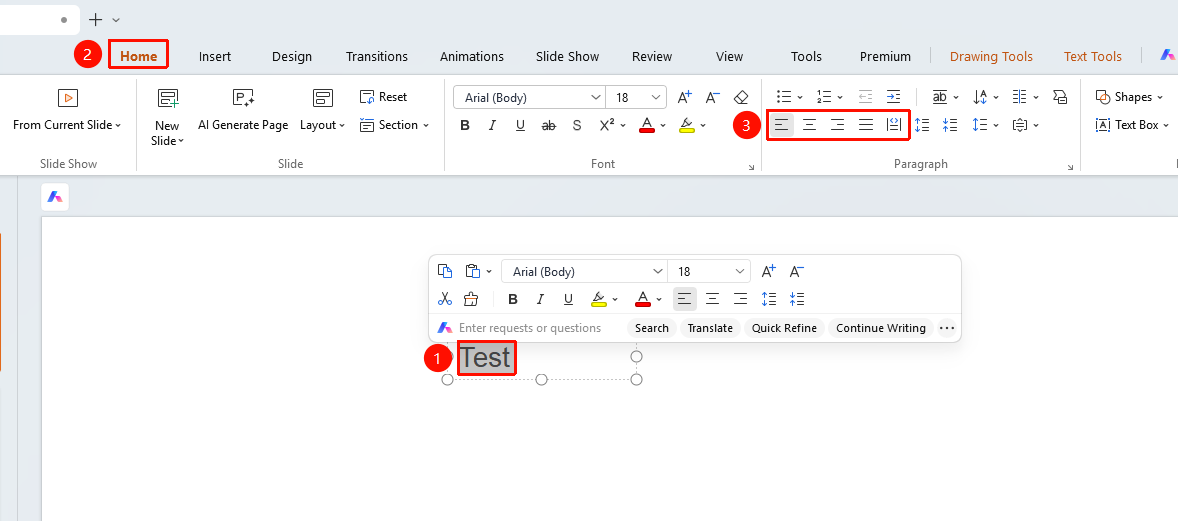
Selecting a text paragraph automatically brings up a floating toolbar, allowing you to quickly align text to the left, right, or center
Feature Entry ②
"Text Tools" tab -> "Paragraph" group -> Alignment button
Select the paragraph you want to align.
Click the "Text Tools" tab.
In the "Paragraph" feature group, choose an alignment option:
- Align Left: Align text to the left (Shortcut: Ctrl+L)
- Center: Center text on the page (Shortcut: Ctrl+E)
- Align Right: Align text to the right (Shortcut: Ctrl+R)
- Justify: Align text to both left and right margins (Shortcut: Ctrl+J)
- Distributed: Distribute text evenly
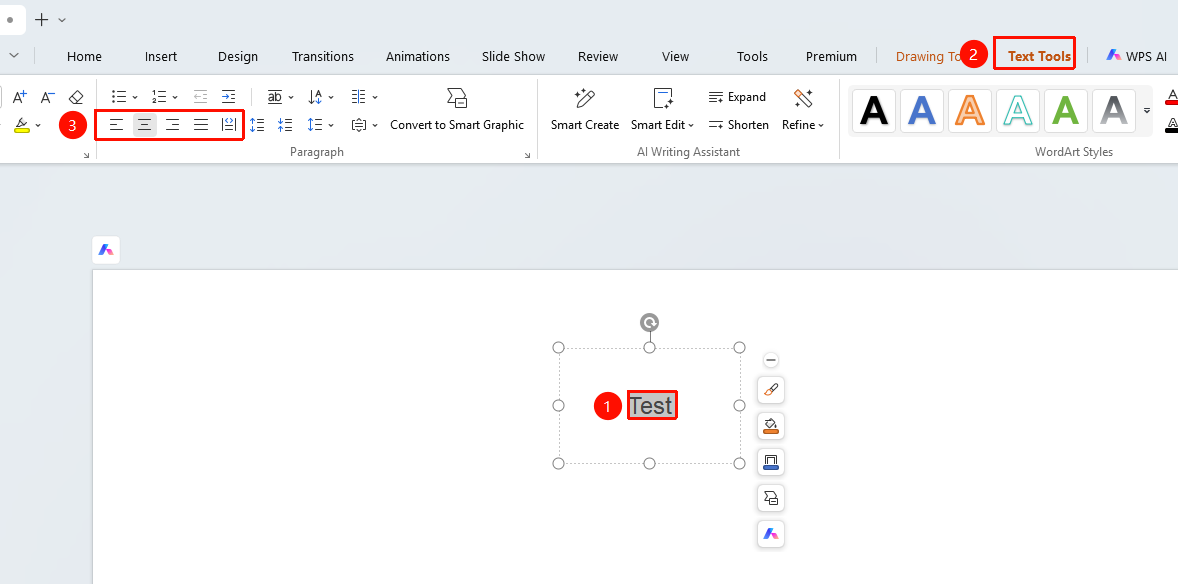
Set Vertical Alignment
Feature Entry ①
"Home" tab -> "Paragraph" group -> "Align Text" button
Select the paragraph you want to align.
Click the "Home" tab.
In the "Paragraph" feature group, choose an alignment option:
- Align Top: Align text to the top
- Middle Align: Center text vertically
- Align Bottom: Align text to the bottom
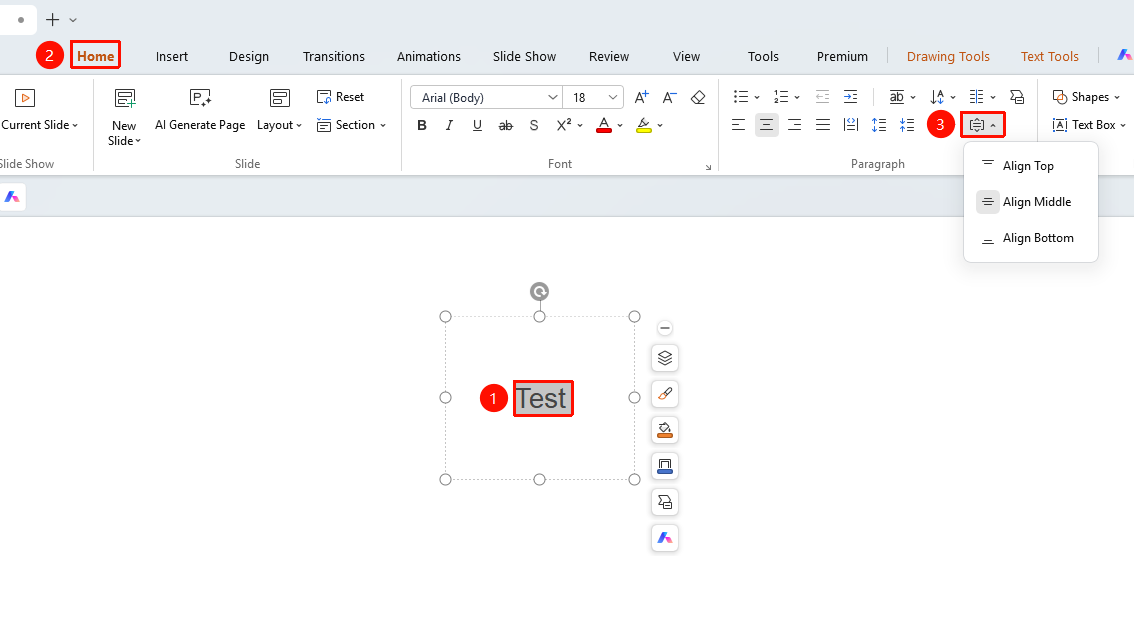
Feature Entry ②
"Text Tools" tab -> "Paragraph" group -> "Align Text" button
Select the paragraph you want to align.
Click the "Text Tools" tab.
In the "Paragraph" feature group, choose an alignment option:
- Align Top: Align text to the top
- Middle Align: Center text vertically
- Align Bottom: Align text to the bottom
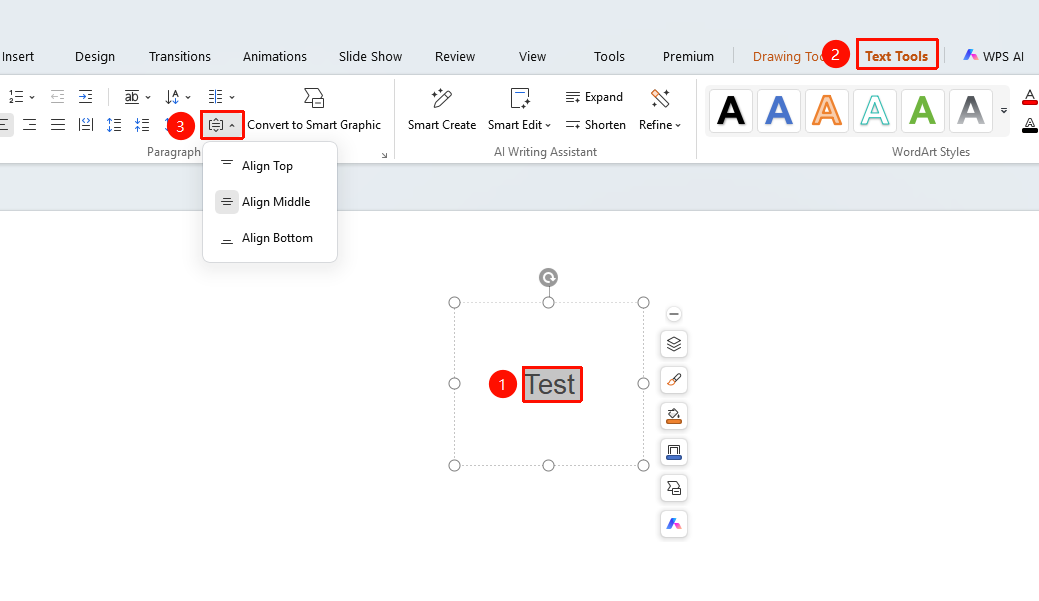
More Settings
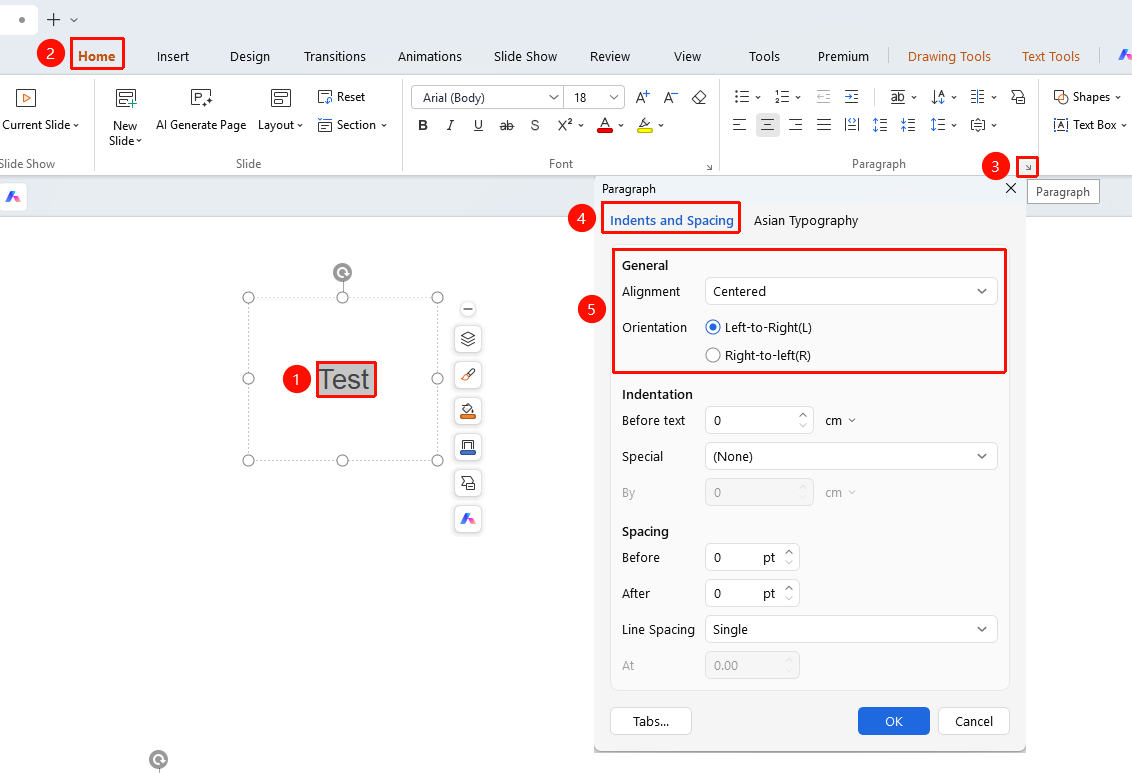
Feature Entry ①
"Home" tab -> "Paragraph" -> Dialog Box Launcher
- Select the paragraph you want to align.
- Click the "Home" tab.
- Click the Dialog Box Launcher in the lower-right corner of the "Paragraph" feature group.
- In the "Indents and Spacing" tab, find "Alignment".
- Select an alignment option from the drop-down list.
- Select "Direction": Left-to-Right/Right-to-Left.
- Click "OK" to apply.
Feature Entry ②
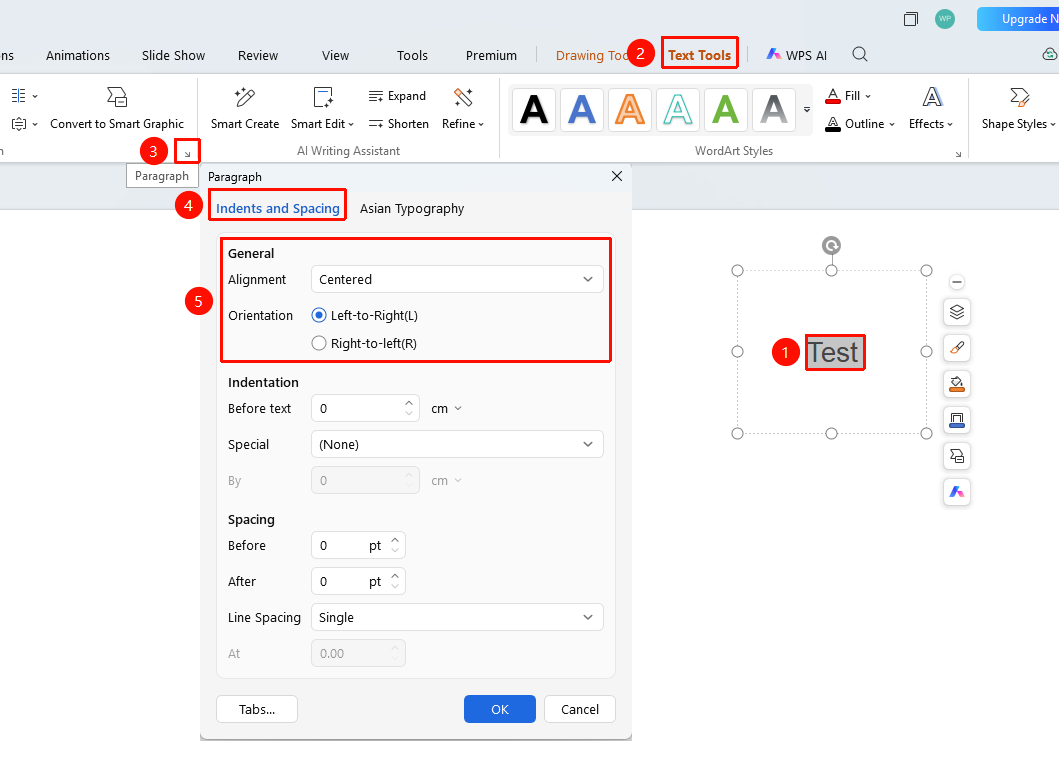
"Text Tools" tab -> "Paragraph" -> Dialog Box Launcher
- Select the paragraph you want to align.
- Click the "Text Tools" tab.
- Click the Dialog Box Launcher in the lower-right corner of the "Paragraph" feature group.
- In the "Indents and Spacing" tab, find "Alignment".
- Select an alignment option from the drop-down list.
- Select "Direction": Left-to-Right/Right-to-Left.
- Click "OK" to apply.
FAQ
Q1: What is the difference between Justify and Distributed alignment?
- Solution: Justified alignment keeps the last line aligned to the left, while distributed alignment aligns all lines (including the last line) to both the left and right margins.
Q2: What alignment should be used for headings?
- Solution: Headings are usually centered to display them in the middle of the page.
Q3: Why is the text not centered after setting center alignment?
- Solution: Check if the paragraph has indents. Indents affect the alignment effect. You can set the indents to 0.
Notes
- Alignment is a paragraph-level setting and affects the entire paragraph.
- The body text usually uses justified alignment to make the formatting look neater.
- Headings are usually centered.
- You can use the Format Painter to quickly copy alignment formatting.