Feature Summary
The line spacing feature is used to adjust the distance between lines within a paragraph, making the document layout more comfortable and visually appealing, thereby improving the reading experience.
Feature Description
| Feature Dimension | Description |
|---|---|
| Member Restrictions | No member restrictions |
| Version Restrictions | No version restrictions |
Steps
Set Line Spacing
Feature Entry 1
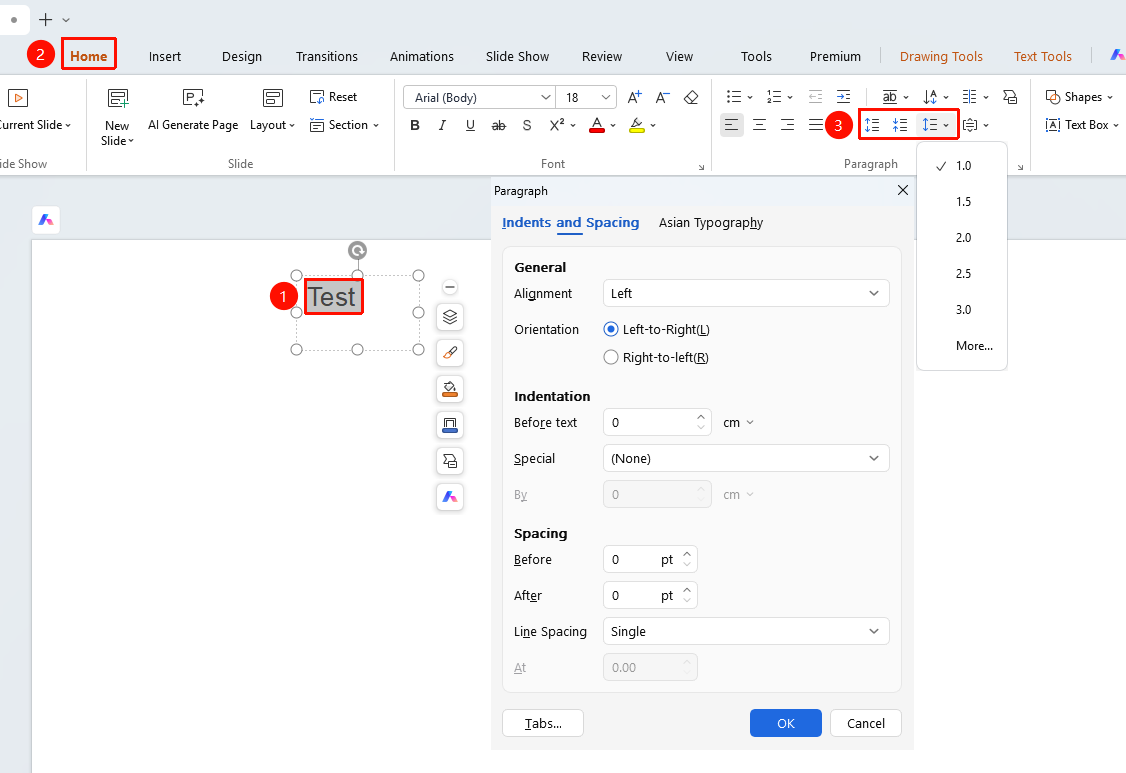
Start tab > Paragraph > Increase Paragraph Spacing, Decrease Paragraph Spacing, Line Spacing
Select the paragraph you want to adjust.
Click the Start tab.
Click the line spacing button in the Paragraph group.
Click the Increase Paragraph Spacing or Decrease Paragraph Spacing button to quickly increase or decrease line spacing.
Click Line Spacing to apply preset line spacing:
- 1.0 Line Spacing
- 1.5 Line Spacing
- 2.0 Line Spacing
- 2.5 Line Spacing
- 3.0 Line Spacing
Click Other Line Spacing to enter custom settings.
Feature Entry 2
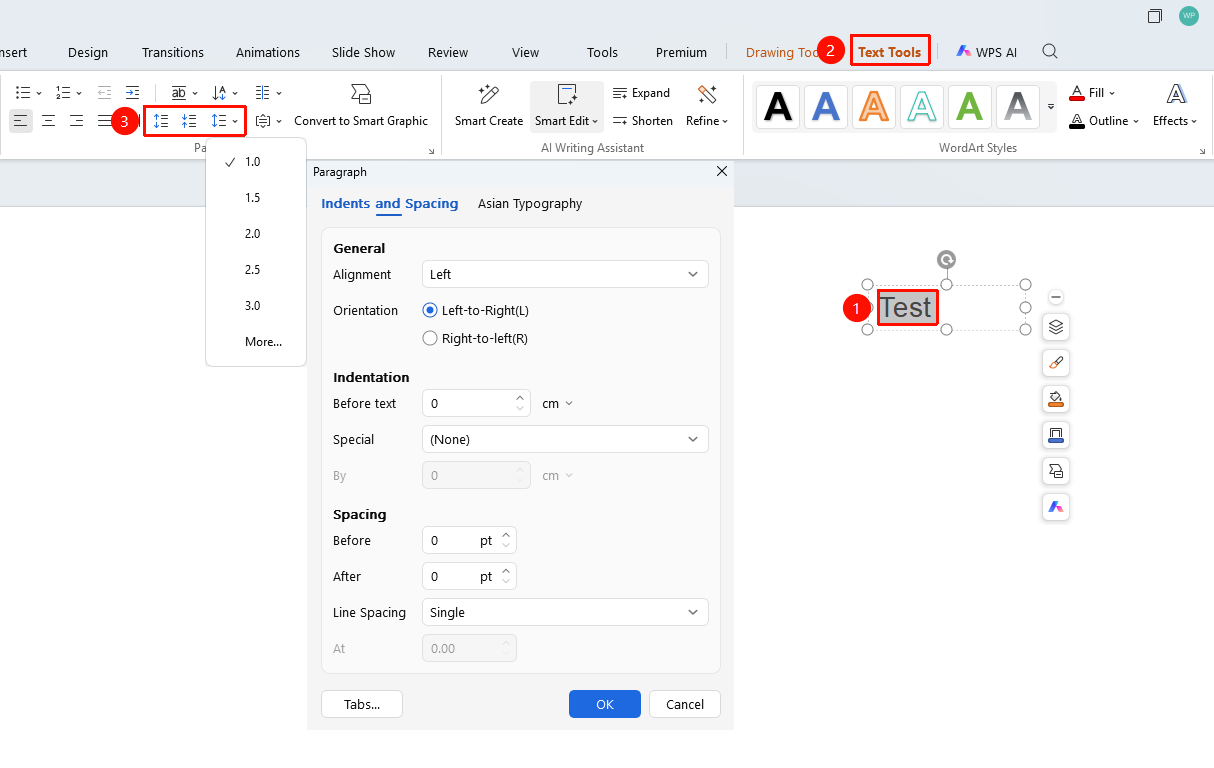
Text Tools tab > Paragraph > Increase Paragraph Spacing, Decrease Paragraph Spacing, Line Spacing
Select the paragraph you want to adjust.
Click the Text Tools tab.
Click the line spacing button in the Paragraph group.
Click the Increase Paragraph Spacing or Decrease Paragraph Spacing button to quickly increase or decrease line spacing.
Click Line Spacing to apply preset line spacing:
- 1.0 Line Spacing
- 1.5 Line Spacing
- 2.0 Line Spacing
- 2.5 Line Spacing
- 3.0 Line Spacing
Click Other Line Spacing to enter custom settings.
More Line Spacing Settings
Feature Entry 1
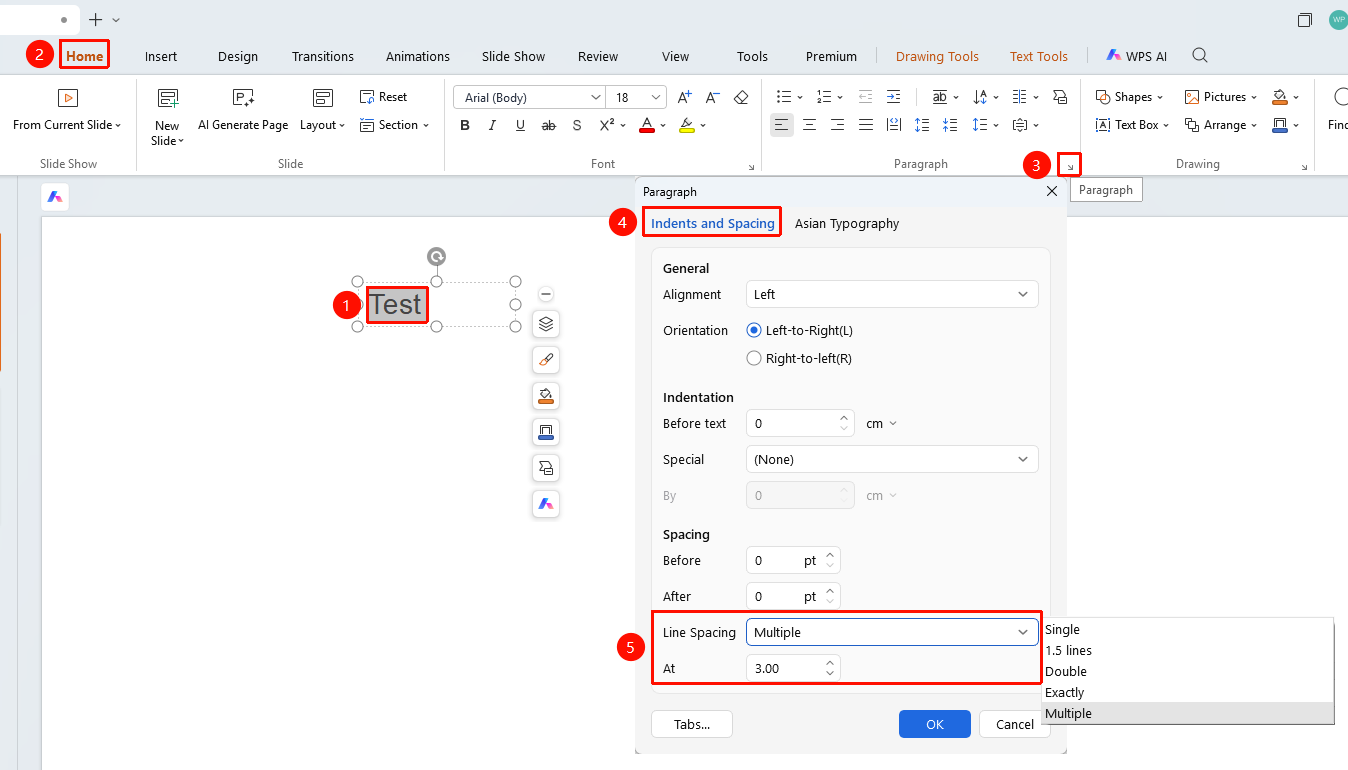
Home tab > Paragraph > Dialog Box Launcher
Select the paragraph you want to adjust.
Click the Home tab.
Click the dialog box launcher in the lower right corner of the Paragraph group.
Set line spacing in the Indents and Spacing tab:
- Single Line Spacing
- 1.5 Line Spacing
- 2 Line Spacing
- Exactly: Set a fixed line height
- Multiple Line Spacing: Custom multiplier
- At: Adjust the specific multiplier value of line spacing
Click OK to apply.
More Line Spacing Settings
Feature Entry 2
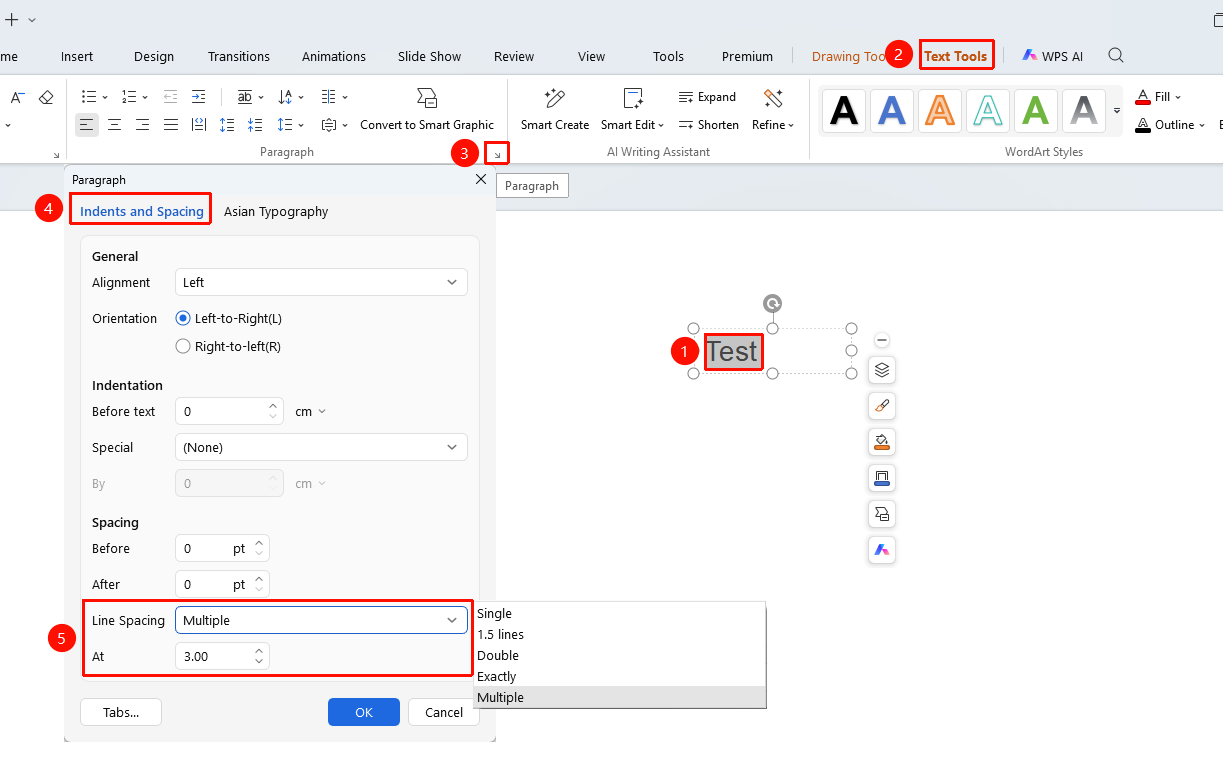
Text Tools tab > Paragraph > Dialog Box Launcher
Select the paragraph you want to adjust.
Click the Text Tools tab.
Click the dialog box launcher in the lower right corner of the Paragraph group.
Set line spacing in the Indents and Spacing tab:
- Single Line Spacing
- 1.5 Line Spacing
- 2 Line Spacing
- Exactly: Set a fixed line height
- Multiple Line Spacing: Custom multiplier
- At: Adjust the specific multiplier value of line spacing
Click OK to apply.
Set Paragraph Spacing
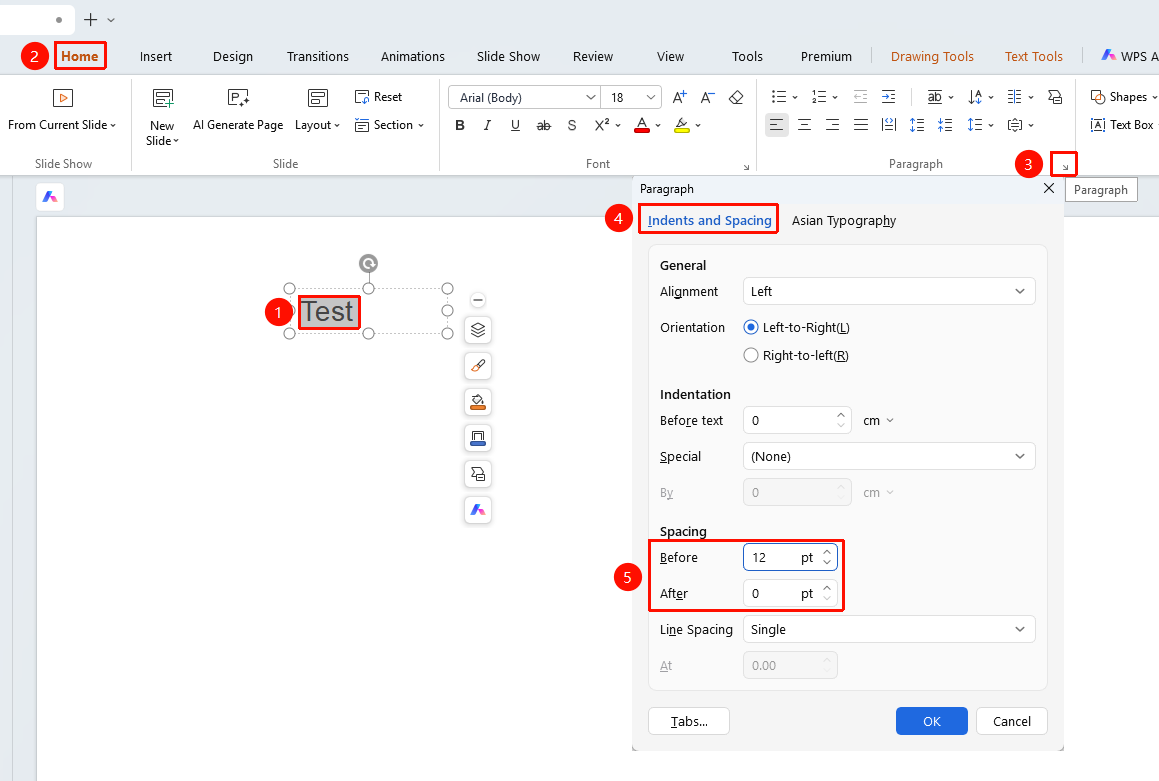
Feature Entry 1
Start tab > Paragraph > Dialog Box Launcher
Select the paragraph you want to adjust.
Click the Start tab.
Click the dialog box launcher in the lower right corner of the Paragraph group.
In the Indents and Spacing tab, configure the following settings:
- Before: Set the spacing above the paragraph
- After: Set the spacing below the paragraph
Enter a value or use the spinner buttons to adjust.
Click OK to apply.
Feature Entry 2
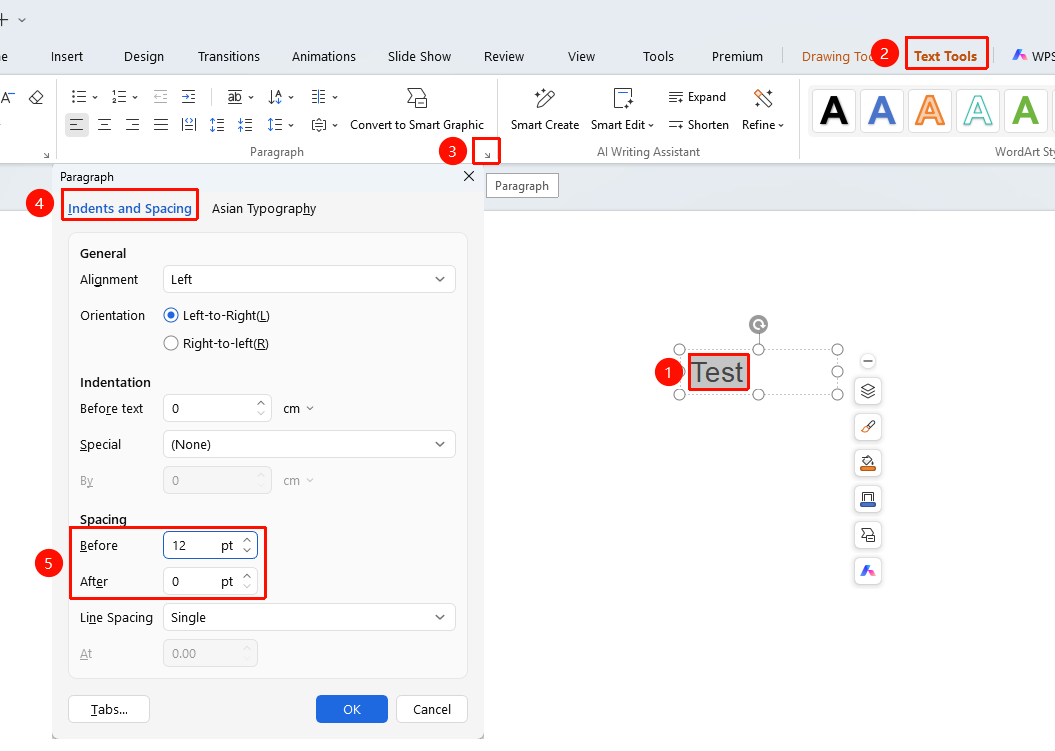
Text Tools tab > Paragraph > Dialog Box Launcher
Select the paragraph you want to adjust.
Click the Text Tools tab.
Click the dialog box launcher in the lower right corner of the Paragraph group.
In the Indents and Spacing tab, configure the following settings:
- Before: Set the spacing above the paragraph
- After: Set the spacing below the paragraph
Enter a value or use the spinner buttons to adjust.
Click OK to apply.
Notes
- Modifications will take effect immediately on the current document. We recommend saving your file first.
- Test the effect on the actual device before any important presentation.
- Right-click after selecting text, and click Paragraph in the context menu to quickly open paragraph settings.