Feature Summary
AirPage supports inserting date elements, making it easier to manage time information in a standardized way. It is suitable for scenarios where dates need to be marked in a Document.
Feature Description
| Feature Dimension | Description |
|---|---|
| Membership Restriction | No membership restriction |
| Version Restriction | No version restriction |
Operation Steps
Insert Date on Desktop
Feature Entry
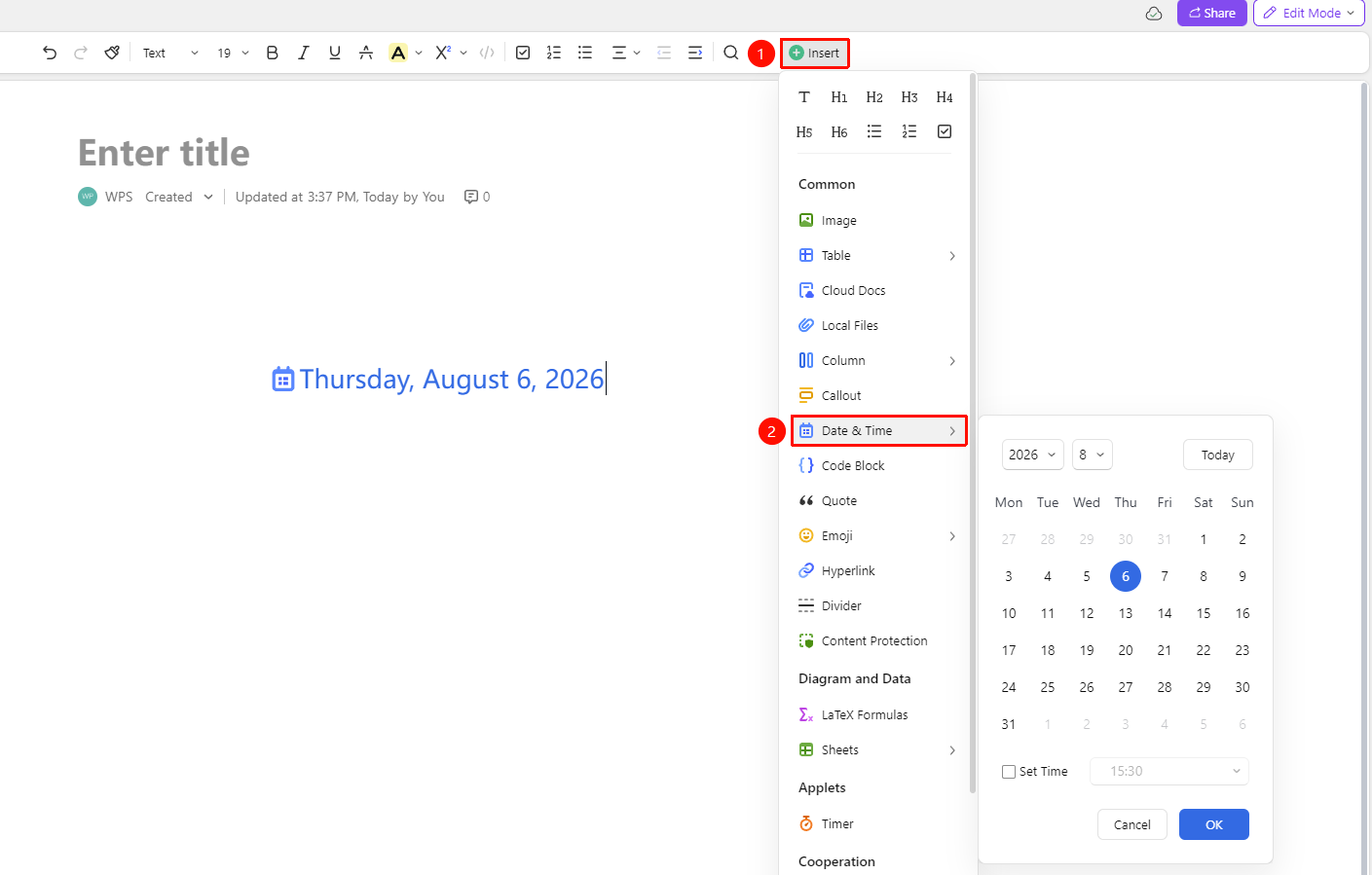
「Insert」tab → 「Date」
- Place the cursor where you want to insert the date
- Click the 「Insert」 button in the ribbon
- Select the 「Date」 option
- Select a date in the date picker panel
- You can check 「Set Time」 and select a specific time point
Use Quick Commands
Feature Entry
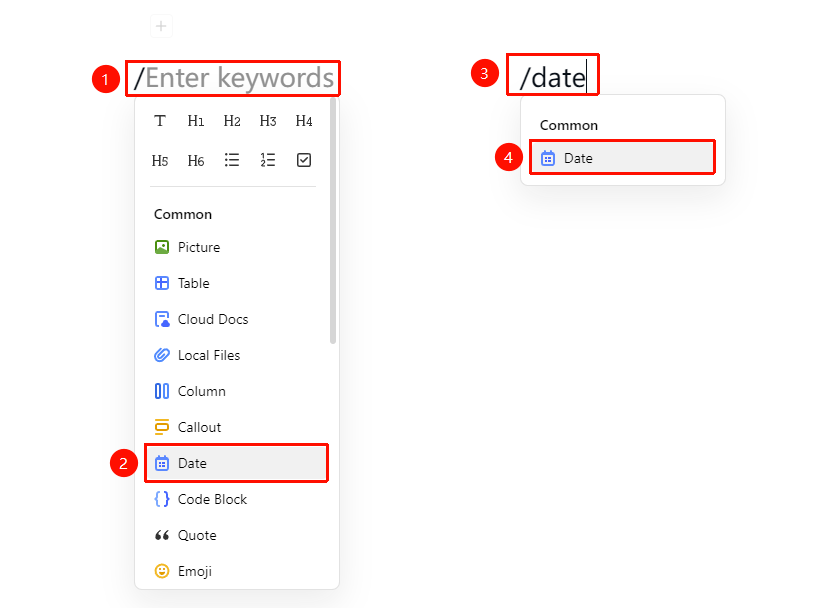
「Paragraph input」→ 「/」→ 「Date」
- Place the cursor where you want to insert the date
- Type / to bring up the quick menu,select the date option to insert
- Or type /date
- Select the date option to insert
Modify an Inserted Date
Feature Entry
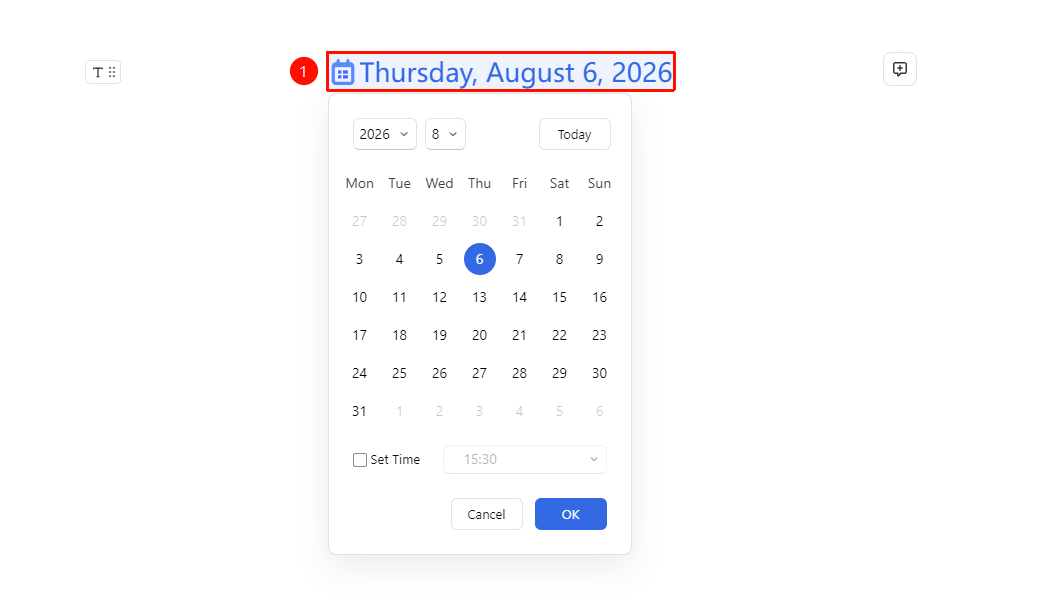
「Click the date element」→ 「Date picker panel」
- Click the inserted date element in the Document
- Bring up the date picker panel
- Modify the date and time
- Click confirm to complete the update
FAQ
Q1: Can the inserted date include a specific time?
- Solution: Yes, when inserting a date, check the 「Set Time」 option to select a specific time point.
Q2: Can the inserted date be modified?
- Solution: Yes, click the inserted date element to open the date picker panel for modification.
Notes
- Multiple date format options are supported
- The inserted date will automatically adjust based on the system time zone
- Suitable for marking creation time, deadlines, etc. in a Document
- In the body, quickly insert by typing: /date