Feature Summary
WPS Slides collaboration mode supports sharing presentations as files, allowing you to send PPT files to others.
Feature Description
| Feature Dimension | Description |
|---|---|
| Membership Restriction | No membership restriction |
| Version Restriction | No version restriction |
Steps
Share File
Feature Entry 1
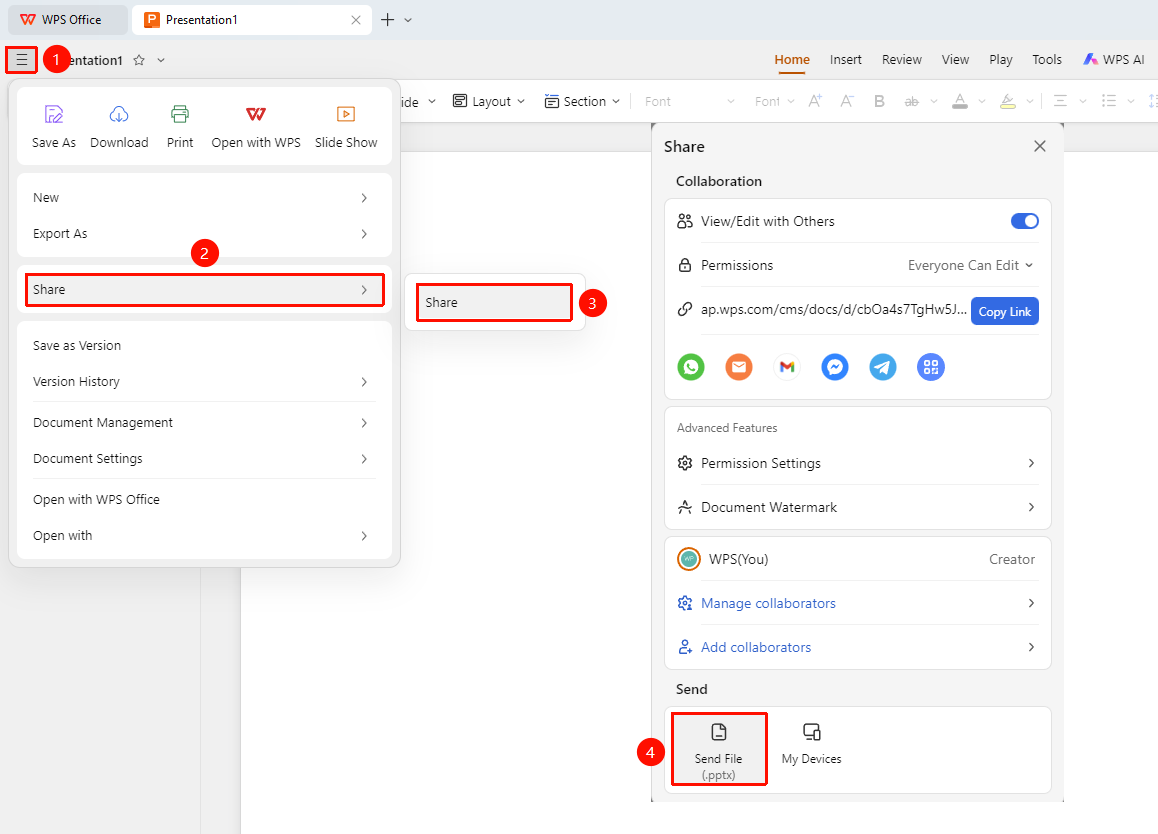
Top-left file operation button → "Share" → "Send File"
- Click the "File Operation" button (three horizontal lines icon) in the top-left corner
- Click "Share" → "Share" option
- In the share panel, click the "Send File" button at the bottom
- In the pop-up "Save As" dialog box, select a save location
- Click "Save" to complete
Feature Entry 2
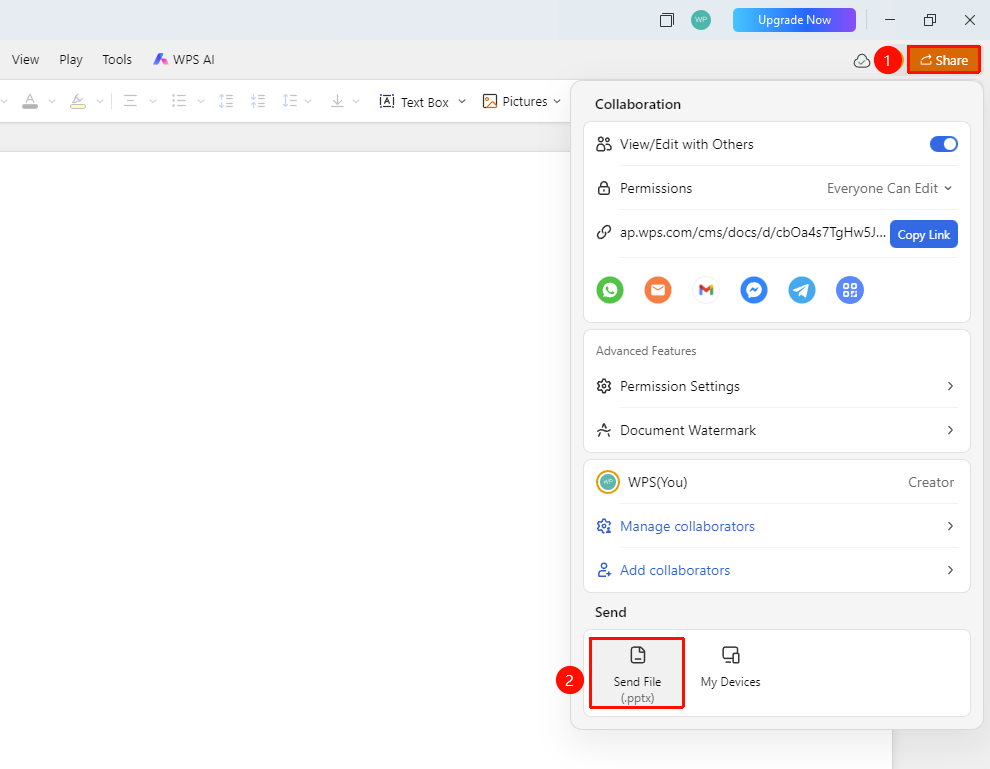
Top-right share button → "Send File"
- Click the "Share" button in the top-right corner
- In the share panel, click the "Send File" button at the bottom
- In the pop-up "Save As" dialog box, select a save location
- Click "Save" to complete
FAQ
Q1: What is the format of the shared file?
- Solution: The default format is PPTX, which retains the complete presentation content and formatting.
Q2: What is the difference between file sharing and link sharing?
- Solution: File sharing sends a PPTX file, while link sharing shares a collaboration link.
Q3: Will the shared file contain collaboration information?
- Solution: No, the shared file is an independent file and does not contain collaboration records.
Notes
- File sharing will first save the file to the local disk
- Recipients can view the file without signing in