Feature Summary
Edit slides in full-screen mode while in WPS Slides collaboration mode.
Feature Description
| Feature Dimension | Description |
|---|---|
| Membership Restriction | No membership restriction |
| Version Restriction | No version restriction |
Steps
Full-Screen Display
Feature Entry 1
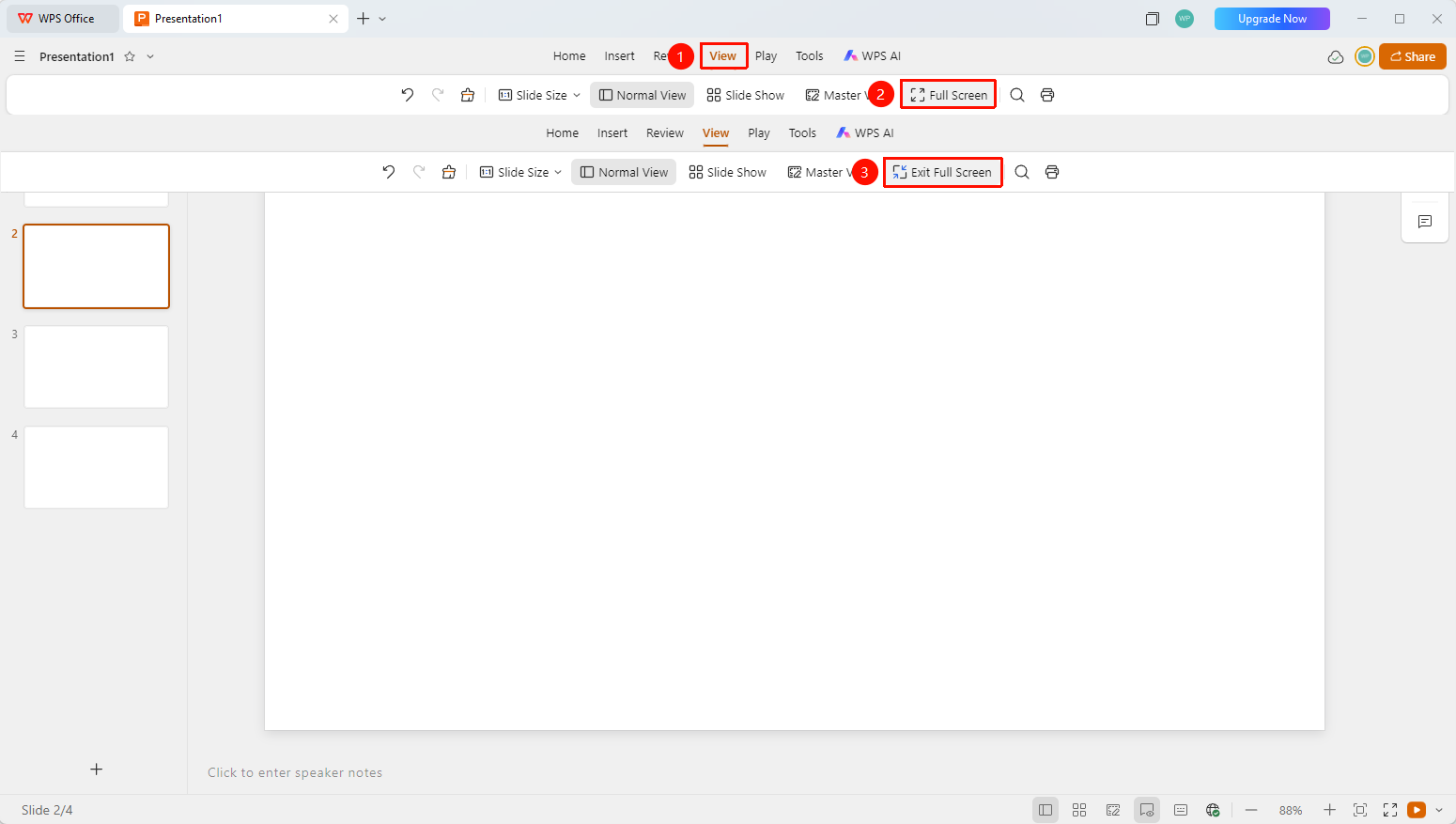
"View" tab → "Full-Screen Display" button
- Click the "View" tab in the top menu bar
- Click the "Full-Screen Display" button in the toolbar
- Enter full-screen Read Mode
- Click the "Exit Full Screen" button or press the Esc key to exit full screen
Feature Entry 2
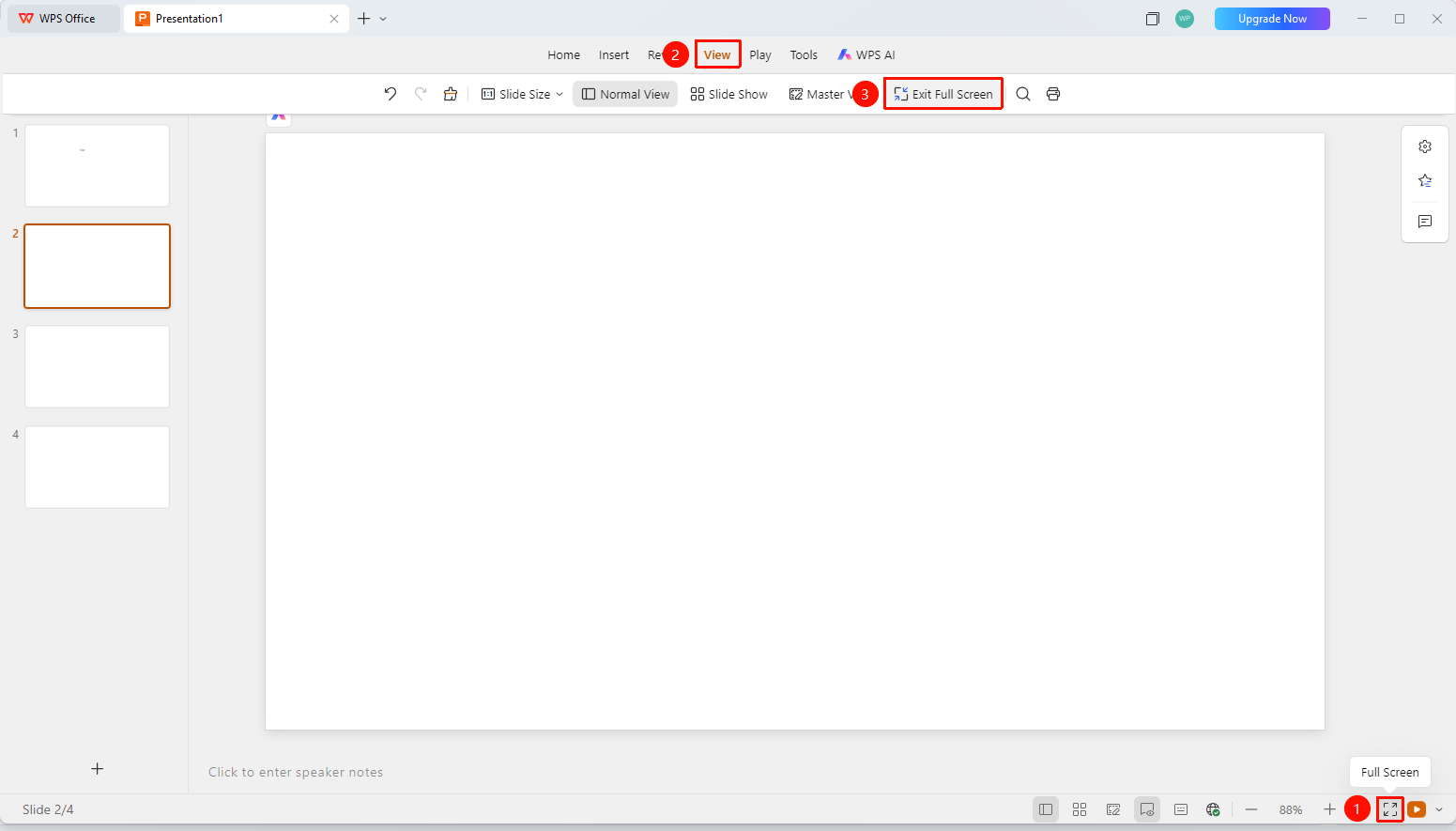
Bottom status bar → "Full-Screen Display" button
- Locate and click the "Full-Screen Display" button on the bottom status bar
- Enter full-screen Read Mode
- Click the "Exit Full Screen" button or press the Esc key to exit full screen
FAQ
Q1: How do I exit full-screen mode?
- Solution: Click the "Exit Full Screen" button on the ribbon.
Notes
- Full-screen display is different from presenting a slideshow. Full-screen display shows the PPT interface content in full screen, allowing you to edit slides in full-screen mode.