Feature Summary
In WPS Slides collaboration mode, delete unwanted slides, with support for quick deletion via the right-click menu.
Feature Description
| Feature Dimension | Description |
|---|---|
| Membership Restriction | No membership restriction |
| Version Restriction | No version restriction |
Steps
Delete a Slide via the Right-Click Menu
Feature Entry
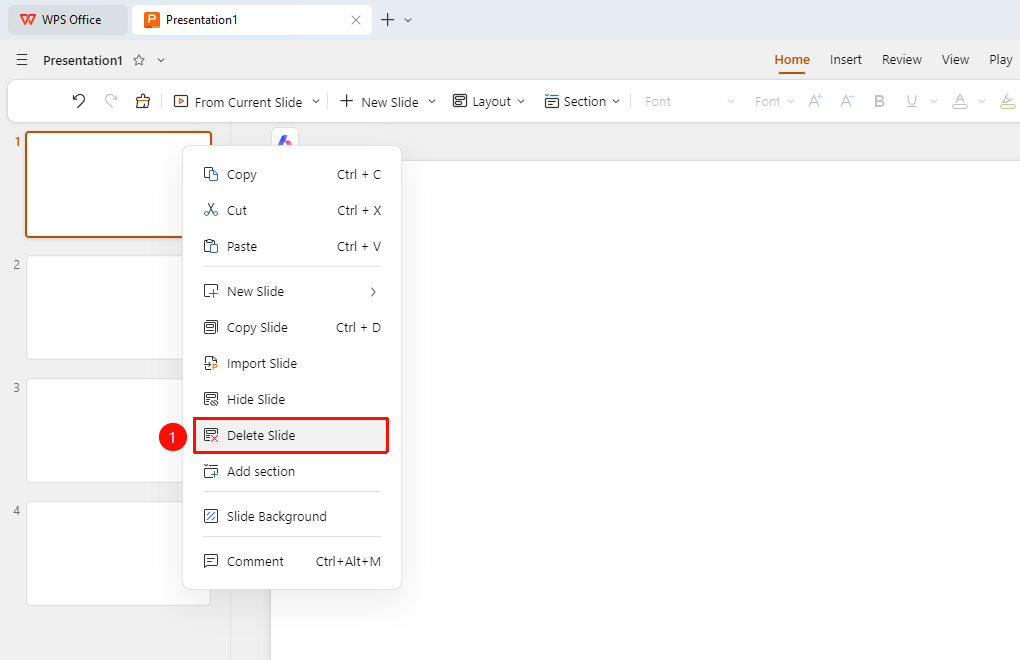
Left-side slide thumbnails → Right-click menu → "Delete Slide" option
- In the left-side slide thumbnail area, right-click the slide you want to delete
- In the pop-up right-click menu, select the "Delete Slide" option
- The slide will be deleted
FAQ
Q1: How to recover a slide if it was deleted by mistake?
- Solution: Use the shortcut Ctrl+Z to undo the deletion and recover the deleted slide.
Q2: How to batch delete multiple slides?
- Solution: Hold down the Ctrl key and click multiple slides to select them, then right-click and select "Delete Slide".
Notes
- Deletion can be undone; it is recommended to use Ctrl+Z immediately after accidental deletion to recover
- Deleting a slide will also delete all its content
- It is recommended to confirm that the slide is truly no longer needed before deleting