Feature Summary
In WPS Slides collaboration mode, apply a strikethrough effect to selected text, commonly used to mark content that has been deleted or needs to be deleted.
Feature Description
| Feature Dimension | Description |
|---|---|
| Membership Restriction | No membership restriction |
| Version Restriction | No version restriction |
Steps
Add Strikethrough via the Ribbon
Feature Entry
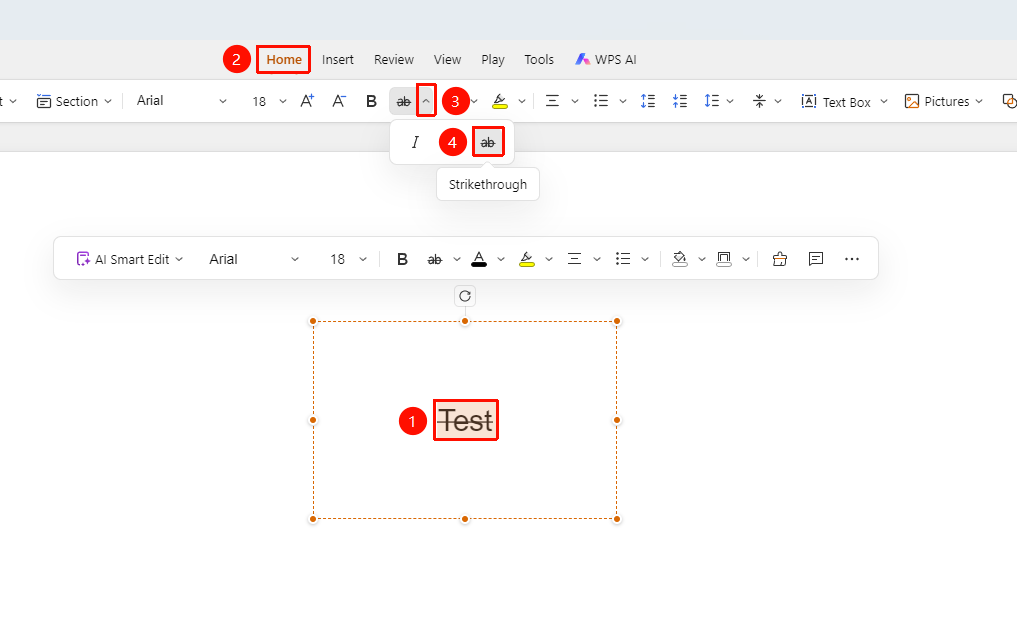
"Home" tab → Font formatting area → "Text Properties" dropdown button → "Strikethrough" icon
- Select the text you want to add strikethrough to
- Click the "Home" tab in the top menu bar
- Find the "Text Properties" dropdown button in the font formatting area
- Click the "Strikethrough" button (icon is
ab) to apply the strikethrough effect to the text
Add Strikethrough via the Task Pane
Feature Entry
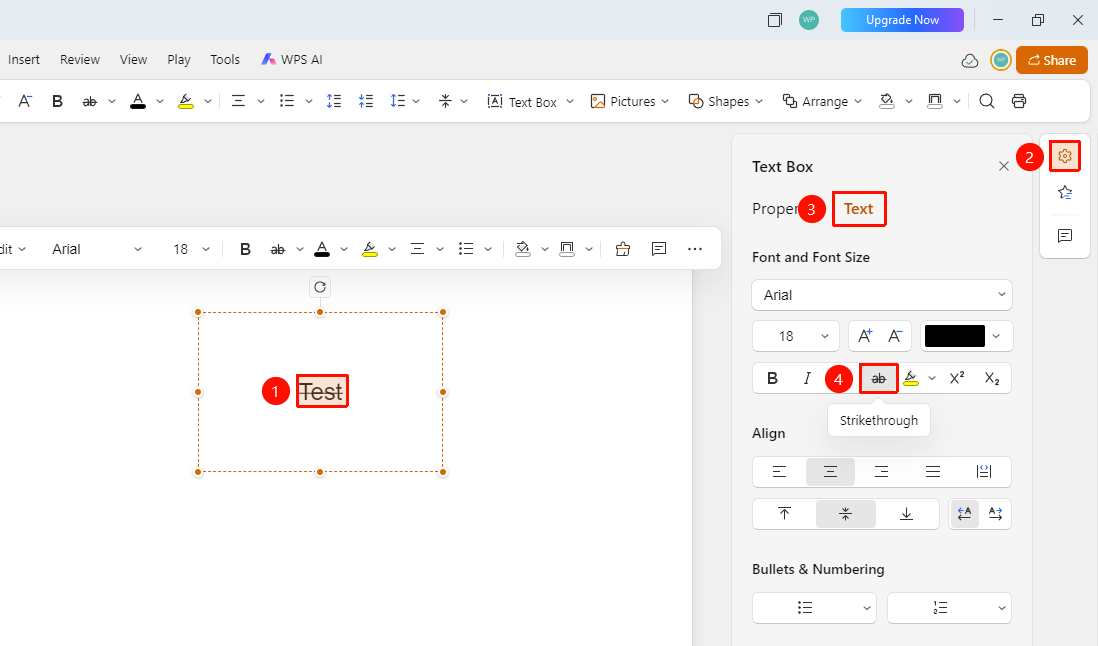
Right sidebar → Format → Text → "Strikethrough" button
- Select the text you want to add strikethrough to
- Click the "Format" option in the right task pane
- Select the "Text" tab
- Find the "Strikethrough" button in the font formatting area
- Click the button to apply the strikethrough effect to the text
Add Strikethrough via the Floating Toolbar
Feature Entry
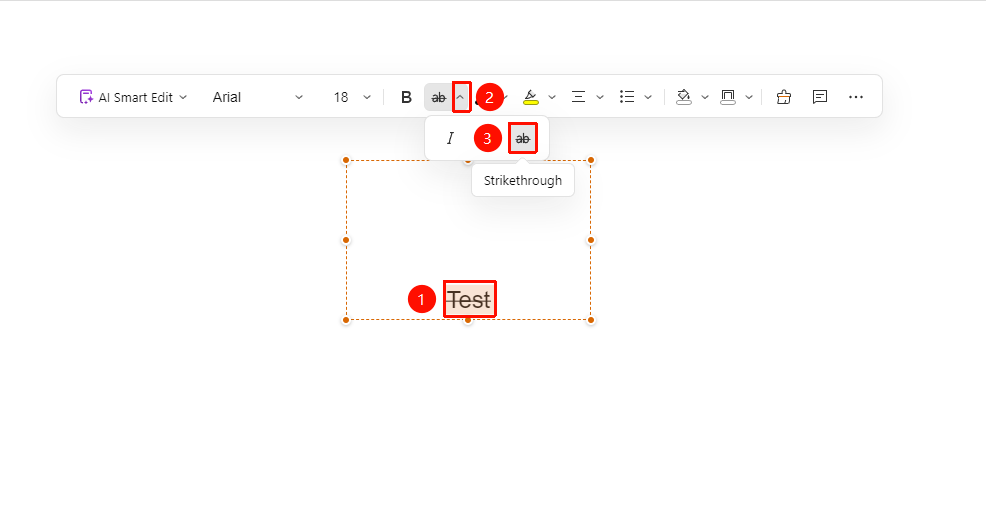
Floating toolbar → "Text Properties" dropdown button → "Strikethrough" icon
- Select the text you want to bold to bring up the floating toolbar
- Click the "Text Properties" dropdown button in the floating toolbar
- Click the "Strikethrough" button (icon is
ab) to apply the strikethrough effect to the text
FAQ
Q1: What should I do if the Strikethrough button is grayed out?
- Solution: You need to select text content first to use the strikethrough feature. Please confirm that the target text has been selected.
Q2: How do I remove the strikethrough effect?
- Solution: Select the text with strikethrough applied, then click the Strikethrough button again to remove it.
Notes
- Strikethrough only applies to the currently selected text
- Strikethrough is commonly used to mark content that needs to be deleted or is obsolete
- It can be combined with other text formatting (such as bold, italic)