Feature Summary
In WPS Slides collaboration mode, the Animation Painter allows you to quickly copy animation effects from one object to others, improving animation creation efficiency.
Feature Description
| Feature Dimension | Description |
|---|---|
| Membership Restriction | No membership restriction |
| Version Restriction | No version restriction |
Steps
Using the Animation Painter
Feature Entry
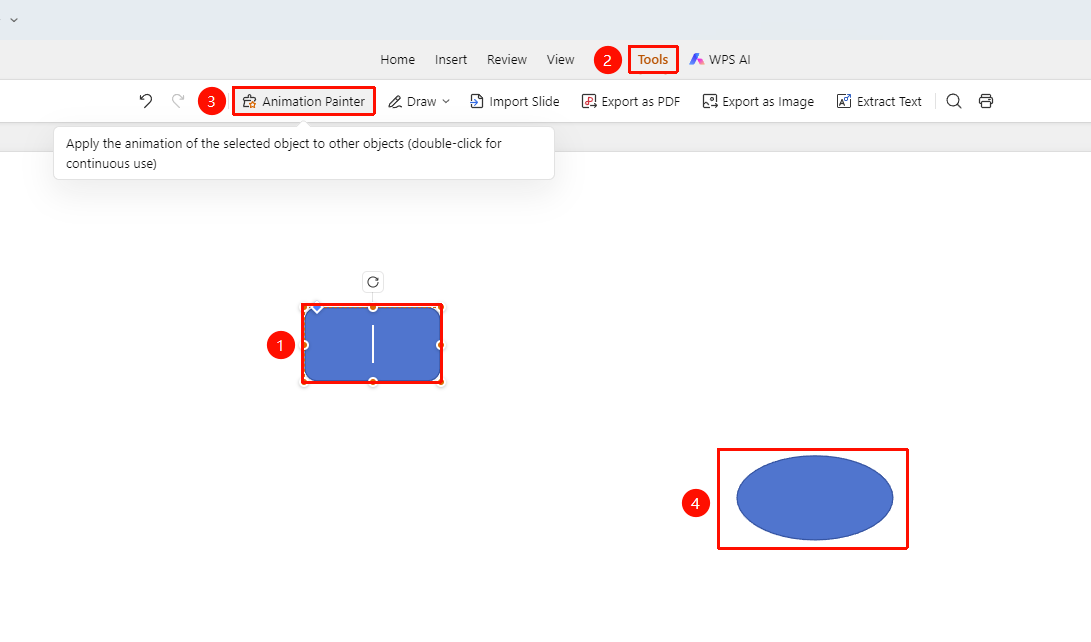
"Tools" tab → "Animation Painter" button
- Select the object with the animation applied (as the animation source)
- Click the "Tools" tab in the top menu bar
- Click the "Animation Painter" button
- The cursor changes to a brush shape; click the target object to which you want to apply the animation
- The target object will copy the animation effects from the source object
- Double-click the Animation Painter button to apply it to multiple objects consecutively
FAQ
Q1: What should I do if the Animation Painter button is grayed out?
- Solution: You need to first select an object that has an animation applied to use the Animation Painter feature. Please ensure the source object has an animation set.
Q2: How do I use the Animation Painter continuously?
- Solution: Double-click the "Animation Painter" button to use it continuously. Press the Esc key or click the button again to exit continuous mode.
Notes
- The Animation Painter can only copy animation effects, not animation parameter settings
- Before using the Animation Painter, ensure the source object has an animation applied
- When using it continuously, pay attention to the accuracy of selecting the target objects