Feature Summary
In WPS Slides collaboration mode, add animation effects to slides, supporting both slide transitions and object animations to enhance presentation impact.
Feature Description
| Feature Dimension | Description |
|---|---|
| Membership Restriction | No membership restriction |
| Version Restriction | No version restriction |
Operation Steps
Setting Slide Transitions
Feature Entry
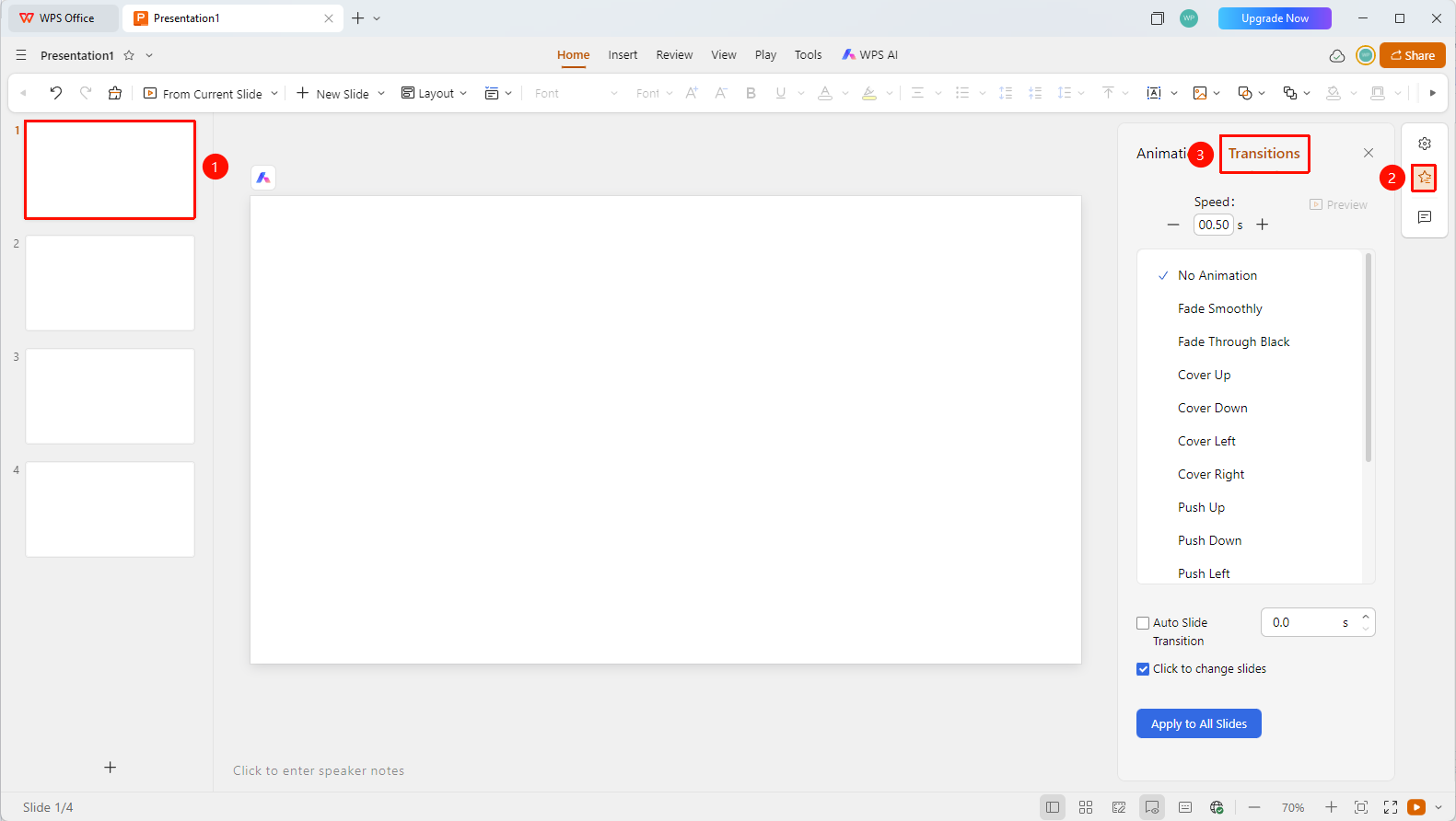
Right task pane → "Animation" tab → "Slide Transition"
- Navigate to the slide where you want to add a slide transition
- Click the "Animation" button in the right task pane
- Switch to the "Slide Transition" tab
- Select the desired slide transition effect:
- Smooth Fade Out: Smooth transition for the slide
- Fade Out from Black: Fade in from a black background
- Insert Type: Insert from top/bottom/left/right
- Push Type: Push from top/bottom/left/right
- Extract Type: Extract from top/bottom/left/right
- Set the animation speed (default 0.50 seconds)
- Optionally choose "Auto Slide Advance" or "On Mouse Click"
- Click "Apply to All Slides" to apply the current slide transition to all slides in the document
Setting Object Animations
Feature Entry 1
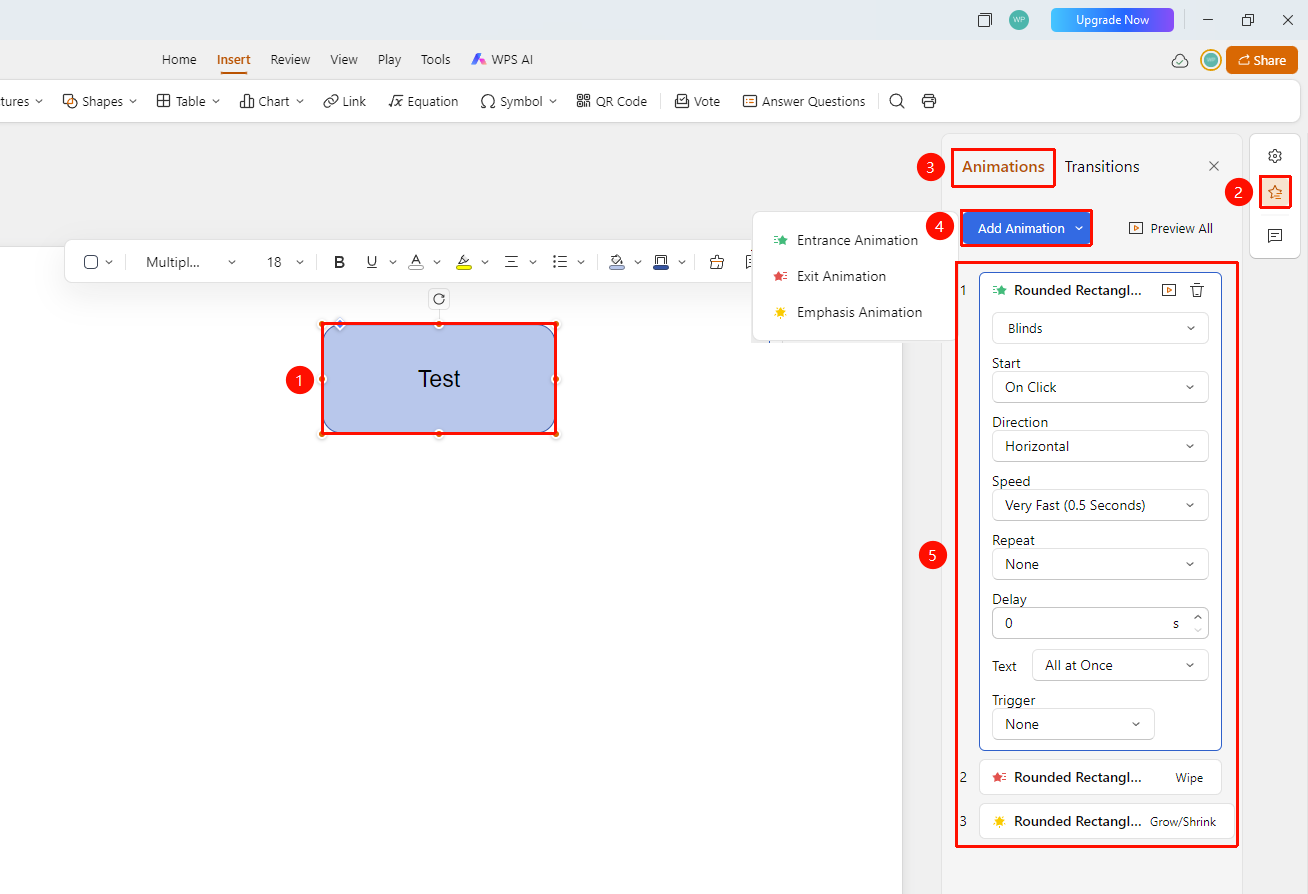
Right task pane → "Animation" tab → "Object Animation"
- Select the object to animate (text box, image, shape, etc.)
- Click the "Animation" button in the right task pane
- Switch to the "Object Animation" tab
- Click the "Add Animation" button to set entrance, exit, and emphasis animations separately
- Configure animation trigger method, direction, speed, delay time, and other parameters
- Drag and drop to adjust the animation order
Feature Entry 2
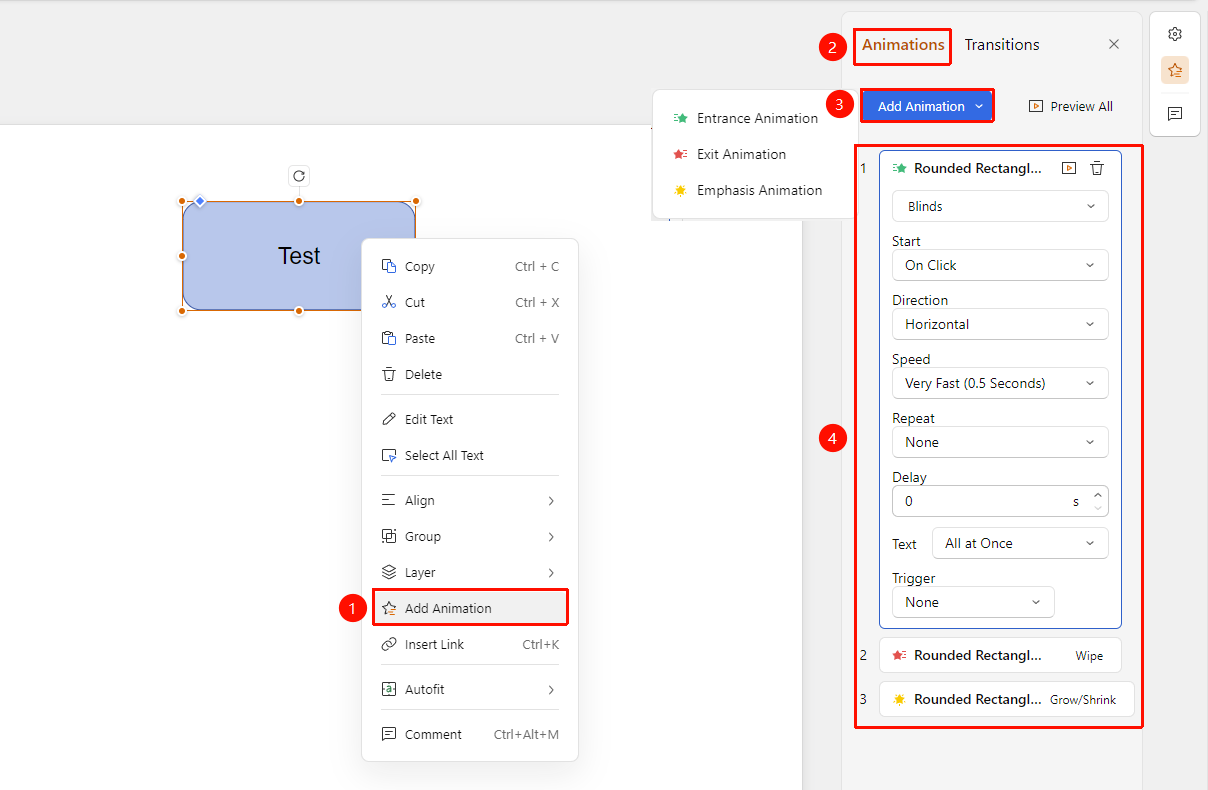
Object right-click menu → "Add Animation" → "Object Animation"
- Select the object to animate (text box, image, shape, etc.), right-click to open the context menu
- Select the "Add Animation" option to expand the "Object Animation" tab on the right
- Click "Add Animation" to select the desired object animation effect
- Configure animation trigger method, direction, speed, delay time, and other parameters
- Drag and drop to adjust the animation order
FAQ
Q1: What is the difference between slide transitions and object animations?
- Solution: Slide transitions are overall effects when switching slides, while object animations are animation effects for individual objects.
Q2: How do I preview animation effects?
- Solution: After setting an animation, you can click the preview button to view the animation effect.
Q3: How do I delete an animation that has been set?
- Solution: Select the corresponding animation effect and choose "Delete" to remove it.
Notes
- Slide transitions should maintain a consistent style
- Avoid using too many object animations to prevent affecting the presentation effect
- You can use "Apply to All Slides" to uniformly set slide transitions