Feature Summary
In WPS Slides collaboration mode, save the presentation or export it to PDF, image, and other formats for easy sharing and use.
Feature Description
| Feature Dimension | Description |
|---|---|
| Membership Restriction | Some features require you to subscribe to membership |
| Version Restriction | No version restriction |
Steps
Save As Document
Feature Entry
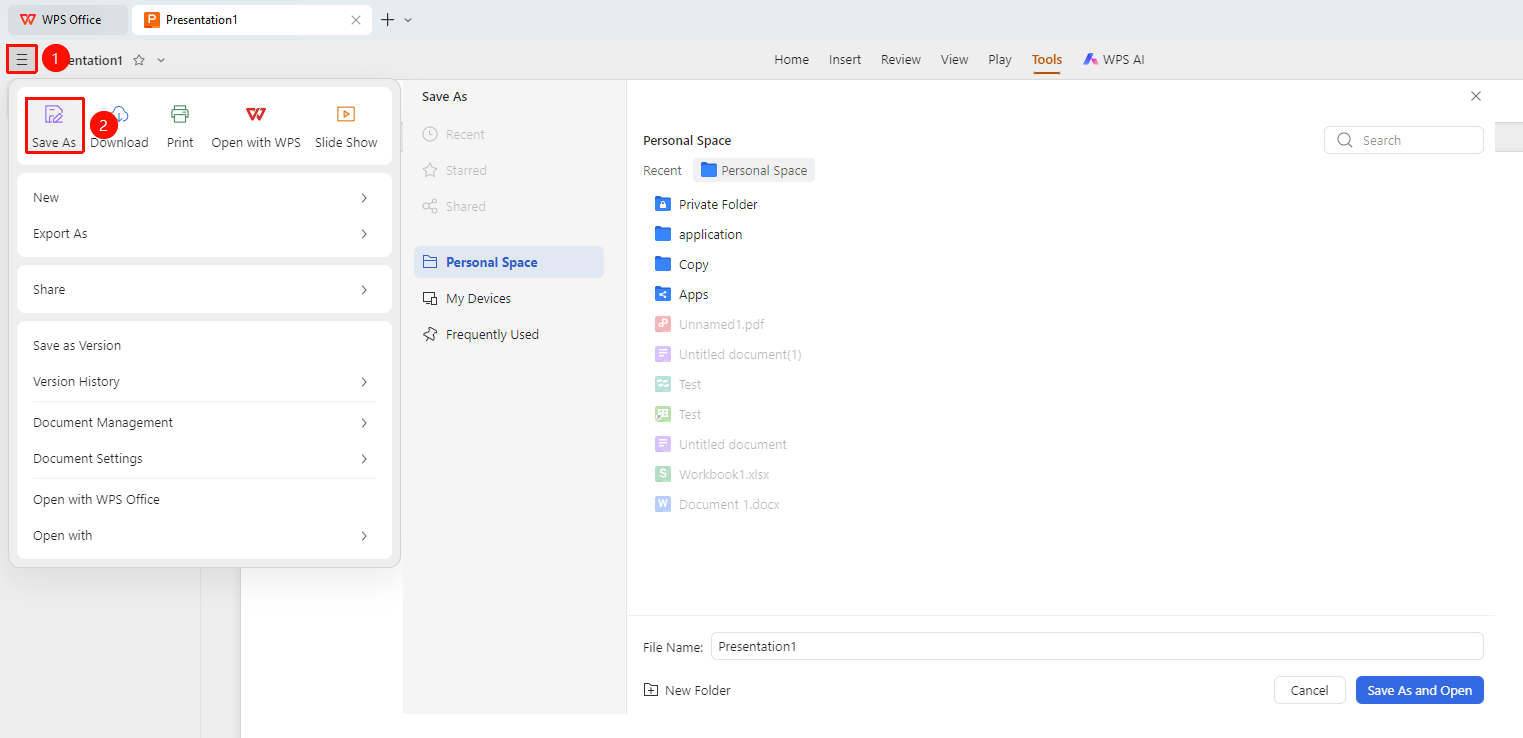
Top-left "File Operations" button → "Save As" option
- Click the "File Operations" button (☰ icon) in the top-left corner
- Click the "Save As" button
- Select the save location and file name
- Click confirm to complete saving
Download Document
Feature Entry
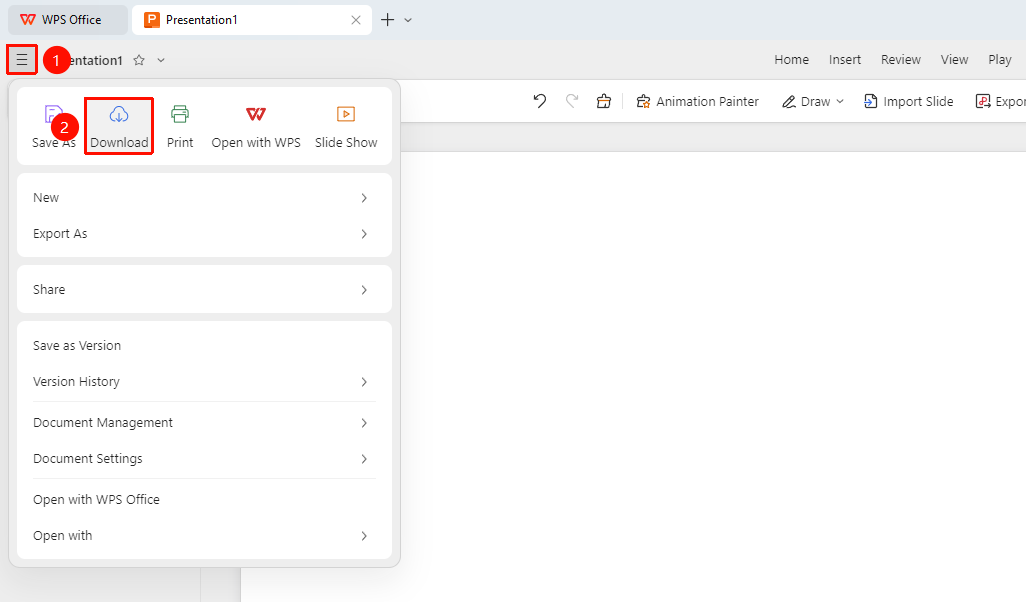
Top-left "File Operations" button → "Download" button
- Click the "File Operations" button (☰ icon) in the top-left corner
- Click the "Download" button
- The file will be downloaded to the local default download location
Export as PDF
Feature Entry 1
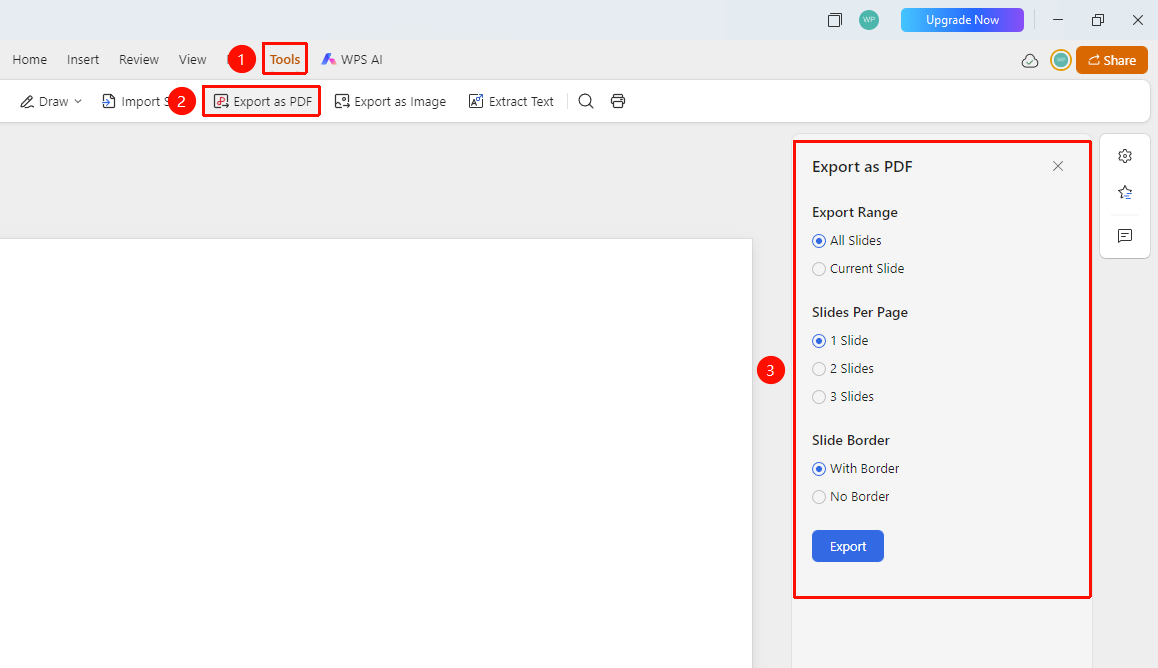
"Efficiency" tab → "Export as PDF" button
- Click the "Efficiency" tab in the top menu bar
- Click the "Export as PDF" button
- Set export options in the pop-up dialog on the right
- Click "Export" and select the storage location
- The system will export the online collaboration Slides document to a local PDF file based on the selected export settings
Feature Entry 2
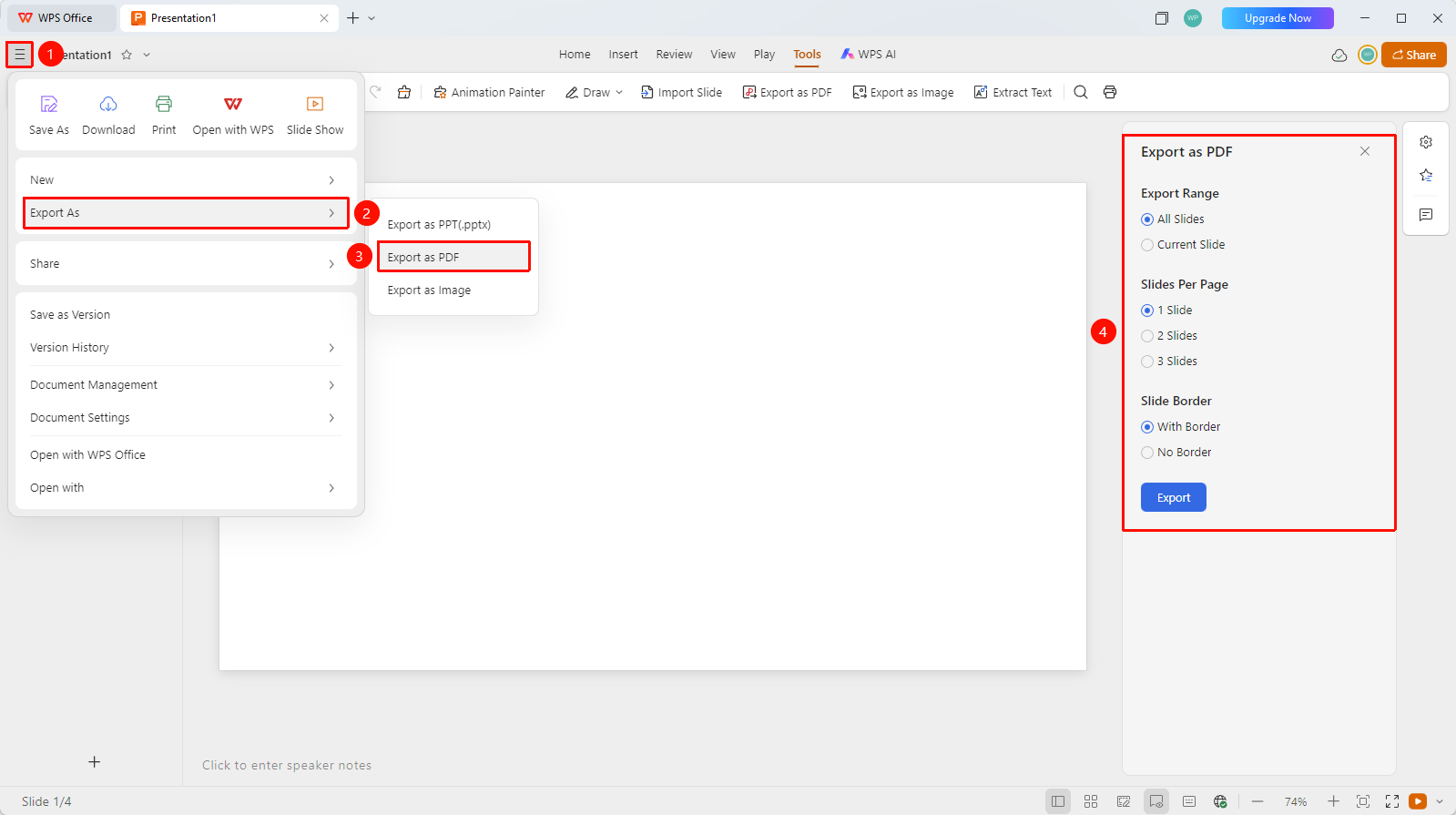
Top-left "File Operations" button → "Export As" → "Export as PDF"
- Click the "File Operations" button (☰ icon) in the top-left corner
- Find and click the "Export As" option
- Select "Export as PDF" to expand the export dialog on the right
- Set export options in the dialog on the right
- Click "Export" and select the storage location
- The system will automatically export the online collaboration Slides document to a local PDF file based on the selected export settings
Export as Image (includes some membership features)
Feature Entry 1
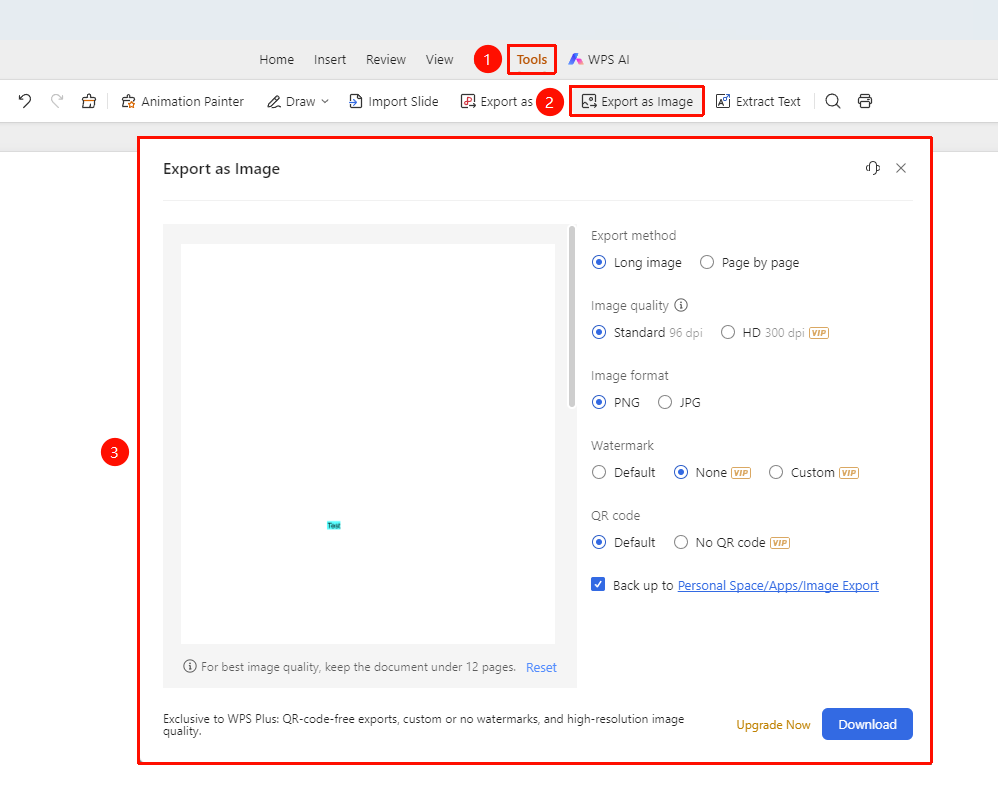
"Efficiency" tab → "Export as Image" button
- Click the "Efficiency" tab in the top menu bar
- Select the "Export as Image" option
- Configure the following settings in the pop-up interface:
- Output Method: Select "Combine into long image" or "Output page by page"
- Image Quality: Set the image output quality
- Image Format: Select "PNG" or "JPG"
- Watermark Settings: Set the watermark for image output
- QR Code: Select "Default" or "No QR code"
- Backup to: Check to back up to a Drive path
- After completing the settings, click the "Download Image" button to export
Feature Entry 2
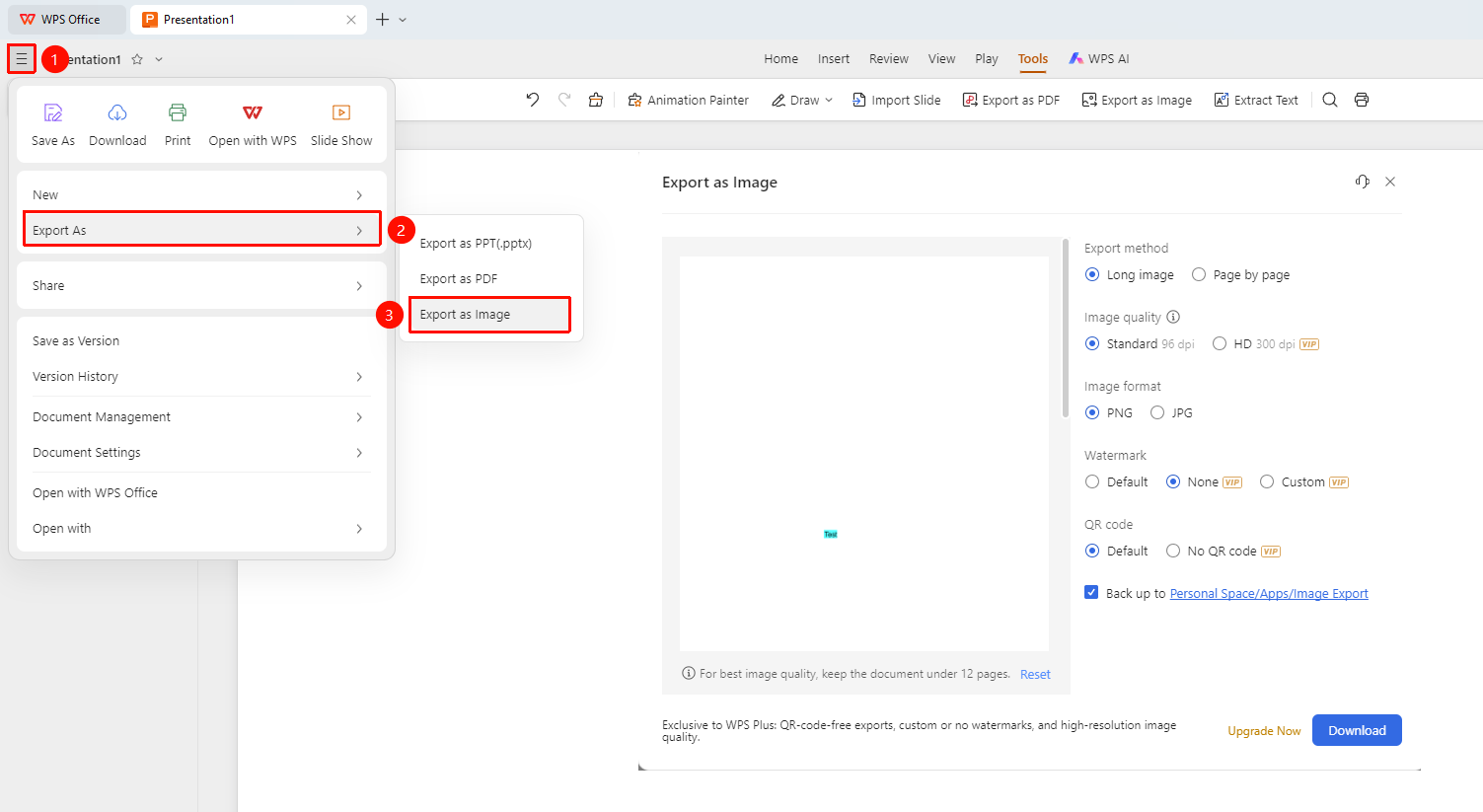
Top-left "File Operations" button → "Export As" → "Export as Image"
- Click the "File Operations" button (☰ icon) in the top-left corner
- Find and click the "Export As" option
- Select "Export as Image" to expand the export dialog
- Set export options in the export dialog
- After completing the settings, click the "Download Image" button to export
- The system will automatically export the online collaboration Slides document to an image file based on the selected export settings
Export as PPT
Feature Entry
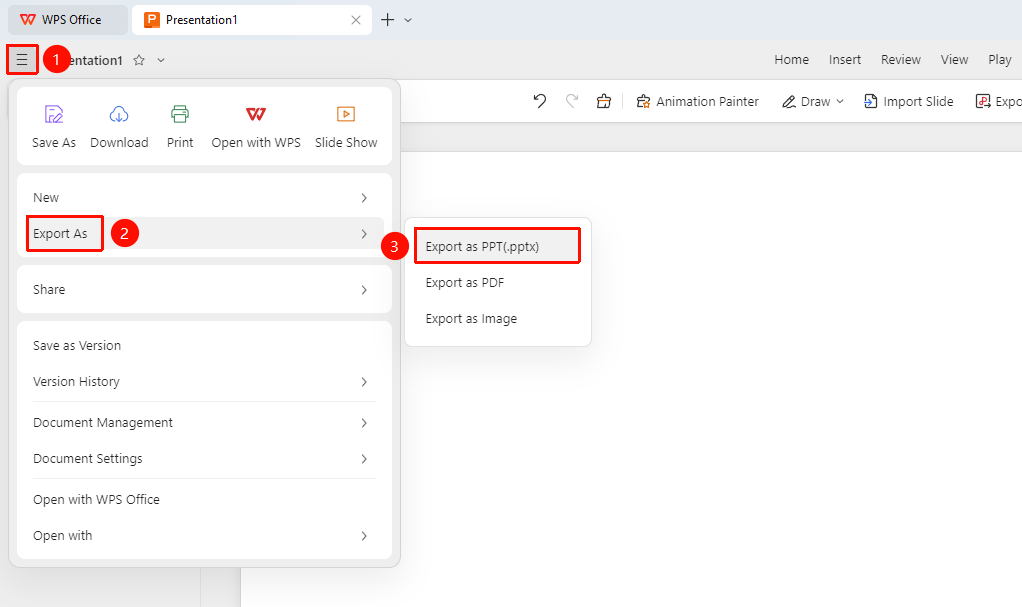
Top-left "File Operations" button → "Export As" → "Export as PPT"
- Click the File Operations button (☰ icon) in the upper left corner
- Find and click the Export As option
- Select Export as PPT
- Choose a storage location
- The system will automatically export the online collaborative Slides to a local presentation file (.pptx format)
FAQ
Q1: What is the difference between Save As and Download?
- Solution: Save As saves the Document to the Cloud, while Download saves the collaborative Document to your local device.