Feature Summary
In WPS Slides collaboration mode, set fill colors or images for objects (text boxes, shapes, etc.) to enhance the visual effect of your slides.
Feature Description
| Feature Dimension | Description |
|---|---|
| Membership Restriction | No membership restriction |
| Version Restriction | No version restriction |
Operation Steps
Set Fill Color via the Ribbon
Feature Entry
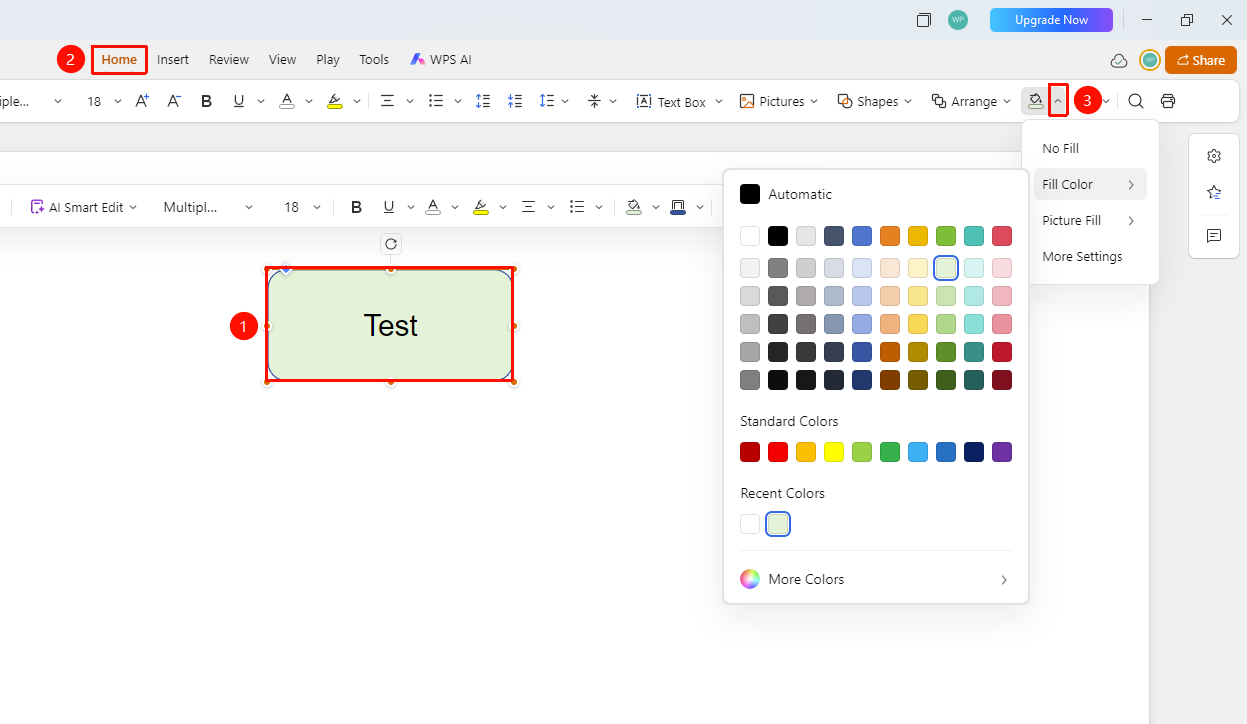
「Home」 tab → 「Fill Color」 dropdown button
- Select the object (text box, shape, etc.) you want to fill
- Click the 「Home」 tab in the top menu bar
- Click the 「Fill Color」 dropdown button in the toolbar
- Select the desired fill color from the pop-up color panel
- Click 「Picture Fill」 to select an image from local pictures, clipboard, cloud images, and other paths for filling
- Click 「More Settings」 to expand the side task pane for advanced configuration
Set Fill via the Task Pane
Feature Entry
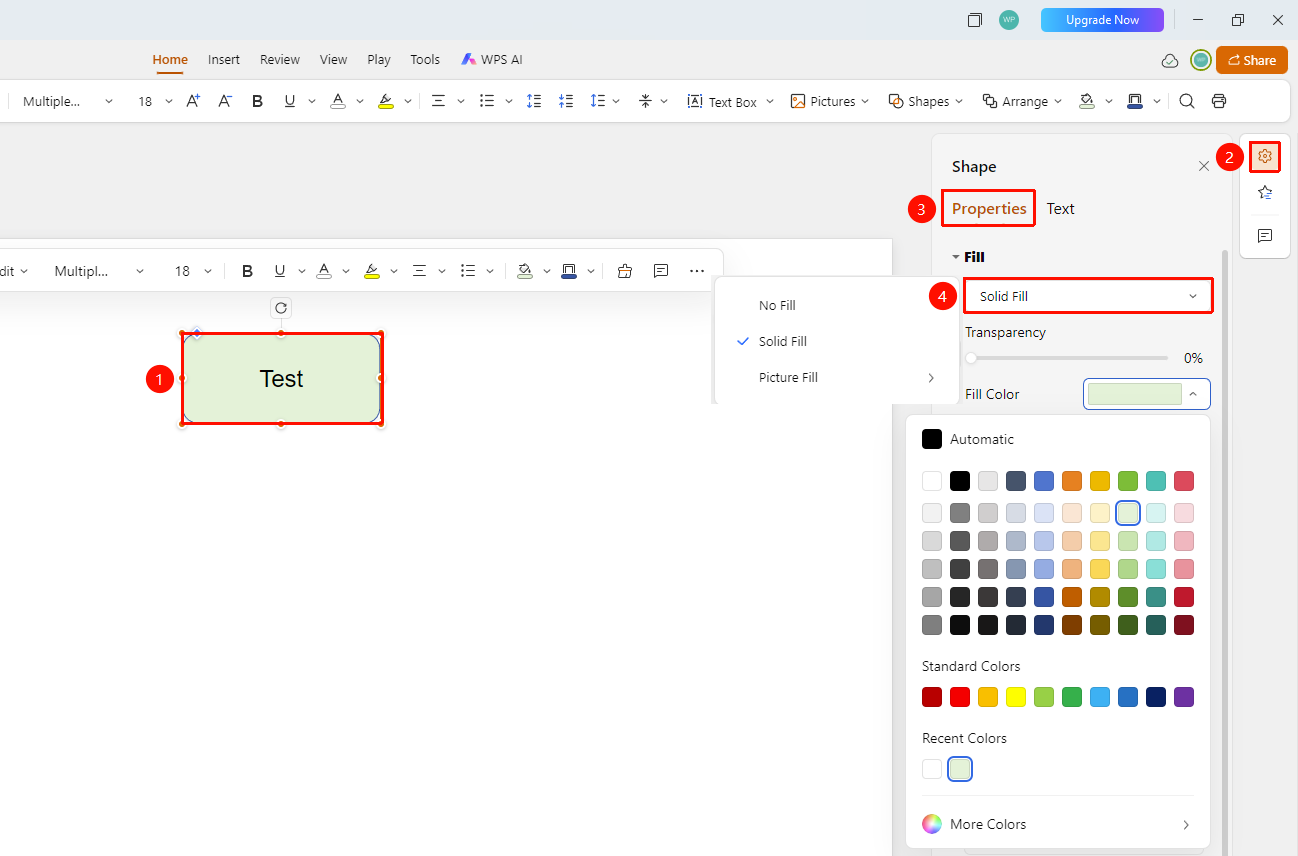
Right-side task pane → Format → Properties → Fill
- Select the object you want to fill
- Click the 「Format」 option in the right-side task pane
- Select the 「Properties」 tab
- Locate the 「Fill」 settings area
- Select the fill type from the dropdown menu:
- None: Cancel fill
- Solid Fill: Set a single color fill
- Picture Fill: Use an image as the fill background
Set Fill via the Floating Toolbar
Feature Entry
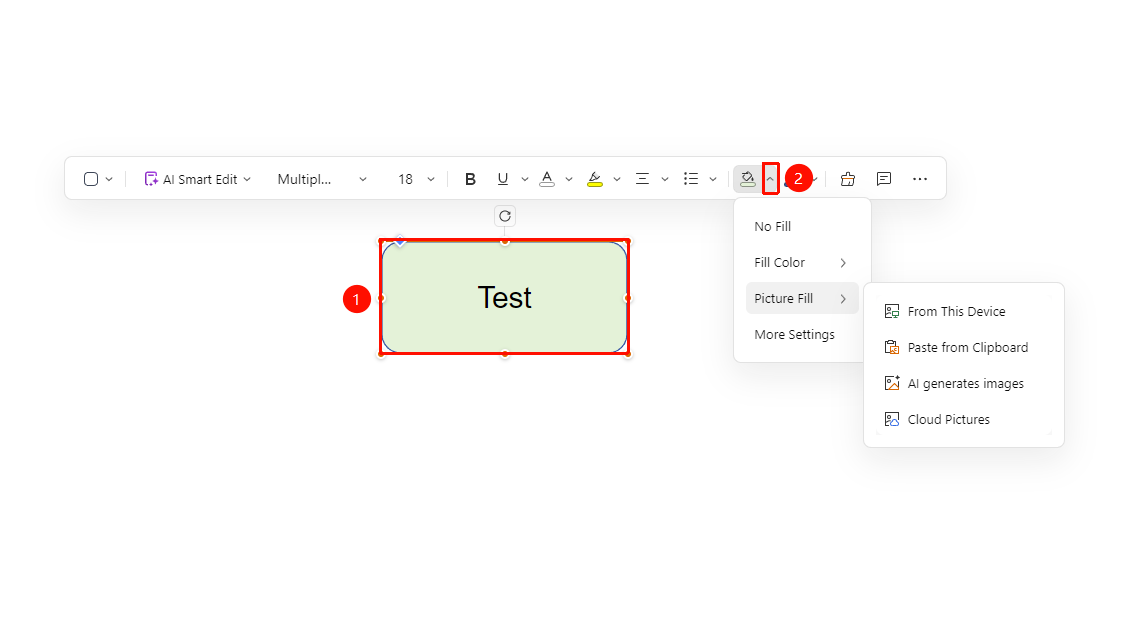
Floating toolbar → Fill dropdown button
- Select the object you want to fill to invoke the floating toolbar
- Find and click the 「Fill」 dropdown button in the floating toolbar, and set one of the following fill methods:
- No Fill: Cancel fill
- Color Fill: Expand the color panel to select the desired fill color
- Picture Fill: Select an image from local pictures, clipboard, cloud images, and other paths for filling
- More Settings: Expand the side task pane for advanced configuration
Set Fill Transparency
Feature Entry
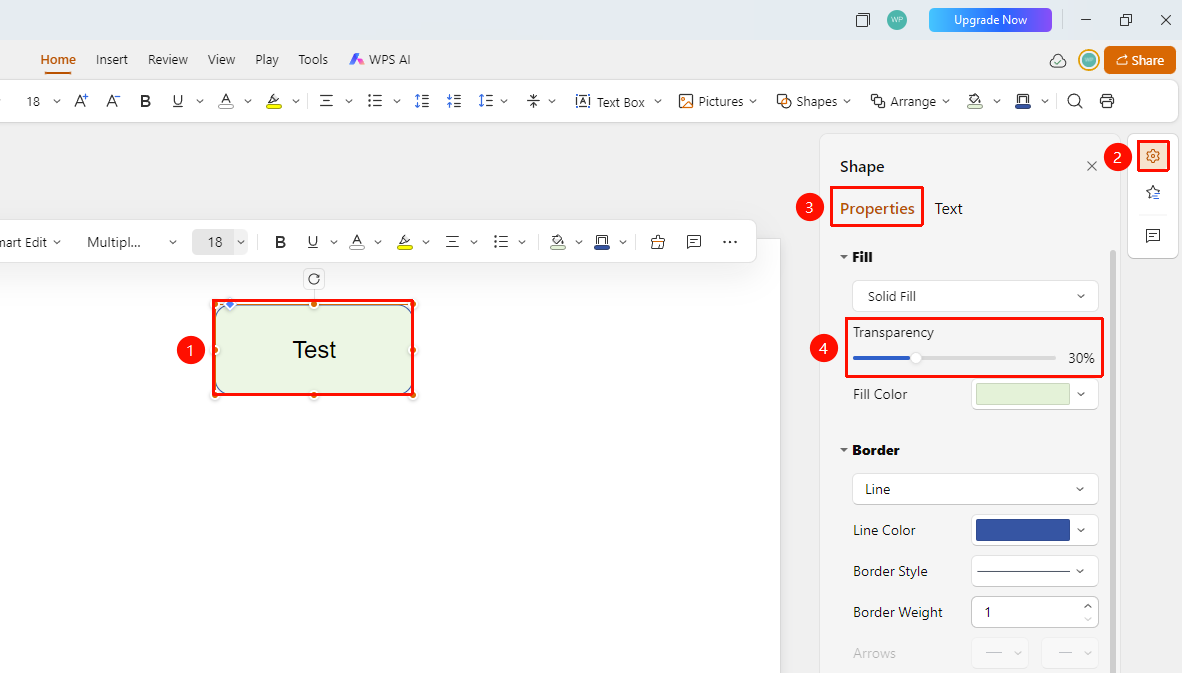
Side task pane → Properties → Fill → Transparency slider
- Select the object you want to fill
- Click the 「Format」 option in the right-side sidebar
- Select the 「Properties」 tab
- Find the transparency option in the 「Fill」 section
- Drag the 「Transparency」 slider to adjust the transparency level of the fill
- 0% transparency is completely opaque, and 100% is completely transparent
FAQ
Q1: What should I do if the fill option is grayed out?
- Solution: You need to select an object first to use the fill feature. Please confirm that the target object is selected.
Q2: How to set a gradient fill?
- Solution: In the fill settings of the sidebar, select the gradient fill option to set a multi-color gradient effect.
Q3: How to adjust the transparency of the fill?
- Solution: After selecting a solid fill, drag the transparency slider to adjust the transparency level of the fill.
Notes
- The fill feature applies to objects such as text boxes, shapes, and images
- It is recommended to choose a suitable fill color based on the presentation theme
- Transparency settings can make the fill effect softer