Feature Summary
In WPS Slides collaboration mode, use the brush tool to draw ink on slides for annotation and explanation during presentations.
Feature Description
| Feature Dimension | Description |
|---|---|
| Membership Restriction | No membership restriction |
| Version Restriction | No version restriction |
Steps
Open the Brush Tool
Feature Entry
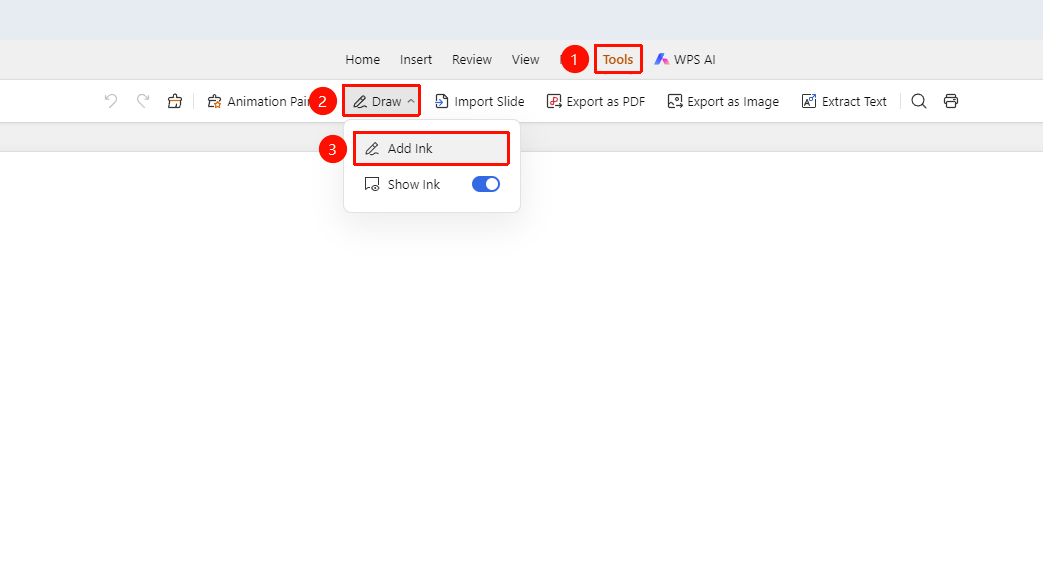
「Review」 tab → 「Brush」 drop-down menu → 「Open Brush」 option
- Click the 「Review」 tab in the top menu bar
- Click the 「Brush」 drop-down button in the toolbar
- Select the 「Open Brush」 option
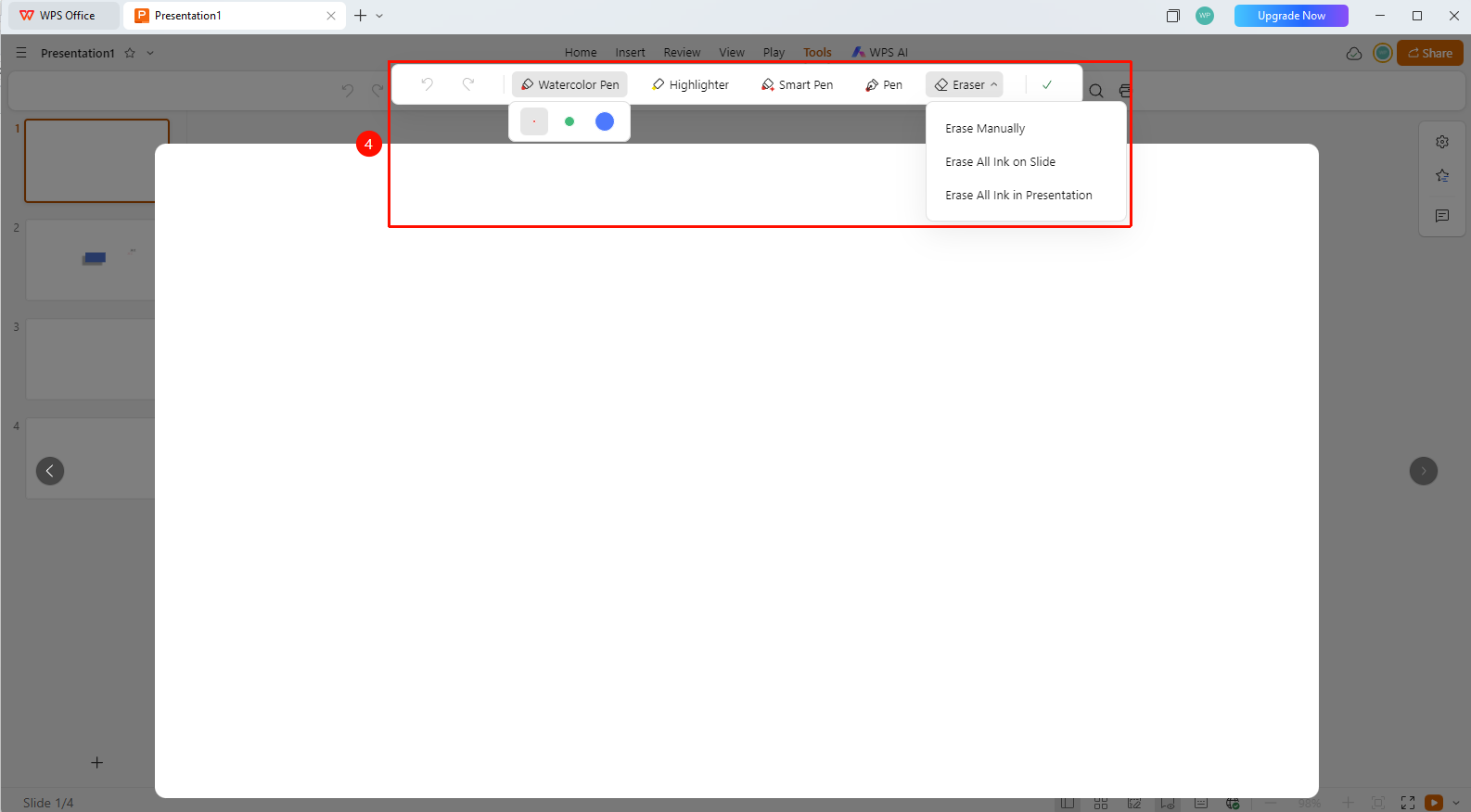
- The cursor changes to a brush shape, and you can draw on the slides
- You can switch between different strokes such as watercolor pen and highlighter
- Use the eraser to remove added ink
- Click 「Done」 to save the ink to the slide
Show/Hide Ink
Feature Entry
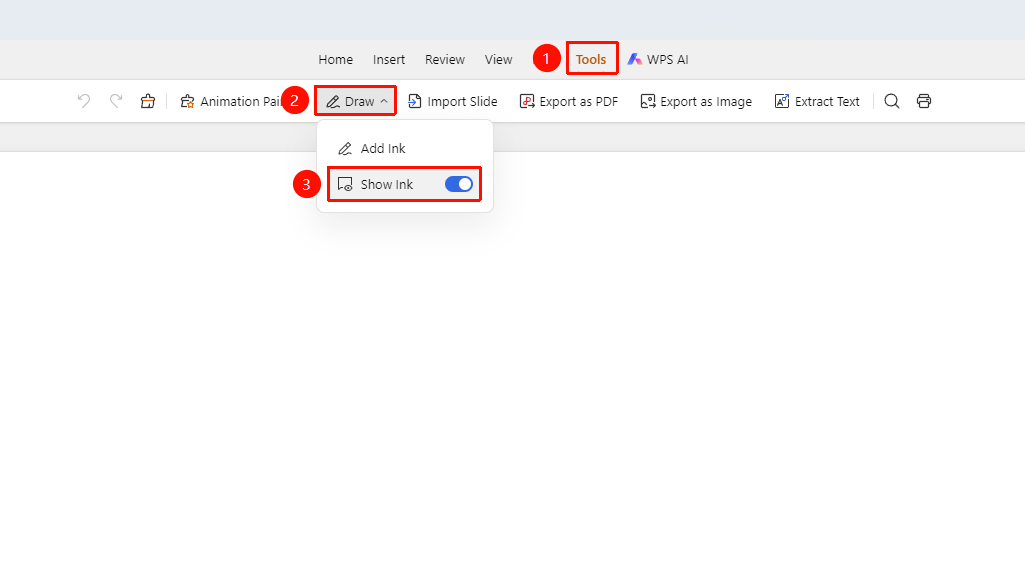
「Review」 tab → 「Brush」 drop-down menu → 「Show Ink」 toggle
- Click the 「Review」 tab in the top menu bar
- Click the 「Brush」 drop-down button in the toolbar
- Use the 「Show Ink」 toggle to control the display or hiding of ink
FAQ
Q1: How to clear brush ink?
- Solution: Select the eraser in the brush tool to clear, or use Cmd+Z to undo the most recent drawing.
Q2: How to hide ink without deleting it?
- Solution: Turn off the 「Show Ink」 toggle to hide the ink; turn it back on to display it again.
Notes
- Ink is saved in the slide and can be shown or hidden at any time