Feature Summary
In WPS Slides collaboration mode, set the font style and font size of text in slides to beautify the text display.
Feature Description
| Feature Dimension | Description |
|---|---|
| Membership Restriction | No membership restriction |
| Version Restriction | No version restriction |
Operation Steps
Set Font
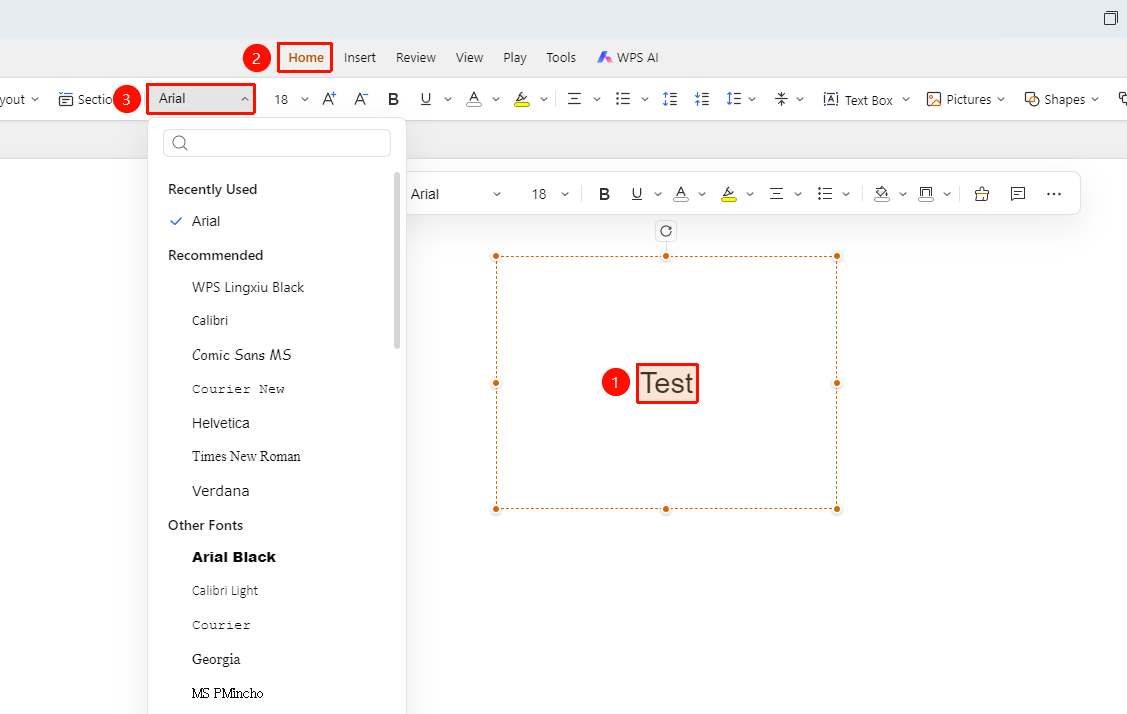
Feature Entry 1
「Home」 tab → 「Font」 dropdown menu
- Select the text for which you want to set the font
- Click the 「Home」 tab in the top menu bar
- Click the 「Font」 dropdown menu
- Select the desired font to apply it
Feature Entry 2
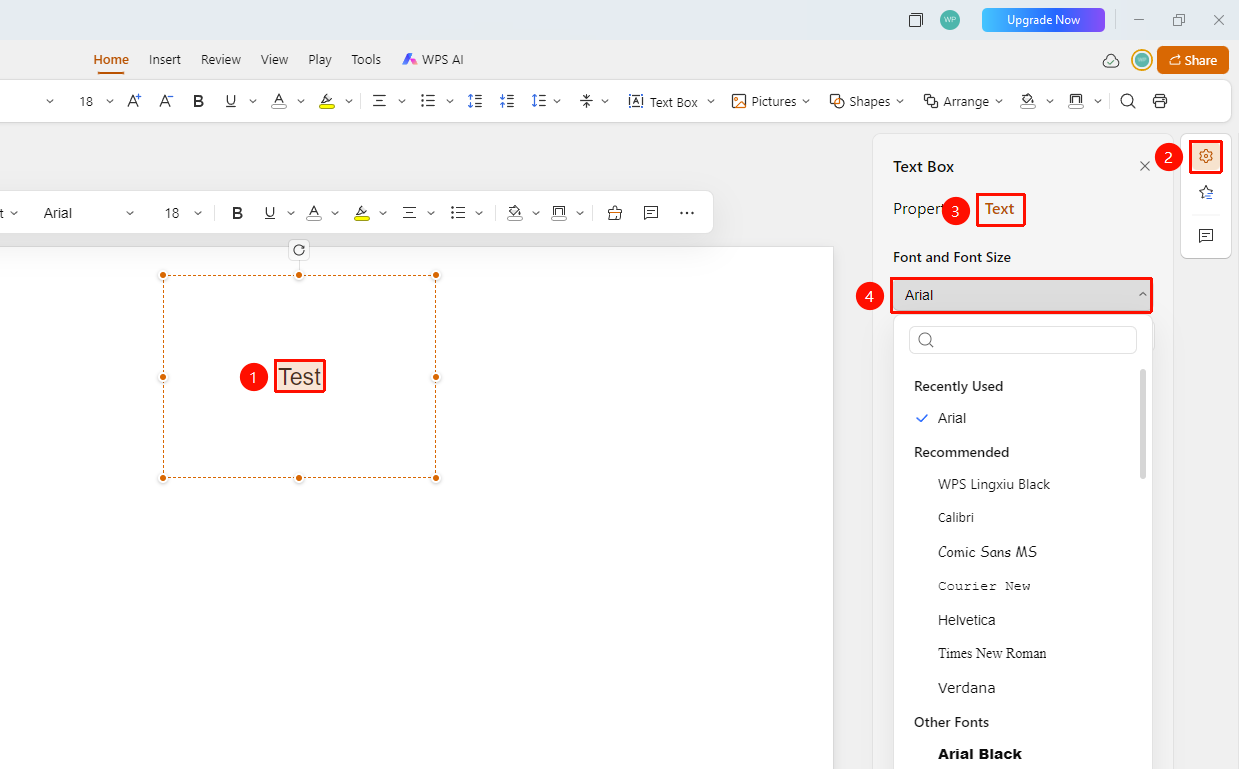
Right sidebar → Format → Docs → 「Font」 button
- Select the text for which you want to set the font
- Click the 「Format」 option in the right task pane
- Select the 「Docs」 tab
- Click the 「Font」 dropdown menu
- Select the desired font to apply it
Feature Entry 3
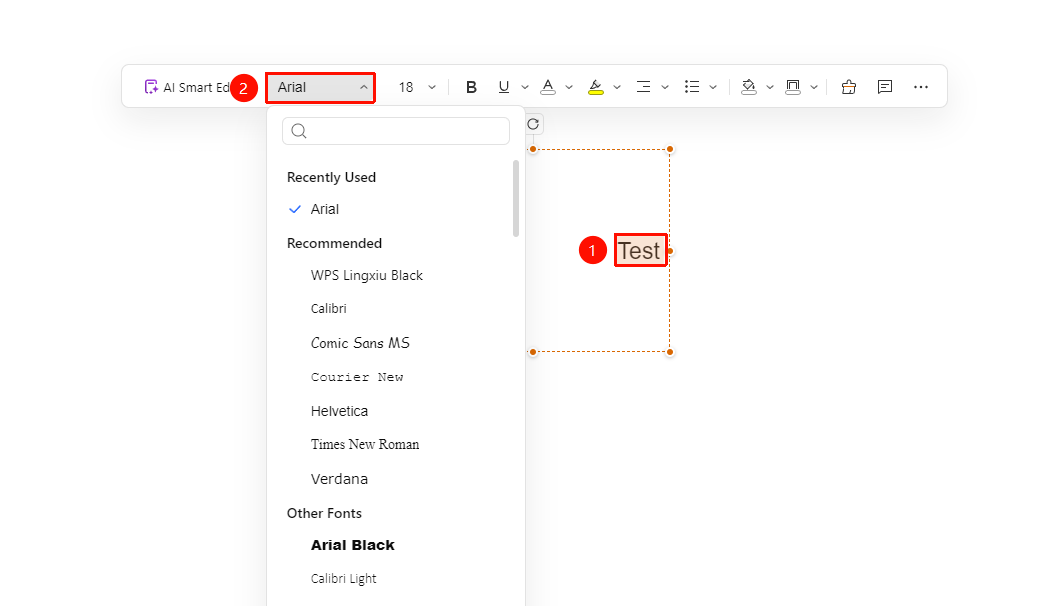
Floating toolbar → 「Font」
- Select the text for which you want to set the font
- Click the 「Font」 dropdown menu in the floating toolbar
- Select the desired font to apply it
Set Font Size
Feature Entry 1
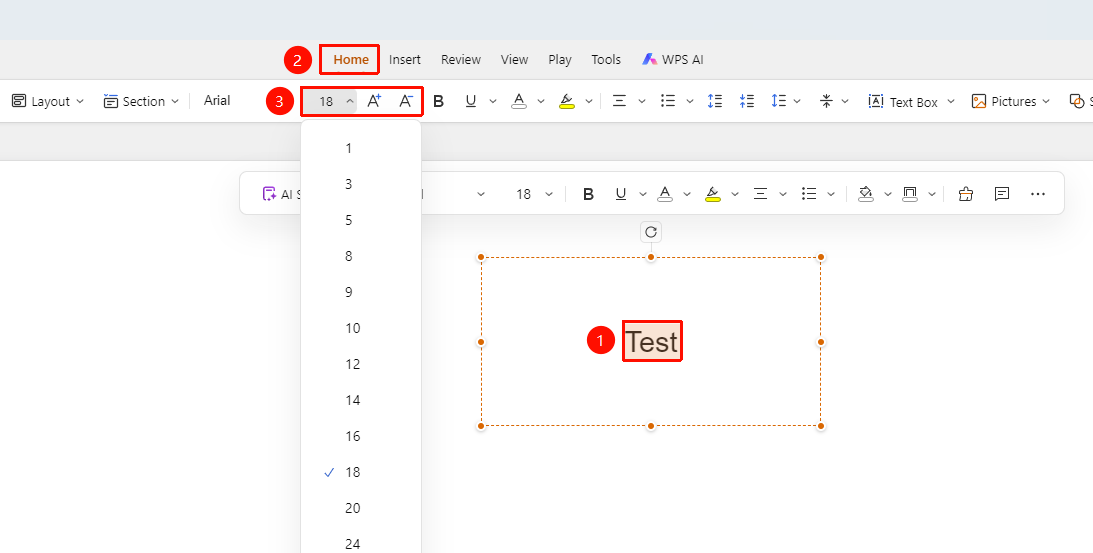
「Home」 tab → 「Font Size」 dropdown menu
- Select the text for which you want to set the font size
- Click the 「Home」 tab in the top menu bar
- Click the 「Font Size」 dropdown menu to select a preset font size
- You can also directly enter a custom font size value in the input box
- Use the 「Increase Font Size」 (A+) and 「Decrease Font Size」 (A-) buttons for quick adjustment
Feature Entry 2
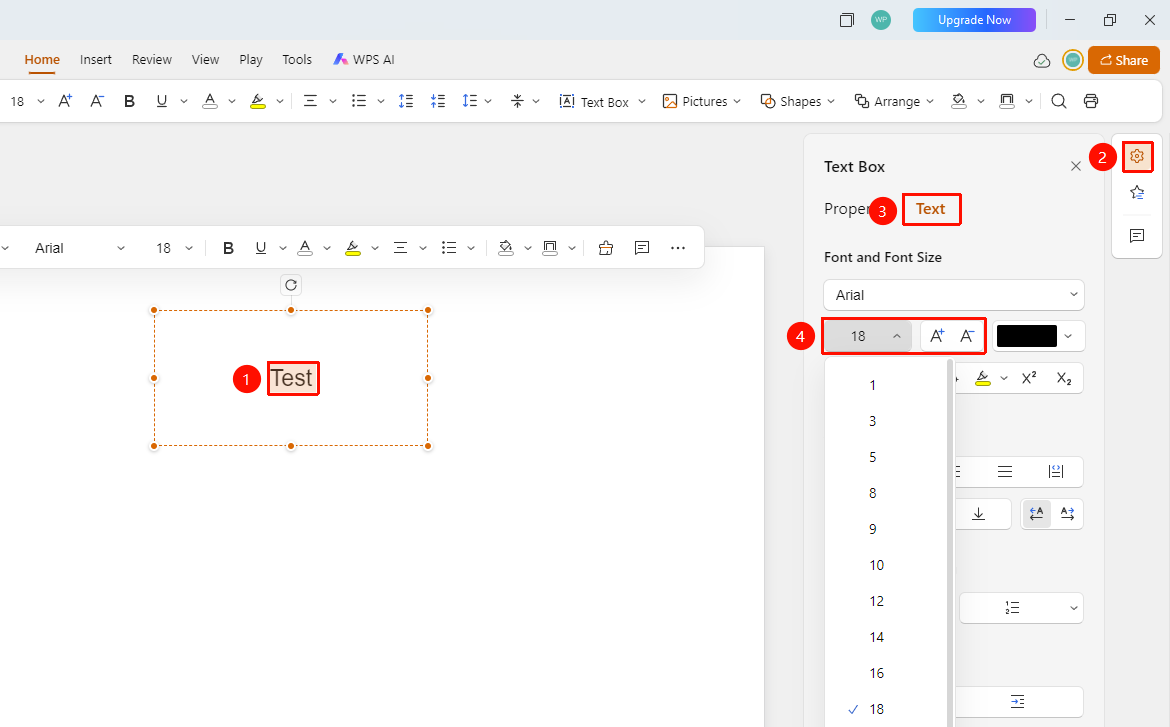
Right sidebar → Format → Docs → 「Font Size」 dropdown menu
- Select the text for which you want to set the font size
- Click the 「Format」 option in the right task pane
- Select the 「Docs」 tab
- Click the 「Font Size」 dropdown menu to select a preset font size
- You can also directly enter a custom font size value in the input box
- Use the 「Increase Font Size」 (A+) and 「Decrease Font Size」 (A-) buttons for quick adjustment
Feature Entry 3
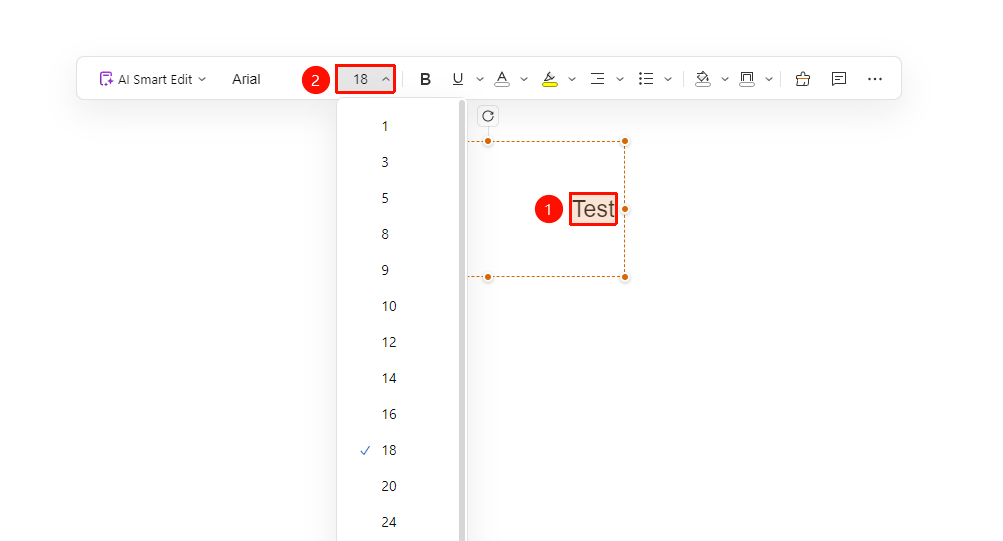
Floating toolbar → 「Font Size」
- Select the text for which you want to set the font size to invoke the floating toolbar
- Click the 「Font Size」 dropdown menu in the floating toolbar to select a preset font size
- You can also directly enter a custom font size value in the input box
FAQ
Q1: How to unify the font across all slides?
- Solution: You can use the Slide Master feature to uniformly set the font style.
Notes
- It is recommended to use a consistent font style throughout the entire presentation
- The title font size should be significantly larger than the body